Table of Contents
To connect a Bluetooth device in Windows, make the accessory discoverable, turn on Bluetooth on the PC, and select it from the Add device screen. The menu path differs by Windows version, so use the section that matches your computer.
Important: Windows 10 reached the end of standard support on October 14, 2025, and Windows 8.1 and Windows 7 ended support earlier. These systems still pair with compatible Bluetooth hardware, but moving to a supported operating system is the safer long-term option. Microsoft explains the status of each version on its Windows end-of-support page.
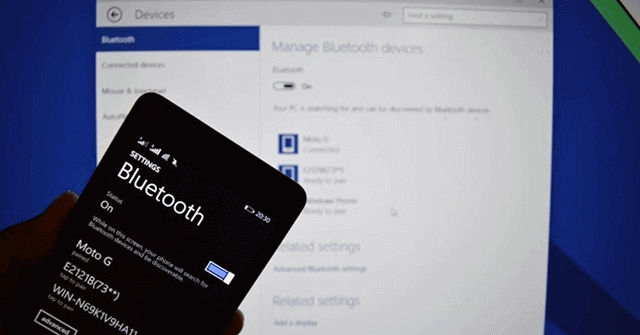
Before pairing a Bluetooth device
- Confirm that the PC has Bluetooth. A desktop without built-in Bluetooth may need a compatible USB adapter.
- Charge or install batteries in the accessory and keep it close to the PC.
- Put the accessory in pairing mode. This usually involves holding a Bluetooth or power button until an indicator flashes, but the exact method is in the device manual.
- If the accessory is already connected to a phone or another computer, disconnect it there. Some devices cannot accept a new connection while an old one is active.
Connect Bluetooth in Windows 11
- Press Windows + I to open Settings.
- Select Bluetooth & devices and turn on Bluetooth.
- Select Add device, then choose Bluetooth.
- Select the accessory when it appears. If both devices display a code, confirm that the codes match before accepting.
- Wait for Windows to report that the device is connected, then select Done.
You can also select the network, volume, or battery area on the taskbar to open Quick Settings and turn Bluetooth on. The Settings route is better for adding or removing devices.
If Windows offers a Swift Pair notification for a nearby supported accessory, select Connect. You can control those notifications in Settings > Bluetooth & devices > Devices; see how to enable or disable Bluetooth Quick Pairing.
Connect Bluetooth in Windows 10
- Open Start > Settings > Devices > Bluetooth & other devices.
- Turn on Bluetooth.
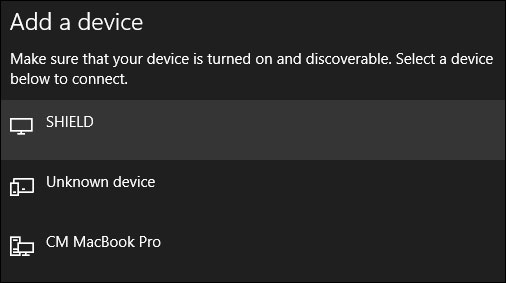
- Select Add Bluetooth or other device > Bluetooth.
- Choose the device, verify any pairing code, and complete the prompts.
You can also press Windows + A to open Action Center and select the Bluetooth tile. If the tile is hidden, select Expand.
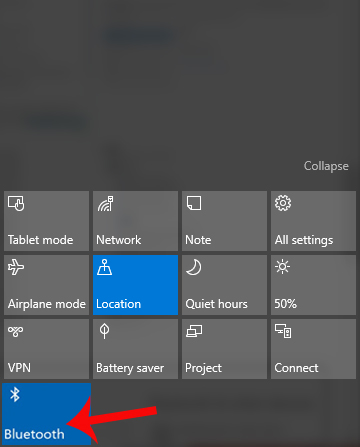
The paired accessory appears under Bluetooth & other devices. Select it there when you need to disconnect or remove it.
Connect Bluetooth in Windows 7
Windows 7 menus and Bluetooth features vary with the computer manufacturer and adapter driver. After installing the correct driver and placing the accessory in pairing mode:
- Open Start > Devices and Printers.
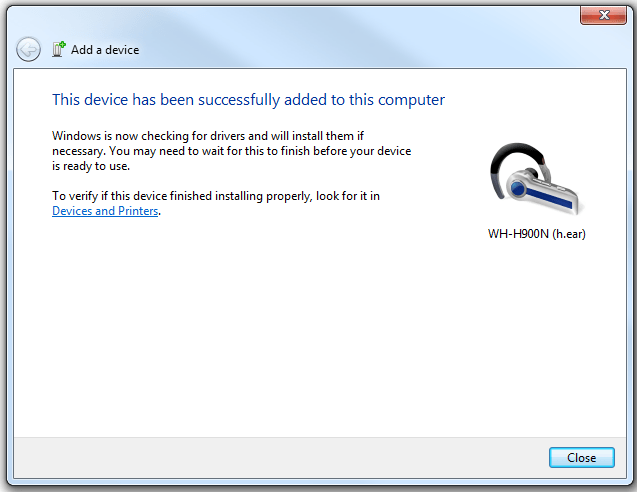
- Select Add a device.
- Choose the Bluetooth accessory and select Next.
- Confirm or enter the pairing code if requested, then allow Windows to install any required device services.
If no device appears, check the laptop’s wireless switch or function key, confirm that the Bluetooth adapter is enabled in Device Manager, and use the driver supplied by the PC or adapter manufacturer.
Connect Bluetooth in Windows 8.1
The screenshots below show the Windows 8.1 PC Settings interface. Some original Windows 8 installations use a different path, and manufacturer-supplied Bluetooth software may replace these controls.
- Press Windows + C to open the Charms bar, select Settings, and then select Change PC settings.
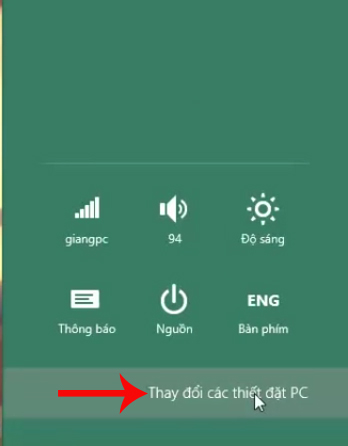
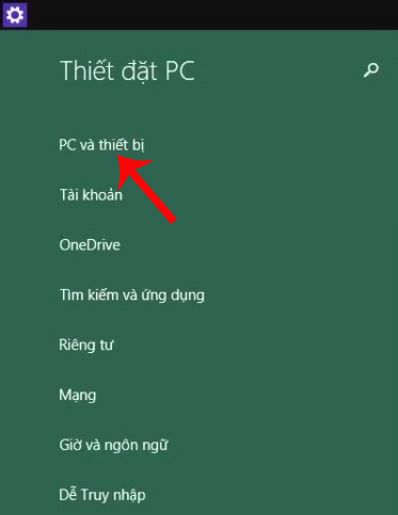
- Select PC and devices.
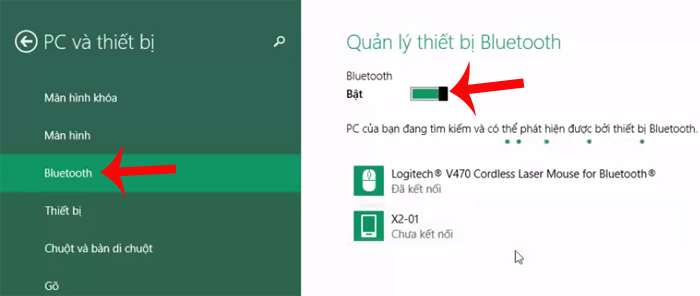
- Select Bluetooth, turn Bluetooth on, and wait for Windows to list nearby discoverable devices.
- Select the accessory and choose Pair.
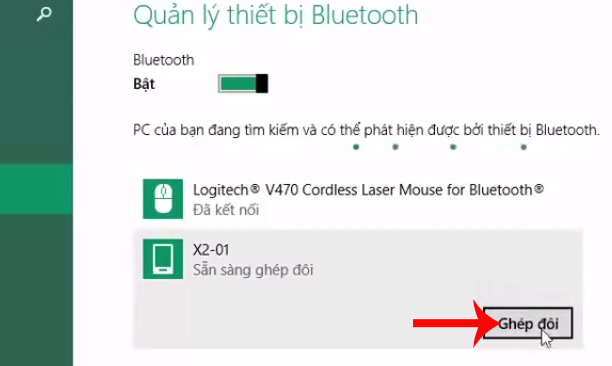
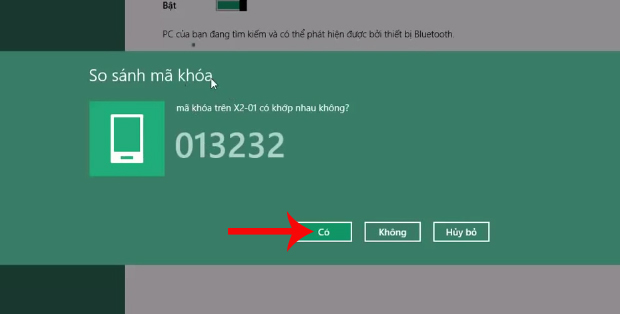
If a code appears, verify that the same code is shown on both devices before approving it.
Send a file over Bluetooth
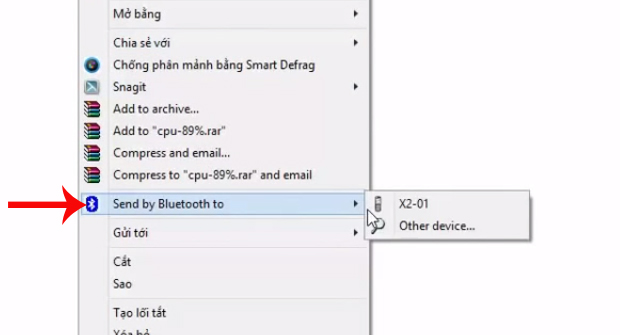
After pairing, right-click the file in File Explorer and choose Send to > Bluetooth device. Select the receiving device and approve the transfer on that device. The available command can differ with the Bluetooth driver.
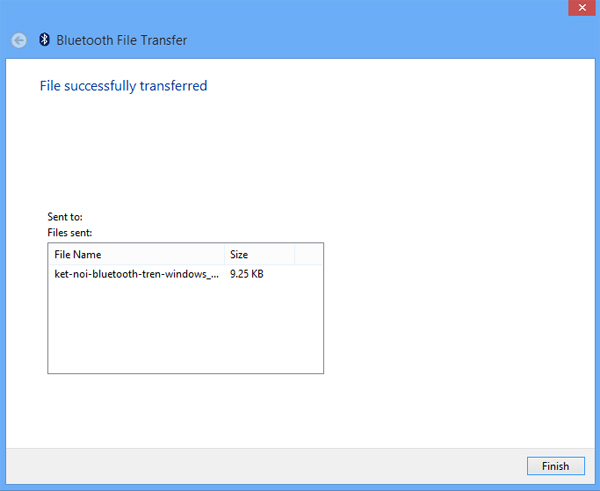
Keep both devices nearby until Windows confirms that the transfer is complete.
If the Bluetooth device does not appear or connect
- Restart pairing mode: Turn the accessory off and on, then put it back into discoverable mode.
- Check power and distance: Recharge the device, move it closer, and temporarily move it away from unshielded USB 3.0 devices, which Microsoft notes can interfere with Bluetooth.
- Remove and pair again: In Bluetooth settings, remove the saved accessory, reset it if necessary, and repeat the pairing process.
- Check Airplane mode: Make sure it is off.
- Run the Windows troubleshooter: In supported Windows versions, open the Get Help app and run its Bluetooth troubleshooter.
- Update correctly: Install Windows updates, then obtain the Bluetooth driver from the PC or adapter manufacturer. Avoid random driver-download sites.
- Check Device Manager: If the Bluetooth category is absent or the adapter shows an error, restart the PC and inspect the adapter status. For Windows 11-specific steps, see how to fix Bluetooth disappearing in Windows 11.
Microsoft’s current Bluetooth pairing guide and Bluetooth troubleshooting guide provide the latest Windows 11 and Windows 10 menu paths. If only one accessory fails, its manual or manufacturer support page is the next place to check.
Related Articles
 How to Connect a Bluetooth Device on Windows7 minutes read
 Instructions on How to Set Up Bluetooth on Windows 108 minutes read
 Instructions for Using Bluetooth on Devices14 minutes read
 How to Secure Bluetooth Devices1 minutes read
 Add Bluetooth Devices in Windows 76 minutes read
 How to Find Bluetooth Addresses Connected to Windows3 minutes read
Reader Comments 0
Sign in with email or Google to join the discussion.