Table of Contents
If your hard drive is missing, Windows 11 has a number of fixes that you can refer to to make the hard drive visible on your computer again.
Hard drive disappearance is a common error in Windows 11, which can be related to hardware or software. If your hard drive is missing, Windows 11 has some solutions that you can refer to to make the hard drive appear on your computer again. Here are some ways for you to refer to.
Fix basic Windows 11 hard drive loss error
Hard drive failure can be caused by external factors, so try that before diving into the system.
- If you are using an external hard drive, try unplugging it and reconnecting it. Use a different USB port, a different cable, and test on a different machine.
- Open the computer and check that the internal hard drive is properly seated in the motherboard.
- Restart your computer and press the designated key to enter BIOS and UEFI. Check to see if the hard drive is recognized, which will tell you whether the problem is with Windows or the drive.
Reactivate Windows computer
Step 1:
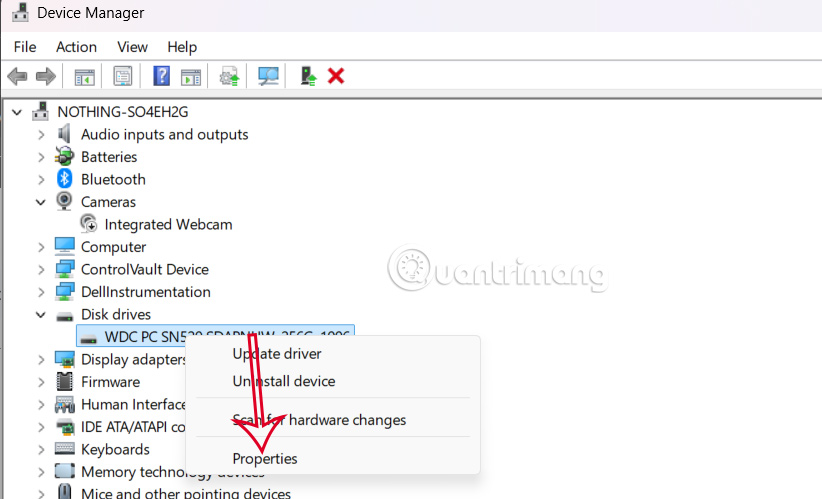
You open The Run dialog box , then Type the keyword devmgmt.msc And press Enter to access. Switch to the new interface, click on Disk Drives To expand, then Right-click on the problematic drive and select Properties .
Step 2:
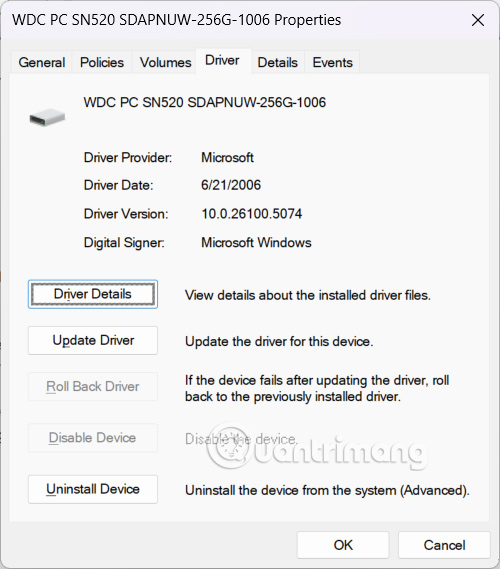
Switch to the new interface, Click on the Driver tab . Then if the drive is hidden, Click Enable Device to reactivate it .
Update drivers on your computer
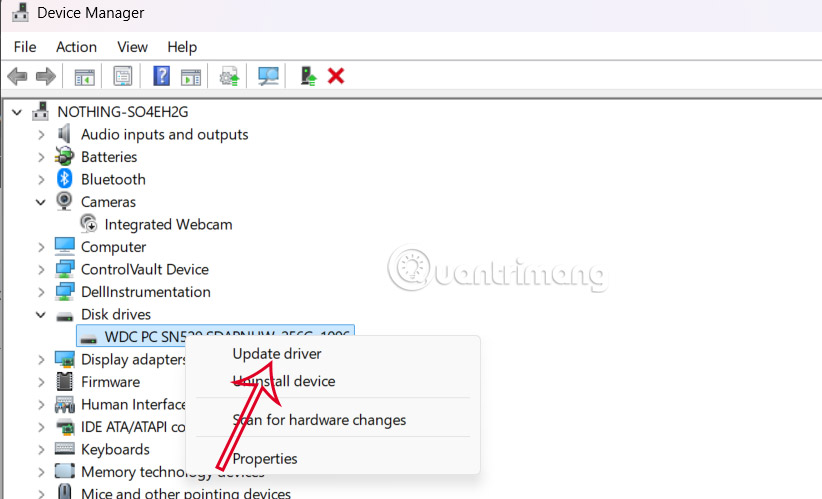
In the Device Manager interface, Right-click on the problematic drive And select Update Drivers To update. Follow the instructions displayed on the screen.
Change drive letter disappeared Windows 11
Disk Management is a useful utility for managing everything related to storage, from partitioning to cloning. If you find that your hard drive is missing from Disk Management, you can rename the drive.
Step 1:
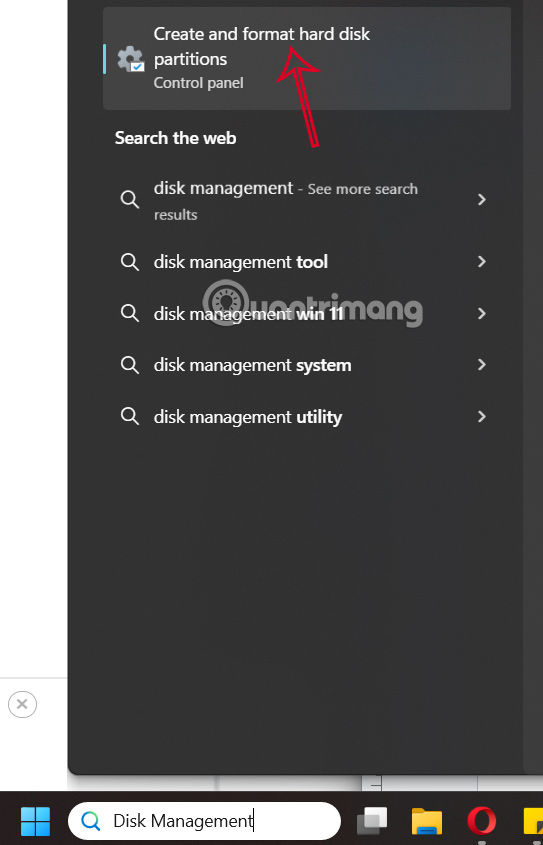
Type Disk Management in the search bar And click Create and format hard disk partitions To access.
Step 2:
In the new interface, users will see all drives, partitions and letters for drive names. To change the letter, Right-click on the drive Or partition and Select Change Drive Letter and Paths…
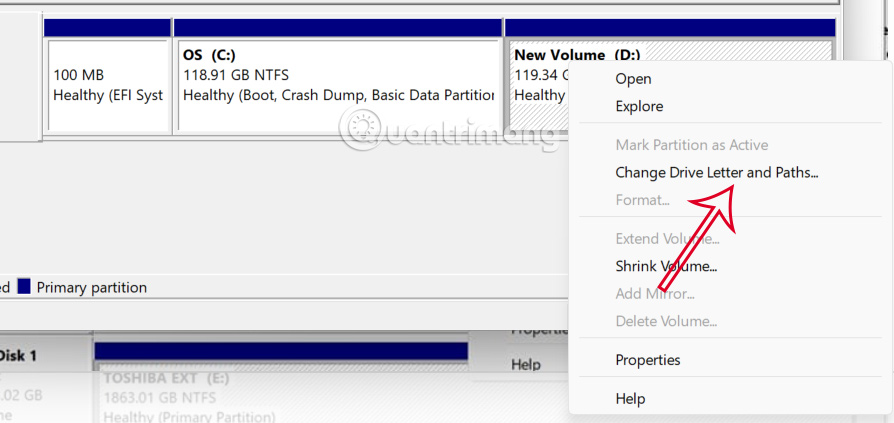
Then Click the Change button To follow the instructions displayed on the screen, or follow the article below.
- How to Change Drive Letter in Windows
FAQ
How do you fix hard drive loss error in Windows 11?
In practical terms, if your hard drive is missing, Windows 11 has a number of fixes that you can refer to to make the hard drive visible on your computer again.
What should you check before getting started?
Review the requirements, compatible device or software version, and any warnings described in the guide before making changes.
What should you do if the steps do not work?
Repeat the steps in order, confirm that your app or system is up to date, and review the troubleshooting details provided above.
Related Articles
 Know About Bad Sectors on Your Hard Drive8 minutes read
 Instructions for Dividing Hard Drives Right in Windows 104 minutes read
 How to Partition a Hard Drive in Windows 11, 10, 8, and 7 Without Losing Data6 minutes read
 How to Fix an Unrecognized Portable Hard Drive9 minutes read
 Fix Hard Drive Not Recognized Error: Complete Guide7 minutes read
 How to Fix Hard Drive Error Still Spinning but Not Receiving6 minutes read
Reader Comments 0
Sign in with email or Google to join the discussion.