Table of Contents
Explore effective ways to fix the Problem of a laptop Not Having Bluetooth, including key concepts, practical steps, useful tips, and common questions.
So, how do you fix a laptop that doesn't have Bluetooth? Read on to find out how.

How to check when your computer shows "Laptop has no Bluetooth"
When you see a message saying your laptop has no Bluetooth, you need to determine whether the problem is due to hardware or if the system is not properly recognizing the feature. To avoid misdiagnosis and incorrect troubleshooting, you can refer to the following detailed troubleshooting steps.
Check the machine's specifications
If your laptop has no Bluetooth, you need to reconfigure the device's initial settings. To do this accurately, please refer to the detailed steps for checking the technical specifications below.
1. Access the manufacturer's website:
- Go to the manufacturer's official website and enter the correct laptop model number to open the original specifications sheet.
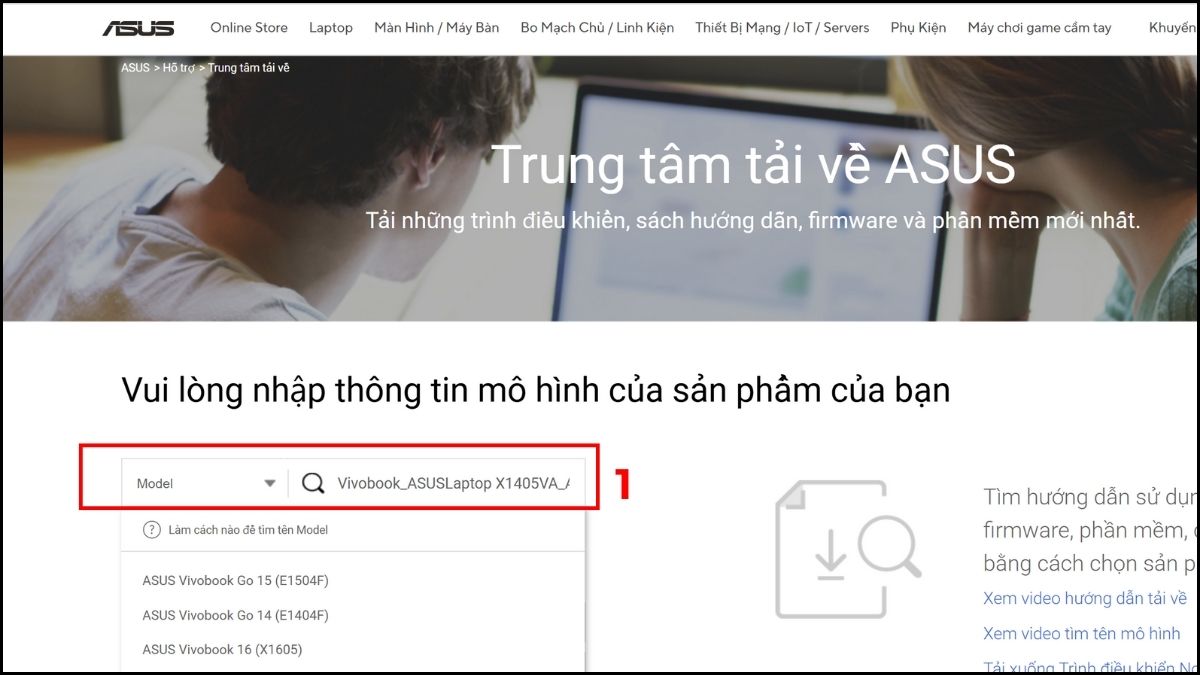 Check the specifications to see if it has Bluetooth.
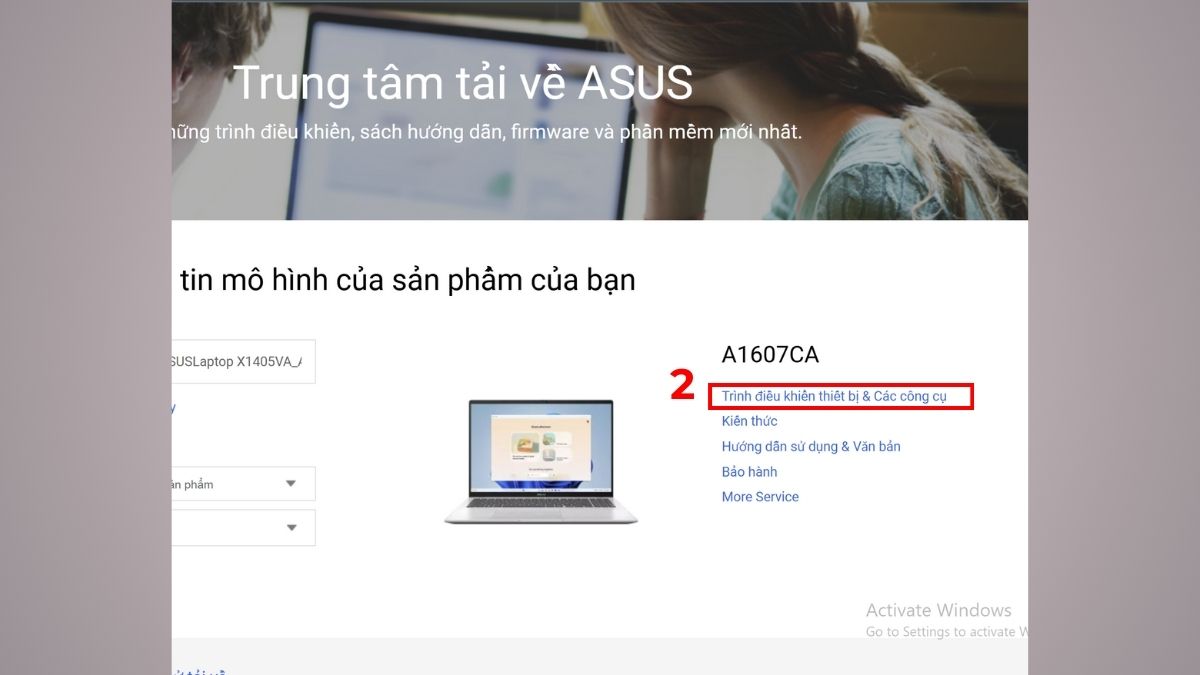
2. Go to Device and Tools Drivers:
- Next, select the 'Device and Tool Drivers' section.
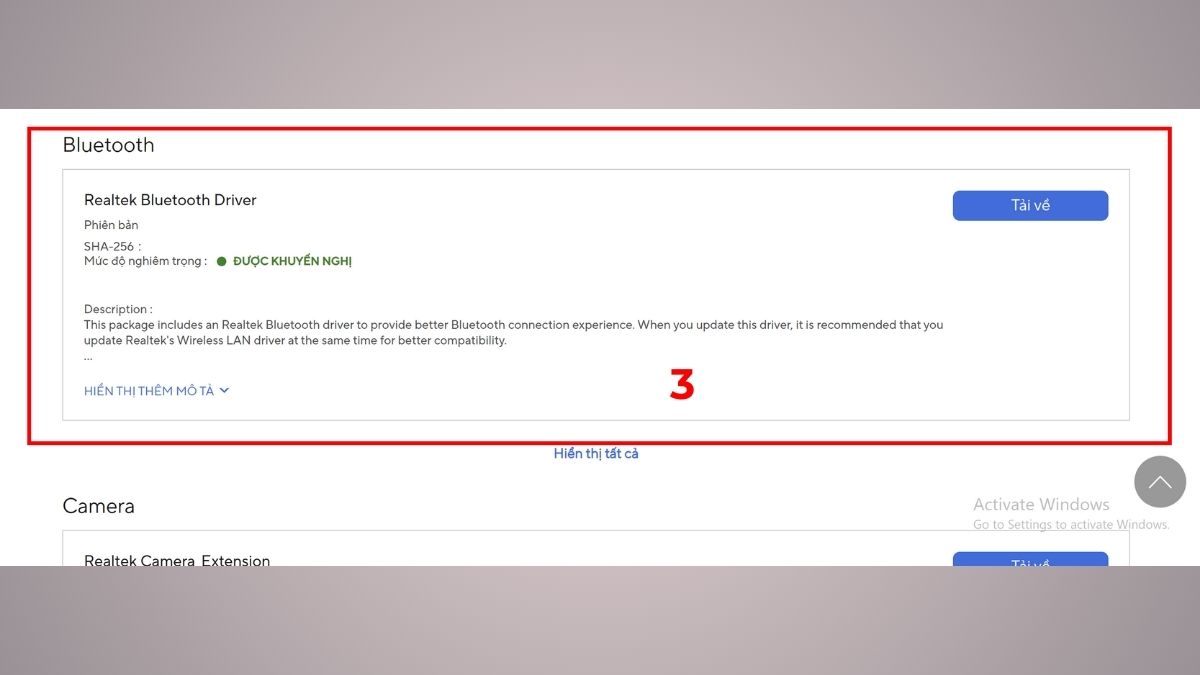
3. Check the wireless connection:
- Browse and search for devices listed with Bluetooth and which versions they support.
Check in Device Manager
When your computer reports that Bluetooth is not found, checking in Device Manager helps you determine if the device is being recognized. You can find detailed steps on how to fix a laptop with no Bluetooth in the following content.
1. Open Device Manager:
- Right-click the Start icon, then go to Device Manager, and select 'Open'. This is where all the hardware currently running on your system is displayed.
2. Find the Bluetooth option:
- If the device is supported, the Bluetooth icon will be displayed.
3. Connection:
- Here, you can choose any Bluetooth device you need to connect.
Check your device's Bluetooth icon
When a laptop has no Bluetooth due to a hardware failure, you need to check each related component such as the Bluetooth module, Wi-Fi card, or connection cable. When these components malfunction, the computer will be unable to receive a signal even if the correct driver is installed. Ideally, take the device to a reputable repair center so that a technician can accurately identify the problem and replace the appropriate component.
How to fix a laptop that doesn't have Bluetooth
What should you do if your laptop has no Bluetooth? To correctly resolve the issue and restore connectivity, you can refer to the detailed solutions below:
The Bluetooth driver is faulty
If Bluetooth isn't working due to a driver error, you should check and update the driver to restore the connection. For proper troubleshooting, please refer to the detailed steps below.
1. Open Device Manager:
- Open Device Manager from the Start menu to begin troubleshooting.
2. Check and remove faulty drivers:
- Find the Bluetooth item and right-click 'Bluetooth Device (RFCOMM Protocol TDI)'. Select Uninstall to remove the conflicting version.
3. Reinstall the driver manually or automatically:
- Users can proactively download the latest driver versions from the vendor's support website.
4. Restart and check operation:
- After the driver installation is complete, it's necessary to restart your laptop so that Windows can update. Finally, turn on Bluetooth and try connecting the device to ensure the problem has been completely resolved.
At [website name], many of today's best-selling laptop models are equipped with Bluetooth, making it easier for users to connect external devices. If you need a new machine with full support for this feature, visit [website name] to choose one now.
The laptop has no Bluetooth due to a hardware failure
When a laptop loses Bluetooth due to hardware failure, you need to check each related component such as the Bluetooth module, Wi-Fi card, or connection cable. When these components malfunction, the computer will be unable to receive a signal even if the correct driver is installed. Ideally, take the device to a reputable repair center so that a technician can accurately identify the problem and replace the appropriate component.
Bluetooth not working
Even though you've turned on Bluetooth, your laptop still isn't working and can't connect to other devices. To resolve this, please follow the steps below.
Step 1: Press the Windows + R key combination to open the Run dialog box . Then, type 'services. msc ' and click OK to access it.
Step 2: Next, in the Services program window that appears, find the process named Bluetooth Support Service. Then, right-click that item and select Properties .
Step 3: Now, click the "Automatic" option in the " Start type " section and then click " Start " to begin enabling Bluetooth.
Now, to save the settings, try connecting via Bluetooth to another external device to check if your laptop's Bluetooth is working.
Bluetooth is working but cannot connect to the device
This is a common problem with laptop Bluetooth, mainly caused by a faulty driver, a virus infection, or a corrupted file. Fixing this Bluetooth installation issue is simple; you just need to uninstall the old Bluetooth driver and reinstall it, or upgrade to the latest version.
Step 1: Press the Windows + X key combination to launch the Power Menu . Find the Device Manager option.
Step 2: Now, find the Bluetooth driver and right-click to select Uninstall device.
Step 3: When the system prompts you whether you want to delete the driver, select Uninstall to remove it.
Step 4: After the driver removal process is complete, select Action , then select Scan for hardware changes to allow the system to automatically find and reinstall the drivers for your computer.
Wait a moment for the system to complete the Bluetooth driver installation process for your laptop. Then, try connecting another Bluetooth device to your computer to see if it's working properly.
Bluetooth Not Available
"Bluetooth Not Available" is a common error that occurs during Windows updates, especially when updating to Windows 10. To fix this error, restart the Bluetooth system on your laptop. Additionally, in some cases, users may accidentally activate airplane mode on their laptop, leading to this error. Therefore, turn off airplane mode and check again.
Step 1: Press the Windows + I key combination to launch Windows Settings and access the Network & Internet section.
Step 2: Open the Airplane mode tab and check whether airplane mode is turned off or on.
Laptop Bluetooth signal cannot be found
The reason your laptop doesn't have Bluetooth is often because you haven't enabled Bluetooth connectivity for nearby devices. If you encounter this problem, simply turn Bluetooth on again.
Step 1: Press the Windows + I key combination to launch Windows Settings and access the Devices section.
Step 2: In the Device section, select Bluetooth & other devices and then select More Bluetooth options .
Step 3 : Next, in the Bluetooth Settings section, activate the two modes: Allow Bluetooth devices to find this PC and show the Bluetooth icon in the notification area.
When should you take your laptop in for a technical check-up?
If your laptop has no Bluetooth, the driver keeps reporting errors, or the machine can't connect to any devices despite trying multiple methods, you should suspect a hardware problem. Signs such as intermittent connections, disconnections, or unusual overheating when Bluetooth is enabled should also be noted.
When encountering these situations, take your laptop to a technical center for inspection. Dien Thoai Vui provides quick diagnosis, clear error reporting, and professional repairs, helping your device return to stable operation without unnecessary costs.
Above, we've guided you through four basic ways to fix the problem of your laptop not having Bluetooth. Although this is a fairly basic error, it's often overlooked by users. Please fix it so you can operate your laptop as smoothly as possible.
FAQ
How can I check which Bluetooth version my laptop is using?
Open Device Manager, select Bluetooth, and look at the 'Advanced' section in Properties. The 'LMP Version' line will show the Bluetooth standard your laptop is using, making it easier to assess speed and device compatibility.
Can a faulty Bluetooth connection slow down a laptop?
Bluetooth malfunctions don't directly slow down the device, but they can cause lag when drivers conflict or the device is constantly searching for a connection. These background processes sometimes cause the device to respond slower than usual.
How much does it cost to fix Bluetooth issues on a laptop?
Most Bluetooth issues only require driver updates or a reset, which are almost free. Replacement costs only arise when the Bluetooth module fails. In most cases, these issues are resolved quickly and are relatively inexpensive.
Related Articles
 The Software Supports Bluetooth Connection with the Computer5 minutes read
 6 Ways to Deal with When the Phone Cannot Connect to5 minutes read
 6 Ways to Fix iPhone Can't Turn on Bluetooth4 minutes read
 How to Turn on Bluetooth on Windows 10 Laptop Correctly3 minutes read
 How to Fix 3 Common Errors of Bluetooth Connectivity10 minutes read
 How to Quickly Connect Bluetooth Headphones to a Laptop9 minutes read
Reader Comments 0
Sign in with email or Google to join the discussion.