Table of Contents
Many users encounter the same problem when trying to connect wireless headphones, speakers, mice, or keyboards: not knowing where to turn on Bluetooth, the Bluetooth option not appearing on the computer, or failing to pair successfully. With desktops, the situation is even more confusing because not all computers have built-in Bluetooth. Let TipsMake guide you on how to enable Bluetooth on Windows 10 and Windows 11 in the following article.
Quick answer: Put the accessory in pairing mode. In Windows 11, open Settings > Bluetooth & devices, turn on Bluetooth, select Add device > Bluetooth, and choose the accessory. In Windows 10, open Settings > Devices > Bluetooth & other devices, then select Add Bluetooth or other device.
Before pairing
- Confirm the PC has a Bluetooth radio in Device Manager or the manufacturer's specifications. Many desktop PCs need a USB Bluetooth adapter.
- Charge the accessory and follow its manual to enter pairing mode; simply turning it on may not make it discoverable.
- Disconnect it from a phone or another computer if the accessory does not support simultaneous connections.
- Keep the accessory close to the PC during initial pairing.
If Bluetooth is missing, run the Windows Get Help Bluetooth troubleshooter, install Windows updates, and use a driver from the PC or Bluetooth-adapter manufacturer. Avoid generic driver-download sites. Microsoft has current instructions for pairing a Bluetooth device and fixing Bluetooth problems. TipsMake also explains how to restore missing Bluetooth controls in Windows 11 and connect Bluetooth headphones.
Windows 10 note: Microsoft ended free security updates for most Windows 10 editions on October 14, 2025. The pairing steps still work, but an eligible PC should move to a supported Windows release.
Quick pairing checklist
- Check if your computer supports Bluetooth by accessing Device Manager before attempting to connect.
- Turn on Bluetooth quickly via the Quick Settings option in the Taskbar, or customize it in detail in Windows 10 and 11 Settings.
- Put the peripheral device into pairing mode before searching for and connecting it to the computer.
- Use a separate USB Bluetooth adapter (dongle) for desktop computers ( PCs ) that do not have built-in Bluetooth hardware.
- To fix the "connects successfully but no sound" error, select the correct output device in the Sound Settings.
- Update the driver or remove the device and try pairing it again from scratch if you encounter a "not found" or "unable to connect" error.
1. Check the PC and accessory before pairing
1.1. Check if the device has Bluetooth
This is the quickest way if you need to know if your computer has Bluetooth.
- Step 1: Right-click on Start.
- Step 2: Select Device Manager.
- Step 3: Find the Bluetooth item in the list of devices.
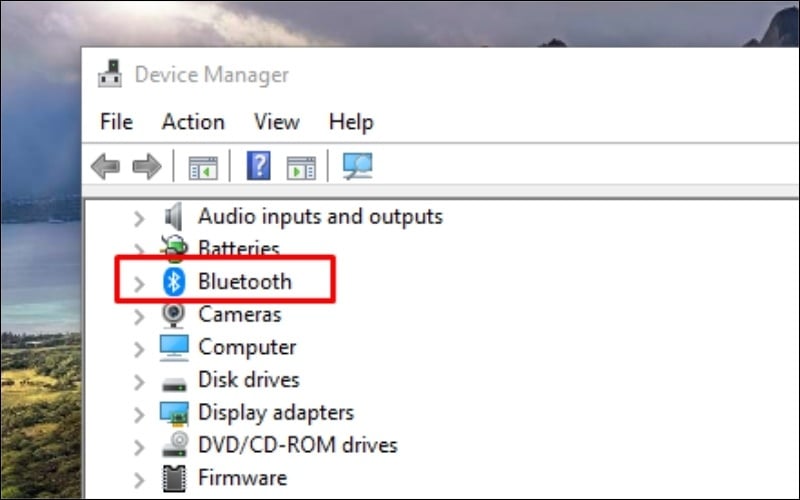
Find the Bluetooth item in Device Manager.
There are three common scenarios:
- There is a Bluetooth option: The device supports Bluetooth.
- No Bluetooth option found: The device may be missing the Bluetooth driver or may not have Bluetooth hardware.
- If there is an error icon or exclamation mark: It is highly likely that the driver is experiencing problems.
With laptops, Bluetooth is usually built-in. For desktop PCs, you should check more carefully if your machine has Bluetooth, as many motherboards do n't have this feature.
1.2. Check that the device is in pairing mode
- Charge or check the battery of your device before pairing.
- Place the device near the computer to avoid weak detection errors.
- Press and hold the Bluetooth button or the power button as instructed by the manufacturer to enter pairing mode.
- If the device is connected to a phone or other device, disconnect it first.
- With headphones, the indicator light usually flashes once they've entered pairing mode.
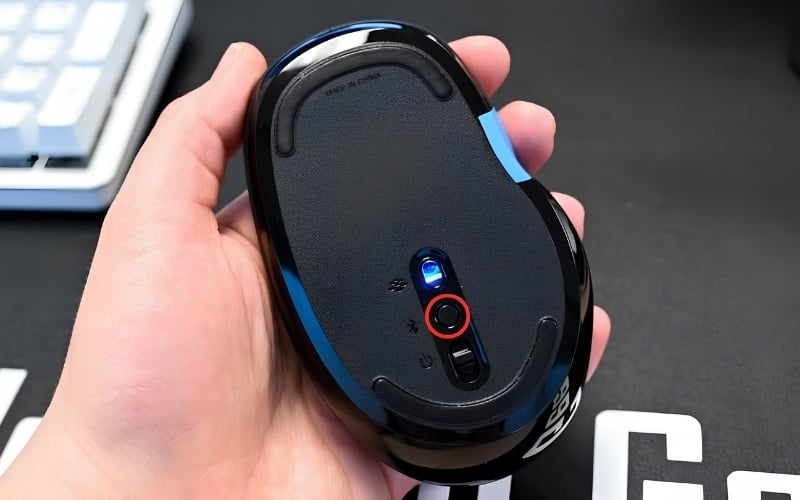
Press and hold the Bluetooth button or the power button to enter pairing mode.
2. Turn on Bluetooth in Windows
2.1. Use Quick Settings
- Step 1: Click on the notification icon cluster in the bottom right corner of the Taskbar.
- Step 2: Find the Bluetooth option in Quick Settings.
- Step 3: Click this box to turn on Bluetooth connection.
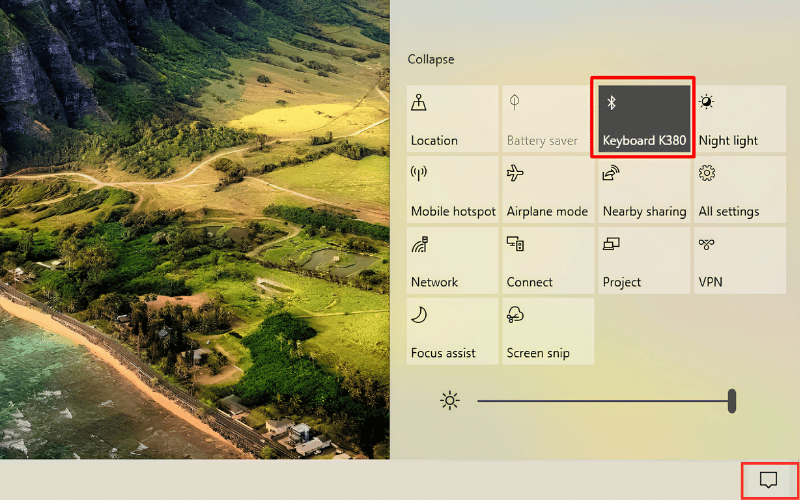
Tap the Bluetooth box in Quick Settings to turn it on.
2.2. Turn on Bluetooth in Windows 11 Settings
- Step 1: Press Windows + I to open Settings.
- Step 2: Select Bluetooth & devices.
- Step 3: Flip the Bluetooth switch to On.
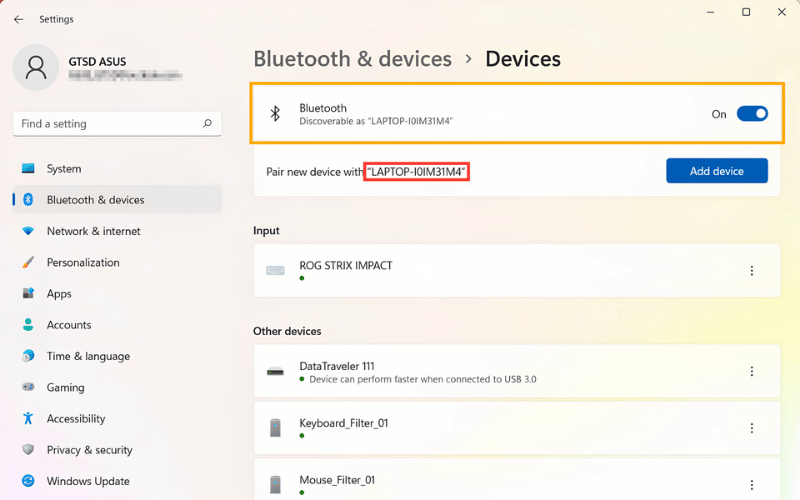
Flip the Bluetooth switch to On.
2.3. Turn on Bluetooth in Windows 10 Settings
This is the simplest way to enable Bluetooth on Windows 10 if you want to do it directly in the settings.
- Step 1: Open Start. Select Settings.
- Step 2: Go to Devices.
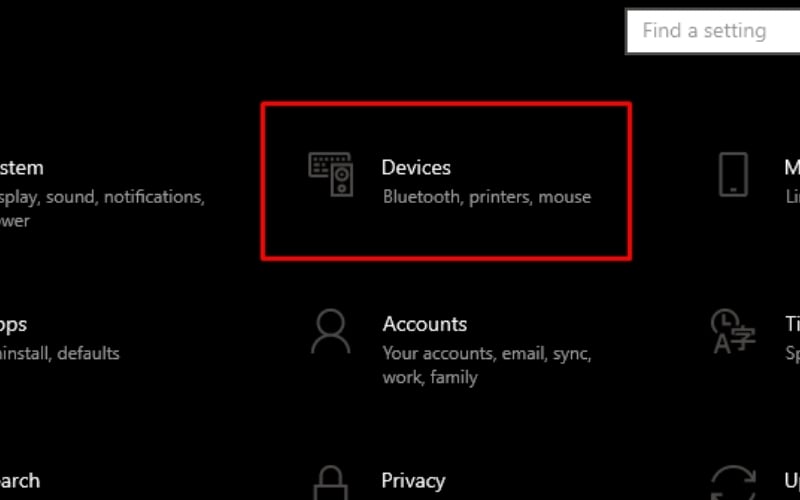
In Settings, select Devices.
- Step 3: Select Bluetooth & other devices and then toggle the switch to On.
If the switch doesn't appear, the device may be missing a driver or not properly recognizing the Bluetooth hardware.
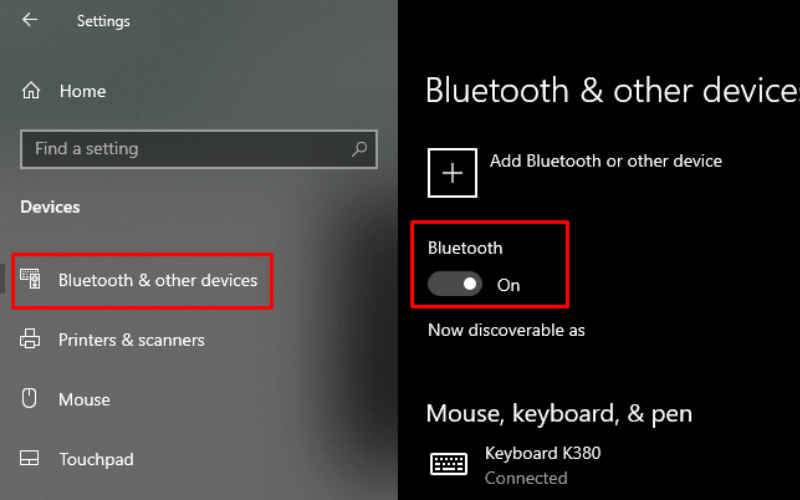
Select Bluetooth & other devices and then toggle the switch to On.
2.4. Older unsupported versions of Windows
Some older computers or those running Windows 7 may not have Bluetooth built-in. In many cases, you need to install the correct Bluetooth driver for your specific computer model. This article prioritizes instructions for Windows 10 and 11, as these are the most common versions and have clearer menu navigation.
3. Pair a Bluetooth accessory
3.1. Pairing on Windows 11
- Step 1: Open Settings. Select Bluetooth & devices.
- Step 2: Click Add device.
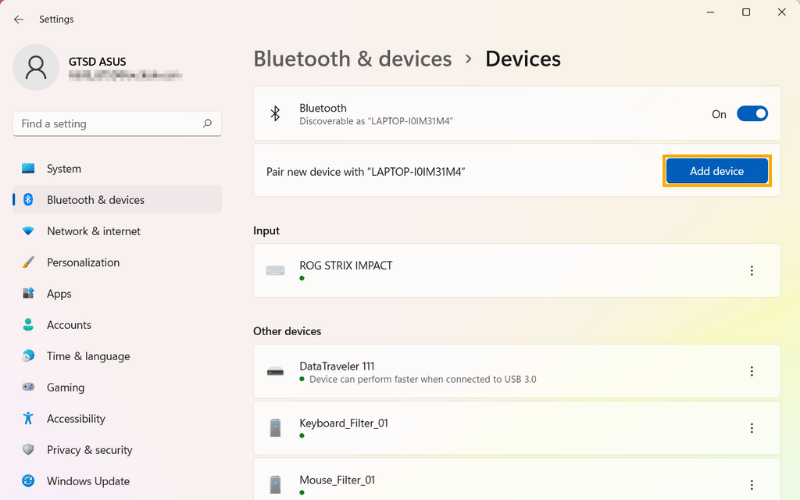
Click Add device
- Step 3: Select Bluetooth.
- Step 4: Select the correct device name from the list.
- Step 5: Enter your PIN and click Connect if prompted by Windows.
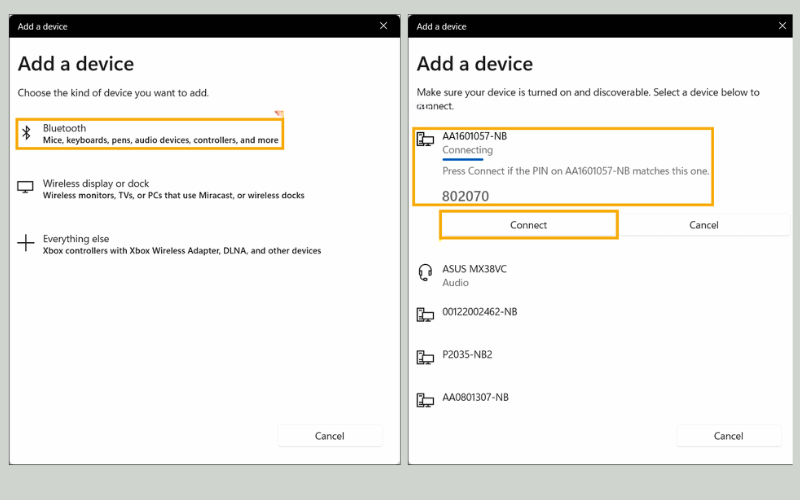
Enter your PIN and press Connect if prompted by Windows.
3.2. Pairing on Windows 10
- Step 1: Open Settings. Go to Devices.
- Step 2: Select Bluetooth & other devices.
- Step 3: Press Add Bluetooth or other device.
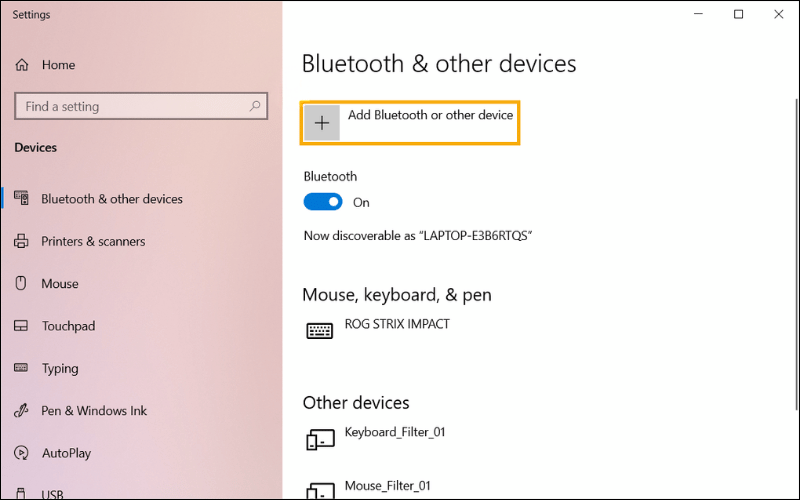
Click Add Bluetooth or other device
- Step 4: Select Bluetooth.
- Step 5: Select the device name, enter the PIN, and press Connect if prompted by Windows.
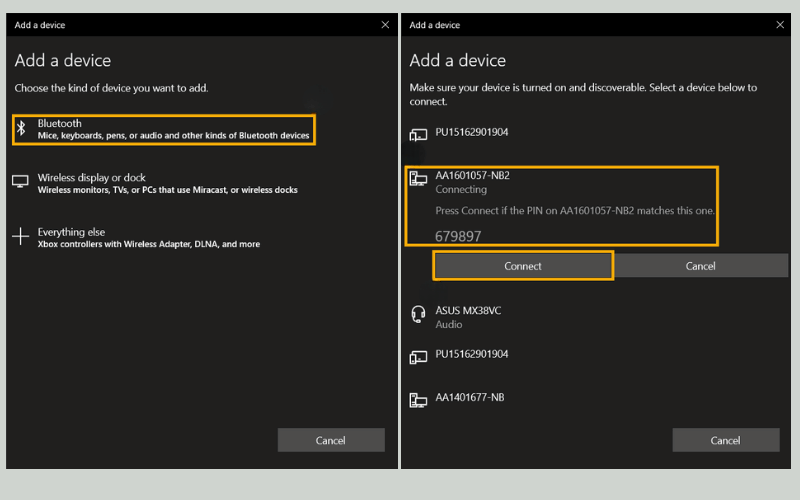
Select the device name, enter the PIN code, and press Connect.
3.3. Headphones, speakers, keyboards, and mice
- Headphones, speakers: Check and select the correct audio output after pairing.
- Mouse and keyboard: Wait a few seconds for Windows to recognize the driver before trying to use them.
- Controllers and gaming gear: Some models require the manufacturer's software to use all features.
- Devices that support Swift Pair: Windows can display a quick pairing notification directly on the screen.
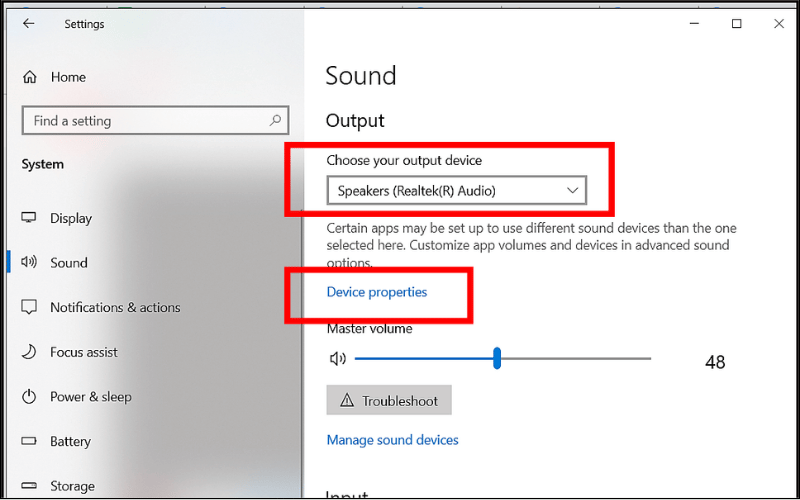
Check and select the correct audio output after pairing.
4. Add Bluetooth to a PC that lacks it
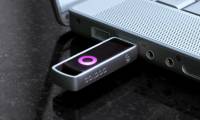
Not all PCs have built-in Bluetooth. This is quite common with custom-built desktops or older machines. If Bluetooth isn't listed in Device Manager, you can use a USB Bluetooth dongle/adapter.
It's very easy to use:
- Step 1: Plug the adapter into the USB port.
- Step 2: Wait for Windows to automatically recognize the device or install the driver if prompted.
- Step 3: Turn on Bluetooth and pair as usual.
You should choose an adapter that is compatible with your version of Windows and meets your accessory connection needs.
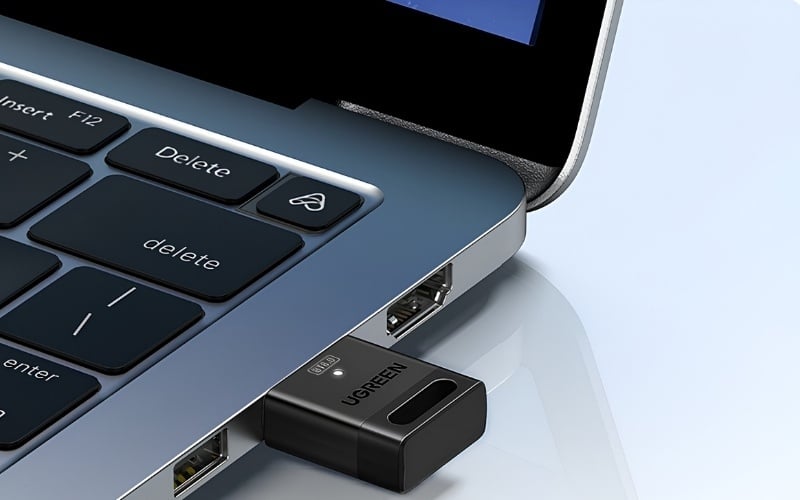
If your computer doesn't have Bluetooth, use a USB Bluetooth dongle/adapter.
5. Fix Bluetooth detection and pairing problems
5.1. Bluetooth is not visible in Settings
- Open Device Manager to check if your device recognizes Bluetooth.
- Restart your computer.
- Update or reinstall your Bluetooth driver.
- Run the Windows Troubleshooter to allow Windows to perform a self-check.
If you still don't see the Bluetooth option after these steps, it's possible your device doesn't have Bluetooth hardware or the adapter is faulty.
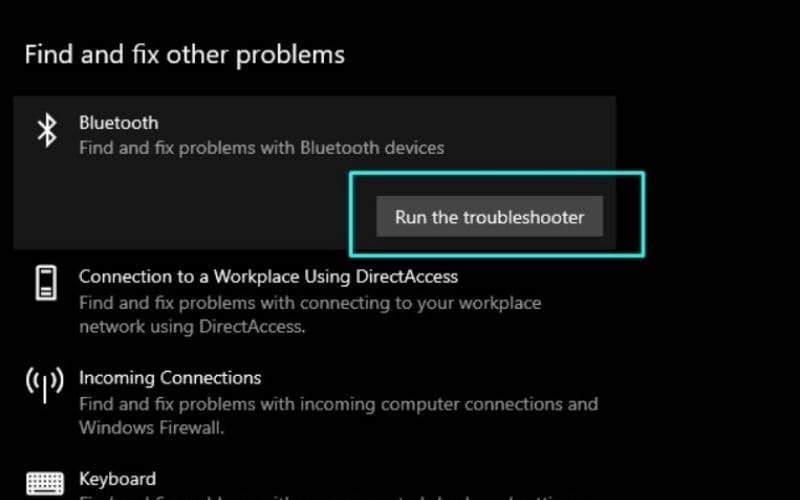
Run the Windows Troubleshooter to allow Windows to perform a self-check.
5.2. Headphones, speakers, mouse, or keyboard not found
These are the most common errors when a computer cannot find a Bluetooth device.
- Put the device back into pairing mode from the beginning.
- Make sure the device is not connected to a phone or other device.
- Place the device near the computer.
- Check the device's battery.
- Turn Bluetooth off and then back on again on Windows.
5.3. Connection established, but not usable
Successful pairing does not mean the device is the default output or ready for immediate use.
- Headphones or speakers: Go to Sound Settings and select the correct device as the audio output.
- Mouse or keyboard: Select Remove device and then reconnect.
- Gaming equipment: Check the manufacturer's software, drivers, or firmware if the device has specific requirements.
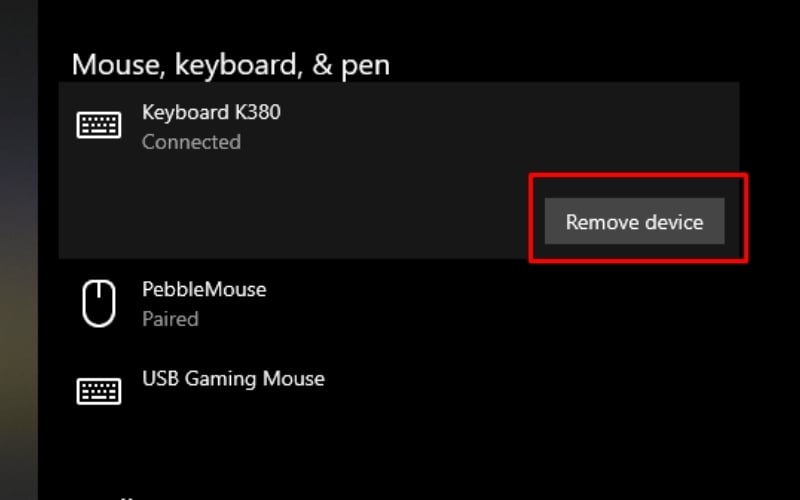
Select Remove device and then re-pair.
6. Common pairing questions
6.1. Can desktop computers connect via Bluetooth?
Yes. If your motherboard supports Bluetooth, you just need to enable it in Windows and pair the device. If not, you can use a USB Bluetooth adapter to connect headphones, mouse, keyboard, and many other peripherals.
6.2. Why isn't the Bluetooth option showing on my computer?
Common causes include missing Bluetooth drivers, Bluetooth being turned off, the adapter not being recognized, or the device not having built-in Bluetooth hardware. You should check in Device Manager first to determine the exact issue.
6.3. What should I do if I connect my Bluetooth headphones but there's no sound?
Open Sound Settings and select the correct headphones as the default playback device. In many cases, pairing is successful, but the sound still plays through the laptop's speakers or the connected monitor.
6.4. If a Bluetooth device is already connected to another device, can it still be paired with a computer?
It's often unstable. You should disconnect it from the old device and put it back into pairing mode before pairing it with your computer. This is a very common problem with Bluetooth headphones and mice.
Related Articles
 How to Connect a Bluetooth Device on Windows7 minutes read
 Steps to Connect Windows Computer Bluetooth with Speakers6 minutes read
 How to Connect Bluetooth Headphones to Computers and Laptops 20245 minutes read
 The Software Supports Bluetooth Connection with the Computer5 minutes read
 How to Find Bluetooth Addresses Connected to Windows3 minutes read
 What Is USB Bluetooth: Top 6 USB Bluetooth for the Best PC5 minutes read
Reader Comments 0
Sign in with email or Google to join the discussion.