Table of Contents
This guide organizes the entries in "7 Devices That Work with the Monitor's USB Port" and explains what each option, idea, or example offers. It also highlights practical details that matter when comparing the choices.
7. Charging devices and power accessories
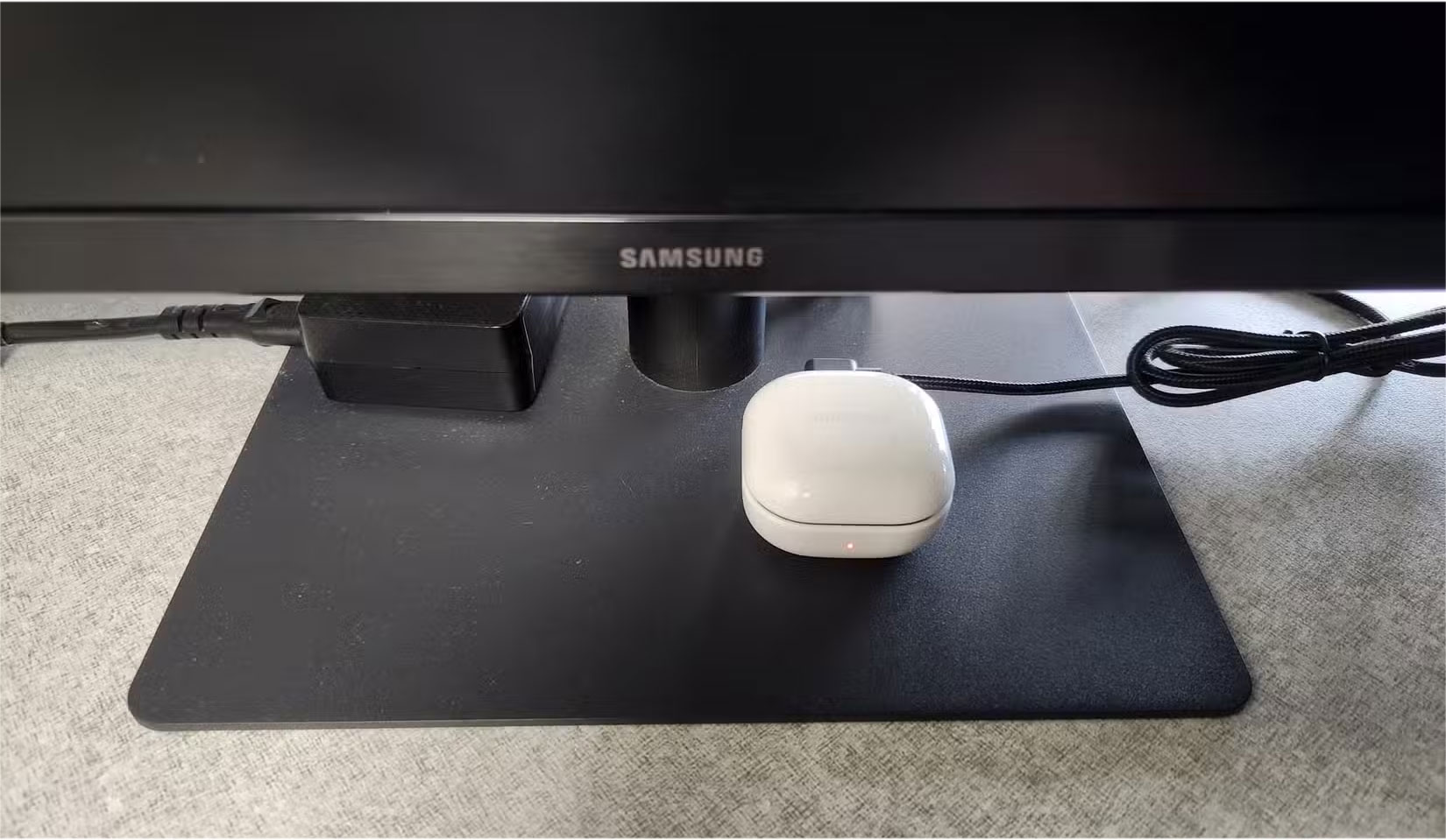
Just like the USB port on a laptop or desktop, the port on a monitor can supply power. That means you can use it to charge all sorts of gadgets, from wireless headphones and smartwatches to fitness trackers and even small USB-powered fans.
Of course, it's not just about charging. You can also power accessories like desk lamps, LED light bars, or even cooling pads directly from the monitor. If you don't want to clutter your desk with power outlets or adapters, the extra USB ports on the monitor can come in handy.
6. Keyboard and mouse
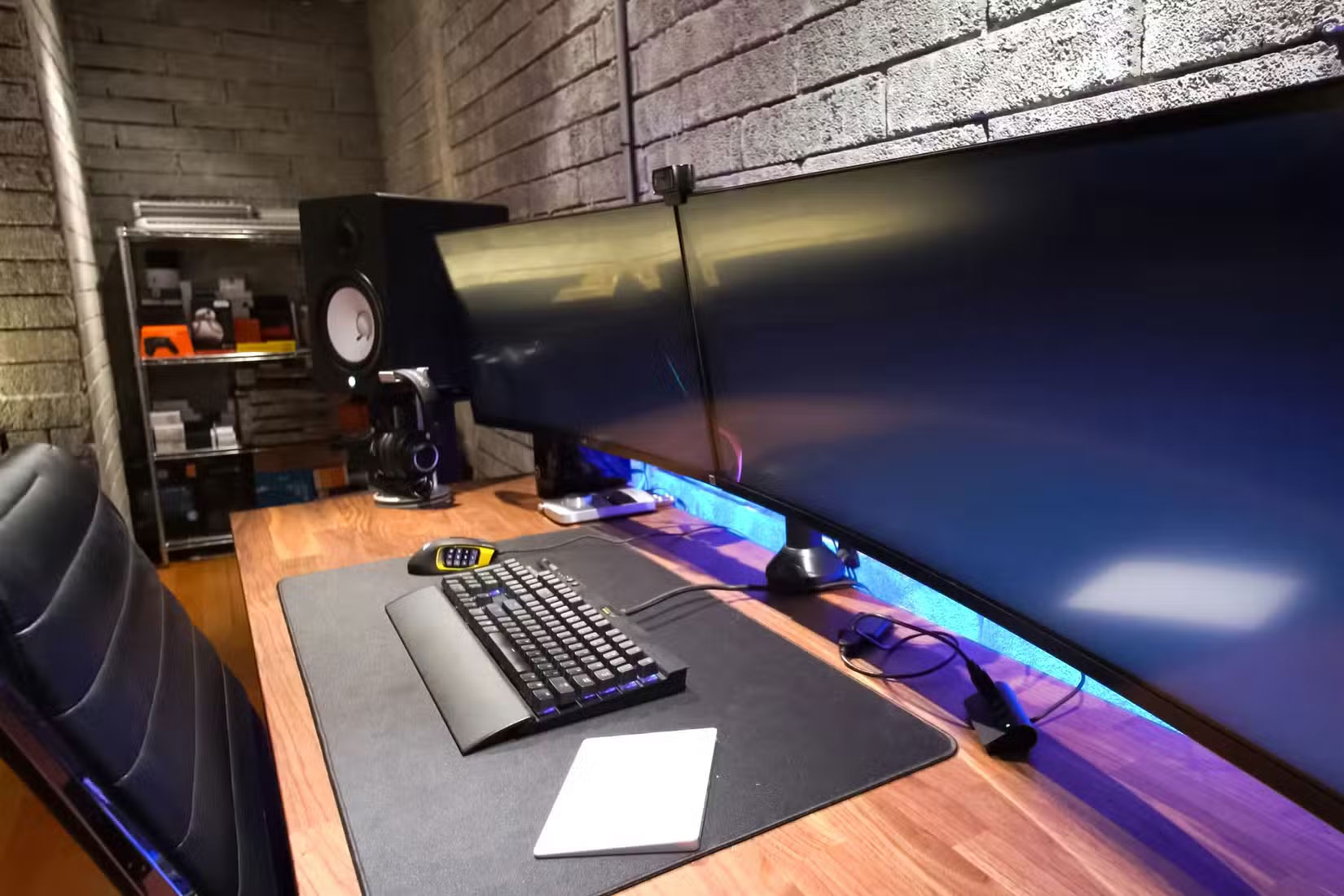
Unless you have a smart display that can function on its own, plugging a keyboard or mouse directly into the display's USB port won't do anything. Once the display is connected to your computer, however, that's a different story.
If your monitor has a built-in USB hub (many modern monitors do), plugging your keyboard and mouse into the monitor can be a convenient solution. Not only does it help keep your desk clean, it also saves you from having to reach behind your desktop or stretch cables to your laptop to connect your input devices.
5. Turn your monitor into a full USB hub
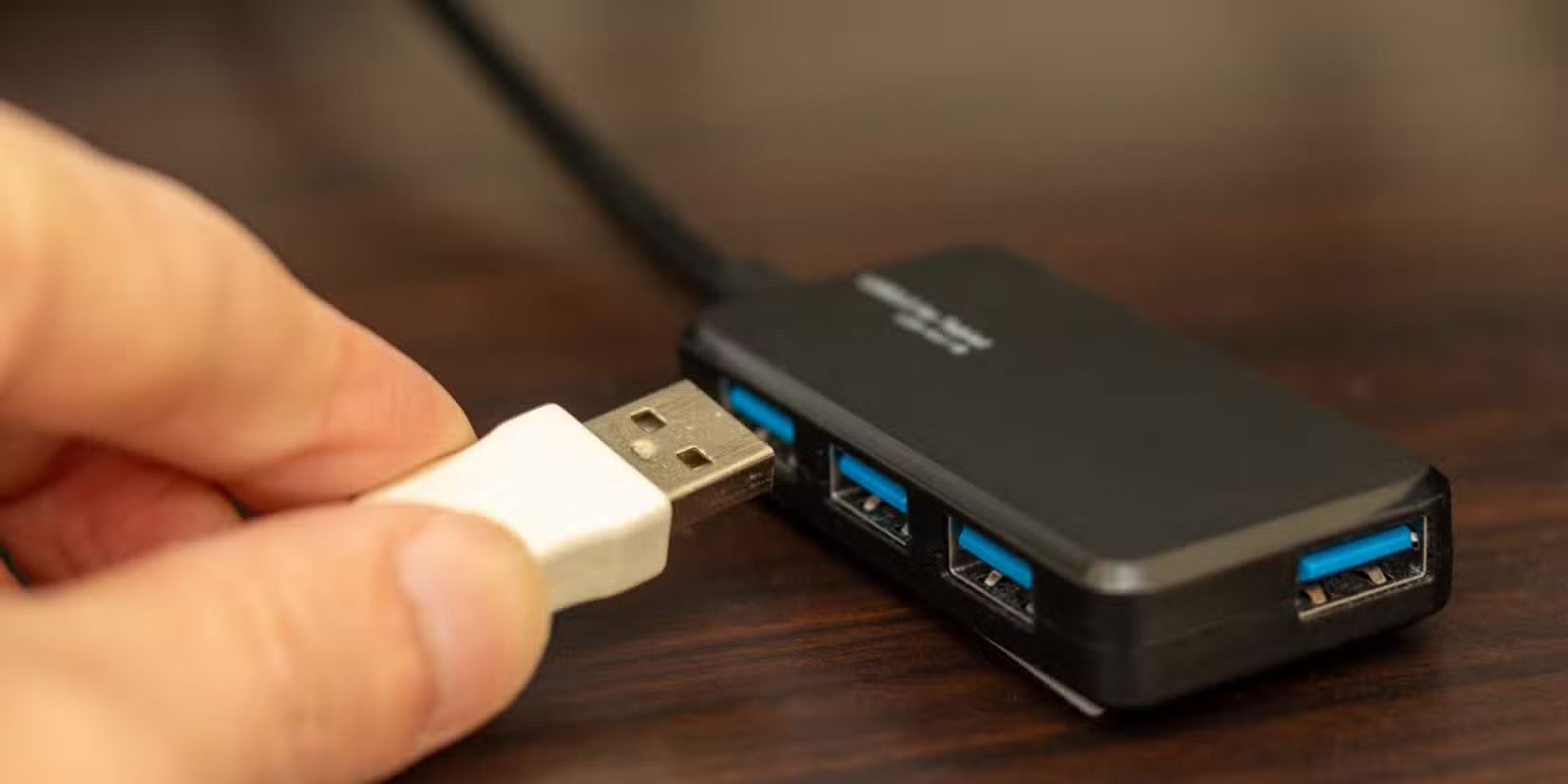
You can plug all sorts of USB devices into your computer, like flash drives, hard drives, printers, etc. This is a default, no-brainer move. But if your monitor has a built-in USB hub, it can handle those devices just fine.
This way, instead of having to run wires all over the place from your computer, you can neatly plug everything into your monitor. This is especially convenient if your computer is under a desk or if you're using a laptop with few ports.
4. Connect USB speakers
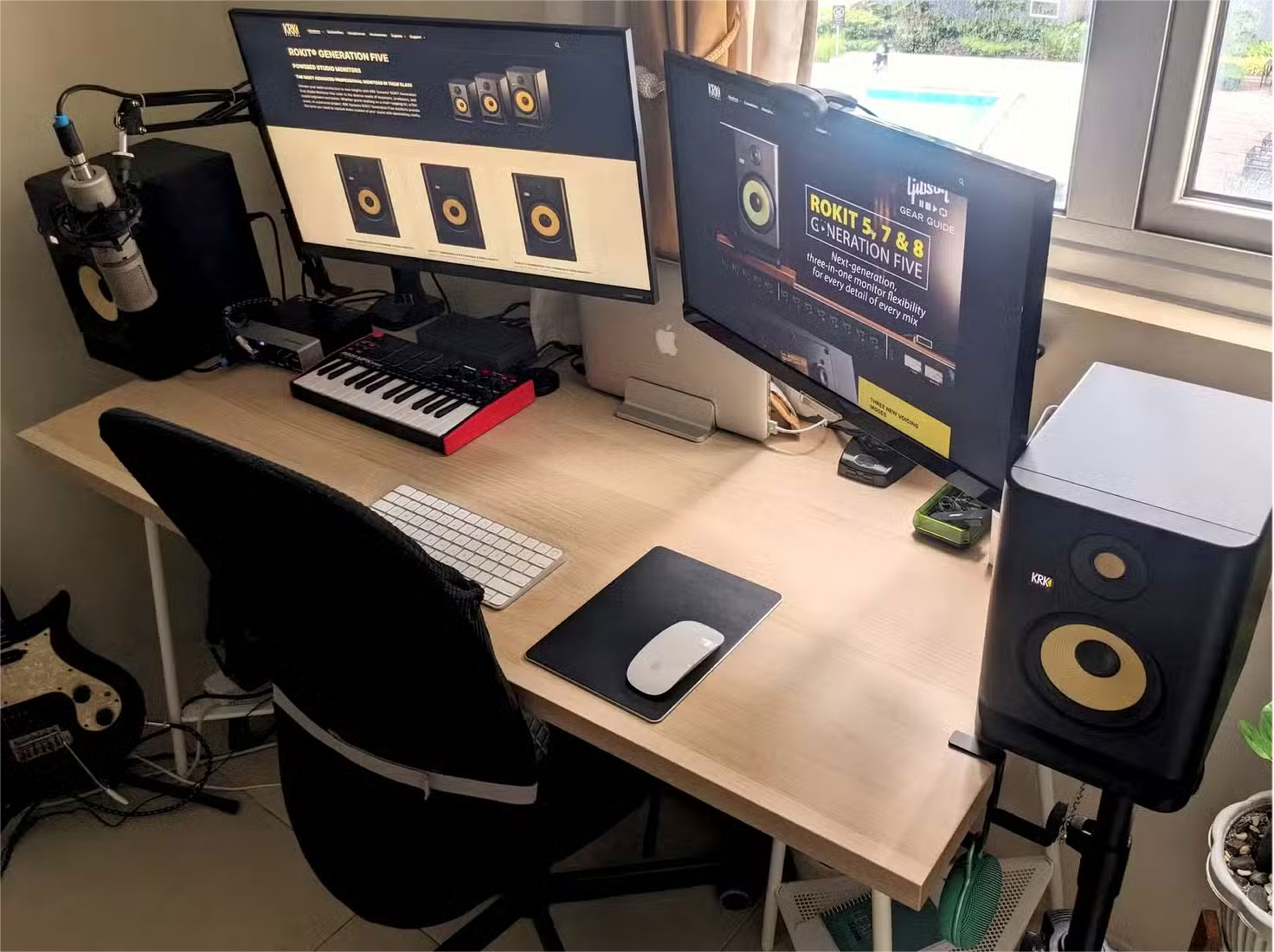
If your monitor doesn't have built-in speakers, plugging in USB speakers is one of the easiest solutions. Most USB speakers use a single cable for both power and sound, so plugging them into your monitor's USB port simplifies things and reduces cable clutter.
This setting also applies to microphones. If you're using a USB microphone for video calls, streaming, or in-game chat, plugging it into your monitor's USB port is a convenient option.
3. Connect additional monitors via USB
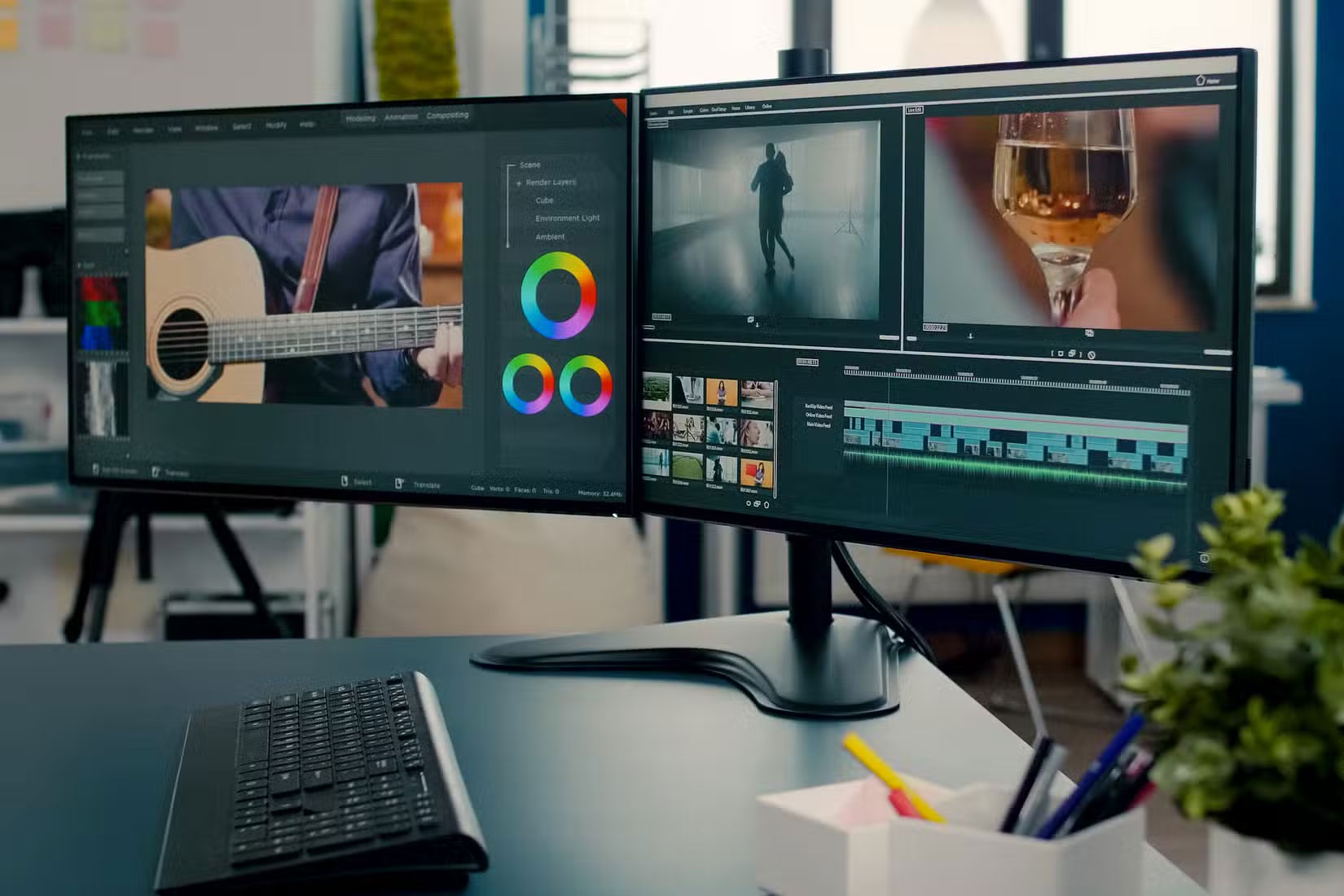
A single monitor may not always be enough. If you're editing video, writing code, or working with large spreadsheets, a two- or even three-monitor setup can make a big difference. The good news is that the monitor's USB ports can help you expand your screen real estate without the need for complicated docking stations or a bunch of extra cables.
This feature won't work with standard USB-A ports on monitors, as they're typically designed for peripherals like keyboards, mice, or flash drives and can't transmit video. However, if your monitor has a USB-C port with DisplayPort Alternate Mode, Thunderbolt with Multi-Stream Transport (MST), or DisplayPort that supports MST, you're in luck.
2. Play videos and files directly from USB
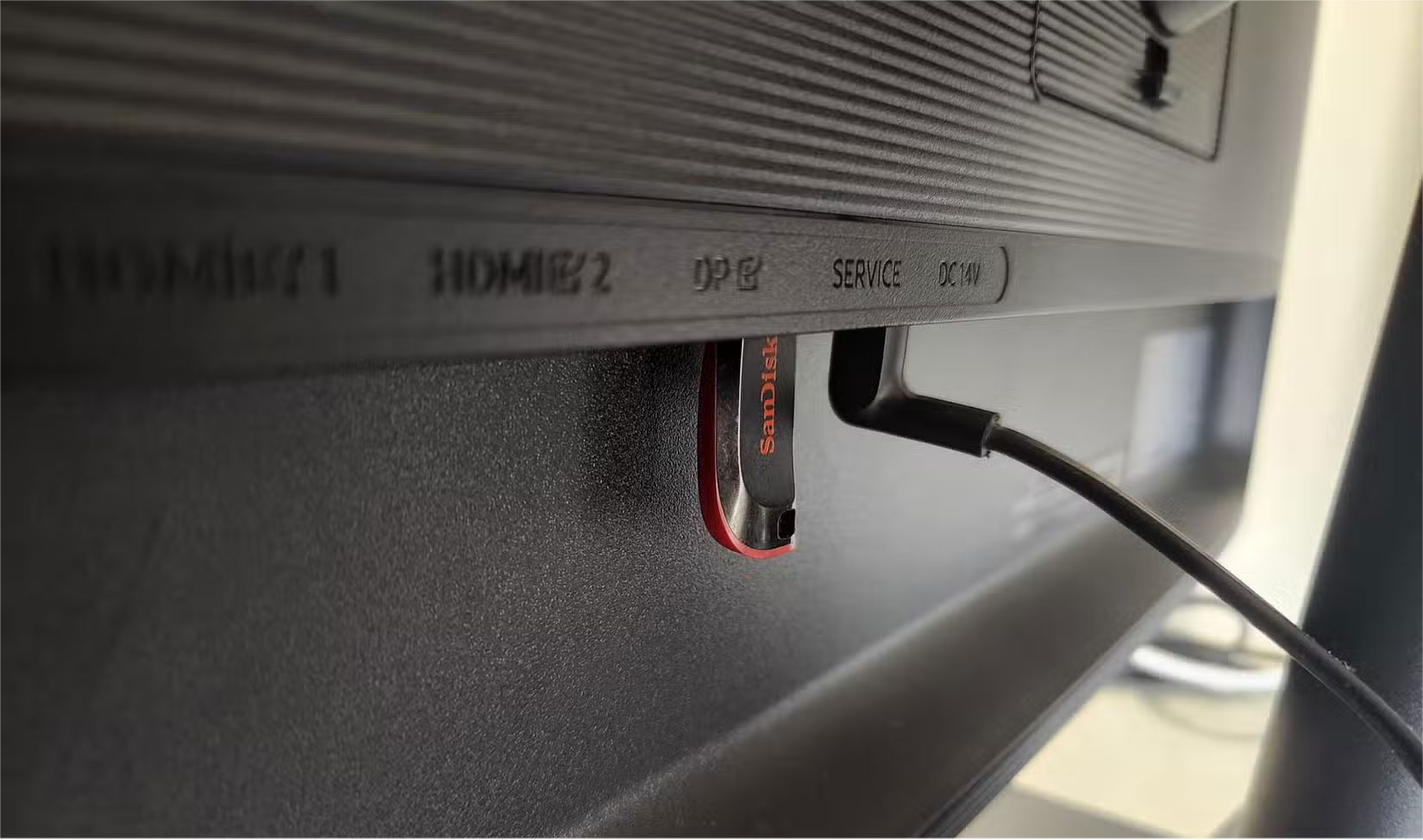
Before you get too excited, note that this feature won't work with just any monitor. Most standard monitors with USB ports can't read USB drives directly. In most cases, these ports are only useful for firmware updates—you download the update file to the drive, plug it in, and use the monitor's physical buttons to initiate the installation.
However, if you own a smart display, such as one from Samsung's Smart Monitor line (which comes with its own operating system), you can use a USB flash drive to play media content without a PC. Just plug in a USB containing videos, music, photos, or even documents, then use the remote to navigate the built-in media player and browse content directly on the screen.
1. Easy access webcam and cable management
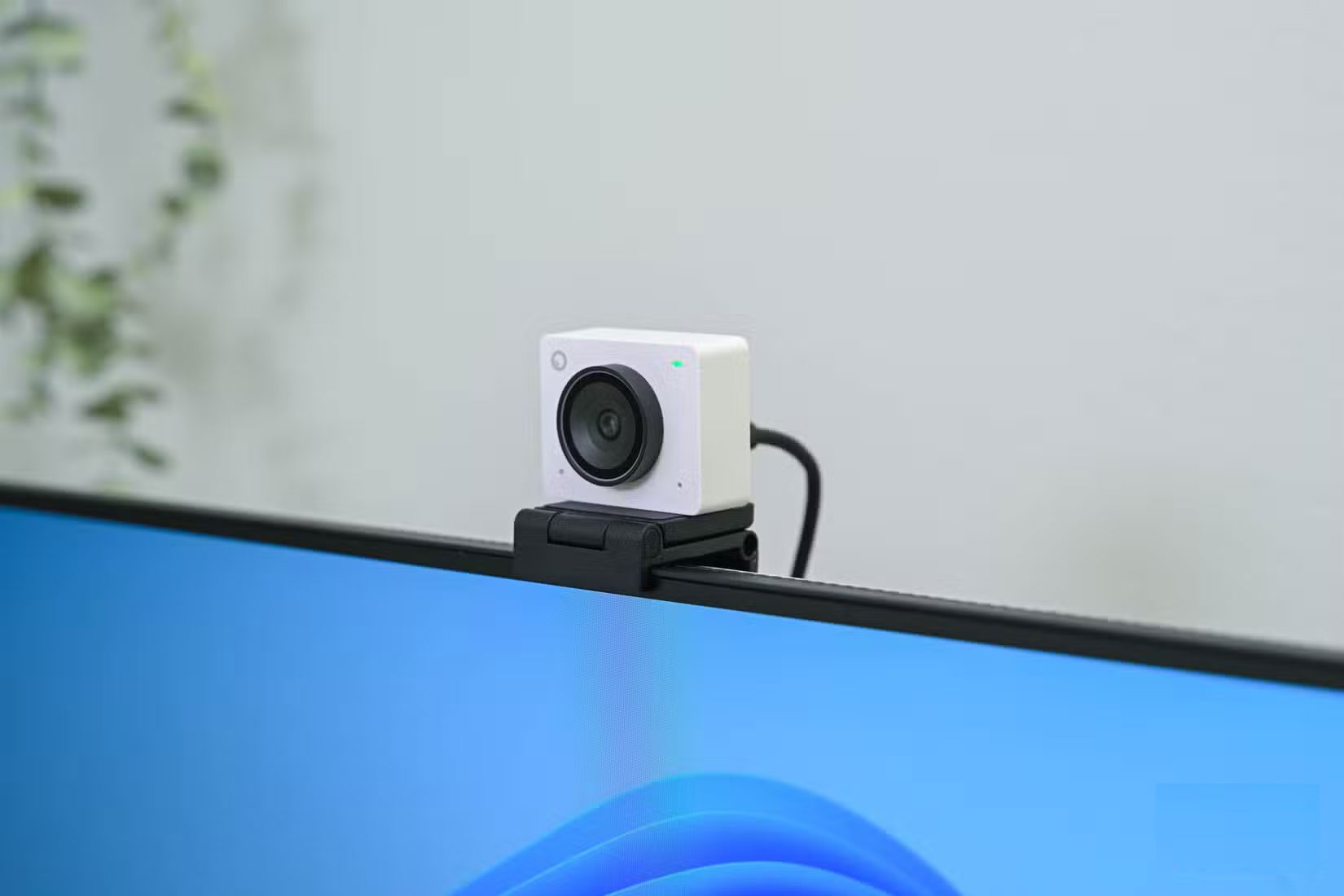
Unless you're using a DSLR as a webcam, you'll probably always have your webcam plugged in. But instead of plugging it directly into your computer, plugging it into your monitor's USB hub can make things easier.
This way, you can keep your USB ports clear and not worry about messy cables dangling off your desk or tangling around your keyboard. And if you need to unplug your webcam—whether you're traveling or switching devices—you can do it easily without having to fumble around in hard-to-reach places.
FAQ
What should you know about 7. Charging devices and power accessories?
Just like the USB port on a laptop or desktop, the port on a monitor can supply power. That means you can use it to charge all sorts of gadgets, from wireless headphones and smartwatches to fitness trackers and even small USB-powered fans.
What should you know about 6. Keyboard and mouse?
Unless you have a smart display that can function on its own, plugging a keyboard or mouse directly into the display's USB port won't do anything. Once the display is connected to your computer, however, that's a different story.
What should you know about 5. Turn your monitor into a full USB hub?
You can plug all sorts of USB devices into your computer, like flash drives, hard drives, printers, etc. This is a default, no-brainer move. But if your monitor has a built-in USB hub, it can handle those devices just fine.
What should you know about 4. Connect USB speakers?
If your monitor doesn't have built-in speakers, plugging in USB speakers is one of the easiest solutions. Most USB speakers use a single cable for both power and sound, so plugging them into your monitor's USB port simplifies things and reduces cable clutter.
Related Articles
 What Do the Symbols on the USB Ports Mean: Explained7 minutes read
 3 Reasons Why You Shouldn't Use Your Router's USB Port to Back up Data9 minutes read
 10 Devices You Can Plug into the HDMI Port on Your Smart TV7 minutes read
 Never Plug These 8 Devices into Your Smart TV's USB Port!6 minutes read
 How to Connect Two Monitors to a Laptop10 minutes read
 What Is Port 0 Used For?4 minutes read
Reader Comments 0
Sign in with email or Google to join the discussion.