Table of Contents
This guide provides a clear, practical overview of "SUM for Newbies Only: Excel Experts Use This Function Instead". It organizes the most useful details, explains important considerations, and highlights the steps or choices that matter most.
What's wrong with SUM?
SUM adds up everything, visible or not. That's what it does. But what about when you filter data or hide some rows? SUM accidentally includes all those hidden numbers. As a result, it inflates your total and silently ruins your reports. If you've ever found yourself having to explain why your "total" is larger than your filtered data, you know exactly what I'm talking about.
This is where most people get stuck. Many people rely on SUM, COUNT, and all the usual tools, constantly tweaking formulas whenever something doesn't make sense. Then they discover a function that does everything those basic functions can't do, but doesn't cause the usual pain. It's called SUBTOTAL.
How the SUBTOTAL function actually works
Imagine you have a spreadsheet full of sales data, hundreds or thousands of rows. Maybe you just want to see the sales for 'Product A,' so you filter the column. The numbers disappear from view, but the SUM function doesn't take note. It still adds up all the rows in the background, including the ones you can't see. This also applies to the COUNT and AVERAGE functions.

On the other hand, the SUBTOTAL function adjusts automatically. With SUBTOTAL, as you filter the data, the total automatically updates to show only the filtered and visible rows.
=SUBTOTAL(function_num, range)This isn't just about sums. SUBTOTAL can swap between sum, average, count, min, max, and a bunch of other useful calculations, just by changing the first number in the formula. Here's a full list of supported functions:
|
Number of functions |
Jaw |
|---|---|
|
101 |
AVERAGE |
|
102 |
COUNT |
|
103 |
COUNTA |
|
104 |
MAX |
|
105 |
MIN |
|
106 |
PRODUCT |
|
107 |
STDEV |
|
108 |
STDEVP |
|
109 |
SUM |
|
110 |
VAR |
|
111 |
VARP |
Tip : You can tell the SUBTOTAL function to include hidden rows by omitting the first digit from function_num. For example, 1 will SUM the hidden cells, but 101 will ignore them.
Unlike SUM, SUBTOTAL is smart enough not to calculate itself twice. If you have subtotals for each category and then a grand total at the end, SUBTOTAL knows to ignore the other subtotals. SUM just lumps them all together and inflates your numbers. If you ever see a total that's too high and wonder why, check to see if there are nested SUM functions. SUBTOTAL doesn't have that problem.
How to Use Subtotal in Excel (and Google Sheets)
What makes SUBTOTAL an obvious choice is its flexibility - you have more options without any of the complexity of SUM. Let's take a look at the same example and see how using SUBTOTAL can make things easier.

To sum cells, the formula would be as follows:
=SUBTOTAL(109, C2:C15)This formula sums cells C2 through C15, ignoring hidden cells. The example will apply this formula to the remaining two rows and now have a total. This works great across the entire table, and it also works great when filtering the table. Now the numbers make sense.
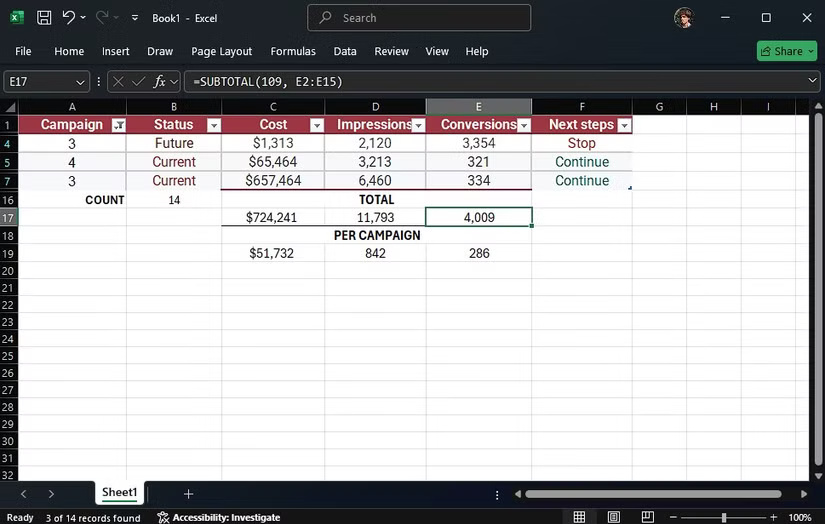
However, the other numbers still don't make sense. COUNT still shows 14, and the averages are now dividing subtotal by that count value, which is why the averages are lower than they should be. Don't worry! SUBTOTAL also supports the COUNT and COUNTA functions.
So for the count cell (B16), instead of writing:
=COUNTA(A2:A15)Change to:
=SUBTOTAL(103, A2:A15)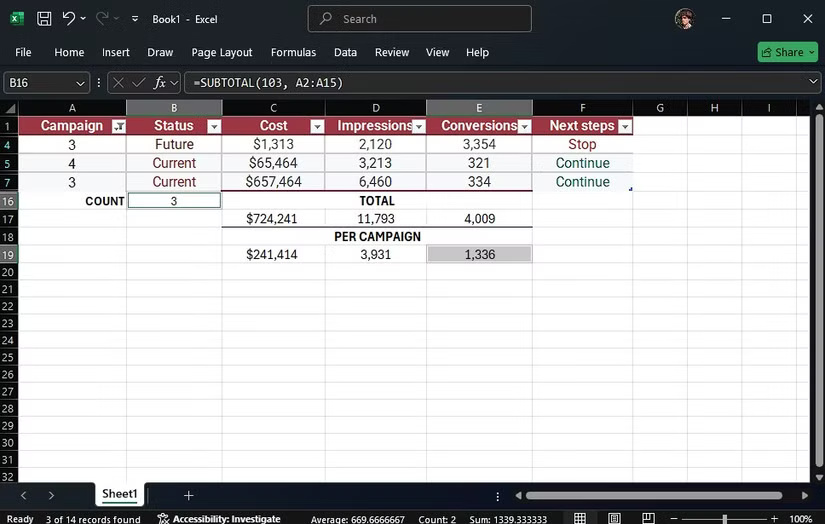
103 is the function number for COUNTA. Now the count automatically adjusts when filtering data, and averages always show the correct value. SUBTOTAL also supports MAX and MIN, which is a lifesaver.
In total, SUBTOTAL includes 11 different functions—so while it doesn't replace every Excel formula, these 11 functions are really all you need for most summary tables.
Note : SUBTOTAL also works in Google Sheets. Everything you learn here applies to whichever platform you use.
Look, there are only two reasons to use the SUM function. Either you never actually filter, never hide rows, never give the file to anyone, and never need to check the numbers, or you like explaining why the sum never matches the numbers on the screen.
For everyone else, there really is no excuse. Switch to the SUBTOTAL function and your spreadsheet will be dynamic, reliable, and essentially error-free for daily reporting.
FAQ
What's wrong with SUM?
SUM adds up everything, visible or not. That's what it does. But what about when you filter data or hide some rows? SUM accidentally includes all those hidden numbers. As a result, it inflates your total and silently ruins your reports. If you've ever found yourself having to explain why your "total" is larger than your.
How the SUBTOTAL function actually works?
Imagine you have a spreadsheet full of sales data, hundreds or thousands of rows. Maybe you just want to see the sales for 'Product A,' so you filter the column. The numbers disappear from view, but the SUM function doesn't take note. It still adds up all the rows in the background, including the ones you can't see. This also.
How to Use Subtotal in Excel (and Google Sheets)?
What makes SUBTOTAL an obvious choice is its flexibility - you have more options without any of the complexity of SUM. Let's take a look at the same example and see how using SUBTOTAL can make things easier.
Related Articles
 The Index Function in Excel: Formulas and Usage9 minutes read
 How to use the VALUE function in Excel - A function to4 minutes read
 Basic Excel Functions That Anyone Must Know20 minutes read
 How to Use Hlookup Function on Excel: Excel Hlookup Function4 minutes read
 How to Use the SUM Function to Calculate Totals in Excel8 minutes read
 DATE Function: Converts Numbers to a Valid Date Format5 minutes read
Reader Comments 0
Sign in with email or Google to join the discussion.