Table of Contents
Explore privacy risks on chromebooks that users often overlook.
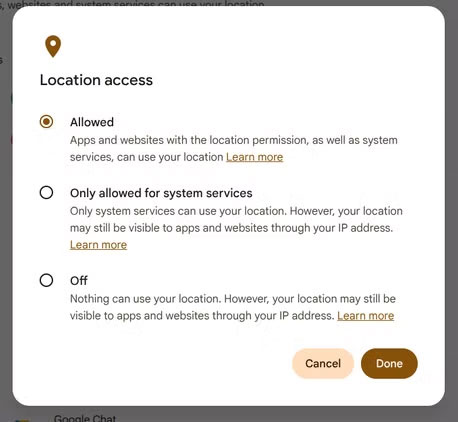
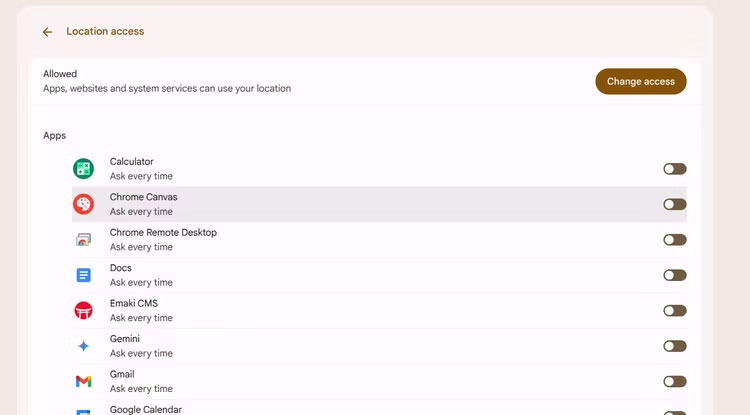
One of the most common issues lies in location access permissions. Previously, ChromeOS almost exclusively allowed users to turn location services on or off, unlike Android, where each app has its own permissions. If you're using a Chromebook that's no longer receiving updates, even if you turn off system-wide location services, some apps may still be secretly collecting your location. In this case, you'd have to check each app individually and turn it on or off as needed, although the results aren't always foolproof. In the latest version of ChromeOS, users can manage location permissions on an app-by-app basis, but it's still necessary to spend time reviewing the entire app list to configure it appropriately.
Another feature to watch out for is Nearby Share (Quick Share) – a file transfer tool similar to AirDrop. While convenient, it also poses risks if the device visibility settings for receiving files aren't configured correctly. Some devices default to 'Contacts,' but many leave it as 'Everyone,' making the Chromebook visible to anyone nearby. Some newer models have removed the 'Everyone' option, leaving only 'My Devices,' 'Contacts,' and 'Hidden.' In practice, 'My Devices' is usually the safest and most appropriate. 'Contacts' sounds fine, but many people's Google contacts contain countless addresses accumulated over the years, leading to the risk of unintentional information leaks.

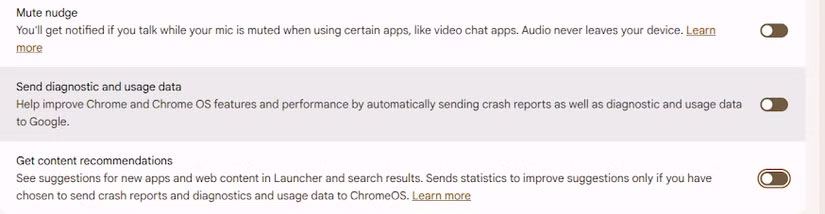
Furthermore, background data synchronization and activities related to your Google account are unavoidable aspects of using a Chromebook. Upon logging in, the device triggers a series of tasks such as Web & App Activity, location history, YouTube activity, and various other data collection methods. Users cannot completely disable these, but can reduce their usage by going to 'Privacy controls' in Settings, where options are available to stop sending diagnostic data and turn off content suggestions. Additionally, managing permissions for individual apps – especially those related to tracking and synchronization – is crucial.
Some Chromebooks even have a camera tracking feature that automatically locks the screen when you leave – very useful for students or forgetful people. However, if you can manually lock your device (using the Search/Launcher key + L), disabling this feature is safer. Also, if your laptop has a webcam cover, you should use it. Similarly, enabling 'Hey Google' to activate the Assistant using voice commands means the microphone is always active. On laptops, this isn't as necessary as on smartphones, as you always have shortcuts to quickly access the function menu.
Finally, there's the issue of 'access permissions expanding over time'. Setting permissions once isn't enough; each app or operating system update can change the settings. Therefore, you should periodically check which apps are using your camera, microphone, location, or other sensitive permissions. If an app doesn't need these permissions but keeps enabling them, it's best to remove the app entirely. Privacy isn't something you set once and for all – it's a habit, and starting with the Chromebook right in front of you is a good beginning.
Final Thoughts
Understanding privacy risks on chromebooks that users often overlook makes it easier to evaluate the information and apply the most relevant recommendations. Focus on the key points above and verify details that may change over time.
FAQ
What is privacy risks on chromebooks that users often overlook?
Explore privacy risks on chromebooks that users often overlook.
What key points does this article cover?
The article explains the core concept, important considerations, and practical details readers should understand.
How can you use this information in practice?
Use the explanations to compare options, verify important details, and make a more informed decision. Apply the recommendations that best match your goals and situation.
Related Articles
 3 Chatbot Privacy Risks You Should Know: Top Picks and Buying Guide8 minutes read
 Deepfakes and Misinformation22 minutes read
 How to Tighten Privacy on Chromebooks6 minutes read
 How Are Smartwatches 'Tracking' You: Explained5 minutes read
 The Best Chromebook Models You Can Buy in 20217 minutes read
 Risks of Using “Sign In With Google”4 minutes read
Reader Comments 0
Sign in with email or Google to join the discussion.