Table of Contents
Learning how to use raycast: the best productivity app for mac doesn't have to be complicated. This updated guide presents a clear workflow, practical checks, and troubleshooting advice you can use while completing the process.
Key Takeaways
- Review block distracting apps with raycast focus.
- Explore speed Up your workflow with system-wide shortcuts.
- Understand boost productivity with raycast extensions.
4. Block Distracting Apps with Raycast Focus
One of the most effective ways to increase productivity is not to do more in less time, but to make the most of the time you have by focusing on what really matters. Distraction is one of the biggest challenges you have to overcome to achieve this. Whether it's mindlessly scrolling through social media or getting sidetracked by low-priority tasks, staying focused can feel like an uphill battle.
Use Raycast Focus to block distracting apps and websites on your Mac, creating a distraction-free environment to tackle the work that matters most.
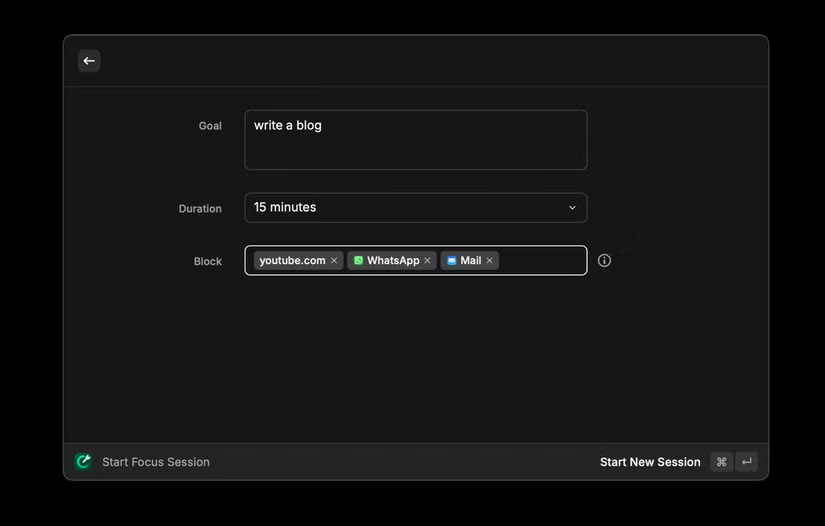
Here's how to use Raycast Focus:
- Visit Raycast's official website to download and install it on your Mac.
- Open Raycast with the default shortcut Option + Space and type Start Focus.
- Set your goal, for instance, write a blog post, choose the duration, and add the apps or websites you want to block.
- Press Enter and a small timer will appear, signaling the start of the focus session.
Any attempt to open the blocked app or website will trigger a Raycast notification, gently nudging you back on track while the session is active. It's a simple yet effective way to stay focused and make the most of your time.
3. Speed Up Your Workflow with System-wide Shortcuts
Raycast's keyboard-first approach makes navigating your Mac faster, eliminating the need to constantly reach for the mouse. But one of the reasons Raycast is better than Spotlight is that you can use it to create system-wide shortcuts that let you control everything from basic system functions like adjusting the volume to instantly launching your favorite apps.

Here's how to set up keyboard shortcuts using Raycast:
- Open Raycast, type Extensions and press Enter.
- Select and enable the System extension by clicking the box next to it.
- Find a relevant command (e.g. Empty Trash or Toggle Bluetooth ) and note down the keyboard shortcut for that command.
You can also create shortcuts for built-in and third-party apps. Just search for the app in the same menu and assign a shortcut. For instance, use Option + R to open Reminders instantly.
Note: When setting up new shortcuts, make sure they don't conflict with existing shortcuts to avoid any issues.
In addition to setting up keyboard shortcuts, you can use Raycast to create Quicklinks that launch anything faster — whether it's a specific folder on your Mac, a web page, or even a Spotify playlist.
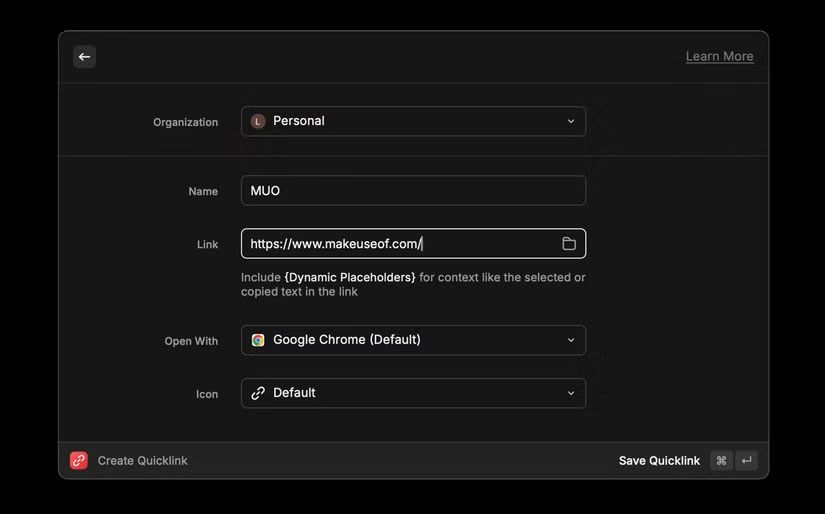
Here's how to create a Quicklink using Raycast:
- Open Raycast and search for Create Quicklink.
- Enter the name, link, and app you want to use to open it, then press Command + Enter to save.
- Whenever you want to open that app, just launch Raycast and enter the name.
With shortcuts and Quicklinks, Raycast can become your command center, giving you quick access to all your frequently used apps, folders, and websites.
2. Boost Productivity with Raycast Extensions
Raycast is an incredibly versatile app because it allows you to connect your favorite tools in one place. This versatility is one of the reasons why many people can't start a new Mac without installing apps like Raycast because it transforms the way you work by integrating with the apps you use every day.
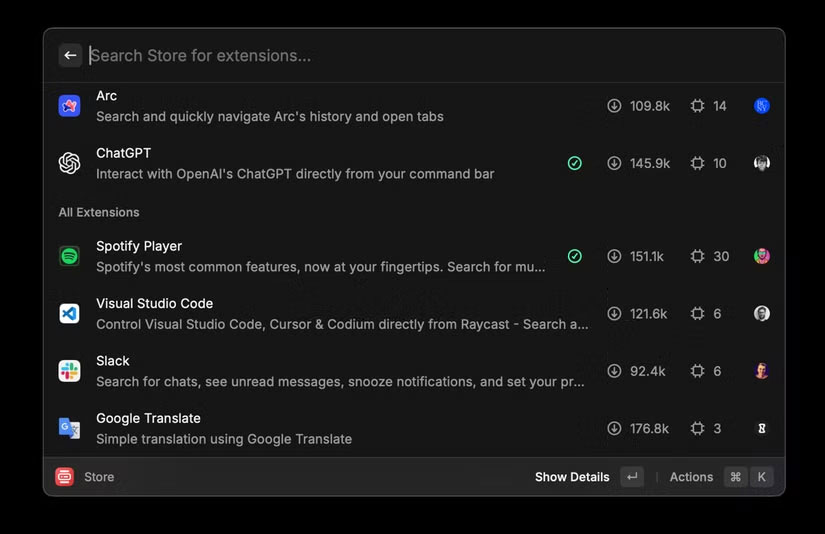
Open Raycast and search for the Store. This helps you get started. Here you'll find a large library of community-built extensions for popular tools like Asana, Trello, Slack, Arc, and many more. These extensions let you do things faster and more efficiently without ever leaving Raycast.
For instance, use the Asana extension to quickly create, view, and manage tasks directly from Raycast. Instead of switching contexts, you can stay focused and productive, all in a single interface.
1. Add Favorite Apps to the Menu Bar
Having quick access to frequently used apps in the menu bar is a game changer for productivity. It improves note-taking habits by getting tasks and ideas out into a trusted system before they slip away—whether it's taking notes or setting reminders. With Raycast, you can add apps like Reminders, Notes, and Spotify to your menu bar for instant access.
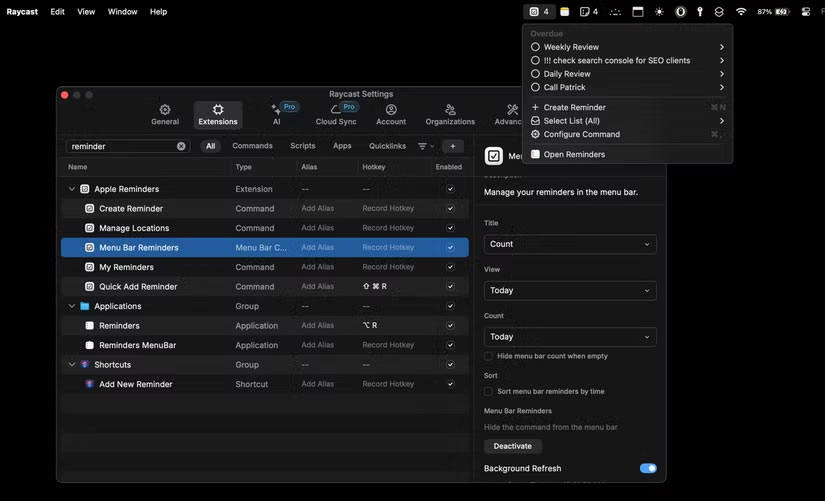
Here's how to add the Reminders app to the menu bar:
- Open Raycast and search for Store.
- Search for Apple Reminders and install the extension.
- Open the Extensions page and search for Apple Reminders.
- Select Menu Bar Reminder s and click Activate on the right side of the page.
Once enabled, you'll find Reminders in your menu bar, ready for quick access. This simple yet powerful feature keeps your most important tools just a click away, helping you stay organized.
Tip: Follow the same process to add other supported apps like Notes, Spotify, etc. To your menu bar.
Raycast is more than just a Spotlight replacement. It's a customizable productivity tool that adapts to your workflow, helping you work smarter and faster. It's simply a must-have app for anyone looking to increase productivity on their Mac.
Final Thoughts
The most reliable way to handle use raycast: the best productivity app for mac is to follow the process in order, verify each important setting, and test the result before moving on. Use the guidance above as a practical reference, then adjust the details for your device, software version, or specific goal.
FAQ
What should I check before I use raycast: the best productivity app for mac?
Use the latest available software, confirm that your device meets the requirements, and make sure you have the necessary permissions, account access, or backup before changing anything.
Why might I be unable to use raycast: the best productivity app for mac?
Common causes include outdated software, missing permissions, incompatible settings, incomplete setup steps, or a temporary network problem. Recheck the process from the beginning and restart the app or device if needed.
Is it safe to use raycast: the best productivity app for mac?
It is generally safe when you use official tools, review every permission, and back up important data before making system-level or account-level changes.
Related Articles
 10 Tips to Increase Productivity on Windows 1012 minutes read
 5 Practical Ways to Use AI for Better Productivity8 minutes read
 Why All-in-one Productivity Apps Don't Work?7 minutes read
 10 Productivity Apps That Work Offline9 minutes read
 AI and Productivity: Why Does Increased AI Lead to Greater Pressure on Humans?7 minutes read
 Top 10+ Best AI Productivity Tools8 minutes read
Reader Comments 0
Sign in with email or Google to join the discussion.