Table of Contents
3 Apple Apps to Boost Productivity brings together practical options worth considering. Below, you'll find clear explanations, useful context, and tips for deciding which choices best match your needs.
Key Takeaways
- Review reminders: a surprisingly capable task manager.
- Explore notes: personal knowledge center.
- Understand calendar: time manager and meeting scheduler.
Reminders: A Surprisingly Capable Task Manager
At first glance, Apple's Reminders app seems like a basic to-do list—great for grocery shopping and quick reminders. That's exactly why it's so effective while Reminders doesn't have as many features as robust project management tools like OmniFocus.
Reminders strikes the perfect balance between simplicity and functionality, and its seamless integration with other Apple apps has made it an indispensable part of any productivity system.
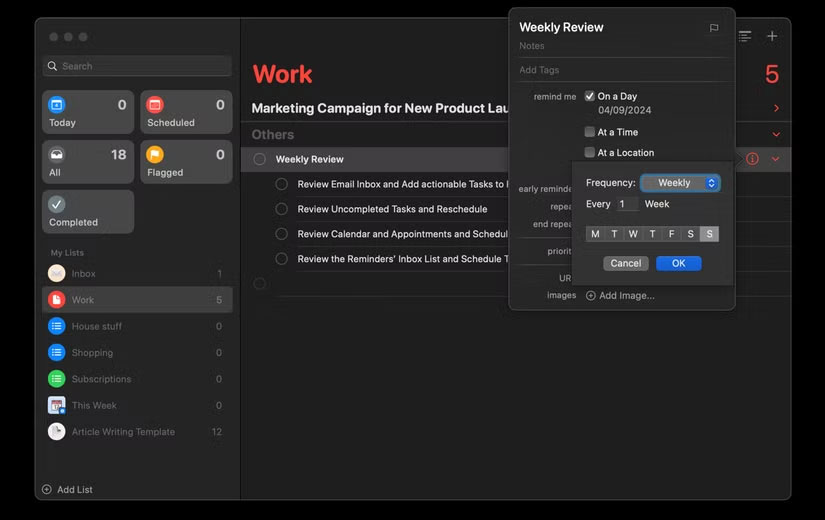
Reminders focuses on the essentials — everything right where you need it, without unnecessary complexity or endless customization. This makes it easy to organize your to-do list in Reminders. For instance, one of the most underrated features of Reminders is its ability to handle both simple to-dos and complex projects. You can break large projects down into smaller tasks and even create subtasks within those tasks.
Location-based reminders are another simple but effective feature, as it allows you to set alerts that trigger when you arrive at a specific location. For instance, you can set a reminder to water your plants as soon as you get home.
You also use Smart Lists in Reminders to help you easily organize tasks. Instead of manually sorting reminders into different lists, Smart Lists automatically group tasks based on criteria like date, priority, time, or location.
Notes: Personal Knowledge Center
Apple Notes is the best note-taking app for Apple users. Its benefits far outweigh its drawbacks, especially for those in the Apple ecosystem while many power users may feel that the Notes app lacks some important features. Instead of switching to another app, many people use ProNotes to enhance the Notes app on their Mac.
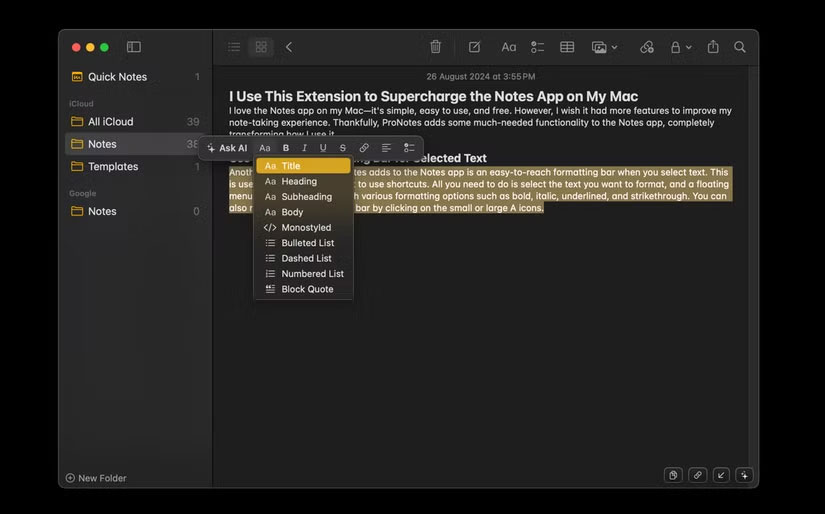
One of the things people love most about Apple Notes is how quickly they can access information. Thanks to deep macOS integration, you can pull up specific notes in Spotlight Search just by typing a keyword.
Note: You can also use the Notes app on your iPhone to scan documents. Whether it's a receipt, a handwritten note, or a contract, you can quickly scan and save it. Thanks to iCloud Sync, you can access it instantly on all your Apple devices.
As someone who often has random ideas, you need a way to capture them quickly before they slip away. You can use Hot Corners on your Mac to designate one of the corners of your screen to quickly open the Notes app. With a simple click, you can capture a thought without interrupting your workflow.
Calendar: Time Manager and Meeting Scheduler
Admittedly, Apple Calendar isn't always a fan. That's why they initially replaced the default Mac app with a third-party alternative called Fantastical. However, they brought Calendar back because it was free, and they've since realized that sometimes simplicity is what you need.
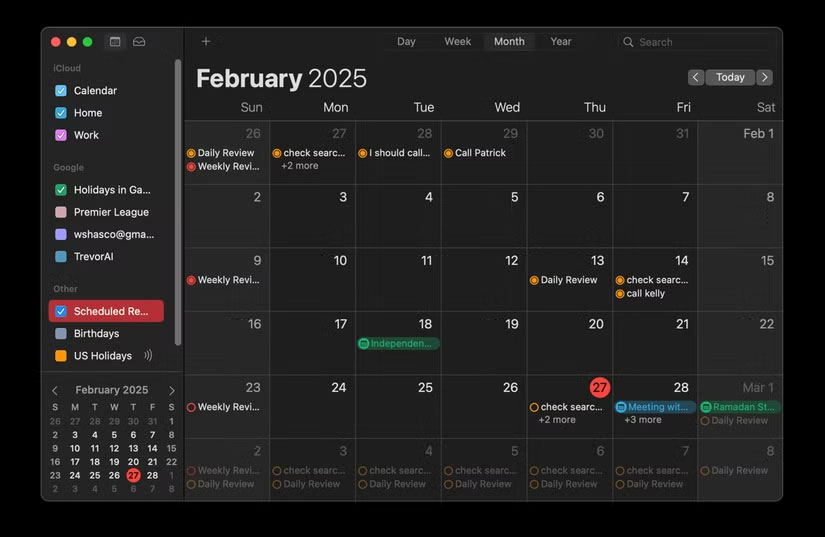
One of the things people love most about Apple Calendar is how easily it handles multiple calendars. For instance, you can have separate calendars for different aspects of your life, each assigned a unique color. This visual distinction makes it easy to tell them apart at a glance.
Another feature people love is that Calendar can sync events from other calendar accounts, like Google Calendar. Whether it's a work meeting scheduled by a coworker or a family event shared via Google, everything appears in one place.
Apple Calendar's simplicity shines when it comes to creating events. You can set reminders, add location information, invitees, attachments, and more. Rescheduling is as easy as dragging and dropping the event to another day if plans change.
Adding a new event is as easy as clicking on the desired date and adding details.
Final Thoughts
The most reliable way to handle Apple apps to boost productivity is to follow the process in order, verify each important setting, and test the result before moving on. Use the guidance above as a practical reference, then adjust the details for your device, software version, or specific goal.
FAQ
What should I know first about Apple Apps to Boost Productivity?
Do you need an all-in-one tool when a simple one will do the job just as well?
How do I get the best results with Apple Apps to Boost Productivity?
Use current software or equipment, follow the steps in order, review the recommended settings, and test one change at a time so you can identify what improves the result.
What should I do if Apple Apps to Boost Productivity doesn't work as expected?
Check compatibility, permissions, connectivity, and version-specific settings. Restart the relevant device or app, then repeat the process carefully before trying a more advanced fix.
Related Articles
 Top 7 Apple Watch Apps to Help Increase Productivity and Manage Work5 minutes read
 Why All-in-one Productivity Apps Don't Work?7 minutes read
 10 Productivity Apps That Work Offline9 minutes read
 6 Best AI Browsers to Boost Your Productivity: Explained7 minutes read
 Why Not Pay for the Pro Versions of Free Productivity Apps?6 minutes read
 Top 10+ Best AI Productivity Tools8 minutes read
Reader Comments 0
Sign in with email or Google to join the discussion.