Table of Contents
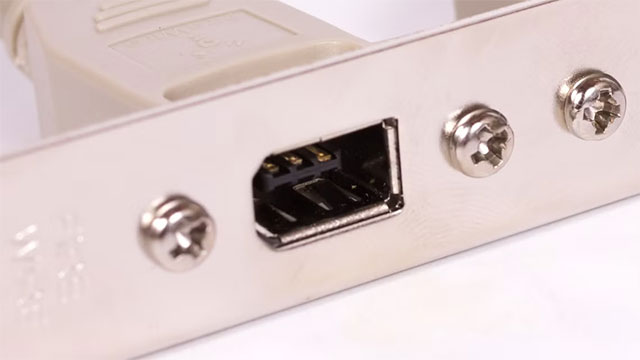
macOS 26 Tahoe removed FireWire support, including for devices connected through a Thunderbolt-to-FireWire adapter. If you still need an older drive, MiniDV camcorder, or audio interface, keep a compatible computer available until you have copied the data or confirmed a replacement workflow.
What changed in Tahoe
FireWire, also known as IEEE 1394 or i.LINK on some devices, was common on older Mac storage, audio, and video equipment. Macs without a built-in FireWire port could use supported adapters under earlier operating systems. Testing on the release of Tahoe showed that FireWire no longer appears in System Information. An adapter changes the physical connection but depends on operating-system support.
Move files and recordings before upgrading
- External drive: On a Mac and macOS version that already recognize the drive, copy important files to separate storage your new system can read. Open a sample from the destination to verify it. If the old drive shows error messages or starts disconnecting, follow a data protection checklist before attempting repairs.
- MiniDV or Digital8: Use a computer and capture application that work with the camera’s digital output. Capture a short tape segment and check the picture and audio before doing the whole collection.
- Audio interface: Verify the interface, driver, macOS version, and recording software as a set. For a current Mac, a supported USB or Thunderbolt interface may be simpler than maintaining an older system.
Check the old setup before buying an adapter
Test the device on its former setup first. Confirm it has power and appears in System Information or its capture app. If you are moving data between Macs, check the transfer options for the ports and Mac models you have. For a working FireWire-only device, the most reliable plan is to preserve an already verified setup until you have a verified copy.
Related Articles
 How to Boot a Mac from Firewire
 IEEE launched the new generation FireWire standard
 macOS 13 Ventura: New Features, Supported Devices, and Release Date
 After 13 years of existence, Microsoft Bing hits 100 million daily users for the first time
 Apple released macOS Big Sur 11.2.2: Fixed a hardware failure when used with a 3rd party USB-C hub
 How does India bring the dead dead to life next month?
Reader Comments 0
Sign in with email or Google to join the discussion.