Table of Contents
If you're still writing custom PowerShell scripts for basic file transfers and Excel reports, you're working too hard. Prebuilt PowerShell modules handle most common tasks better than anything you could write from scratch.
6. PSReadLine
PSReadLine is included with PowerShell by default, but many people, including advanced PowerShell users, don't take full advantage of it. This module adds powerful command line editing features like syntax highlighting, multi-line editing, and predictive IntelliSense.
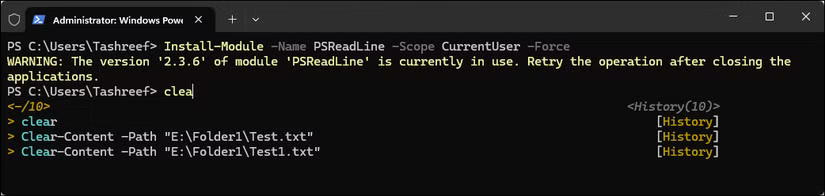
Before you begin, run the following command to install the latest version of PSReadLine:
Install-Module -Name PSReadLine -Scope CurrentUser -ForceIntelliSense predicts based on your command history to suggest completion as you type. To enable this feature, run:
Set-PSReadLineOption -PredictionSource History Set-PSReadLineOption -PredictionViewStyle ListViewMake sure you have a few commands in your history - try running commands like ipconfig, Get-Service , or other useful PowerShell commands.
5. ImportExcel
ImportExcel has over 14 million downloads on the PowerShell Gallery, and for good reason. It allows you to create spreadsheets without having Excel installed, which is important when working with servers or automation scripts.

Type the following command to install the module:
Install-Module -Name ImportExcel -Scope CurrentUserThis module supports everything from basic export commands to complex features like pivot tables, charts, and conditional formatting.
4. PSWriteHTML
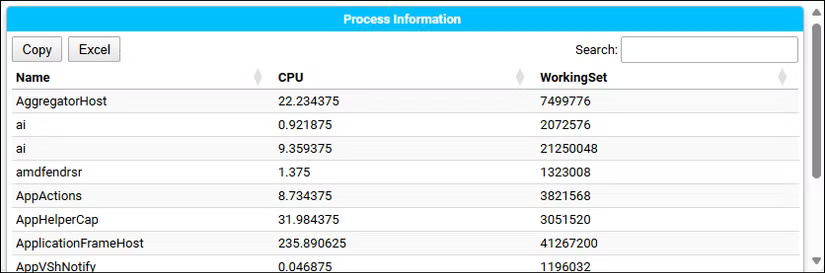
PSWriteHTML converts PowerShell output into HTML reports with tables, charts, and filters. This is a great way to create HTML reports and pages from PowerShell scripts without any knowledge of HTML.
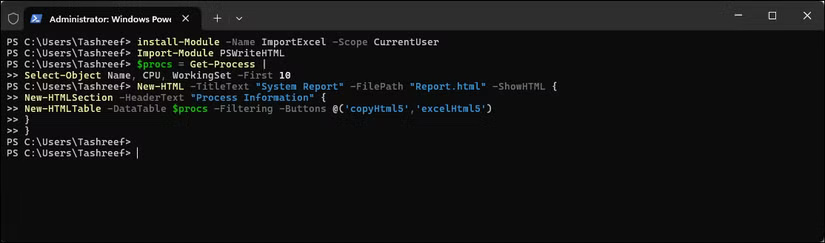
Type the following command to install the module:
Install-Module -Name PSWriteHTML -Scope CurrentUserFor instance, to generate a system report of the top 10 CPU-using processes:
Import-Module PSWriteHTML $procs = Get-Process | Select-Object Name, CPU, WorkingSet -First 10 New-HTML -TitleText "System Report" -FilePath "Report.html" -ShowHTML { New-HTMLSection -HeaderText "Process Information" { New-HTMLTable -DataTable $procs -Filtering -Buttons @('copyHtml5','excelHtml5') } }The resulting HTML includes sorting, filtering, and even an export button powered by JavaScript.
3. PSWindowsUpdate
PSWindowsUpdate is the most downloaded module on the PowerShell Gallery, with over 33 million downloads. As the name suggests, this module includes cmdlets for managing the Windows Update Client.
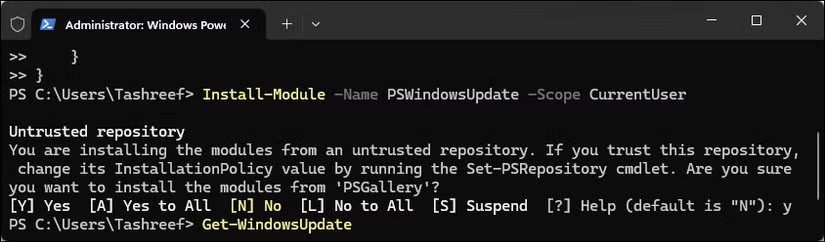
Type the following command to install the module:
Install-Module -Name PSWindowsUpdate -Scope CurrentUserThis module includes cmdlets for every Windows Update operation you might need - perfect for PowerShell automation workflows. During maintenance, you can check for pending updates on all servers at once using:
$Servers = 'SERVER01','SERVER02','SERVER03' Invoke-Command -ComputerName $Servers -ScriptBlock { Import-Module PSWindowsUpdate Get-WindowsUpdate -MicrosoftUpdate | Select-Object @{n='Computer';e={$env:COMPUTERNAME}}, KB, Title, Size, IsDownloaded, IsInstalled, RebootRequired } | Sort-Object Computer, KB | Format-Table -AutoSize2. Terminal-Icons
Terminal-Icons helps you make your PowerShell terminal more interesting by adding file type icons to the PowerShell folder list. Each file type has its own icon and color, making folder navigation much easier.
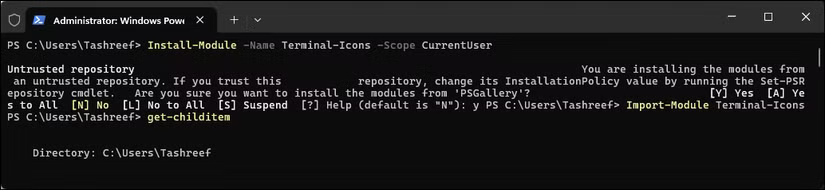
Type the following command to install the module:
Install-Module -Name Terminal-Icons -Scope CurrentUserThis module connects to the Get-ChildItem output format. Once installed, type:
Import-Module Terminal-IconsNow, when you use Get-ChildItem or its aliases, each file type will display its own icon and color.
1. Transfer
Transferetto is a PowerShell module that makes working with FTP, FTPS, and SFTP much easier. Instead of having to drop into. NET layers or install external tools, you get clean, native PowerShell cmdlets.
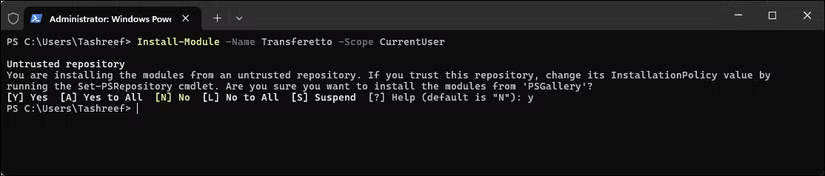
Type the following command to install the module:
Install-Module -Name Transferetto -Scope CurrentUserThe workflow will be familiar if you've used database modules before. You connect, do your work, then disconnect:
$Client = Connect-FTP -Server "ftp.example.com" -Credential (Get-Credential) Send-FTPFile -Client $Client -LocalPath "C:ReportsReport1.xlsx" -RemotePath "/uploads/" Disconnect-FTP -Client $ClientIn addition to the basics, Transferetto supports SSL options, encryption modes, certificate authentication switches, and a handy Request-FTPConfiguration command that can automatically check server connection settings for you.
Final Thoughts
The development covered in this article is worth following, but specifications, dates, and feature details may change until the relevant company or organization publishes an official confirmation.
FAQ
What is the main development covered in this article?
If you're still writing custom PowerShell scripts for basic file transfers and Excel reports, you're working too hard. Prebuilt PowerShell modules handle most common tasks better than anything you could write from scratch.
What should you know about 6. PSReadLine?
PSReadLine is included with PowerShell by default, but many people, including advanced PowerShell users, don't take full advantage of it.
Is every reported detail officially confirmed?
Not necessarily. Product leaks, preview builds, research reports, and early announcements can change. Confirm important specifications, dates, and availability through an official source before making a decision.
Related Articles
 About Powershell15 minutes read
 How to Use Powershell's Default Parameter to Change the Command5 minutes read
 How to Install Powershell 7.0 in Windows 10/8/73 minutes read
 How to Run Program C/c++ Program in Netbeans7 minutes read
 12 Most Useful PowerShell Commands for Windows8 minutes read
 Module in Python10 minutes read
Reader Comments 0
Sign in with email or Google to join the discussion.