Table of Contents
Many people have taken the plunge and invested in an affordable YubiKey Security Key NFC device, and have since stopped having to enter their passwords.
Entering and remembering passwords is a pain. Even if you create a strong password, you may reuse it for all your important accounts. Worse yet, passwords can be stolen through phishing sites or data breaches.
While password managers can help, people want something more secure. So many have turned to passkey, a phishing-proof alternative to passwords that uses an encryption key instead of a string of characters to remember. All you need is your device PIN to log in—the device handles everything else. Problem solved, right?
But after using device-based passkeys on Windows laptops and Android phones, the limitations became apparent. Ironically, the solution was to return to hardware security keys —the technology that pioneered passwordless authentication long before Apple, Google, and Microsoft got involved. So many people took the plunge and invested in an affordable YubiKey Security Key NFC device, and since then, they've been password-free.
How does YubiKey work?
Passkey is stored on the key itself, not on the device
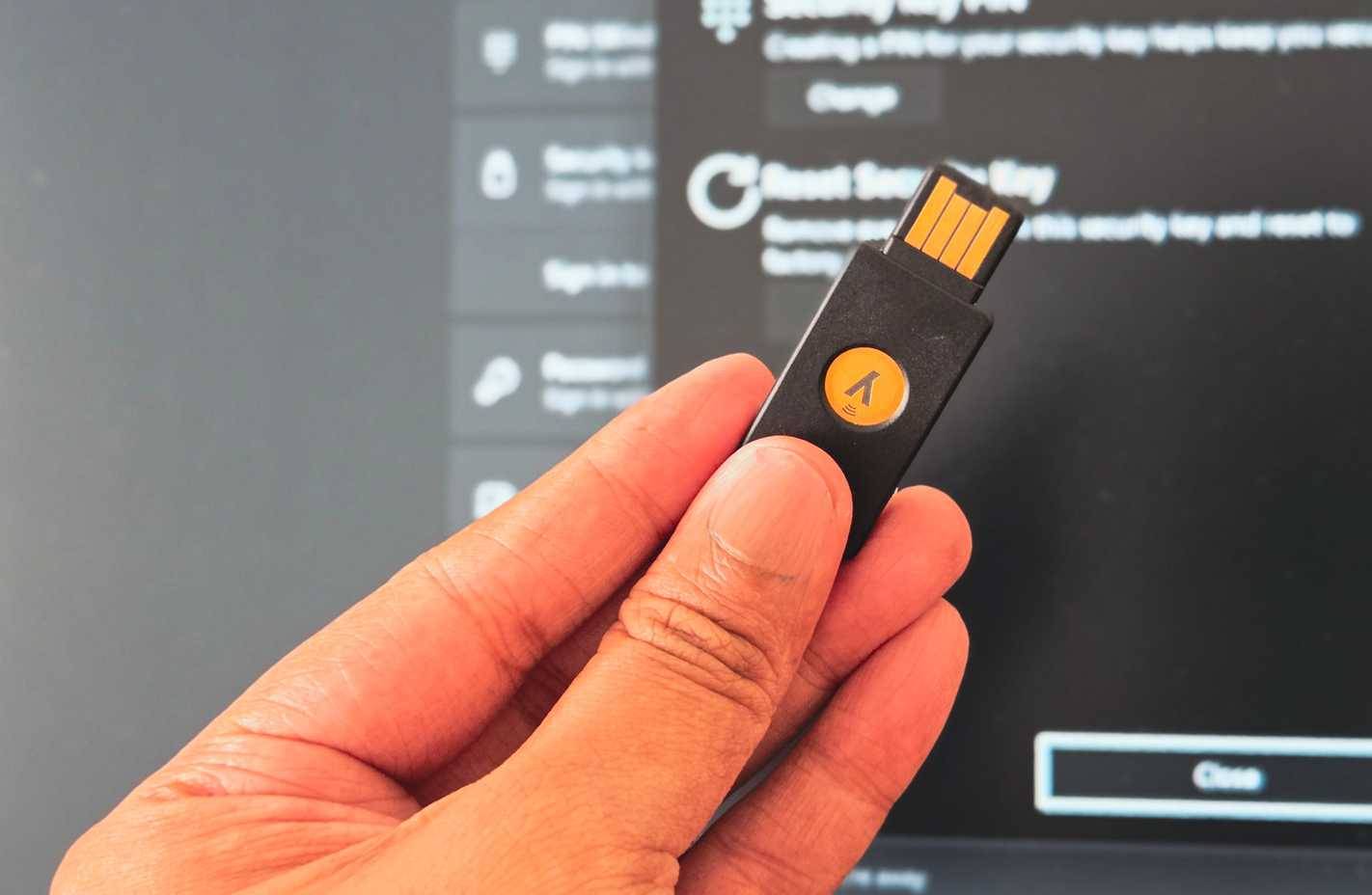
YubiKey is a FIDO2-certified hardware authenticator. Unlike device-based passcodes that reside in the Windows TPM chip or the iPhone's secure enclave, YubiKey stores passkeys directly on the physical key itself. When you create a passcode for a website, that passkey is stored in the YubiKey's secure storage, not on your computer.
The YubiKey Security Key NFC, running software version 5.7.4, can store up to 100 passkeys. That may sound limited, but most people don't need more than that for their essential accounts like email, banking, and work tools.
When you log in, the website communicates with the YubiKey using the FIDO2 protocol. The key verifies the website's validity, confirms your identity with a PIN you set yourself (or tap it on an NFC-enabled phone), and then provides the cryptographic signature needed to log you in. Your computer is just the messenger in this exchange.
This makes the YubiKey the most secure form of security key storage because the private key never leaves the device. Even if your computer is infected with malware, an attacker cannot extract your security keys because they are not stored on the computer at all.
Setting up YubiKey
Getting started takes just minutes
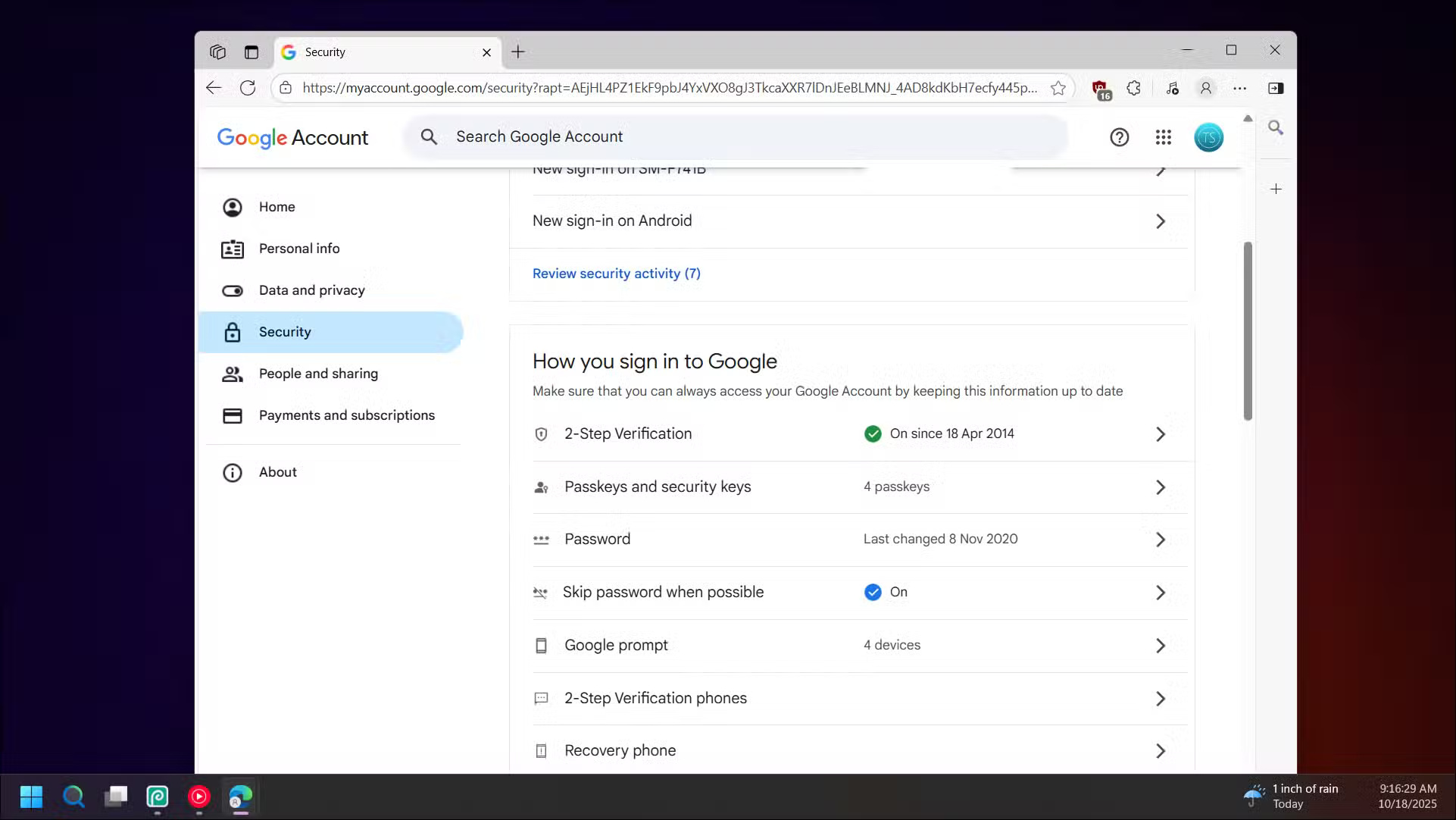
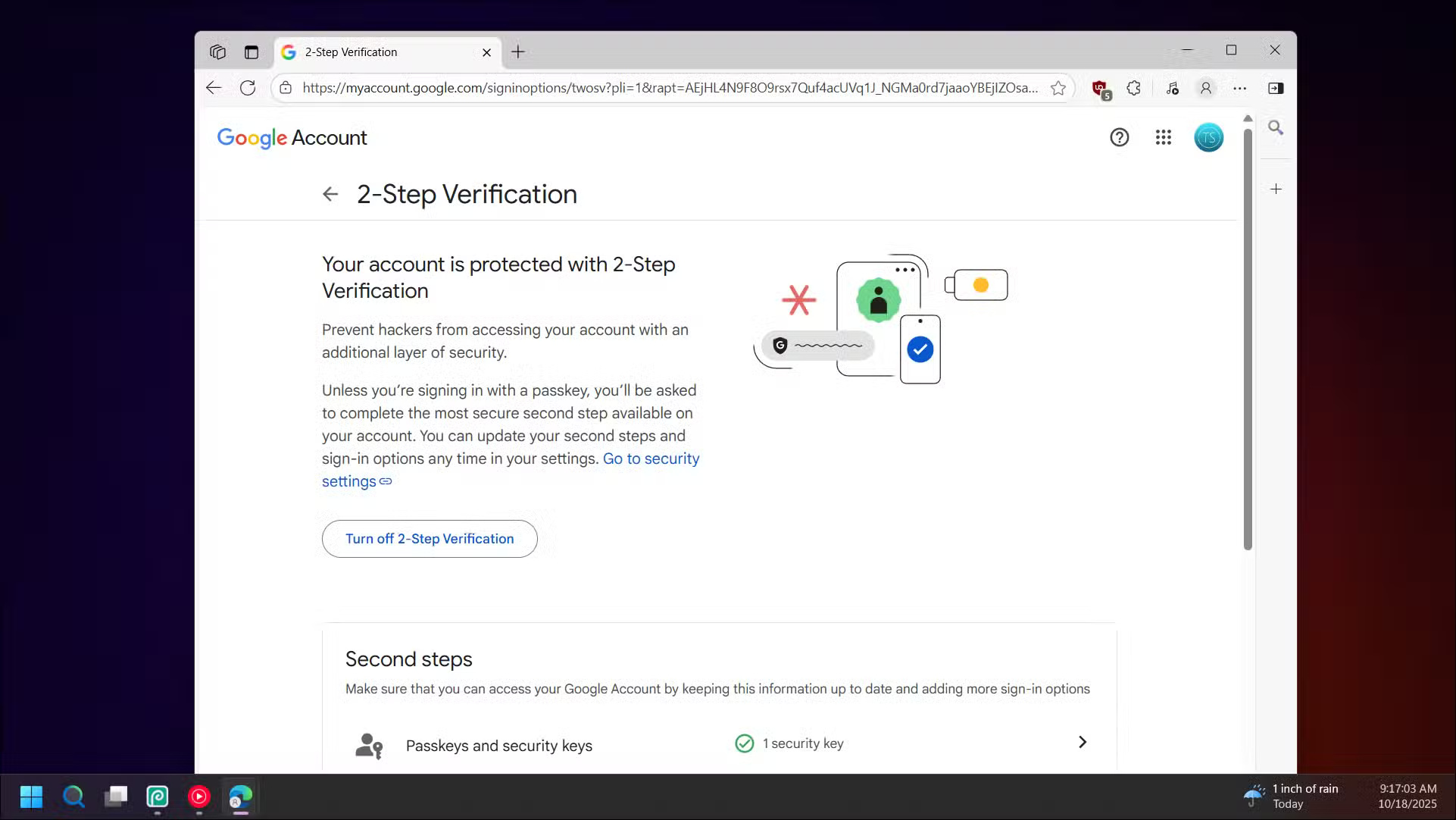
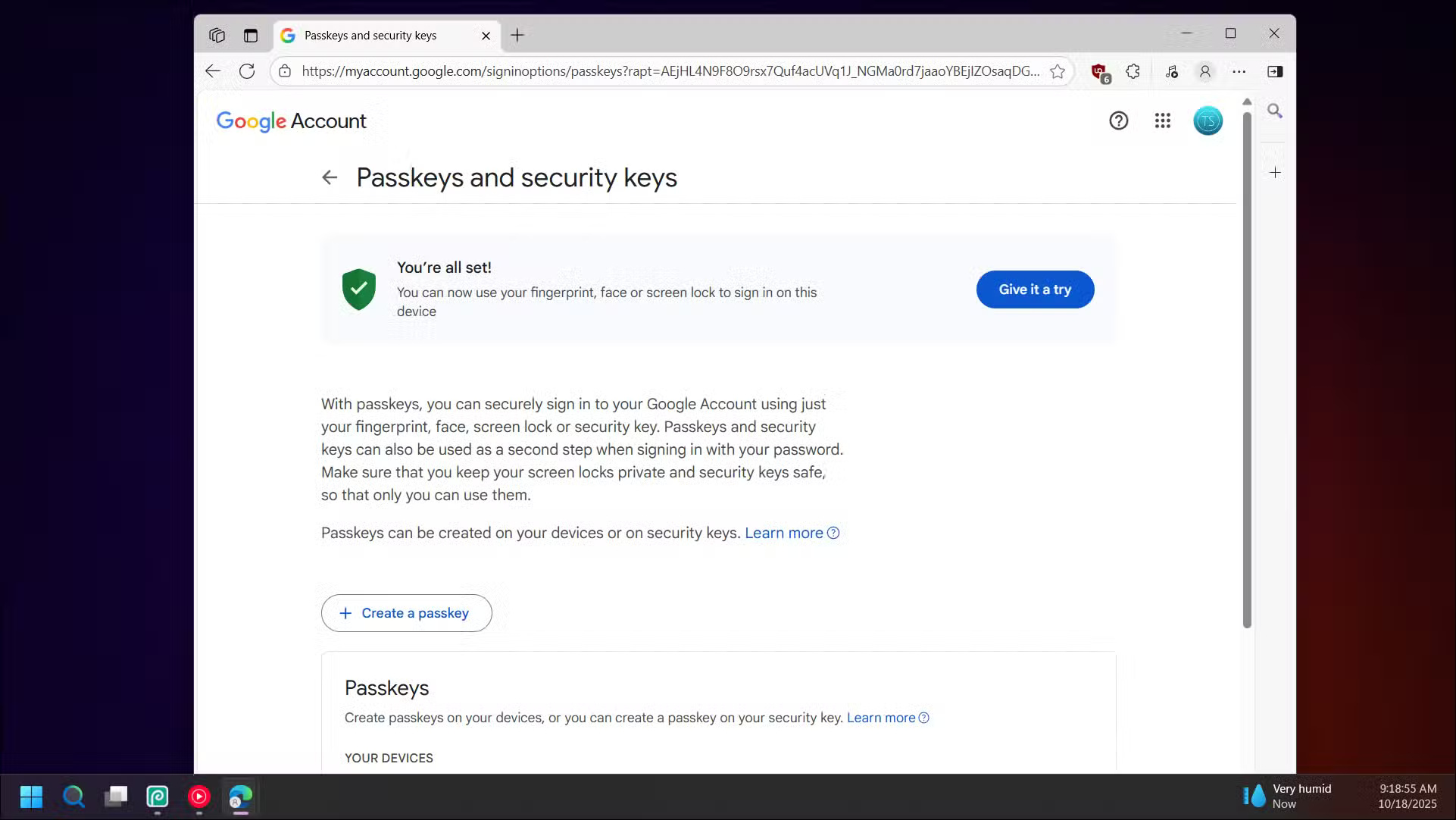
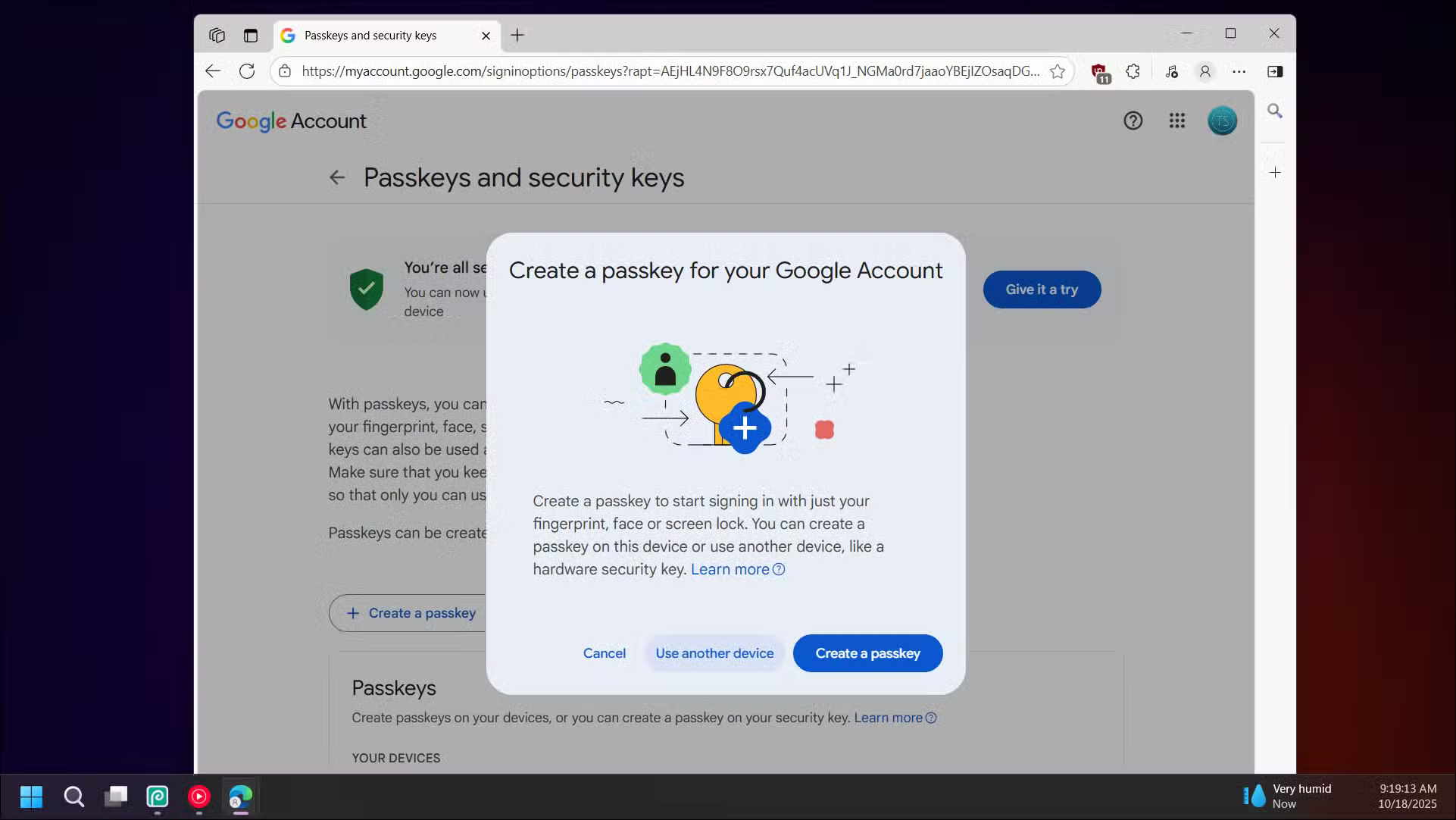
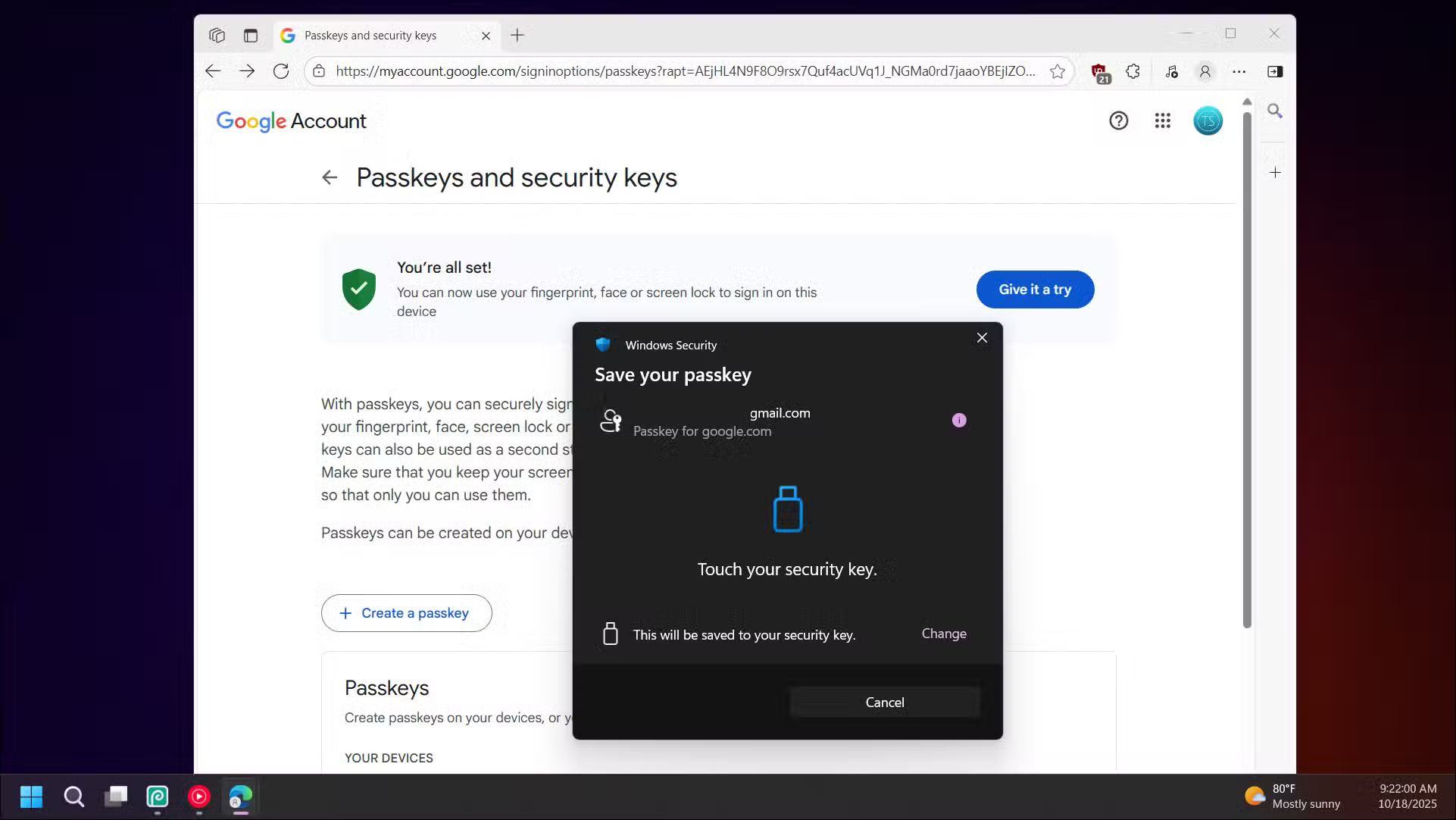
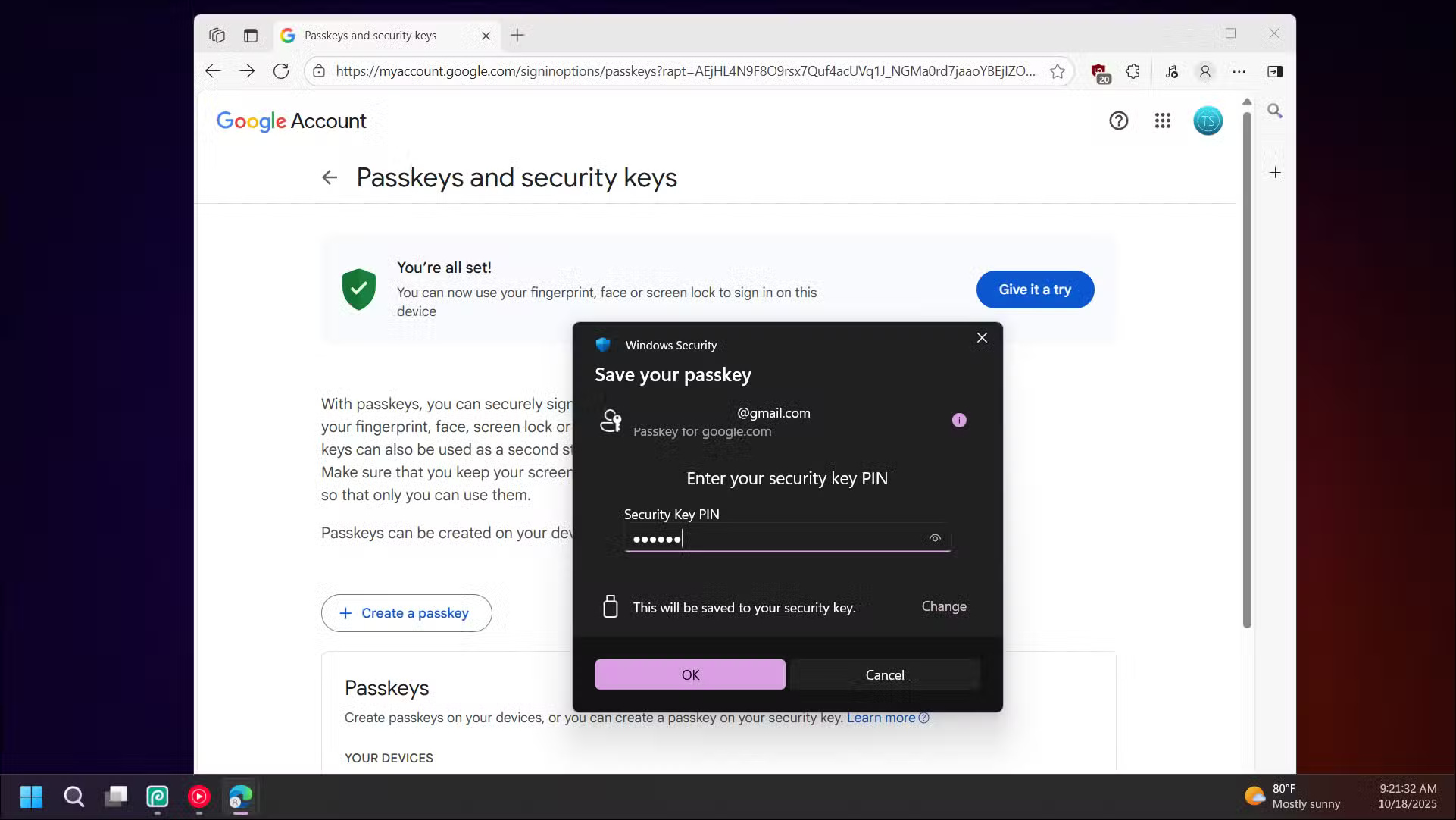
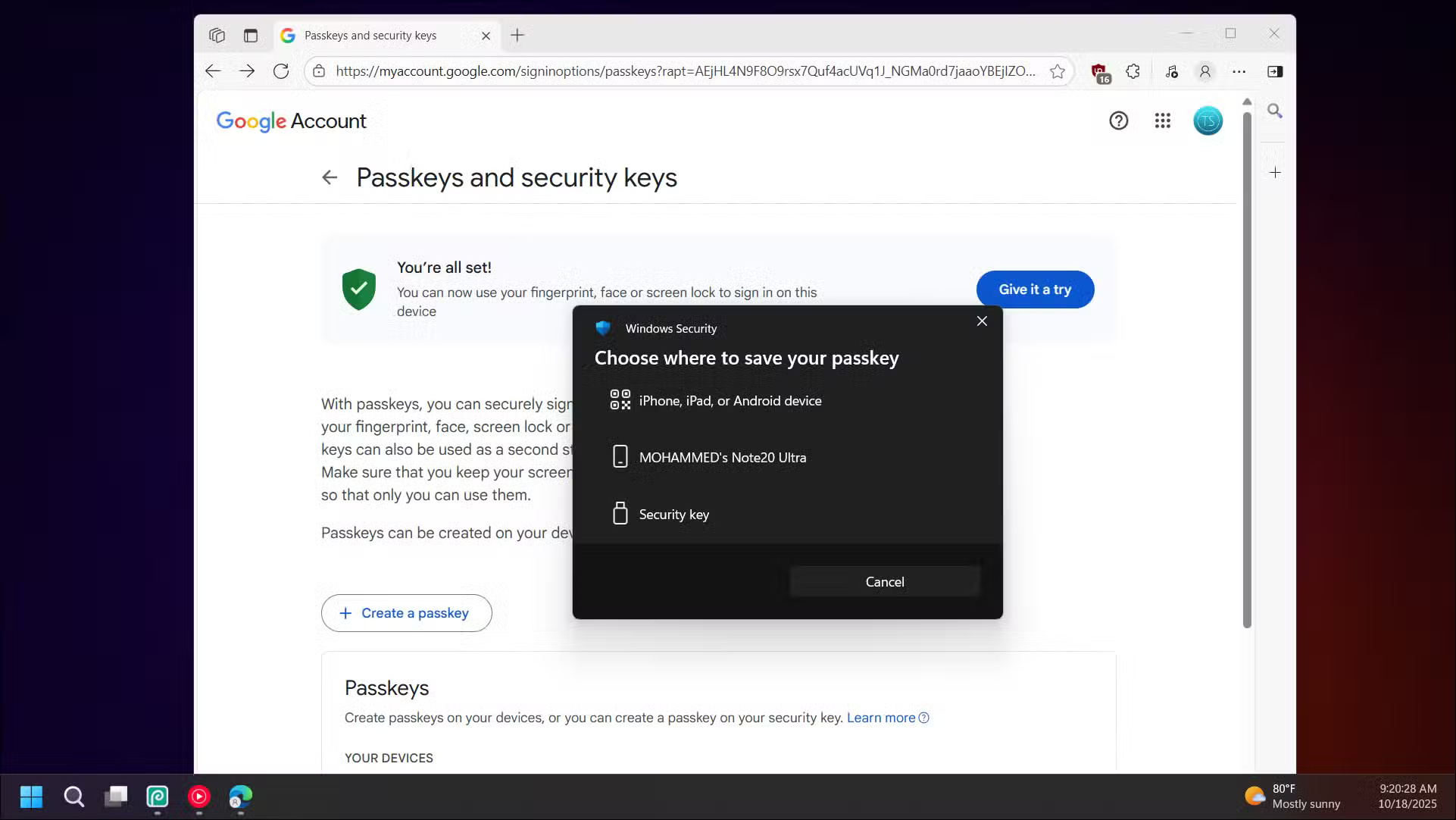
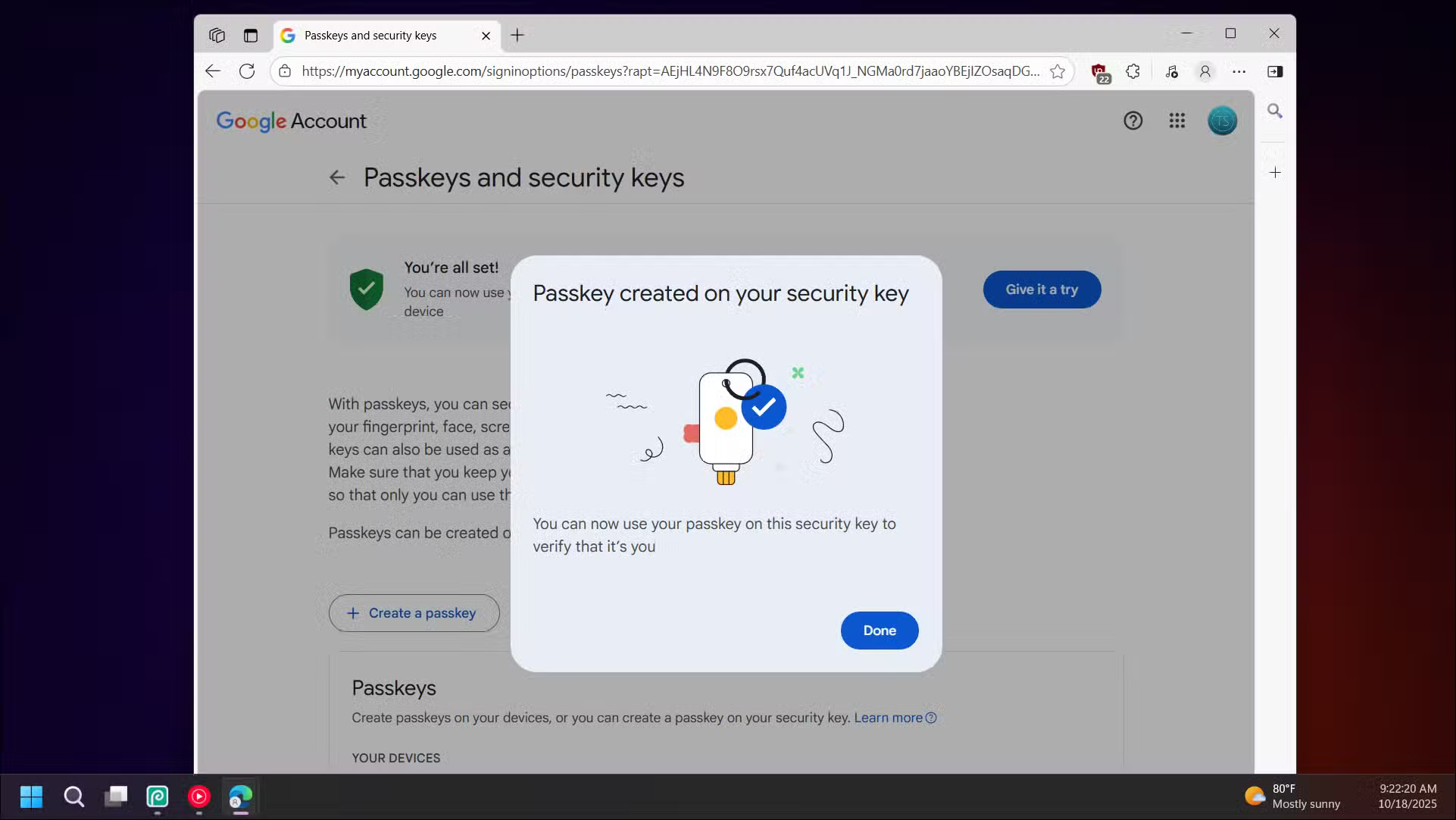
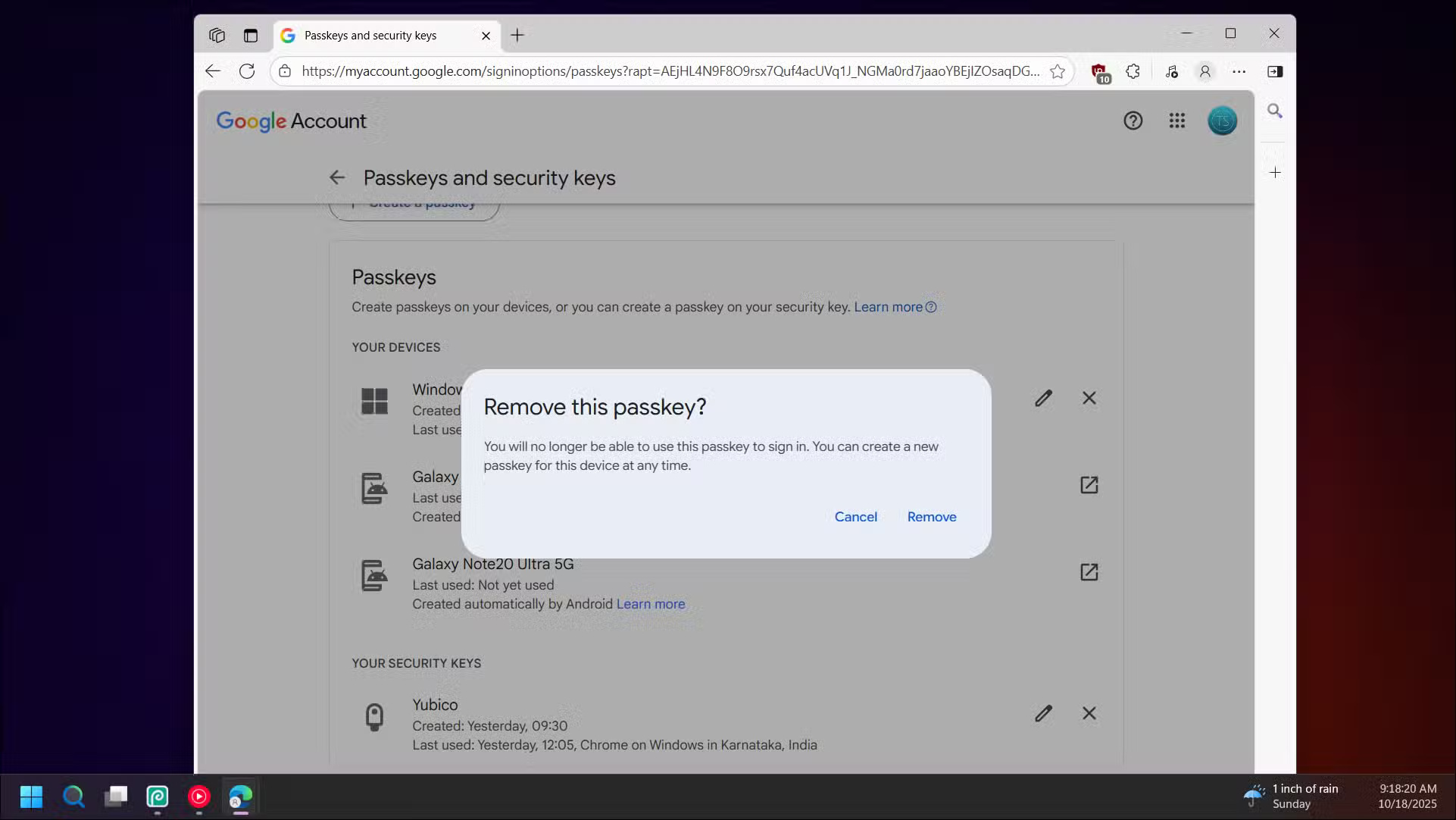
Setting up a YubiKey is easy. Start with your Google account, which has great security key support. Go to your Google account security settings, turn on two-step verification if you haven't already, then select the option to add a security key.
When prompted, click Use another device , then plug in your YubiKey. Google will automatically detect it and guide you through the enrollment process. The key has a small metal contact that you can touch when prompted, confirming that you're there and not a remote attacker.
After registering your YubiKey, you'll need to create backup codes for your Google account and store them in a safe place. This is important because if you lose your key, you'll need the backup codes to recover your account. Also, if possible, create a backup YubiKey and store it in a safe place at home.
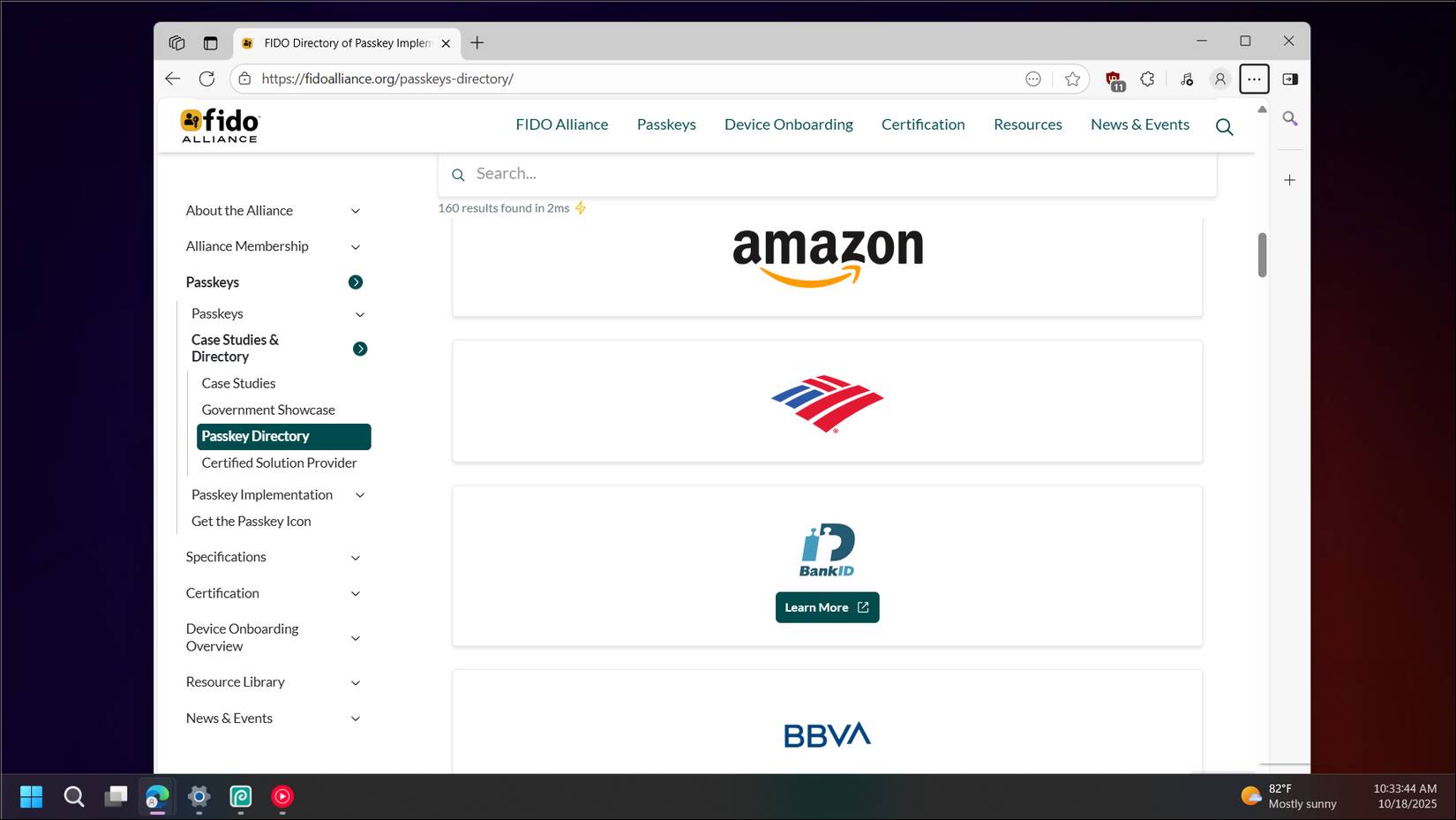
You can sign up for YubiKey-based login on any service that supports passwords or security keys. In addition to Google, tech giants like Apple, Microsoft, Amazon, Meta, LinkedIn, Adobe, GitHub, PayPal, and Cloudflare all support passwordless login. You can see the full list of supported services in the FIDO directory for passwords.
To manage your passwords, you can use the YubiKey Authenticator app on your PC and smartphone. Once installed, authenticate with the app using a PIN or NFC to change settings and view saved passwords.
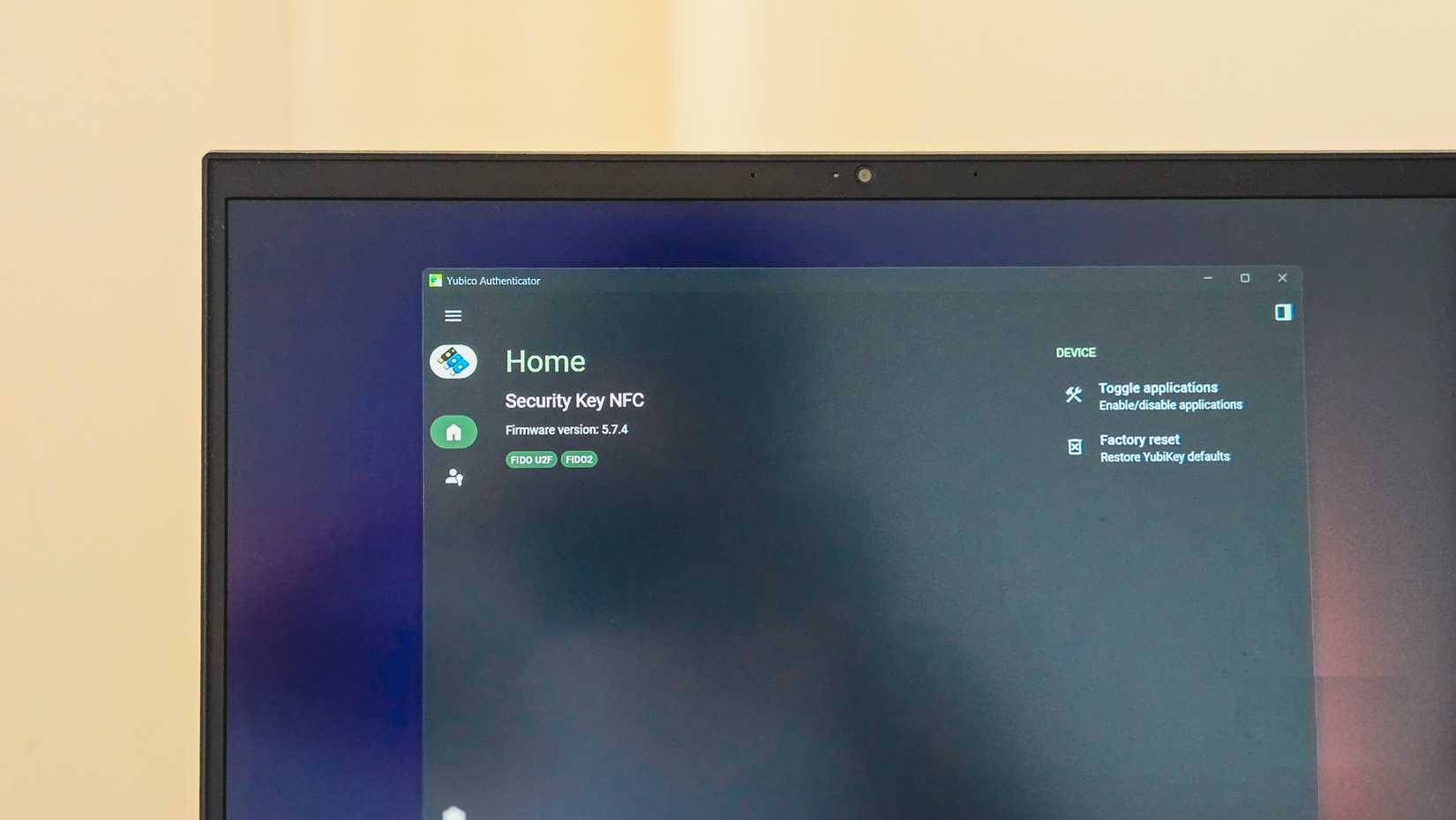
The authenticator app displays all the passcodes stored on the YubiKey and lets you use them as one-time passcodes. You can add more services by scanning a QR code, turning the YubiKey into a physical authentication device that replaces apps like Google Authenticator.
One thing to remember is to set up a PIN for your YubiKey. This adds an extra layer of security, because even if someone steals your key, they can't use it without knowing the PIN. The YubiKey Authenticator app will guide you through this during the initial setup process.
Passwordless login is the future, and hardware security keys help improve it
For anyone who is uncomfortable with passwords or concerned about security, a hardware security key like a YubiKey is worth considering. It costs around $25-$50, depending on the model, but is a one-time purchase (it comes with a rugged, IP68-rated case) that works across all your devices and accounts.
With a YubiKey, you're not locked into any ecosystem, and your most sensitive accounts remain protected even if your device is compromised. While a side-channel vulnerability was discovered in 2024, it doesn't affect YubiKey devices running firmware version 5.7 or later. So anything you buy today is absolutely safe.
FAQ
How do you use a yubikey security key instead of entering a password: how-to guide?
In practical terms, many people have taken the plunge and invested in an affordable YubiKey Security Key NFC device, and have since stopped having to enter their passwords.
What should you check before getting started?
Review the requirements, compatible device or software version, and any warnings described in the guide before making changes.
What should you do if the steps do not work?
Repeat the steps in order, confirm that your app or system is up to date, and review the troubleshooting details provided above.
Related Articles
 How to Effectively Secure a Linux System with Yubikey10 minutes read
 This Device Opens the Same Iphone Password as the Key Literally3 minutes read
 Password Security: Check the Security of the Password3 minutes read
 How to Set a Firmware Password on a Mac6 minutes read
 How to Temporarily Lock the Computer When Entering the Wrong11 minutes read
 How to Connect a Computer to Wi-Fi Without a Password on Windows5 minutes read
Reader Comments 0
Sign in with email or Google to join the discussion.