Table of Contents
A Windows 11 update error code is a clue, not a complete diagnosis. Record the full code and the update's KB number, then start with the low-risk checks below. Use the code table to choose the next step instead of deleting update files or reinstalling drivers at random.
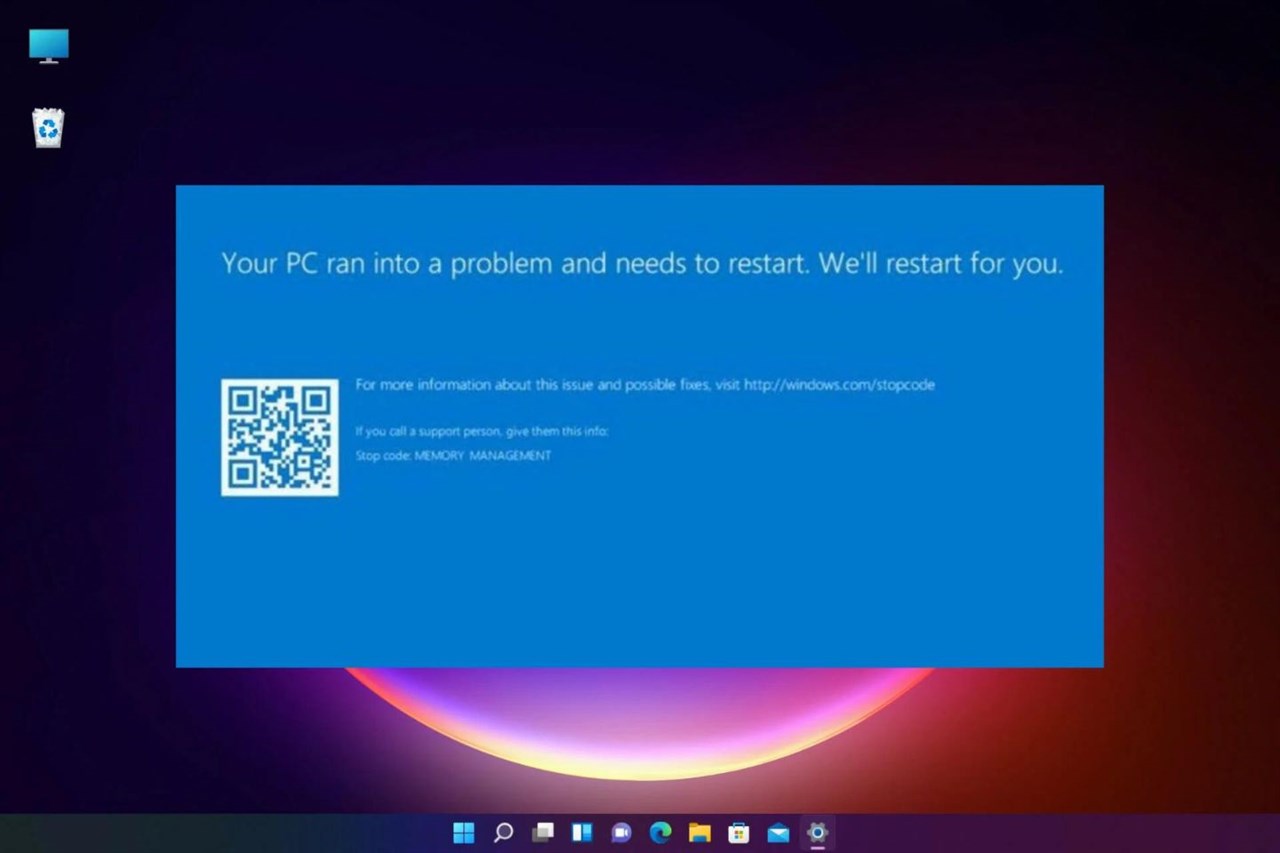
Common Windows 11 update error codes
| Error code | What it usually points to | Best first check |
|---|---|---|
0x8007000d | Invalid or damaged update data | Run the Windows Update troubleshooter, then repair system files if needed |
0x800705b4 | An operation timed out | Restart, verify the connection, and retry after other updates finish |
0x80240034 | The update download or installation did not complete | Retry Windows Update and check the update history |
0x800f0922 | The installation could not complete; storage, a VPN, servicing components, or a reserved partition may be involved | Free space, disconnect a VPN, and retry |
0x80070057 | An invalid parameter or damaged configuration | Run the troubleshooter and system-file repair |
0x80080005 | Windows Update could not start or communicate with a required component | Restart and run the troubleshooter |
0xC1900101 | A driver-related upgrade failure | Update firmware and essential drivers; disconnect unnecessary hardware |
0x80248014 | A Windows Update data-store or service problem | Check the Windows Update service and run the troubleshooter |
0x80070005 | Access was denied | Confirm administrator access and check security or management policies |
0x80070002 | Required update files were not found | Restart, retry, and repair Windows components if it repeats |
The same code can have more than one cause. For feature upgrades, a longer code such as 0xC1900101-0x30018 contains useful phase information, so keep the complete value when searching Microsoft's support pages or contacting an administrator.
Before changing Windows Update components
- Restart the PC. A pending restart can block a later update.
- Open Settings > Windows Update. Note the failed update's name and KB number in Update history, then select Check for updates.
- Check free space. Feature upgrades need substantially more working room than a small monthly update. Use Settings > System > Storage rather than relying on an old universal space figure.
- Use a stable connection. Pause large downloads and disconnect a VPN temporarily if it is not required by your organization.
- Remove nonessential devices. For a feature-upgrade failure, unplug storage, docks, printers, and other accessories that are not needed for installation.
- Back up important files. Routine repairs should not erase them, but a backup is sensible before advanced recovery work.
On a managed work or school computer, a policy or deployment service may control updates. Contact the administrator before changing services, drivers, security software, or update folders.
Run the Windows Update troubleshooter
Open the Get Help app and run the Windows Update troubleshooter. You can also open Settings > System > Troubleshoot > Other troubleshooters and select Run beside Windows Update when that option is available. Restart after it finishes, then check for updates again.
This is the appropriate first step for codes such as 0x8007000d, 0x80240034, 0x80248014, and 0x80070002. It is safer than manually deleting the SoftwareDistribution folder as an opening move.
Match the repair to the error
0xC1900101: investigate drivers
Codes beginning with 0xC1900101 normally indicate a driver problem during an upgrade. Install current BIOS/UEFI, chipset, storage, graphics, and network updates intended for the exact PC model. Check Device Manager for warning icons, and review the PC maker's Windows 11 compatibility guidance.
Do not immediately uninstall both the network and graphics drivers. First update or roll back the device most likely connected to the failure. If the code appeared after a recent driver change, rolling back that driver may be more appropriate than installing another version.
0x800f0922: check space, VPN, and servicing conditions
Free storage on the Windows drive, disconnect a nonessential VPN, and try again. If the failure happens during a feature upgrade, the system-reserved partition or a servicing component may need attention. Partition changes can make a PC unbootable, so use the PC manufacturer's or Microsoft's instructions rather than resizing it based only on the error code.
0x80070005: resolve access denied
Sign in with an administrator account and retry. On an organization-managed PC, do not bypass policy restrictions. Third-party endpoint security can sometimes affect an update, but do not turn off the Windows firewall or remove protection as a routine fix. Consult the security product's support documentation or the administrator if logs identify it as the blocker.
0x800705b4 or an update stuck at a percentage
A progress display can remain unchanged while Windows is still processing files. Keep the laptop connected to power and allow reasonable time, especially during a feature update. If it clearly stops responding, restart once, check Update history, and retry. Repeated failures at the same point are more useful diagnostically than the displayed percentage alone.
Repair the Windows component store and system files
If the troubleshooter does not fix repeated errors such as 0x8007000d, 0x80070057, or 0x80070002, open Terminal (Admin) and run DISM first:
DISM.exe /Online /Cleanup-Image /RestoreHealth
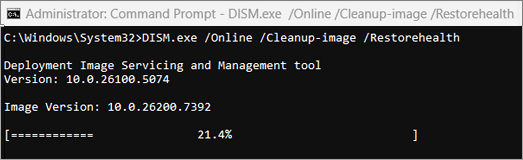
Let the command finish. If it completes successfully, run:
sfc /scannow
Restart the PC when the scan is complete and try Windows Update again. These commands repair Windows components and protected system files; they do not prove that a third-party driver or hardware device is compatible with an upgrade.
When to use more advanced fixes
| Situation | Next step | Important precaution |
|---|---|---|
| Windows Update service is stopped | Open services.msc, locate Windows Update, and start it if its configured state allows | Managed devices may intentionally control the service |
| A third-party app blocks the upgrade | Perform a documented clean boot or update/uninstall the identified app | Do not disable all Microsoft services |
| The update cache is repeatedly reported as damaged | Use Microsoft's current Windows Update reset procedure | Run the documented commands exactly; manual folder changes are not a first step |
| A feature upgrade rolls back | Review SetupDiag results and Windows setup logs, or contact support | Preserve the full error code and rollback logs |
| Normal repair does not work | Consider an in-place repair install using official Windows installation media | Back up first and choose the option that keeps files and apps |
A clean installation erases apps and may erase files depending on the choices made. It should be a planned recovery option, not the immediate response to one failed update.
If files appear missing after an update
Do not run cleanup tools yet. Sign out and back in to rule out a temporary profile, search the user folders, check OneDrive or another configured backup, and look for a Windows.old folder after a feature upgrade. If important files remain missing, minimize writes to the drive and seek recovery help.
Useful details to collect for support
- The complete error code and failed update's KB number
- The Windows version shown by
winver - Whether the failure is a monthly update, driver update, or feature upgrade
- The percentage or installation phase where a rollback occurs
- Recent driver, firmware, security-software, or hardware changes
Microsoft maintains current procedures in Troubleshoot problems updating Windows and a separate guide for Windows upgrade and installation errors.
Related Articles
 Common BSOD Error Codes on Windows 11 and 10: Meanings & Fixes17 minutes read
 Steps to Fix Error 0x80070490 When Updating Windows 108 minutes read
 How to Fix Error Code 0x0 0x0 in Windows 116 minutes read
 Summary of Driver Error Codes on Windows and How to Fix (Last8 minutes read
 How to Fix Windows Error Code 0xc000000f9 minutes read
 List of Windows 11 24H2 Errors, Reasons Not to Update9 minutes read
Reader Comments 0
Sign in with email or Google to join the discussion.