Table of Contents
If Windows Update fails, stalls, or repeatedly asks you to restart, begin with the least disruptive fixes: restart the PC, confirm the internet connection is stable, and make sure the system drive has free space. Then retry the update from Settings > Windows Update.

Check the error before changing anything
Open Settings > Windows Update > Update history and note the failed update's name and error code. The code is more useful than a generic “update failed” message. Also verify that the date, time, and time zone are correct, and temporarily disconnect nonessential USB storage.
If Windows starts normally, do not delete system folders or disable update services as a first step. Those actions can make the problem harder to diagnose.
Run the Windows Update troubleshooter
On Windows 11, open Settings > System > Troubleshoot > Other troubleshooters, then run Windows Update. On Windows 10, open Settings > Update & Security > Troubleshoot > Additional troubleshooters. Apply any recommended fix, restart, and check for updates again.
Microsoft also provides a current Windows Update troubleshooting guide.
Repair Windows system files
Corrupted system files can prevent an update from installing. Open Terminal (Admin) or Command Prompt (Admin) and run these commands in order:
DISM.exe /Online /Cleanup-image /Restorehealth
sfc /scannow
Let each command finish, restart Windows, and retry the update. See our guide to using SFC to repair Windows system files for more detail.
Reset the Windows Update download cache
Use this step only if the troubleshooter and system-file checks do not help. It clears downloaded update files; it does not uninstall updates already installed.
- Open Terminal (Admin) or Command Prompt (Admin).
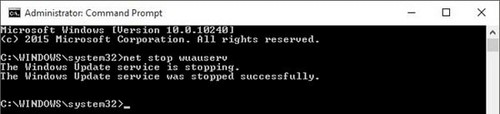
- Stop the update services:
net stop wuauserv
net stop bits
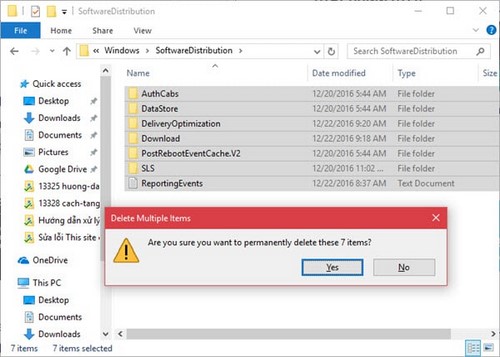
- Open
C:WindowsSoftwareDistribution. Delete the contents of the Download folder. If Windows says a file is in use, restart and try again rather than forcing the deletion.
- Start the services again:
net start bits net start wuauserv - Restart the PC and check for updates.
If one update still fails
- Search the exact KB number and error code on Microsoft Support.
- Temporarily uninstall third-party antivirus software only if its vendor documents an update conflict; keep Microsoft Defender enabled.
- Use the official recovery steps instead of third-party “update repair” utilities.
- If Windows cannot boot after an update, use Windows Recovery Environment to try Startup Repair or uninstall the latest quality update.
Windows 7 and Windows 8 are no longer generally supported. Old KB packages and the discontinued WSUS Offline Update workflow in the original instructions are not a safe substitute for a supported operating system. For persistent Windows 10 problems, consult our broader guide to fixing Windows 10 errors.
Related Articles
 Windows Update Crashes, This Is What You Need to Do9 minutes read
 Microsoft Rolls Out Update KB5007253 That Fixes Network4 minutes read
 How to Hide Windows Update on Windows 103 minutes read
 How to Update Windows 10, Update Win 10 Latest Version 20247 minutes read
 The New Update Fixes Many Bugs on Windows 10 April 2018 Update but Causes a More Serious Error3 minutes read
 The Windows 10 Kb4532693 Update Fails, Causing a User's File to2 minutes read
Reader Comments 0
Sign in with email or Google to join the discussion.