Table of Contents
Computer problems are easier to solve when you start with the symptom and preserve your data. The 15 checks below cover common Windows laptop and desktop issues, with a safe first action and a clear point at which to stop and seek repair.
1. The computer freezes
A frozen screen may come from one unresponsive app, exhausted memory, a driver fault, overheating, or failing storage.
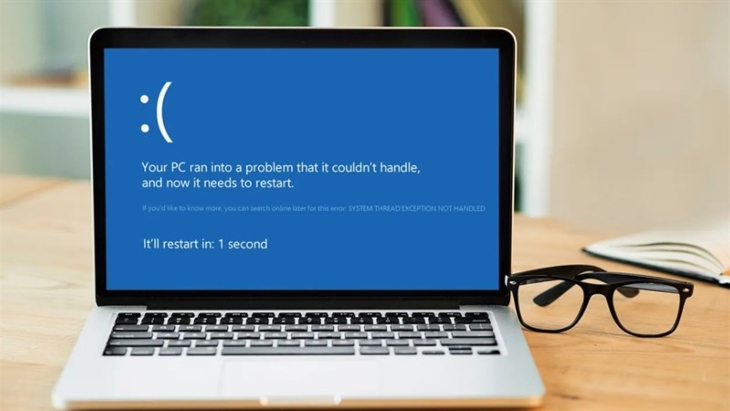
- Wait briefly and press Ctrl+Shift+Esc. If Task Manager opens, select the unresponsive app and choose End task.
- If nothing responds, hold the power button only as a last resort. Unsaved work will be lost.
- After restarting, install Windows and app updates, reduce unnecessary startup apps, and note whether one program triggers the freeze.
- If freezes recur, check temperatures, memory, storage health, and the Reliability Monitor. Back up important files before hardware tests.
2. The storage drive reports errors or makes unusual sounds
Slow performance alone does not prove a drive is failing. Stronger warning signs include repeated read errors, disappearing files, SMART warnings, or clicking and grinding from a mechanical hard drive.
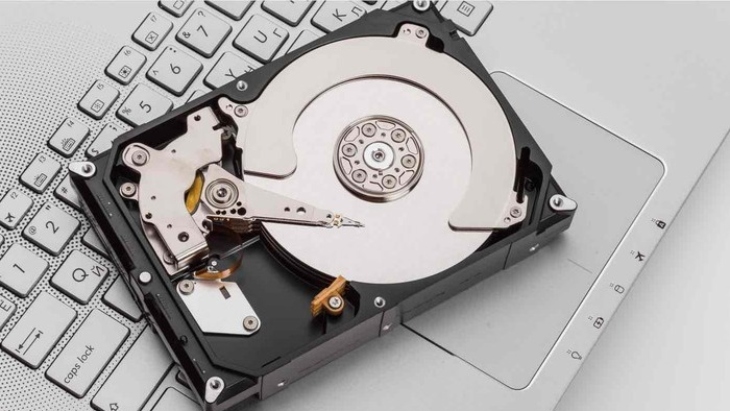
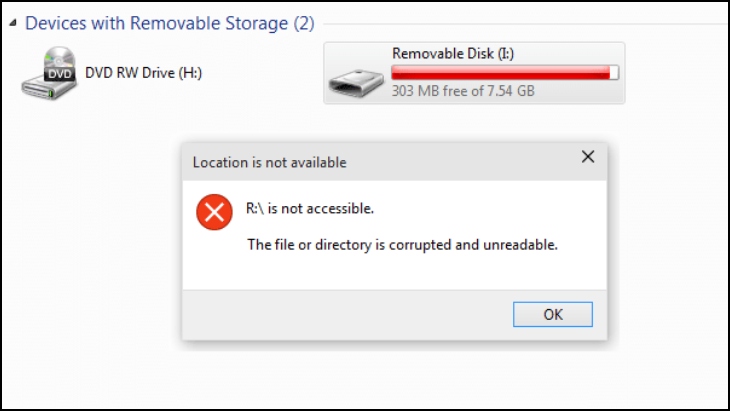
- Back up immediately if the drive makes new mechanical noises or data is becoming inaccessible.
- Check Settings > System > Storage > Disks & volumes and any diagnostic tool supplied by the PC or drive manufacturer.
- Do not repeatedly run repair or “regeneration” utilities on a physically failing drive; heavy reads can make recovery harder.
- Replace a drive that fails its manufacturer diagnostic. Seek professional recovery if the data is irreplaceable.
3. Keyboard keys do not work
Restart first, then test in another app. Check the selected keyboard layout and turn off accessibility features such as Filter Keys if keystrokes are ignored. For a USB or wireless keyboard, reconnect it, try another port, and replace or recharge its batteries.
If only a few laptop keys fail, debris or a damaged keyboard may be responsible. Do not pry off laptop keycaps without model-specific instructions. A replacement keyboard must match the laptop model and connector, but it does not need to be chosen merely by brand.
4. The computer cannot connect to Wi-Fi

- Check whether other devices can use the same network. If none can, restart the router and check the provider's service.
- Turn Airplane mode off, toggle Wi-Fi, and forget and rejoin the network with the correct password.
- Test a phone hotspot. If that works, focus on the original router; if no networks appear, inspect the Wi-Fi adapter and driver in Device Manager.
- Use the Get Help network troubleshooter before resetting all network settings.
5. The laptop is plugged in but not charging

Confirm that the outlet works and that the charger is fully connected. Use a charger and cable that meet the laptop manufacturer's power requirements; a low-power USB-C charger may run a laptop without charging it quickly. Inspect the cable and port for damage, but do not use a frayed, scorched, or unusually hot adapter.
A charge limit in the manufacturer's battery app can intentionally stop charging near a chosen percentage. If the battery is swollen, lifts the case, smells unusual, or becomes dangerously hot, shut down the laptop, disconnect power when safe, and arrange service. Do not puncture or continue charging it.
6. Storage performance is slow

Open Task Manager and check whether Disk usage stays near 100% and which process is responsible. Free space with Storage settings, pause unnecessary background transfers, scan with Windows Security, and check drive health.
Use Optimize Drives rather than a third-party defragmenter. Windows can optimize an SSD appropriately; do not treat an SSD like an old mechanical hard drive. If a healthy mechanical drive is the main bottleneck, moving Windows and apps to a compatible SSD can improve responsiveness.
7. Windows will not start
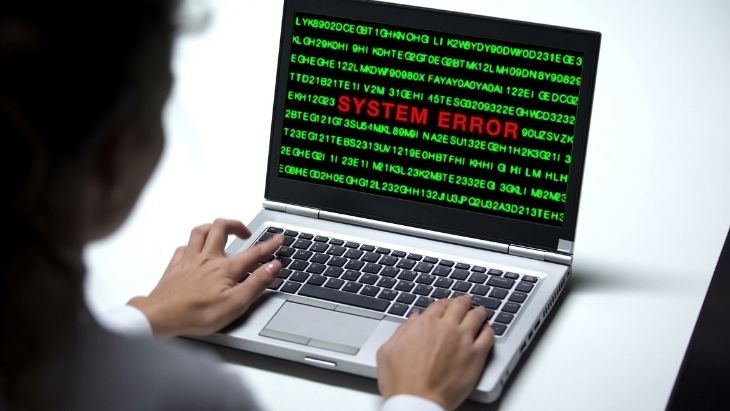
Disconnect nonessential USB devices and try again. If Windows Recovery Environment appears, start with Startup Repair. Other options include uninstalling a recent update, using System Restore, or starting Safe Mode to remove a faulty driver or app.
A reinstall is not the first response. Back up or recover important files before resetting or reinstalling Windows, and use BitLocker recovery information if the encrypted drive requests it. A drive that is absent from BIOS/UEFI or fails diagnostics needs hardware attention.
8. The computer overheats
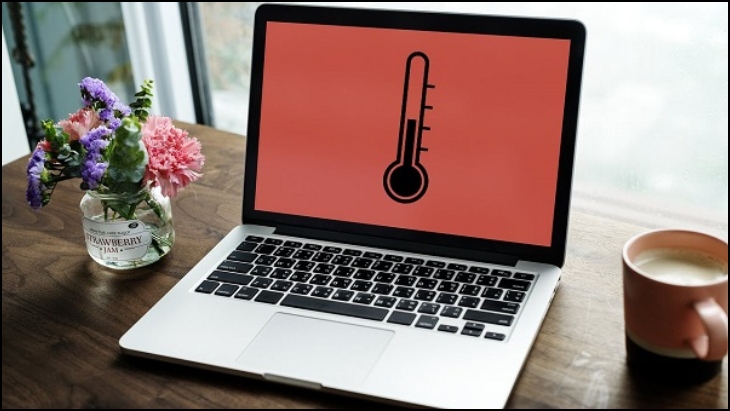
Use the computer on a hard surface, keep vents clear, and stop workloads that drive sustained CPU or GPU usage unexpectedly. Clean exterior vents with the computer powered off; opening a laptop may affect warranty coverage and should follow its service manual.
A BIOS update is not a general cooling fix. Install one only when the manufacturer documents a relevant correction, keep the PC on reliable power, and follow the exact model instructions. Repeated thermal shutdowns, a fan that never spins, or burning smells require service.
9. The computer reports low memory or low storage
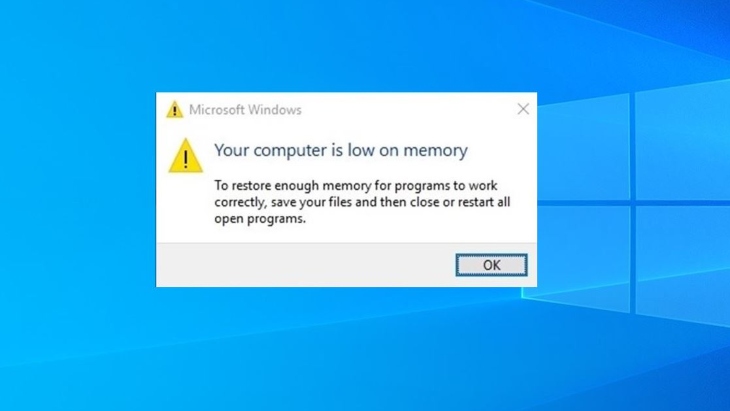
Memory (RAM) holds active programs; storage holds files and apps. They are not interchangeable. For low storage, remove unused apps, move personal files, and use Storage Sense. For high memory use, close unnecessary apps, reduce browser tabs, and inspect Task Manager.
Add RAM only if the computer supports an upgrade and normal workloads regularly exhaust it. Choose modules by the model's supported type, capacity, and configuration. Cloud storage can free disk space but does not increase RAM.
10. A blue-screen stop error appears
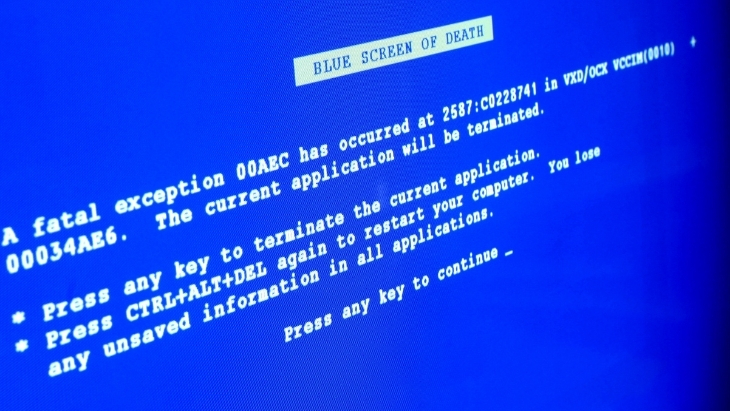
Record the stop code and any named driver, then note what changed just before the crash. Install pending Windows updates and manufacturer-approved drivers. If the problem began after a driver or app update, roll it back or uninstall that specific change.
Use Windows Memory Diagnostic or the PC maker's hardware diagnostics when the code suggests memory or hardware trouble. Do not clean RAM contacts, replace a drive, or reinstall Windows without evidence. Repeated crashes and unexpected restarts can corrupt data, so create a backup early.
11. An application will not install
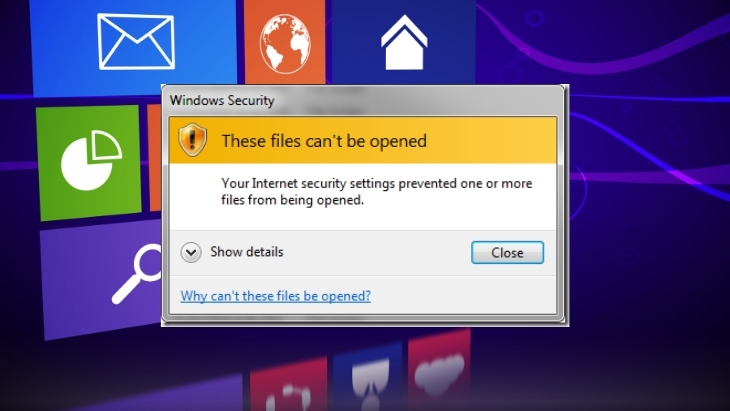
- Confirm that the installer comes from the developer or a trusted store and supports your Windows edition and processor architecture.
- Check free disk space and read the exact error rather than repeatedly launching the installer.
- Restart if another installation or Windows Update is pending.
- Remove an older version only when the developer's instructions require it.
- Use Run as administrator only for a trusted installer that genuinely requires elevation; it is not a universal fix.
12. Windows will not let you change a password
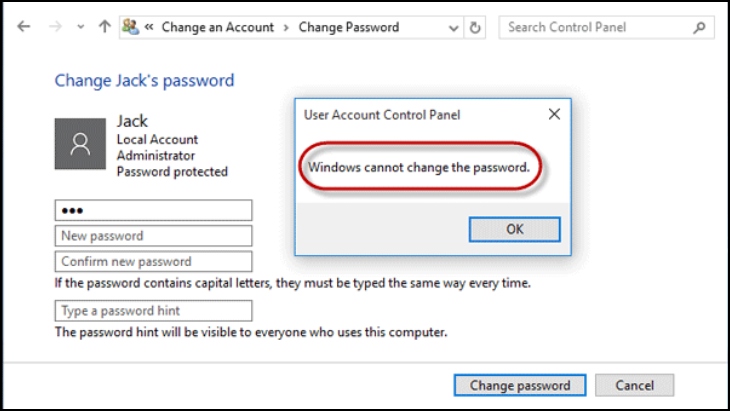
First identify the account type. A Microsoft account password is managed through Microsoft's account recovery, while a local account uses Windows sign-in options. A work or school organization may enforce password rules or block local changes.
An administrator can reset another local user's password, but doing so may affect access to encrypted files or stored credentials. Do not create or use a different administrator account to bypass an organization's policy; contact its support desk instead.
13. Text displays with the wrong font or characters

If only one document is affected, it may require the font used by its author or may have been saved with the wrong encoding. If only one browser page is affected, test another browser and reset that site's font or translation settings. For typing problems, verify the language and keyboard layout in Settings > Time & language.
Install fonts only from a trusted source and with a suitable license. Adding a large “font pack” will not correct damaged text whose original character encoding was lost.
14. The network icon says no internet
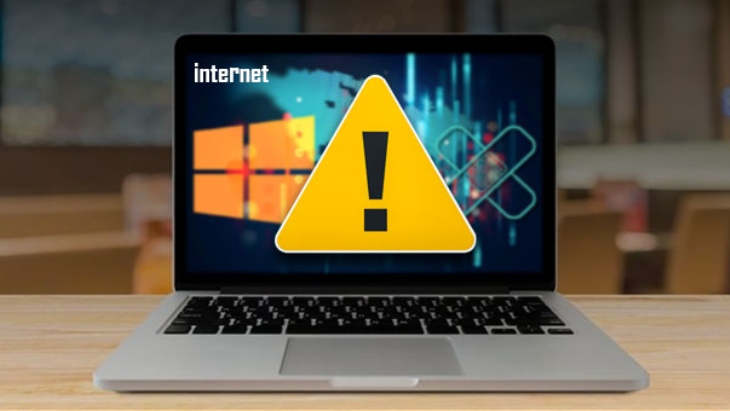
Windows versions show different warning symbols, so diagnose the connection rather than the icon color. Check cables, router status, and whether other devices are online. For Wi-Fi, forget and reconnect to the network. For Ethernet, try a known-good cable and router port.
Leave IP and DNS settings on automatic unless the network requires specific values. Renewing a DHCP lease may help when the PC has an address beginning with 169.254; changing DNS helps only when the network works but names do not resolve. Contact the provider when every device is offline.
15. The computer will not shut down
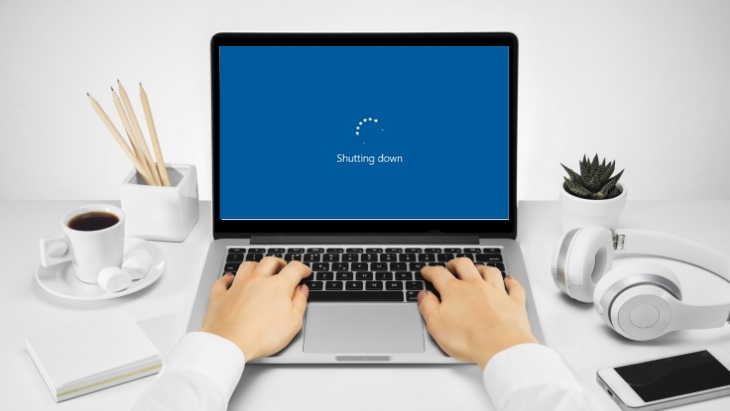
Save work, close apps, and look for an update prompt or an app that is blocking shutdown. Wait while Windows finishes a visible update rather than cutting power. If the desktop still responds, press Ctrl+Alt+Delete and use the power menu.
If shutdown hangs repeatedly, install Windows and device updates, review Reliability Monitor, and test after disabling nonessential startup apps. Fast Startup can be tested as a cause, but reinstalling random drivers is not appropriate. Holding the power button forces power off and should be reserved for a system that no longer responds.
When professional repair is the safer choice
Stop using the computer and seek help for a swollen battery, liquid damage, a burning smell, repeated thermal shutdowns, a clicking drive with valuable data, or visible electrical damage. Before routine service, back up files when possible, sign out of sensitive accounts, and document the symptoms and error codes.
Related Articles
 Common Computer Errors and How to Fix Them Quickly5 minutes read
 Common Errors on Computer Speakers and How to Fix Them7 minutes read
 Fix Some Common Computer Errors - Part 212 minutes read
 Common Computer Errors and Remedies (Part 1)8 minutes read
 Common Computer Errors and Remedies (Part 2)11 minutes read
 Summary of Common Errors on iPhone 6, 6 Plus and How to Fix Errors17 minutes read
Reader Comments 0
Sign in with email or Google to join the discussion.