Table of Contents
If a Windows 11 laptop will not connect to Wi-Fi, first determine whether the problem affects only that laptop, one saved network, or every device on the router. That quick test points you toward the right fix and helps you avoid resetting settings unnecessarily.
Start by checking whether the laptop can see and join any wireless network.
Identify where the Wi-Fi problem is
- Only one website or app fails: the Wi-Fi connection may be fine. Test another site before changing network settings.
- The laptop cannot join one network: forget that network and reconnect with the correct password.
- The laptop cannot join any Wi-Fi network: check Airplane mode, the wireless adapter, its driver, and the WLAN service.
- Every device is offline: restart and inspect the router or contact the internet provider. Changing the laptop will not repair a router or service outage.
If possible, test the laptop with a phone hotspot. A successful hotspot connection usually means the laptop's Wi-Fi hardware works and the original router or its settings need attention.
Try the quick fixes first
- Turn Airplane mode off, then switch Wi-Fi off and back on from Quick Settings.
- Restart the laptop.
- Restart the router by disconnecting its power, waiting about 30 seconds, and reconnecting it. Allow the router time to come back online.
- Move closer to the router and select the correct network name.
- Open Settings > Network & internet > Wi-Fi > Manage known networks, select the problem network, choose Forget, and reconnect.
Some laptops also have a wireless key or physical switch. Look for an antenna or airplane icon because the exact key varies by model; do not rely on a shortcut listed for an entire brand.
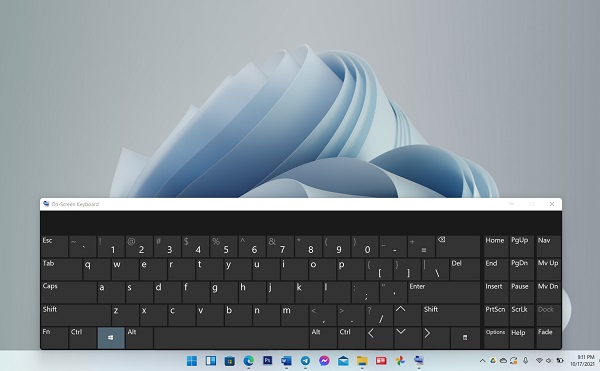
The wireless shortcut and whether the Fn key is required depend on the laptop model.
Run the Windows network troubleshooter
Open the Get Help app, search for Wi-Fi or network connectivity, and run the guided troubleshooter. It can detect disabled adapters and common configuration problems. Apply only the changes it recommends, then test the connection again.
Check the Wi-Fi adapter and driver
Right-click Start and open Device Manager.
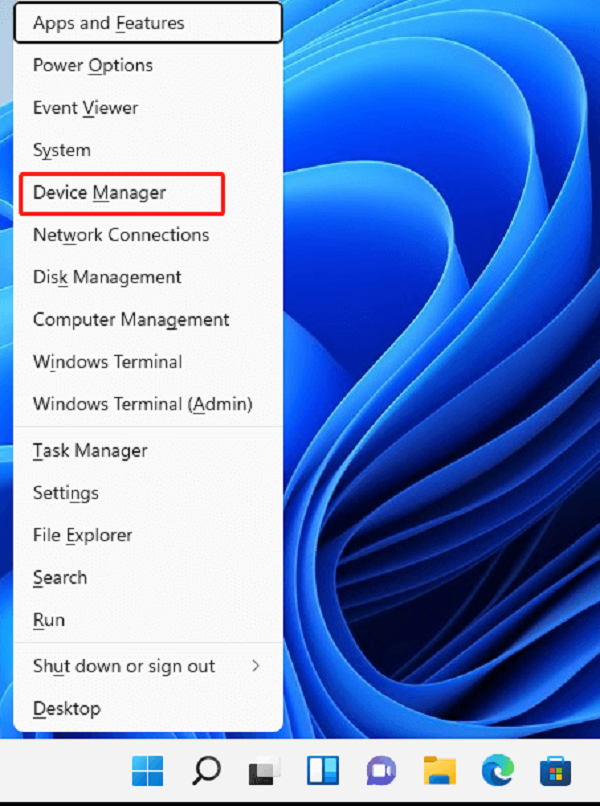
Device Manager shows whether Windows detects the wireless adapter.
Expand Network adapters and locate the wireless adapter. If it is disabled, right-click it and choose Enable device. If it shows a warning icon, open Properties and note the device status.
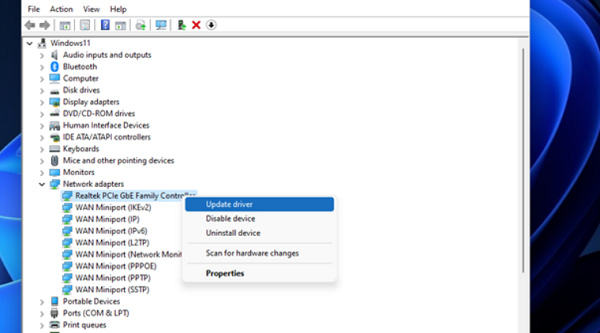
Use the menu for the actual wireless adapter, not an Ethernet or virtual adapter.
Choose Update driver to let Windows search for a driver. You can also install the Wi-Fi driver supplied for the exact laptop model by its manufacturer. Download it on another device if the affected laptop has no connection.
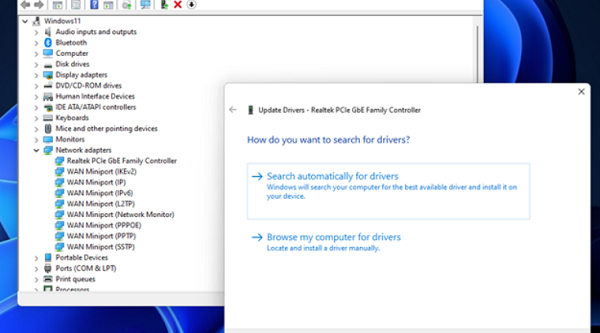
Manual installation is useful when you already have the correct manufacturer driver.
If Wi-Fi stopped immediately after a driver update, open the adapter's Properties > Driver tab and use Roll Back Driver when that option is available. Restart Windows after changing the driver.
Make sure WLAN AutoConfig is running
The WLAN AutoConfig service is responsible for discovering and connecting to wireless networks. Press Windows+R, enter services.msc, and select OK.
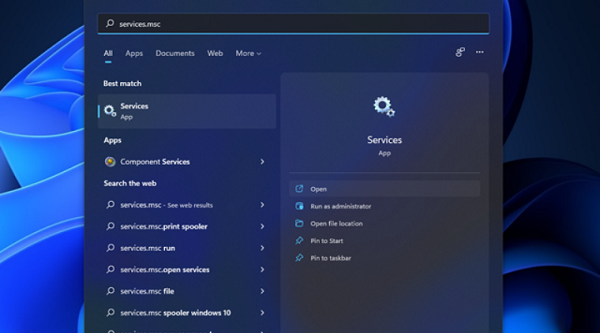
Open Services to check WLAN AutoConfig.
Find and double-click WLAN AutoConfig.
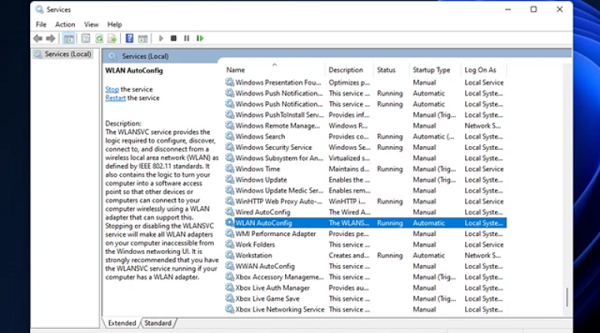
WLAN AutoConfig should be available on a Windows installation with Wi-Fi support.
Set Startup type to Automatic. If the service is stopped, select Start, then choose Apply and OK.
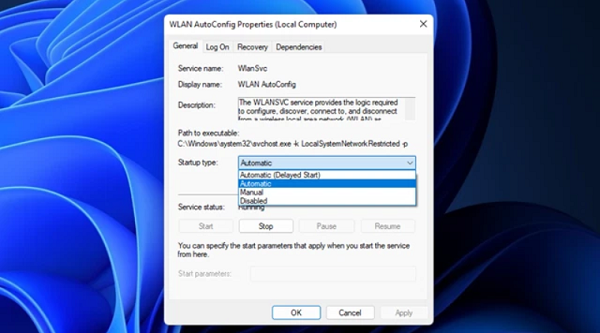
Start the service before testing Wi-Fi again.
Use an IP or DNS fix only for the matching symptom
Renew the IP address
If the laptop connects to Wi-Fi but reports no internet, or ipconfig shows an address beginning with 169.254, the router may not have assigned a usable address. Open Command Prompt and run these commands one at a time:
ipconfig /release
ipconfig /renew
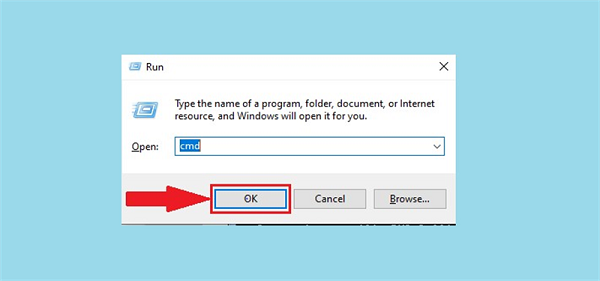
Renewing the lease is relevant to DHCP address problems, not every Wi-Fi failure.
Change DNS when names will not resolve
A DNS change is worth testing only when the laptop is connected and an IP address such as 1.1.1.1 responds, but websites fail by name. Open Settings > Network & internet > Advanced network settings.
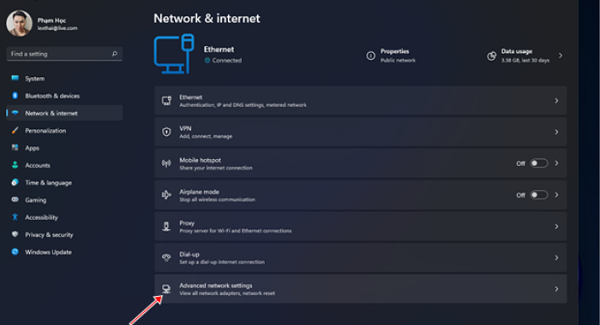
Open the settings for the active network adapter.
Select More network adapter options.
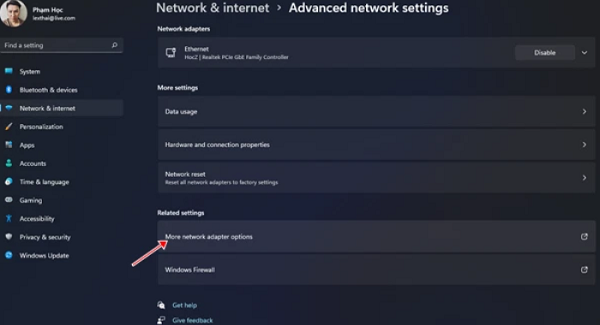
The classic Network Connections window lists the installed adapters.
Right-click Wi-Fi, select Properties, and open Internet Protocol Version 4 (TCP/IPv4). Record the existing settings before changing them. Use a DNS provider you trust, or return to Obtain DNS server address automatically to use the router's settings.
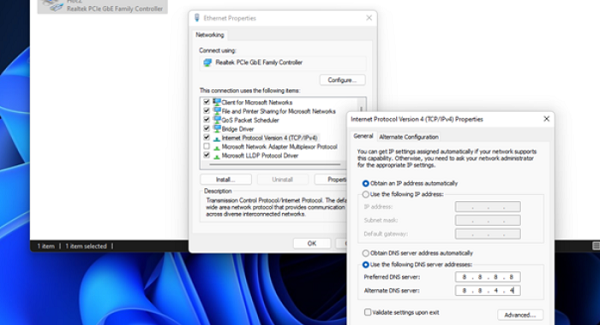
Do not change the IP address fields unless the network administrator provided static values.
Network profile type does not repair a failed connection
The Public or Private profile controls device discovery and firewall behavior. Changing it does not normally make a laptop join Wi-Fi or restore internet access. Use Private only on a trusted home or work network when you need local sharing; keep public networks set to Public.
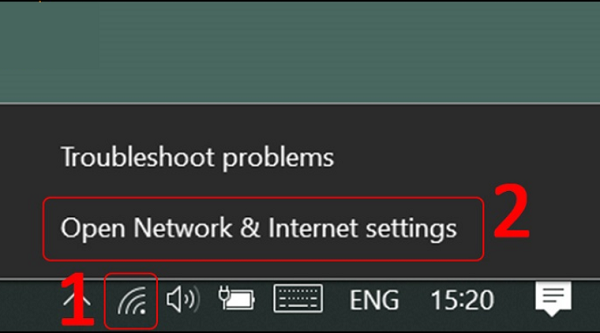
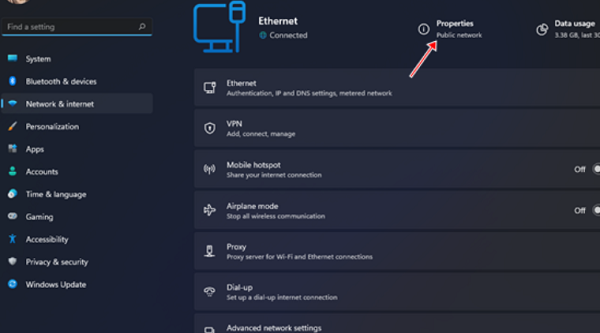
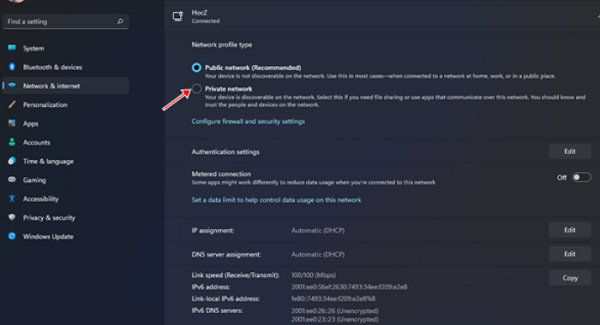
Choose a profile according to how much you trust the network, not as a connectivity fix.
Reset the network as a last software step
Network reset removes and reinstalls network adapters and returns their settings to defaults. It can also remove VPN adapters, virtual switches, custom DNS entries, and static IP settings, so record anything you need first.
Open Settings from Start or press Windows+I.
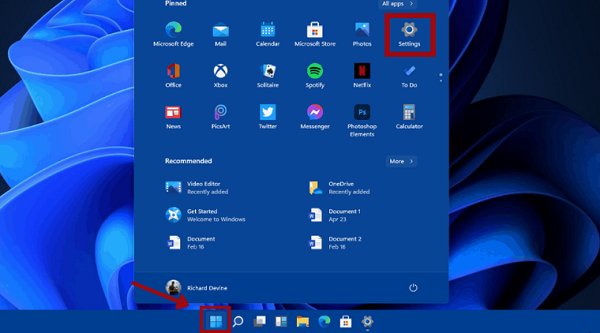
Open Settings to reach the network reset controls.
Go to Network & internet > Advanced network settings.
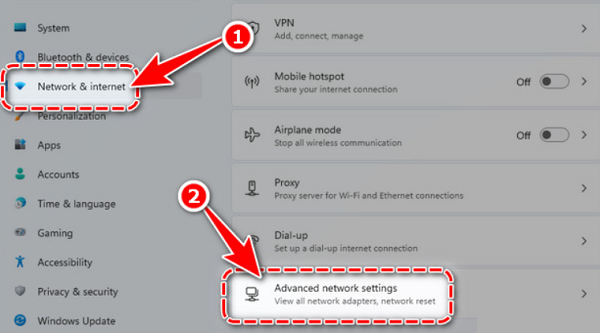
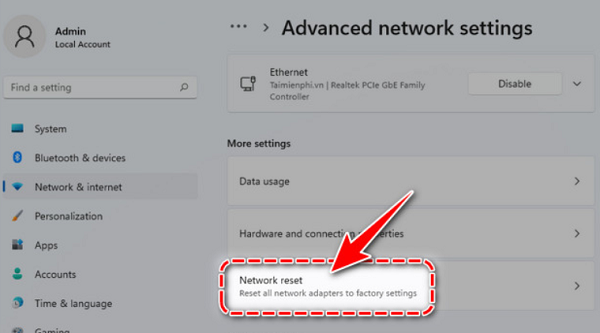
Select Network reset.
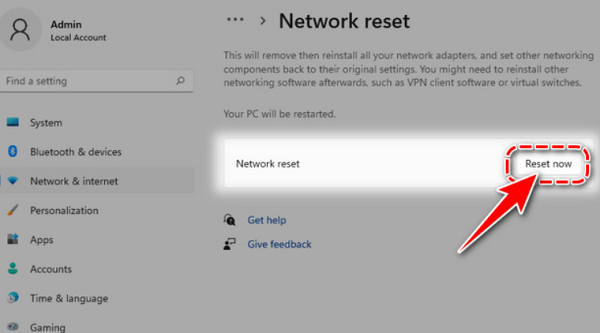
Select Reset now and confirm the prompt.
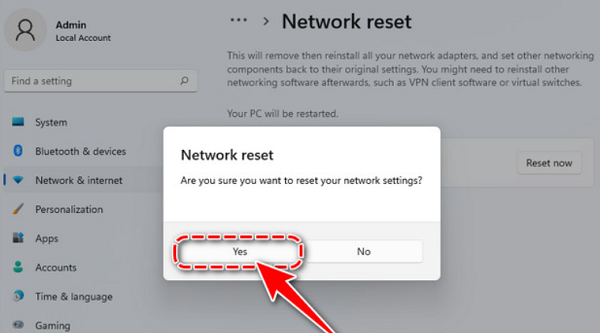
The PC will restart; reconnect to Wi-Fi and reinstall any affected VPN or virtual-network software afterward.
When to suspect the router or hardware
If other devices also fail, check the router's status lights, cables, and provider service. If this laptop cannot detect any network—including a nearby phone hotspot—after the driver and service checks, the wireless adapter, antenna, or hardware switch may need diagnosis. A USB Wi-Fi adapter can be a useful temporary test, but use a repair technician for an internal hardware fault.
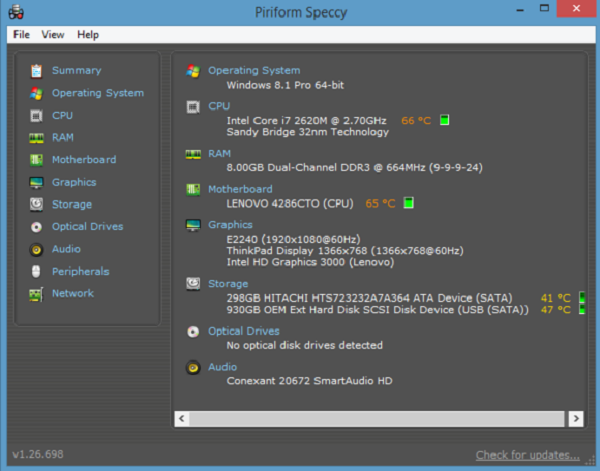
Hardware is more likely when Windows cannot detect the adapter or any wireless networks.
For Microsoft's current guided steps, see Fix Wi-Fi connection issues in Windows.
Related Articles
 Fix 'Windows Was Unable to Connect to' Error When Connecting3 minutes read
 Connect 2 Windows Xp Laptops Without Cables6 minutes read
 Fix Unable to Connect to Authentication Service LMHT Error5 minutes read
 How to Fix the Problem of Being Unable to Enter Terminal in Linux6 minutes read
 Inquiries: 11 Computer Problems and Workarounds5 minutes read
 Laptop Does Not Have a Camera: Causes and Solutions: Main Insights13 minutes read
Reader Comments 0
Sign in with email or Google to join the discussion.