Table of Contents
Windows 10 version 1903, the May 2019 Update, is now an unsupported legacy release. Its known launch issues included compatibility holds for some display, audio, storage, Wi-Fi, camera, and AMD RAID configurations. Microsoft fixed individual problems through later cumulative updates, but version 1903 itself reached end of service on December 8, 2020. A PC still running it should be backed up and moved to a supported operating system rather than repaired with isolated 2019 patches.
What went wrong with the original release?
Version 1903 had a range of device-specific issues during its rollout. Reported symptoms included brightness controls not responding, Intel display-audio problems, Dolby Atmos licensing errors, Night Light failures, camera or Wi-Fi incompatibilities, and upgrade blocks on systems with certain AMD RAID drivers or attached USB storage. Not every PC was affected, and Microsoft's safeguard holds intentionally prevented some incompatible machines from receiving the feature update.
The release also introduced interface changes such as a lighter theme and Start menu improvements. Chromium-based Microsoft Edge was not part of the initial version 1903 feature set, so it should not be presented as a feature shipped in that update.
Do not treat KB4505057 as a universal fix
KB4505057 was an early cumulative update released in May 2019. It addressed specific problems, including access to some UK government websites, and it had known issues of its own. It did not fix every version 1903 hardware and driver problem. The official KB4505057 record is useful for historical diagnosis, not as a current update recommendation.
Check whether the PC really runs version 1903
- Press Windows + R, type
winver, and press Enter. - Record the edition, version, and OS build.
- Open Settings > Update & Security > Windows Update > View update history to see recent quality and feature updates.
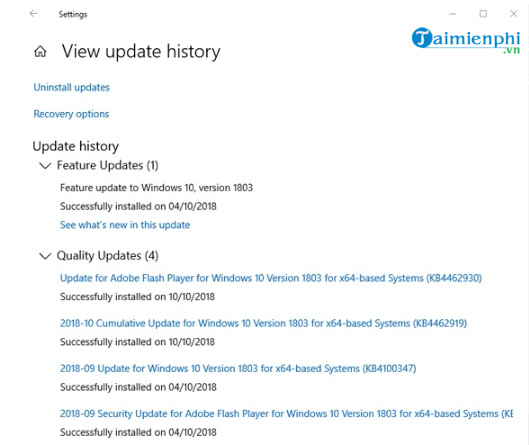
If the PC reports version 1903, do not download an ISO or update package from an unofficial archive. Microsoft confirms the release's end-of-service date in its version 1903 lifecycle notice.
Safe recovery path for a computer stuck on 1903
- Back up personal files. Also record BitLocker recovery information and license details before major changes.
- Check hardware compatibility. Determine whether the PC supports Windows 11 and obtain current firmware and drivers from the manufacturer.
- Try Windows Update troubleshooting. Confirm the date, time, free disk space, and network connection; then run the relevant steps in the Windows 10 error troubleshooting guide.
- Use a supported installation path. Prefer Microsoft's current installation media and upgrade documentation. If the hardware cannot run a supported Windows release, replace the device or install another maintained operating system.
A bootable Windows USB can help with licensed recovery and compatibility testing, but Windows 10 Home and Pro also reached general end of support on October 14, 2025.
About rollback
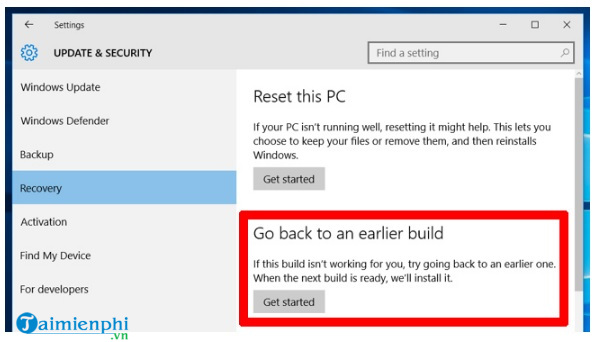
The Go back option was useful immediately after the 2019 feature upgrade and was normally available for only a short period while the previous installation files remained. It is not a sensible destination now because the earlier releases are also unsupported. If you are diagnosing an old installation image in a lab, the historical control appeared under Settings > Update & Security > Recovery.
Do not permanently disable security updates to avoid a compatibility issue. Pause a problematic rollout only long enough to confirm the cause, back up the system, and choose a supported recovery route.
Related Articles
 Windows 10 Error: Complete Guide5 minutes read
 Microsoft Released Updates for Both Windows 8.1 and Windows4 minutes read
 How to Fix the Mac Crashed During macOS Update5 minutes read
 How to Fix a Repeat Boot Error After Updating Windows 108 minutes read
 List of Errors on Lenovo Laptop After Windows 10 2004 Update and How to Fix4 minutes read
 How to Fix the Problem of Missing the Sandbox Feature After5 minutes read
Reader Comments 0
Sign in with email or Google to join the discussion.