Table of Contents
STOCKHISTORY retrieves historical data for a financial instrument and returns a dynamic array that spills into neighboring cells. It is available in supported Microsoft 365 Excel subscriptions and requires an internet-connected data service.

Important: financial data may be delayed and is provided as-is. Do not use it as trading advice or assume it is a real-time market feed.
Syntax
=STOCKHISTORY(stock,start_date,[end_date],[interval],[headers],[property0],...,[property5])- stock: a ticker in quotation marks or a cell containing the Stocks data type. Add a four-character market identifier code (MIC), such as
XNAS:MSFT, to select an exchange. - start_date and end_date: dates, formulas, or cell references. End date defaults to start date.
- interval: 0 daily, 1 weekly, or 2 monthly.
- headers: 0 none, 1 column headers, or 2 instrument identifier plus headers.
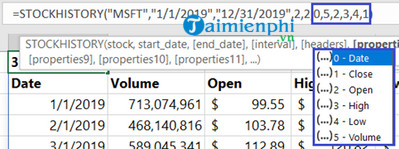
- properties: 0 Date, 1 Close, 2 Open, 3 High, 4 Low, and 5 Volume.
If no properties are specified, Excel returns Date and Close.
Retrieve date and closing price
=STOCKHISTORY("MSFT",DATE(2020,1,6),DATE(2020,5,6))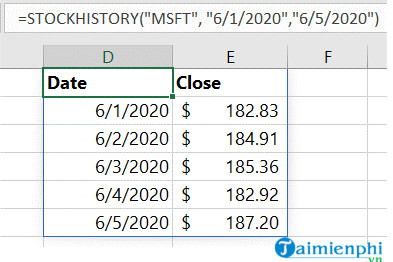
Using DATE or date cells is more portable than ambiguous text dates. Leave the cells below and to the right of the formula empty so the array can spill.
Specify an exchange
Use the exchange MIC followed by a colon and ticker:
=STOCKHISTORY("XMIL:MSFT",TODAY()-7,TODAY())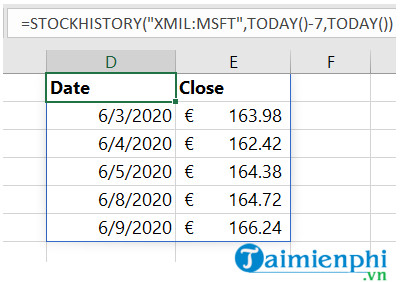
Confirm the matched instrument, exchange, and currency. A ticker alone can resolve to a default exchange that is not the listing you intended.
Reference the Stocks data type
If B1 contains a linked Stocks data type, and B3:B4 contain dates:
=STOCKHISTORY(B1,B3,B4)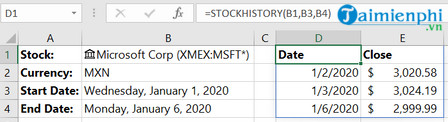
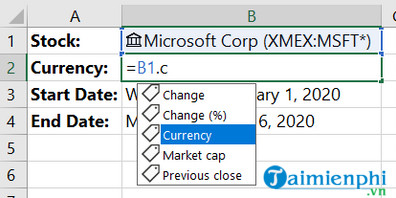
Changing the linked instrument or dates recalculates the spill range. To display a field such as currency, select it from the data-type fields or use a supported field reference for that linked record.
Return monthly OHLC and volume data
=STOCKHISTORY("MSFT",DATE(2019,1,1),DATE(2019,12,31),2,2,0,5,2,3,4,1)This requests monthly rows, adds the instrument identifier and headers, and returns Date, Volume, Open, High, Low, and Close in that order.
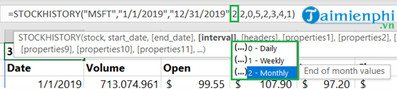
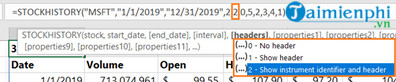
For weekly and monthly intervals, Open is from the first trading day, Close is from the last trading day, High and Low cover the period, and Volume is the number of shares traded during the period.
Create a stock chart
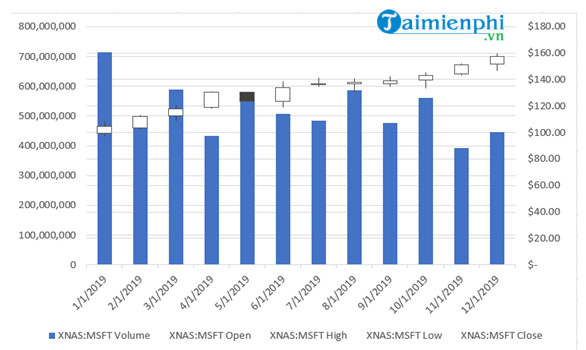
Select the spilled data, including the date and required price columns. Open Insert > Recommended Charts > All Charts > Stock and choose the chart type that matches the column order.
Troubleshooting
- #SPILL!: clear cells blocking the returned array.
- #VALUE! or no data: confirm valid dates and that start date is not after end date.
- Wrong instrument: use a Stocks data type or add the exchange MIC.
- Unexpected period date: weekly or monthly output can use the first date of the requested period.
- Function unavailable: verify the Excel edition, subscription, sign-in, connected experiences, and internet access.
For other modern and legacy formulas, see the Excel functions reference. To combine the returned table with other data, review the VLOOKUP guide.
Related Articles
 The Index Function in Excel: Formulas and Usage9 minutes read
 How to use the VALUE function in Excel - A function to4 minutes read
 Basic Excel Functions That Anyone Must Know20 minutes read
 How to Use Hlookup Function on Excel: Excel Hlookup Function4 minutes read
 How to Use the SUM Function to Calculate Totals in Excel8 minutes read
 DATE Function: Converts Numbers to a Valid Date Format5 minutes read
Reader Comments 0
Sign in with email or Google to join the discussion.