Table of Contents
VLOOKUP searches the first column of a table and returns a value from another column in the same row. Use it for tasks such as matching an employee ID to a department or assigning a rating from a score table.

VLOOKUP syntax
=VLOOKUP(lookup_value, table_array, col_index_num, [range_lookup])
- lookup_value: the value to find.
- table_array: the lookup table. The search column must be its first column.
- col_index_num: the return column's position, counted from the left edge of table_array.
- range_lookup: FALSE for an exact match or TRUE for an approximate match.
When the last argument is omitted, VLOOKUP uses approximate matching. For most ID, name, or code lookups, enter FALSE explicitly.
Approximate match example
Approximate matching is appropriate for ranges such as score bands. If D4 contains a score and B11:C15 contains lower score limits and ratings, use:
=VLOOKUP(D4,$B$11:$C$15,2,TRUE)
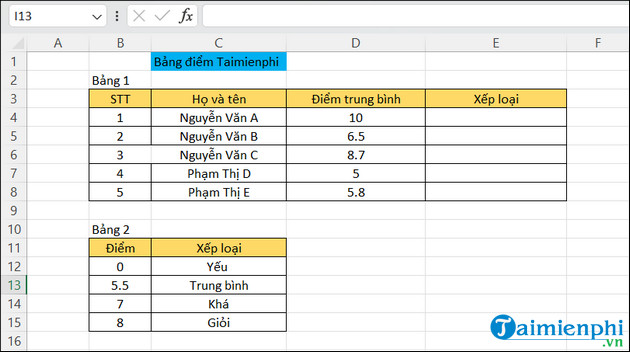
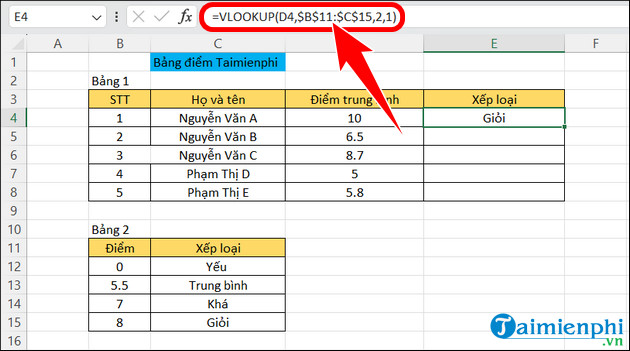
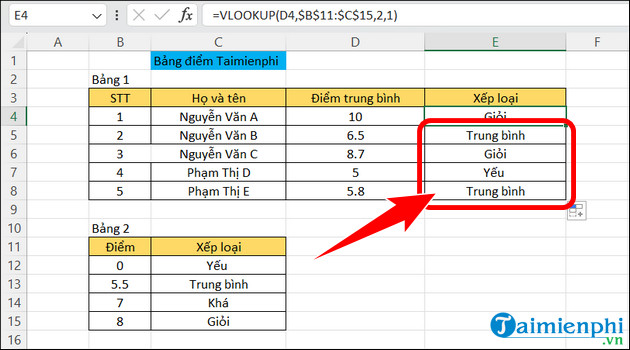
For reliable approximate matches, the first column of the lookup table must be sorted in ascending order. Excel returns the row with the largest first-column value that is less than or equal to the lookup value. The dollar signs keep B11:C15 fixed when the formula is filled down.
Exact match example
Use FALSE when matching discrete values such as job titles, product codes, or employee IDs:
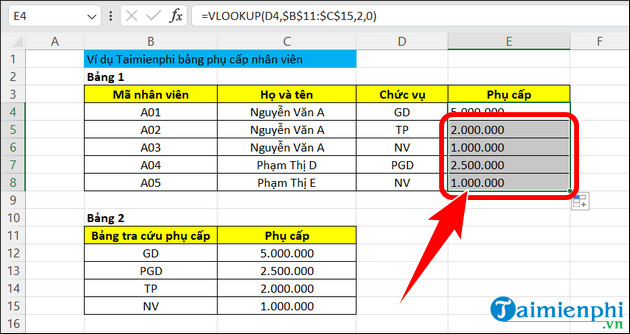
=VLOOKUP(D4,$B$11:$C$15,2,FALSE)
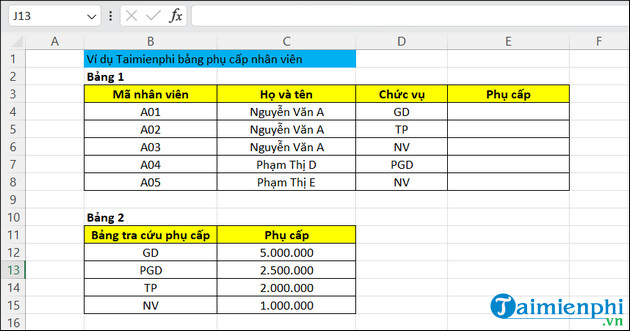
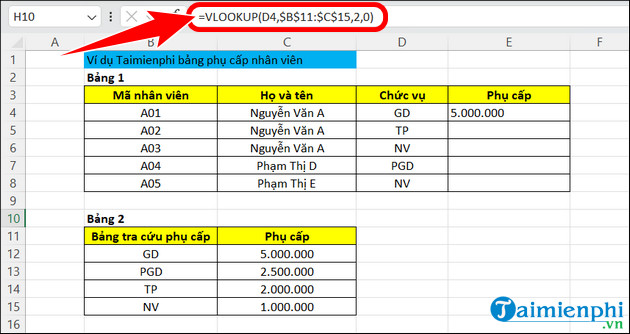
Fill the formula down with the fill handle. Flash Fill is not required for copying a formula.
Common VLOOKUP errors
- #N/A: no exact match exists, or text and numeric forms do not match.
- #REF!: col_index_num exceeds the number of columns in table_array.
- #VALUE!: col_index_num is below 1 or another argument is invalid.
- Wrong approximate result: the lookup column is not sorted ascending.
- Formula changes when copied: lock the table with absolute references or an Excel Table.
You can display a controlled fallback using the IFERROR function, but first check whether the underlying error reveals bad source data.
VLOOKUP limitations
VLOOKUP can only search the first column of table_array and return values to its right. Inserting columns can also change a hard-coded column index. Newer Excel versions provide XLOOKUP, while INDEX with MATCH offers a flexible alternative in older versions. For related data-quality techniques, see how to match data in Excel.
Related Articles
 Vlookup Function to Use and Specific Examples10 minutes read
 VLOOKUP Function: How to Use It and Specific Examples20 minutes read
 How to Use the Vlookup Function in Excel: Formulas and Detailed Examples12 minutes read
 How to Automate Vlookup with Excel VBA8 minutes read
 How to Combine Vlookup Function with If Function in Excel5 minutes read
 How to Use Vlookup Function in Excel to Search and Reference13 minutes read
Reader Comments 0
Sign in with email or Google to join the discussion.