Table of Contents
To calculate an employee's completed years of service, use DATEDIF with the employee's start date and either TODAY() or a fixed reporting date. A fixed date is preferable for payroll or audit reports that must not change later.

DATEDIF syntax
=DATEDIF(start_date,end_date,unit)
| Unit | Result |
|---|---|
| "y" | Complete years |
| "m" | Complete months |
| "d" | Total days |
| "ym" | Remaining complete months after years |
| "yd" | Remaining days after years |
| "md" | Remaining days after months and years |
DATEDIF is supported by Excel for compatibility, although it may not appear in formula suggestions. The start date must not be later than the end date.
Calculate completed years
If the start date is in C6, use:
=DATEDIF(C6,TODAY(),"y")
This returns complete years only. To calculate tenure as of a reporting date in F1, replace TODAY() with $F$1.
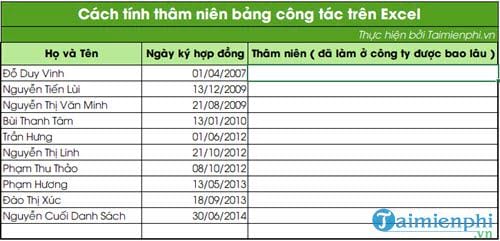
Check the date cells
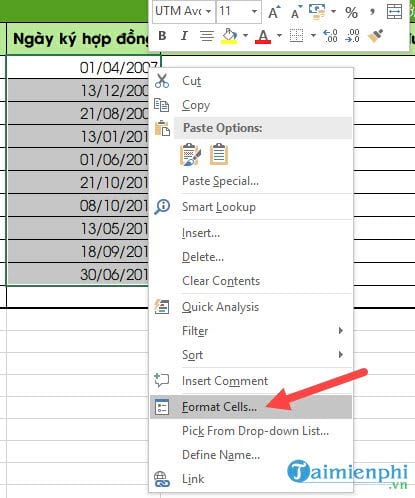
Formatting controls how a date appears, but it does not convert every text string into a real Excel date. Select the cells, open Format Cells, and apply a Date format suited to the intended locale.
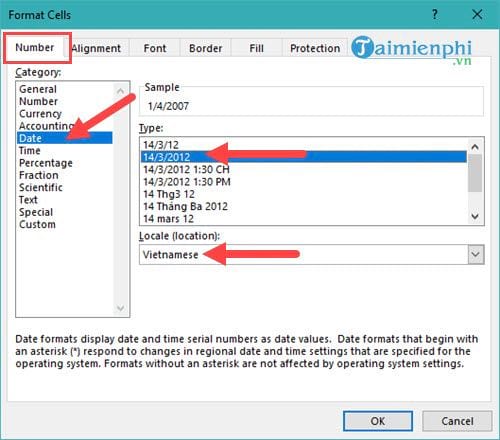
If formulas still fail, confirm that the cells contain numeric date values rather than imported text. The DATEVALUE function may help convert consistently formatted text dates.
Show years, months, and days
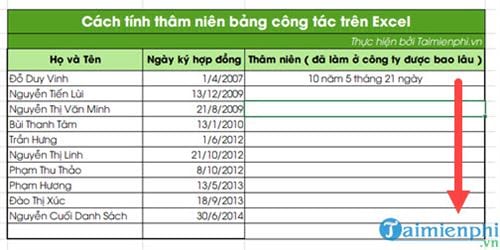
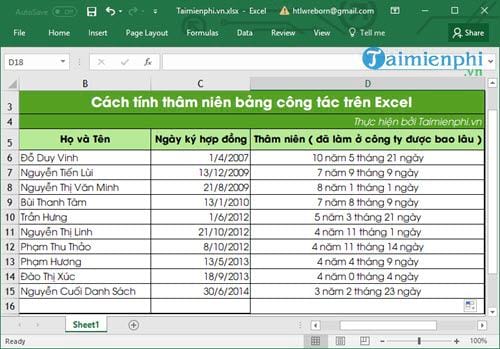
To build a readable tenure result:
=DATEDIF(C6,TODAY(),"y")&" years "&DATEDIF(C6,TODAY(),"ym")&" months "&DATEDIF(C6,TODAY(),"md")&" days"
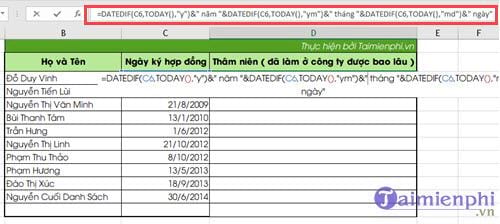
The ampersands join numeric results with labels. Fill the formula down to calculate other rows.
Important checks
- #NUM!: the start date is later than the end date.
- #VALUE!: one or both dates are invalid text.
- Changing reports: TODAY updates; use a fixed as-of date when results must be reproducible.
- “md” edge cases: Microsoft documents known limitations for this unit. For strict business rules, calculate and test month-end cases carefully.
- Employment policy: confirm whether unpaid leave, rehire dates, or partial periods should be excluded; a date difference alone cannot apply those rules.
To extract parts of a date for reporting, see how to separate day, month, and year in Excel.
Related Articles
 How to Calculate the Average in Excel3 minutes read
 How to Automatically Calculate and Copy Formulas in Excel4 minutes read
 How to Calculate Percentage, Format Percentage in Excel4 minutes read
 How to Calculate Percentages in Excel, the Percentage Calculation in Excel4 minutes read
 How to Subtract Dates, Months, and Years in Excel - Calculate the Distance4 minutes read
 Calculation of Age from Date of Birth in Excel4 minutes read
Reader Comments 0
Sign in with email or Google to join the discussion.