Table of Contents
In accounting workbooks, VLOOKUP can retrieve a product name, account description, tax category, or other reference value from a controlled master table. It is most reliable when every code is unique and the formula requests an exact match.
VLOOKUP syntax
=VLOOKUP(lookup_value,table_array,col_index_num,FALSE)
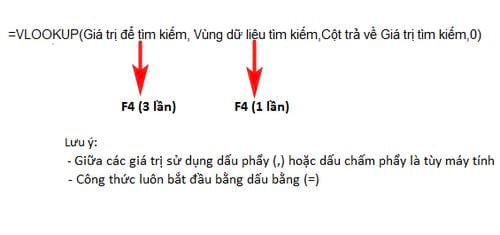
- lookup_value: the code or value to find.
- table_array: the reference table. Its first column must contain the lookup value.
- col_index_num: the return column's position, counted from the left of table_array.
- FALSE (or 0): requires an exact match.
Use FALSE for product codes and account codes. TRUE performs an approximate match and can return the wrong row unless the first column is properly sorted and the business rule is range-based.
Example: retrieve a product name from its code
Assume B11 contains a product code and G20:I23 is a product catalog with codes in column G and names in column H:
=VLOOKUP($B11,$G$20:$I$23,2,FALSE)
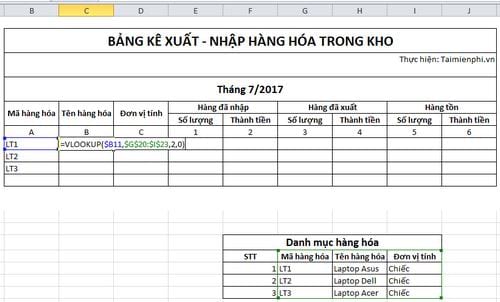
The formula searches the first column of G20:I23 and returns the matching value from the second column. The dollar signs lock the catalog so it does not shift when the formula is filled down. $B11 locks column B while allowing the row number to change.
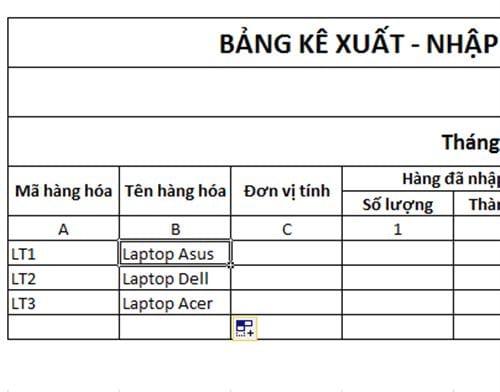
Use F4 to lock references
While editing a cell reference in a formula, F4 cycles through:
$A$8: lock column and row.A$8: lock the row only.$A8: lock the column only.A8: leave both relative.
On some laptops, you may need to press Fn+F4.
Controls that make accounting lookups safer
- Keep the reference table in one maintained location and make its codes unique.
- Use Excel Tables or named ranges so the lookup range expands with new records.
- Do not return a blank or zero for every error without investigation; a missing code can indicate incomplete master data.
- Protect formula columns and reconcile totals after updating reference tables.
- Remember that VLOOKUP returns the first matching row if a code is duplicated.
Common errors include #N/A for no exact match and #REF! when the return column number exceeds the table width. The general VLOOKUP guide explains approximate matching and other limitations. For a controlled message when a lookup is genuinely optional, see the IFERROR function.
Related Articles
 VLOOKUP Function: How to Use It and Specific Examples20 minutes read
 Vlookup Function to Use and Specific Examples10 minutes read
 Vlookup Function in Excel: Syntax, Examples, and Tips5 minutes read
 How to Combine Vlookup Function with If Function in Excel5 minutes read
 How to Use Vlookup Function in Excel to Search and Reference13 minutes read
 How to Use VLOOKUP Function in Excel: Practical Guide5 minutes read
Reader Comments 0
Sign in with email or Google to join the discussion.