Table of Contents
Excel's COUNT function counts cells that contain numbers. It does not count ordinary text, blank cells, or errors in a referenced range. When you need to count nonblank cells or values that meet conditions, use one of Excel's related counting functions instead.

COUNT syntax
=COUNT(value1, [value2], ...)
value1 is required and can be a value, cell, or range. Additional values or ranges are optional. For example, =COUNT(B2:B20) returns the number of numeric cells in B2:B20.
What COUNT includes
- Numbers in referenced cells, including zero and negative values.
- Dates and times, because Excel stores valid dates and times as serial numbers.
- Numeric values entered directly as arguments.
What COUNT ignores
- Blank cells and text in a referenced range.
- Logical values such as TRUE and FALSE in referenced cells.
- Error values.
A value that looks numeric may actually be stored as text and therefore not be counted. Check its alignment, number format, or use an appropriate conversion method before assuming the formula is wrong.
Choose the right counting function
| Function | Use it to count |
|---|---|
| COUNT | Cells containing numbers |
| COUNTA | Nonblank cells, including text and errors |
| COUNTBLANK | Blank cells, including formulas that return an empty string |
| COUNTIF | Cells that meet one condition |
| COUNTIFS | Rows or cells that meet multiple conditions |
COUNTIF syntax and examples
=COUNTIF(range, criteria)
- range: the cells to test.
- criteria: the condition, such as text, a number, a comparison, or a cell reference.
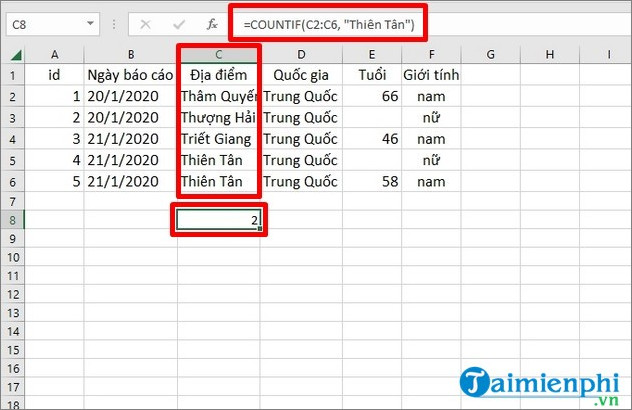
To count exact text matches in C2:C6:
=COUNTIF(C2:C6,"Tianjin")
COUNTIF is not case-sensitive. To count cells that contain a word anywhere in the text, use the asterisk wildcard:
=COUNTIF(C2:C8,"*Hubei*")
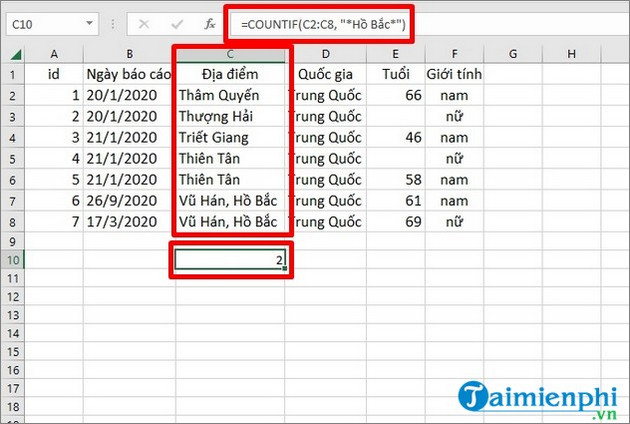
Count values with comparison operators
Comparison criteria belong inside quotation marks:
=COUNTIF(E2:E6,">=60")counts values of 60 or more.=COUNTIF(E2:E6,"<60")counts values below 60.=COUNTIF(E2:E6,"<>60")counts values other than 60.
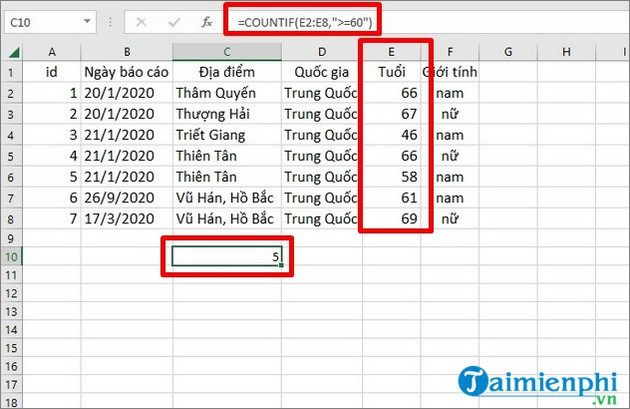
To build a condition from another cell, join the operator to the reference: =COUNTIF(E2:E20,">="&G2). This lets the threshold change when G2 changes.
Common problems
- Unexpected zero: numbers may be stored as text, or the range may be incorrect.
- Text condition does not match: check for leading or trailing spaces. Wildcards can help with partial matches but may also include unintended text.
- Multiple requirements: COUNTIF accepts one condition. Use COUNTIFS for conditions such as region plus date plus minimum value.
- Argument separator: some regional settings use semicolons instead of commas.
For a focused conditional-counting walkthrough, see the COUNTIF guide. If your results depend on values from another table, the guide to VLOOKUP in Excel explains a common lookup approach.
Related Articles
 COUNT Function in SQL Server: Explained3 minutes read
 COUNT Excel Counting Function8 minutes read
 Count Function in Excel, Formula, How to Use Count Function in Most Detail4 minutes read
 Instructions on How to Count Words in Cells in Excel3 minutes read
 How to Count Characters in Excel5 minutes read
 How to Use the COUNT Function in Excel: COUNT Excel Functions5 minutes read
Reader Comments 0
Sign in with email or Google to join the discussion.