Table of Contents
VSTACK places arrays one below another, while HSTACK places arrays side by side. Both return dynamic arrays that spill into neighboring cells, making them useful for combining ranges without copying and pasting.

VSTACK and HSTACK syntax
=VSTACK(array1,[array2],...)
=HSTACK(array1,[array2],...)
The first array is required; additional arrays are optional. These functions are available in supported Microsoft 365 and Excel for the web environments, but older perpetual Excel versions may not recognize them.
Combine rows with VSTACK
To place B4:D8 above F4:H8:
=VSTACK(B4:D8,F4:H8)
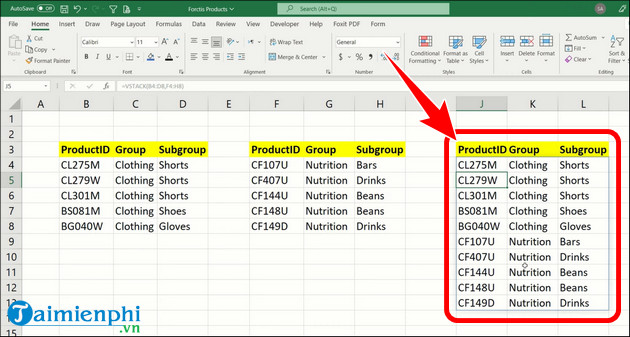
The arrays should normally have the same number of columns. If one is narrower, Excel pads the missing cells with #N/A.
Add a header row
You can include a constant array before the source ranges:
=VSTACK({"ProductID","Group","SubGroup"},B4:D8,F4:H8)
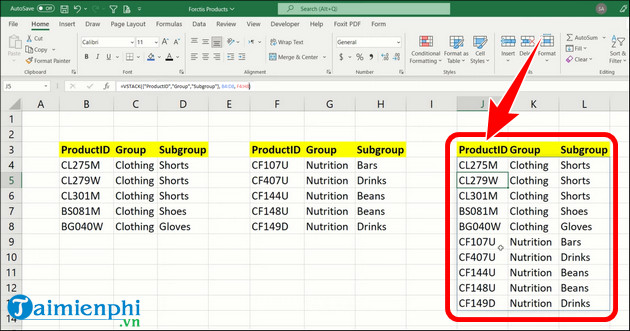
Array constants use separators determined by regional settings, so Excel may require a different column separator on some systems.
Stack Excel Tables that expand
If two source tables are named prod1 and prod2, use:
=VSTACK(prod1,prod2)
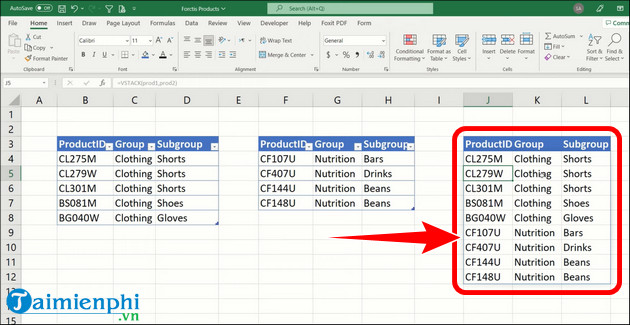
Structured table references expand as rows are added. Check whether each table reference includes headers or totals; duplicated headers inside the combined result may need to be excluded.
Combine columns with HSTACK
To place three single-column ranges next to one another:
=HSTACK(B4:B9,E4:E9,H4:H9)
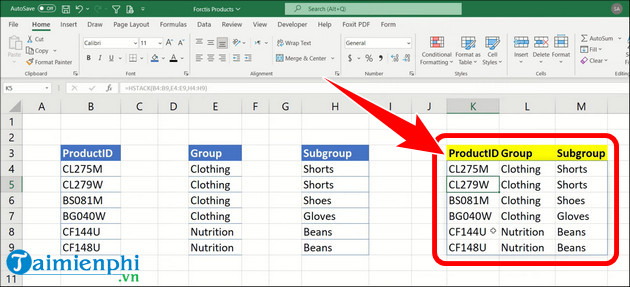
The arrays should normally have the same number of rows. If their heights differ, shorter arrays are padded with #N/A.
Common issues
- #SPILL!: clear cells blocking the output range and avoid placing a spilling formula inside an Excel Table.
- #NAME?: the Excel version may not support VSTACK or HSTACK.
- #N/A padding: array dimensions do not match; align the data or deliberately replace padding with IFERROR if appropriate.
- Unexpected headers: verify whether structured references include table headers.
VSTACK and HSTACK combine arrays; they do not match related records by a key. For that task, use a lookup such as the VLOOKUP function. Before stacking datasets, it may also help to check matching values in Excel.
Related Articles
 How to Use VSTACK and HSTACK Functions in Excel5 minutes read
 Summary of Trigonometric Functions in Excel6 minutes read
 How to Fix the SUM Function Doesn't Add up in Excel3 minutes read
 Complete Financial Functions in Excel You Should Know23 minutes read
 3 Functions to Help You Stop Wasting Time in Excel8 minutes read
 Excel 2019 (Part 15): Functions12 minutes read
Reader Comments 0
Sign in with email or Google to join the discussion.