Table of Contents
The Excel FIXED function rounds a number and returns the formatted result as text. Use it when you need display-ready text inside a formula. For numbers that must remain available for calculation, use ROUND or cell formatting instead.

Syntax
=FIXED(number,[decimals],[no_commas])- number: the number to round and convert to text.
- decimals: optional number of decimal places. The default is 2. A negative value rounds to positions left of the decimal point.
- no_commas: optional logical value.
TRUEsuppresses thousands separators;FALSEor omission includes them according to Excel's locale formatting.
Examples
Assume A1 contains 5123.591.
| Formula | Returned text | Purpose |
|---|---|---|
=FIXED(A1) | 5,123.59 | Default two decimal places |
=FIXED(A1,1) | 5,123.6 | One decimal place |
=FIXED(A1,0) | 5,124 | Whole number |
=FIXED(A1,2,TRUE) | 5123.59 | No thousands separator |
=FIXED(A1,-2) | 5,100 | Round to the nearest hundred |
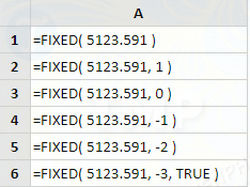
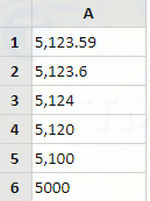
The exact thousands and decimal separators follow regional settings, so the displayed punctuation can differ from these examples.
Why the result may not calculate as expected
FIXED returns text. A formula such as =FIXED(A1,2)+B1 can rely on implicit conversion or fail depending on the values and Excel context. Do not use formatted text as the main numeric data for totals, averages, or comparisons.
Keep the source numeric and use one of these alternatives:
=ROUND(A1,2)to return a rounded number.- Home > Number formatting to change appearance without changing the stored value.
TEXT(A1,"#,##0.00")when you need a more customizable text format.
Format currency without converting to text
Select the cells and choose a Currency or Accounting format from the Number group on the Home tab.

This preserves numeric values for later calculations. Formatting only changes what users see; ROUND changes the calculated numeric value, and FIXED returns text.
Common errors
- #VALUE!: number or decimals contains text that Excel cannot convert. Check imported data and remove hidden characters.
- Unexpected separator: regional settings control comma and decimal symbols.
- Unexpected zeros: decimals controls the text's fixed number of displayed decimal places.
Compare truncation with rounding in the TRUNC function guide. For conditional counting rather than formatting, see the COUNTIF guide.
Related Articles
 The INT (Function Rounds a Number Down to the Nearest2 minutes read
 Round a Number in Excel (ROUND Function)7 minutes read
 How to Use the TIME Function in Excel3 minutes read
 How to Use the TIMEVALUE Function in Excel3 minutes read
 What Is the TRUNC Function in Excel?5 minutes read
 Ways to Round Numbers in Excel: Round Function Excel Number6 minutes read
Reader Comments 0
Sign in with email or Google to join the discussion.