Table of Contents
Excel provides three straightforward functions for extracting a fixed number of characters: LEFT reads from the beginning, RIGHT reads from the end, and MID starts at a position you specify. Choose the function based on where the needed text appears.

LEFT, MID, and RIGHT at a glance
| Function | Syntax | Use |
|---|---|---|
| LEFT | =LEFT(text,[num_chars]) | Return characters from the start |
| MID | =MID(text,start_num,num_chars) | Return characters from a specified position |
| RIGHT | =RIGHT(text,[num_chars]) | Return characters from the end |
Character positions in MID start at 1. For LEFT and RIGHT, omitting num_chars returns one character. A negative character count produces #VALUE!.
Extract characters from the middle with MID
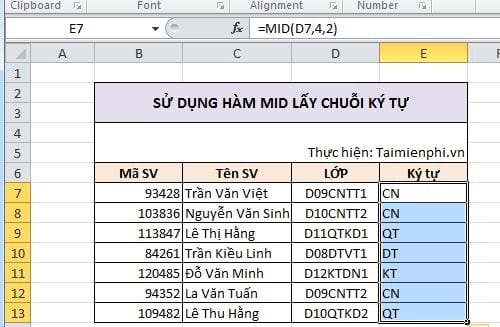
If D7 contains a class code and the two-character major code starts at character 4, use:
=MID(D7,4,2)
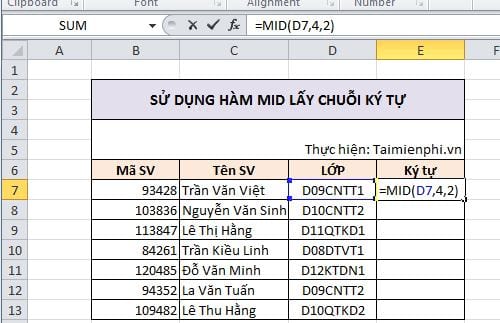
Fill the formula down to process the remaining rows. Relative references will change from D7 to D8, D9, and so on.
Extract characters from the end with RIGHT
To return the final three characters of the student ID in H5:
=RIGHT(H5,3)
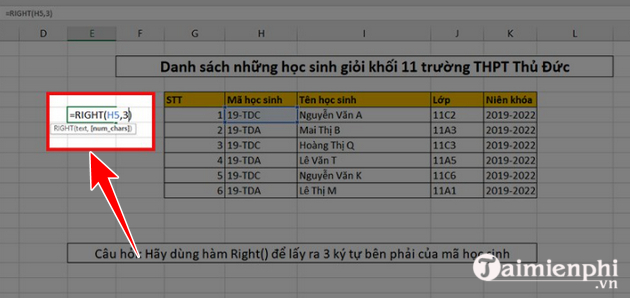
RIGHT returns text. If the result contains digits, keep it as text when leading zeros or identifier formatting matters. See the detailed RIGHT function guide for delimiter-based formulas.
Extract characters from the beginning with LEFT
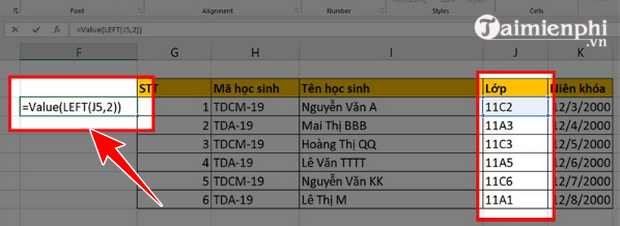
To return the first two characters in J5:
=LEFT(J5,2)
When the text position varies
Fixed positions work only when every source value follows the same pattern. If a name, code, or path has variable length, find a delimiter with SEARCH or FIND and use that position in LEFT, MID, or RIGHT. Before building the formula:
- Confirm that the delimiter appears in every row.
- Decide whether extra spaces should be removed with TRIM.
- Test rows with missing or repeated delimiters.
- Use IFERROR only with a meaningful fallback.
If extracted digits must become numbers for calculations, the VALUE function can convert them. Do not convert codes when leading zeros need to remain visible.
Related Articles
 The LEFT Function: Extracts Characters from the Left Side of a String in Excel16 minutes read
 How to use the VALUE function in Excel - A function to4 minutes read
 How to Use the LEN Function in Excel: Excel Function5 minutes read
 How to Use Concatenate Function on Excel: Concatenate Excel5 minutes read
 The LEFT Function, How to Use the Left-Hand String Cutting Function6 minutes read
 How to Use Excel's VALUE Function: Excel Value Function5 minutes read
Reader Comments 0
Sign in with email or Google to join the discussion.