Table of Contents
The function to calculate sums when filtering data is very important for Microsoft Excel users . This article will summarize how to filter and calculate sums in Excel using subtotal.
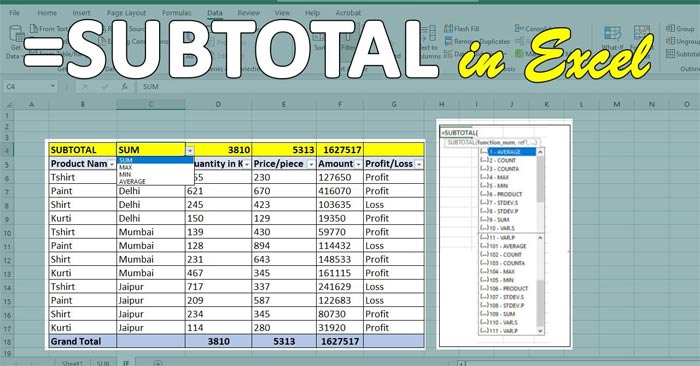
While knowing how to sum a spreadsheet column is helpful, you might want to know the sum of different groups. The subtotal function in Excel is a practical way to calculate smaller amounts, separate from the final total. It's relatively easy to use in spreadsheets, and it also allows you to sort your data.
The subtotal function in Excel is a formula that calculates a range of values based on a specified operation. It appears as =SUBTOTAL(function_num, ref1, [ref2],.), where function_num refers to the operation you want the formula to perform, and ref1, [ref2],. are the values you want Excel to include in the calculation. One of the most common uses of the subtotal function is to sum a column, but it can also perform the following operations:
- Medium
- Count
- Count them all
- The greatest value
- Minimum value
- Multiplier
- Population standard deviation
- Standard deviation of the sample
- Population variance
- Sample variance
This tutorial is based on Excel 2019; however, you can still apply this calculation method to other versions of Excel such as Excel 2007, Excel 2010, Excel 2013, and Excel 2016, as it uses the Excel Subtotal function.
Calculate the total value of a filtered list using the Subtotal function in Excel.
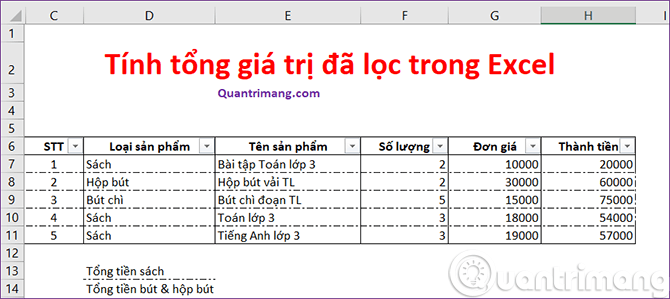
Let's assume we have a data table like this, with the filter already created.
| No. | Product type | Product name | Quantity | Unit price | Total amount |
| 1 | Book | Math exercises for 3rd grade | 2 | 10000 | 20000 |
| 2 | Pencil case | TL Fabric Pencil Case | 2 | 30000 | 60000 |
| 3 | Pencil | TL pencil | 5 | 15000 | 75000 |
| 4 | Book | 3rd grade math | 3 | 18000 | 54000 |
| 5 | Book | English for 3rd grade | 3 | 19000 | 57000 |
After filtering the list of products that belong to the book category, we have the following spreadsheet:
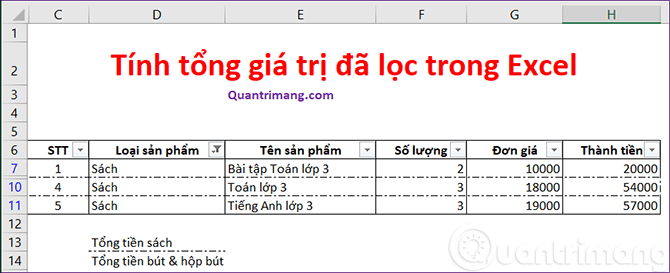
The requirement is to calculate the total price of the books. If you use the SUM() function on the filtered data table above, the result you get will not be the total price of the books, but the total price of all products.
In this case, we use the SUBTOTAL function as follows; in cell E13, you enter:
=SUBTOTAL(9,H7:H11)In this case, 9 is the argument value corresponding to the function to be used. Here, we want to calculate the sum, so the function to use is SUM. You can see it in the table below. H7:H11 is the range to be summed.
The result returned a total cost of books of 131,000.
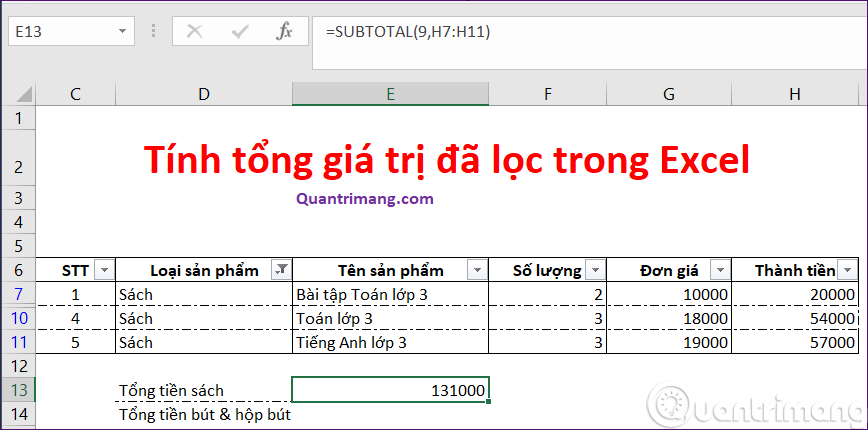
Regarding the SUBTOTAL() function
The SUBTOTAL() function will examine the entire list of values in column D and only calculate those values that satisfy the filter. You can look at the image above and guess that this is because we declared argument 9. However, this argument tells Excel that we want to calculate the SUM of the referenced values. The following table lists the accepted arguments:
| Including implicit value | Ignore hidden values | Jaw |
| 1 | 101 | AVERAGE() |
| 2 | 102 | COUNT() |
| 3 | 103 | COUNTA() |
| 4 | 104 | MAX() |
| 5 | 105 | MIN() |
| 6 | 106 | PRODUCT() |
| 7 | 107 | STDEV() |
| 8 | 108 | STDEVP() |
| 9 | 109 | SUM() |
| 10 | 110 | VAR() |
| 11 | 111 | VARP() |
After reviewing the table above, you might be wondering about the difference between 9 and 109. When using the argument 9, the SUBTOTAL() function will sum all hidden values. However, when using the argument 109, the SUBTOTAL() function will ignore hidden values. We need to clearly distinguish between hidden values and values that are excluded because they don't meet the filter criteria . Hiding a row can be done by right-clicking on the row number and selecting Hide . This is completely different from rows that are not displayed because they don't meet the filter criteria.
The SUBTOTAL() function is also used to perform many other useful tasks; you can find more information in TipsMake.com's tutorial on the SUBTOTAL function .
See more:
- How to use the Power function in Excel
- How to use the Round function in Excel
- How to use the Vlookup function in Excel
Related Articles
 What Is the COUNTIF Function in Excel?3 minutes read
 The SUMIF Function in Excel: How to Use It and Specific Examples12 minutes read
 How to Use the THE Function in Excel6 minutes read
 How to Use the OFFSET Function in Excel7 minutes read
 Vlookup Function to Use and Specific Examples10 minutes read
 The RIGHT Function in Excel: Syntax and Illustrative Examples17 minutes read
Reader Comments 0
Sign in with email or Google to join the discussion.