Table of Contents
IFERROR returns a formula's normal result when the formula succeeds and a value you choose when it produces an error. It can make worksheets easier to read, but the fallback should explain an expected problem rather than conceal a broken formula.

IFERROR syntax
=IFERROR(value, value_if_error)
- value: the formula or expression Excel evaluates.
- value_if_error: the result to return if the first argument produces an error.
IFERROR handles common Excel errors including #DIV/0!, #N/A, #VALUE!, #REF!, #NAME?, #NUM!, and #NULL!. If there is no error, Excel returns the original formula result.
Example: prevent a division error
Suppose A1 contains a total and B1 contains a quantity. The formula =IFERROR(A1/B1,0) returns the calculated value when B1 is nonzero and returns 0 if division produces an error.
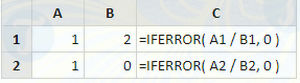

A message may be clearer than zero: =IFERROR(A1/B1,"Check quantity"). Use an empty string only when a blank-looking result will not confuse later users.
Example: IFERROR with VLOOKUP
A lookup can display a friendly message when no match is found:
=IFERROR(VLOOKUP(E2,A2:C20,3,FALSE),"Not found")
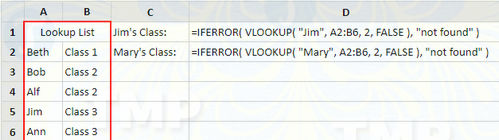
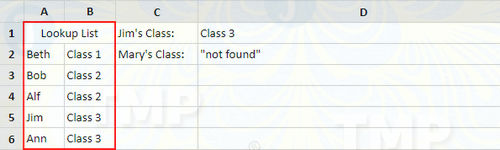
Here VLOOKUP searches for E2 in the first column of A2:C20. A successful match returns column 3; an error returns “Not found.” For more lookup guidance, see how to use VLOOKUP in Excel.
Use IFERROR carefully
- Build and test the inner formula first, then wrap it in IFERROR.
- Choose a fallback that preserves meaning. Returning 0 can wrongly imply a real zero value.
- Do not use IFERROR to mask every problem in a large formula. Fix invalid references or misspelled names at their source.
- If you only expect a missing lookup result, a targeted function such as IFNA can make the intent clearer.
IFERROR has been available since Excel 2007. In older workbooks, formulas may use IF with error-checking functions instead. If a workbook behaves unexpectedly, this guide to fixing circular reference errors covers a different formula problem that IFERROR should not hide.
Related Articles
 Iferror in Excel: Iferror Function in Excel, Formulas, and Usage5 minutes read
 6 Conditional Functions That Make Excel Spreadsheets Smarter10 minutes read
 5 Functions to Instantly Clean up Messy Excel Spreadsheets6 minutes read
 The Index Function in Excel: Formulas and Usage9 minutes read
 How to use the VALUE function in Excel - A function to4 minutes read
 Basic Excel Functions That Anyone Must Know20 minutes read
Reader Comments 0
Sign in with email or Google to join the discussion.