Table of Contents
WLAN AutoConfig (WlanSvc) is the Windows service that discovers, configures, connects to, and disconnects from Wi-Fi networks. If it stops or cannot start, the Wi-Fi toggle may disappear, no networks may be listed, or Windows may show an error such as “The dependency service or group failed to start.”
First determine whether the problem affects only one Wi-Fi network or the entire wireless adapter. If other devices also cannot connect to the same router, troubleshoot the router or internet service instead of changing Windows services.
1. Check the simple causes
- Press Windows+A and make sure Airplane mode is off and Wi-Fi is on.
- Restart the PC.
- If every device has lost the network, restart the modem and router using the manufacturer's instructions.
- Move closer to the access point and check any laptop wireless switch or Fn-key control.
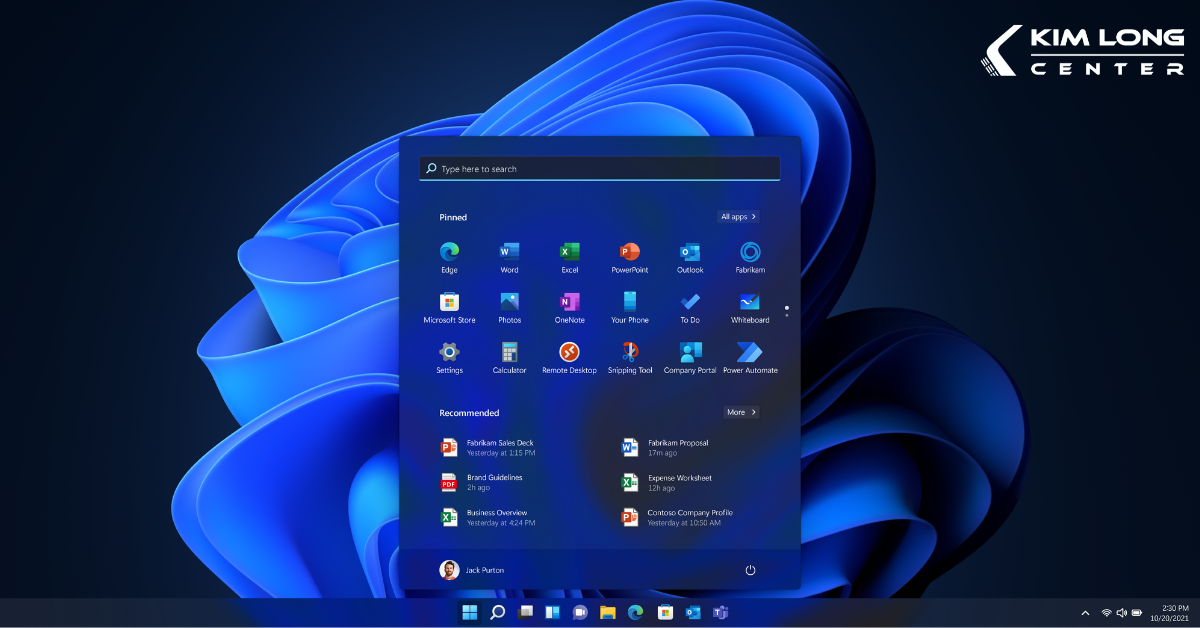
If the Wi-Fi control is completely missing, continue with Device Manager before repeatedly resetting the router.
2. Run the current Network and Internet troubleshooter
Microsoft now directs Windows 11 users to the automated Network and Internet troubleshooter in the Get Help app. Open Get Help, search for network and internet troubleshooter, and run the diagnostics.
You can also open Settings > System > Troubleshoot > Other troubleshooters and select the network troubleshooter; on current builds this may redirect to Get Help.
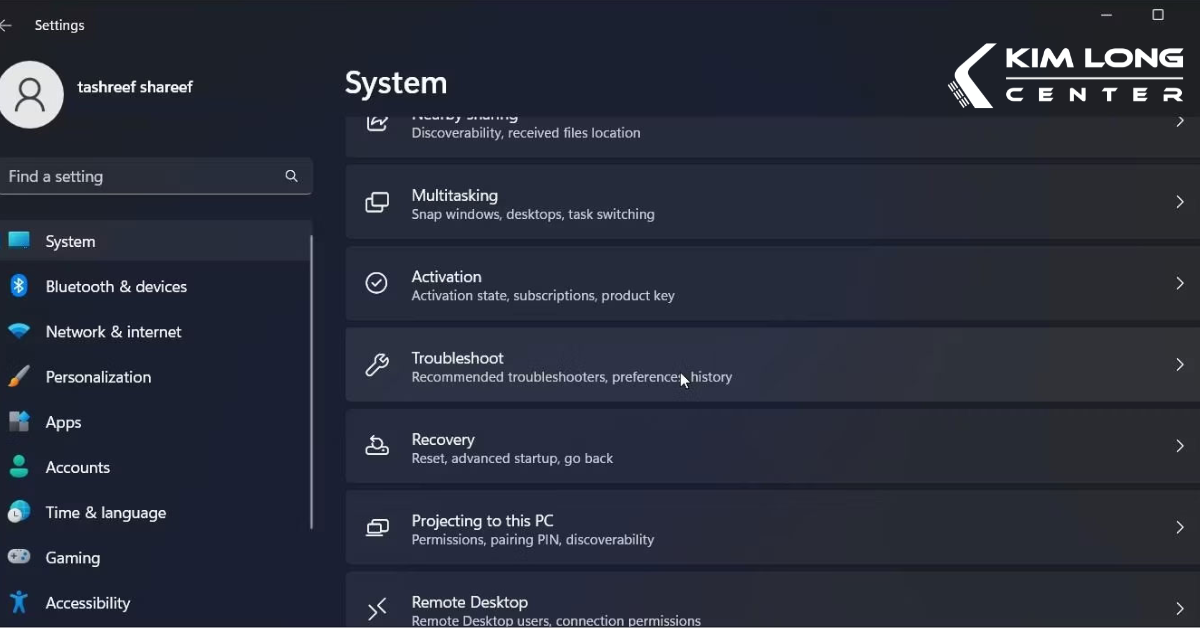
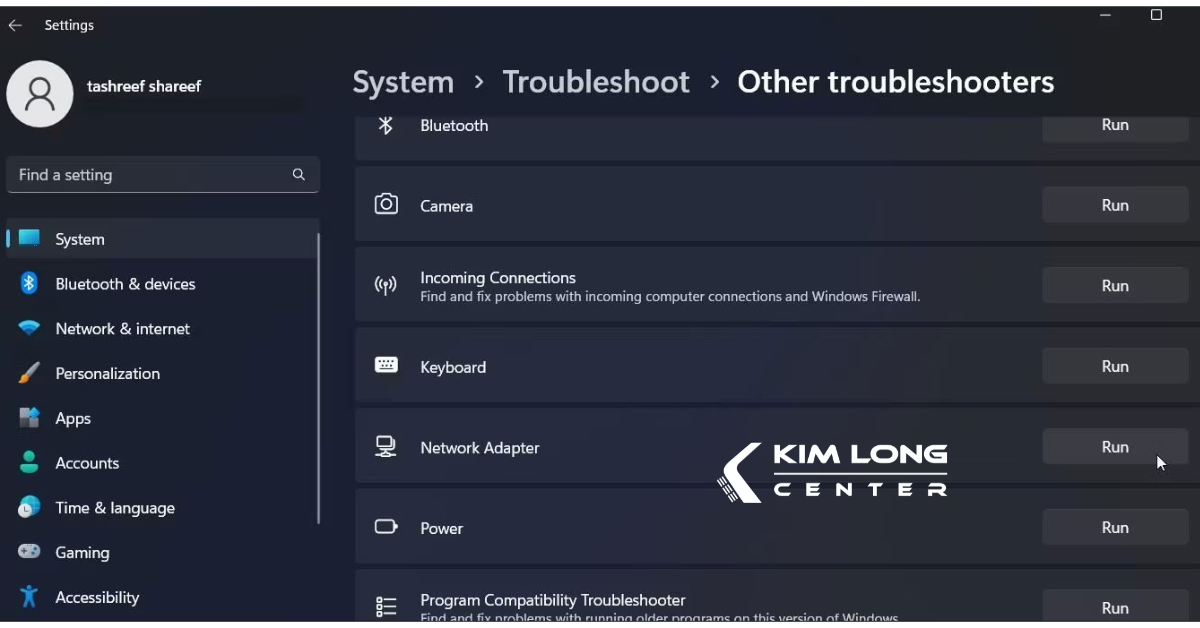
Interface labels can vary by Windows build. The important result is the diagnostic finding—adapter disabled, driver failure, IP configuration problem, or service issue—not simply whether the troubleshooter says it made a change.
3. Verify the Wi-Fi adapter in Device Manager
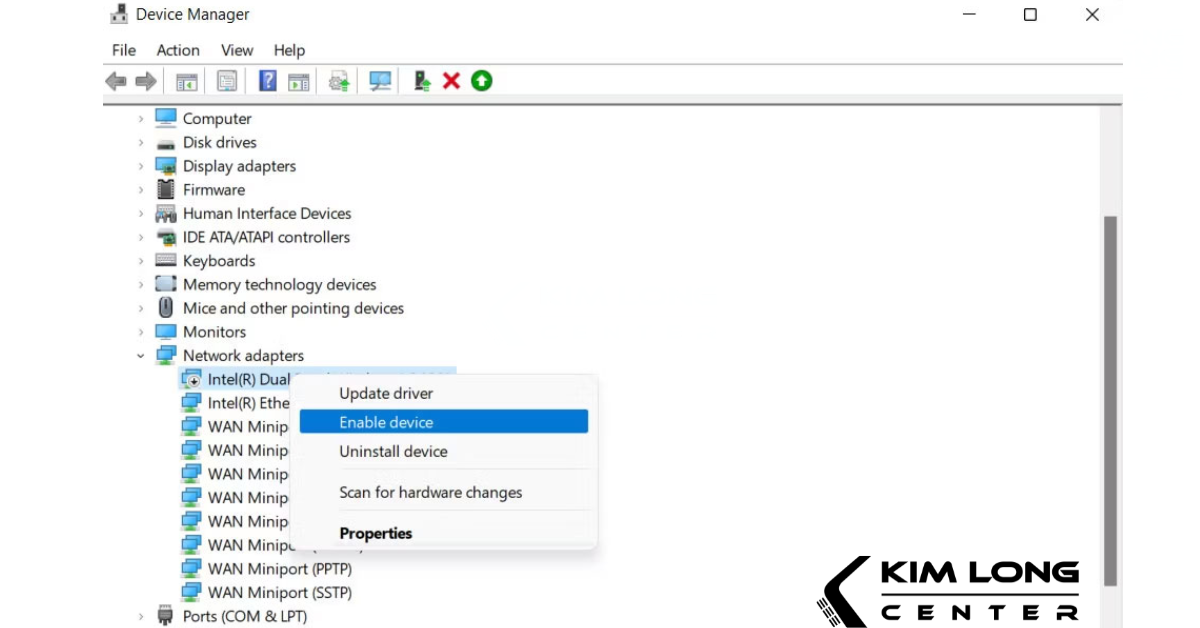
- Press Windows+X and select Device Manager.
- Expand Network adapters.
- Locate the wireless adapter. If it has a down-arrow icon, right-click it and select Enable device.
- If it has a warning icon, open Properties and record the Device status error code.
- If it is absent, select View > Show hidden devices, then Action > Scan for hardware changes.
4. Update, roll back, or reinstall the wireless driver
Install Windows updates and check Windows Update > Advanced options > Optional updates for a wireless driver. Also compare it with the driver on the laptop or motherboard manufacturer's support page for the exact model.
In Device Manager, right-click the wireless adapter and choose Update driver > Search automatically for drivers.
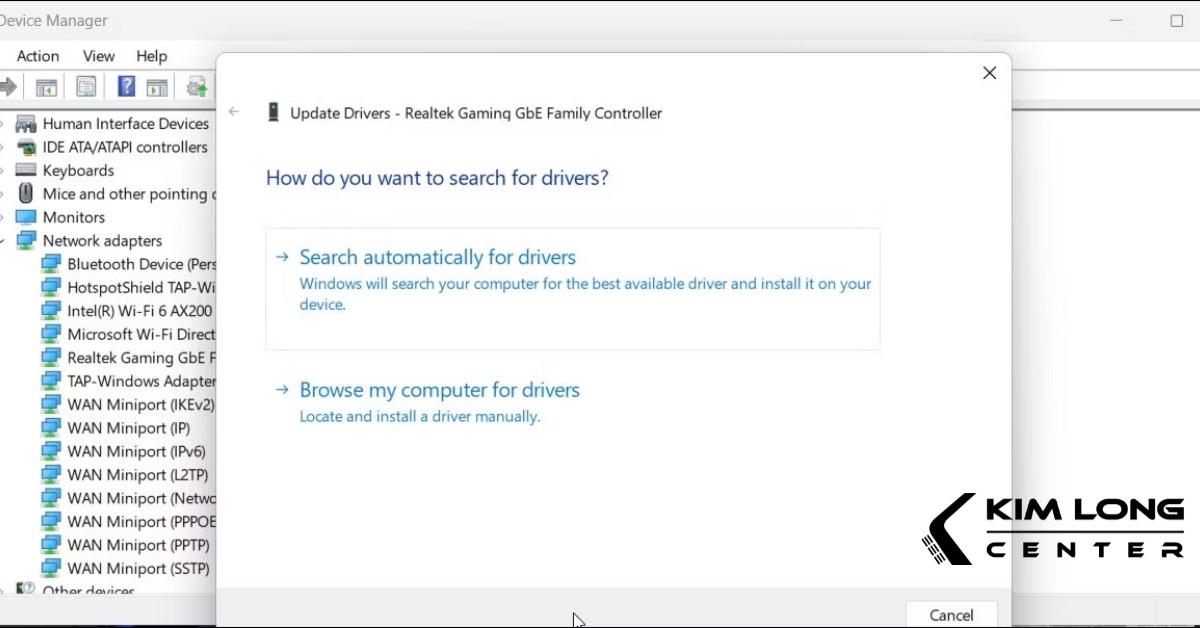
If Wi-Fi failed immediately after a driver update, open Properties > Driver and use Roll Back Driver when available. If updating and rolling back do not help, download the correct manufacturer driver first, then uninstall the adapter in Device Manager and restart Windows so it can be detected again.
A missing adapter after a restart and hardware scan points away from WLAN AutoConfig and toward firmware, a hardware switch, BIOS/UEFI settings, or a failed wireless card.
5. Restart WLAN AutoConfig safely
- Press Windows+R, enter
services.msc, and press Enter. - Find WLAN AutoConfig.
- If it is running, right-click it and select Restart.
- If it is stopped, open Properties, make sure Startup type is not Disabled, select Start, then apply the change.
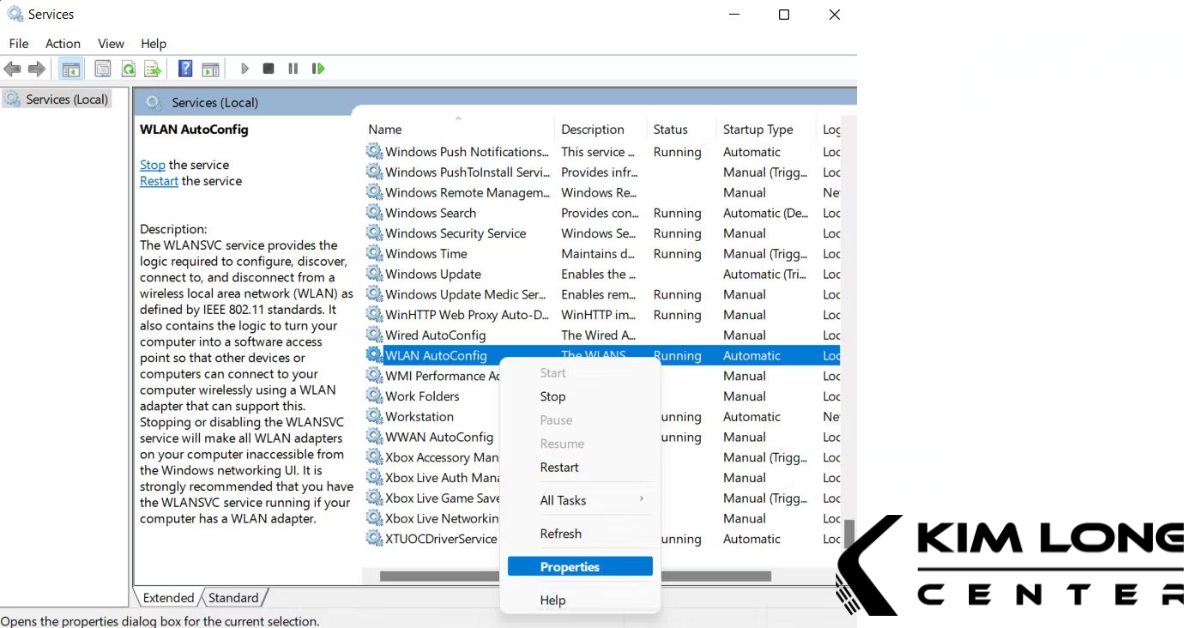
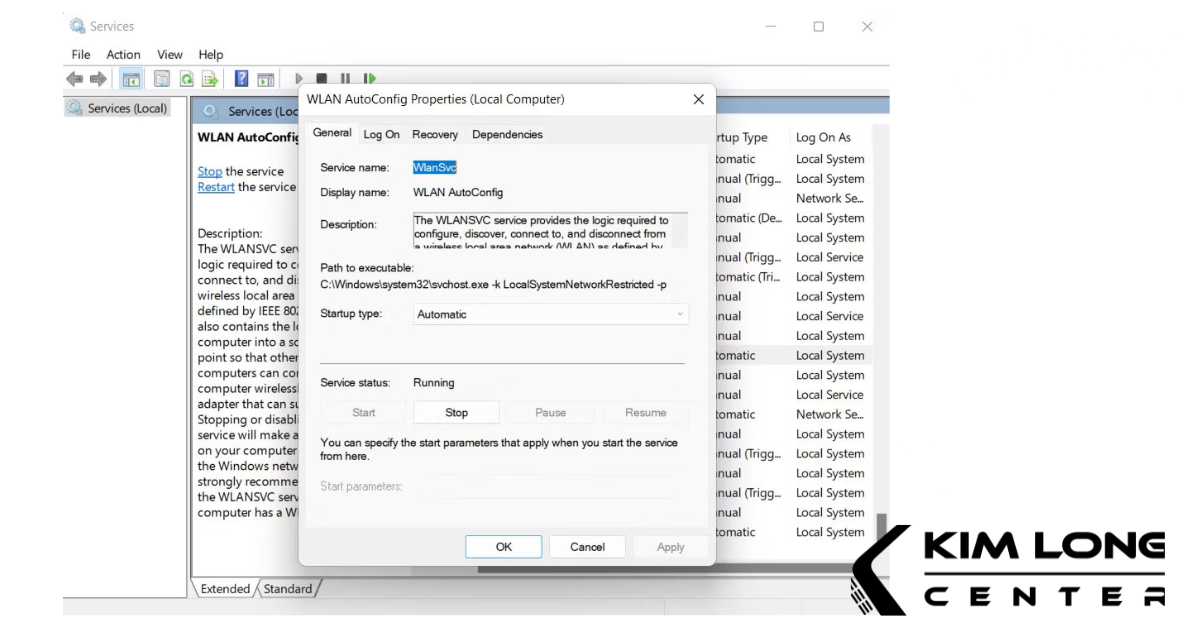
On a normal Windows Wi-Fi setup, WLAN AutoConfig is expected to be available and running when wireless networking is used. If it immediately stops again, record the full service error instead of repeatedly changing its startup type.
6. Investigate error 1068 or another service-start failure
Error 1068 means a required dependency did not start. Do not guess which dependency is missing. In an administrator Terminal, the following read-only commands show the configuration and current status:
sc.exe qc WlanSvc
sc.exe query WlanSvc
Open Event Viewer > Windows Logs > System and look for Service Control Manager errors at the time you tried to start WLAN AutoConfig. The event should identify a failing service or error code. Repair that documented dependency or damaged Windows component rather than deleting dependency entries.
Do not use the DHCP registry edit from older guides
Some guides tell users to open HKEY_LOCAL_MACHINESYSTEMCurrentControlSetServicesDhcp and delete values from DependOnService. The next screenshots show that method only so it can be recognized:
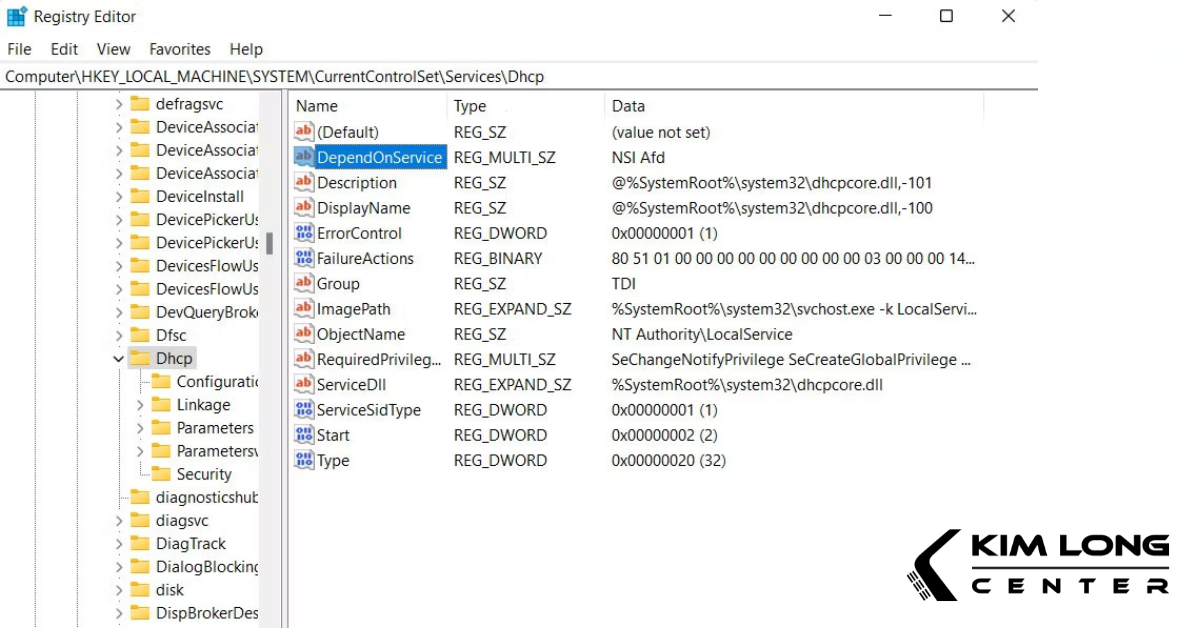
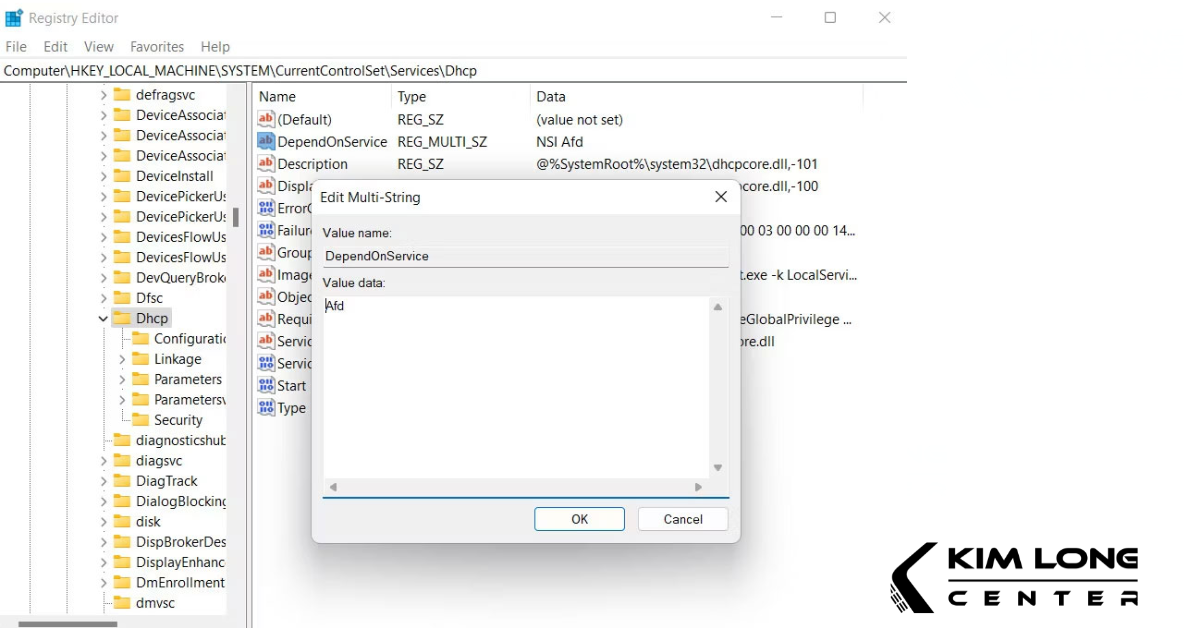
Do not perform this edit. DHCP and WLAN AutoConfig are different services, and removing legitimate DHCP dependencies can break IP address assignment or other networking. A service dependency error should be diagnosed from its actual service configuration, Event Viewer, and supported repair tools.
7. Repair Windows components if the service configuration is damaged
If Event Viewer points to system-file corruption and the adapter hardware is detected, open Windows Terminal as administrator and run:
DISM.exe /Online /Cleanup-Image /RestoreHealth
sfc /scannow
Restart after both commands complete. They repair the Windows component store and protected system files; they do not replace a missing vendor Wi-Fi driver or failed card.
8. Generate a wireless network report
If WLAN AutoConfig runs but connections repeatedly fail, open an administrator Terminal and run:
netsh wlan show wlanreportWindows creates an HTML wireless report with adapter details, connection sessions, driver information, and disconnect reasons. Open the path shown by the command and compare the failure time with the session chart. The report does not display saved Wi-Fi passwords, but it can contain device, network, and user details, so do not publish it unredacted.
9. Use Network reset as a last software step
Open Settings > Network & internet > Advanced network settings > Network reset, then select Reset now. Windows removes and reinstalls network adapters and resets their settings before restarting.
Network reset can remove VPN adapters, virtual switches, custom DNS settings, and saved network configuration. Record those settings and have Wi-Fi credentials available before continuing.
10. When the issue is probably hardware or firmware
- The Wi-Fi adapter is absent from Device Manager even after a restart and hardware scan.
- The adapter is disabled or missing in BIOS/UEFI.
- The manufacturer's pre-boot diagnostic reports a wireless-card error.
- Wi-Fi and Bluetooth disappear together on a combined radio module.
- The problem persists with the correct driver after a clean supported Windows installation.
Update BIOS/UEFI only with the exact package and procedure supplied by the computer manufacturer. If the PC is under warranty, arrange service rather than opening it. A compatible USB Wi-Fi adapter can provide temporary connectivity, but it should not be used to hide a failing internal card without documenting the fault.
Microsoft's current general procedure is available in Fix Wi-Fi connection issues in Windows.
Related Articles
 How to Fix ''windows Could Not Start the WLAN Autoconfig'' Error7 minutes read
 Cisco Bit 4 Dangerous Product Wlan Controller Error1 minutes read
 How to Create a Wi-Fi/WLAN Usage History Report on Windows 104 minutes read
 How to Create a Wi-Fi or Wlan Report History in Windows 106 minutes read
 Configure Wireless Connection of Windows Vista from Cli with9 minutes read
 10 Common Windows 10 Errors and the Most Effective Way to8 minutes read
Reader Comments 0
Sign in with email or Google to join the discussion.