Table of Contents
Windows 10 can create a local HTML report showing recent Wi-Fi sessions, adapter information, disconnect reasons, and related system events. It is useful when a wireless connection drops intermittently because the report puts the timeline and error codes in one place.
Generate the WLAN report
- Open Start, type Command Prompt, right-click it, and choose Run as administrator.
- Run:
netsh wlan show wlanreport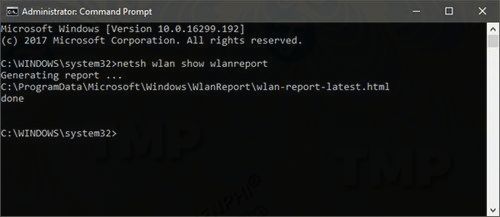
When the command finishes, it displays the location of the generated file. The default path is:
%ProgramData%\Microsoft\Windows\WlanReport\wlan-report-latest.htmlCopy that path into File Explorer's address bar and press Enter. You do not need to make all hidden files visible just to open it. If you prefer to browse manually, ProgramData is hidden by default; this Windows directory guide explains the Hidden items control.
Open wlan-report-latest.html in a browser.
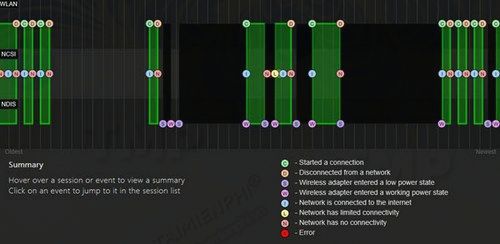
What the report contains
- Wi-Fi summary chart: connection, disconnection, warning, and failure events arranged on a timeline.
- Report and system information: computer name, report period, Windows version, and related details.
- Network adapters: adapter description, driver version, and hardware identifiers.
- Wireless sessions: network name, connection mode, start time, duration, disconnect reason, and events recorded during each session.
- Command output: selected results from networking commands that help describe the PC's configuration.
The report covers recent activity rather than an unlimited archive. A red failure marker is a starting point: select the associated session and compare the disconnect reason, driver events, and timing with what you were doing.
How to use the findings
- Failures on one SSID only suggest a saved profile, signal, router, or authentication problem.
- Failures across every network suggest the PC's adapter, driver, power management, VPN, or Windows networking stack.
- Repeated driver events around each drop make an update or rollback worth testing.
- Short sessions at the edge of coverage point to signal or roaming rather than DNS.
- A successful Wi-Fi association followed by no internet access requires router, gateway, DNS, or ISP checks.
Use the evidence to choose a targeted fix. The Windows Wi-Fi troubleshooting sequence covers router isolation, profiles, drivers, and network reset; most steps also apply to Windows 10.
Privacy and sharing
The HTML file is stored locally, but it may contain the computer name, Wi-Fi network names, adapter details, and connection times. Review and redact those details before sending the report to a forum or support provider. It does not reveal the Wi-Fi password.
If the command fails
Confirm that Command Prompt is elevated and that the WLAN AutoConfig service is available. A device with no wireless adapter may not produce useful session data. For service-specific errors, use the WLAN AutoConfig troubleshooting guide.
Related Articles
 How to Create a Wi-Fi or Wlan Report History in Windows 106 minutes read
 Click: How to Delete Your Usage History Tracks in Windows9 minutes read
 How to Create a Wireless Network Report in Windows 11: Step-by-Step Guide5 minutes read
 MS Access 2003 - Lesson 31: Creating a Report: Microsoft Access10 minutes read
 How to Create a Battery Usage Chart on Windows 103 minutes read
 Do You Want to See the Details of How Much Apps Use the Battery4 minutes read
Reader Comments 0
Sign in with email or Google to join the discussion.