Table of Contents
n8n Cloud users can normally connect Google through managed OAuth without creating a Google Cloud project. Self-hosted n8n users typically need a custom OAuth 2.0 client: copy the redirect URL shown by n8n, enable the Gmail API in Google Cloud, configure the app's audience and scopes, create a Web application client, and paste the client ID and client secret back into n8n.
Use a test Google Cloud project and a noncritical mailbox while validating the workflow. Never publish a client secret in a workflow, screenshot, shared document, or source repository.
Before you begin
- Your n8n instance must be reachable at the public HTTPS address used in the OAuth redirect.
- You need permission to create or configure a Google Cloud project.
- Choose the Gmail account that will own or run the automation.
- Decide whether the app is limited to one Google Workspace organization or will use external Google accounts.
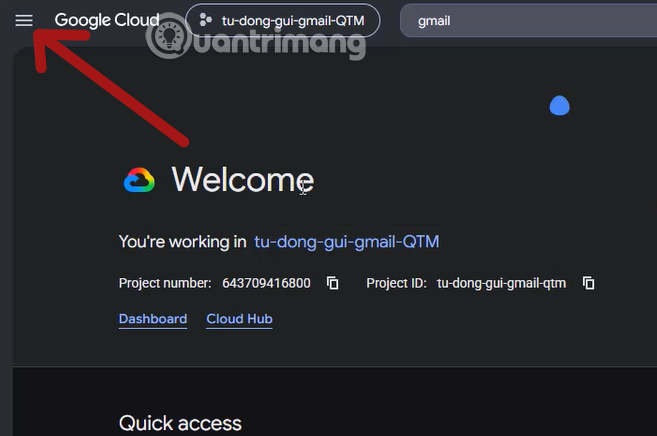
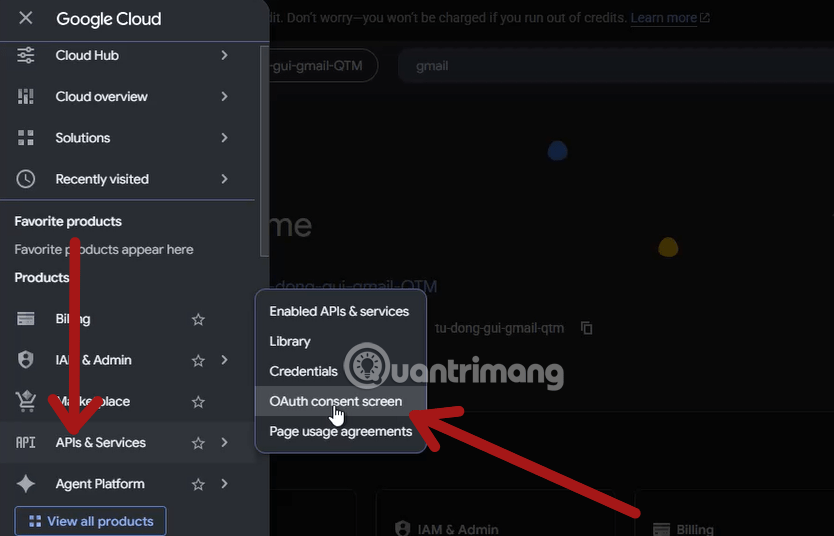
Google Cloud now groups OAuth configuration under the Google Auth Platform. Labels such as Branding, Audience, Data Access, and Clients may replace older “OAuth consent screen” navigation.
1. Create the Gmail credential in n8n
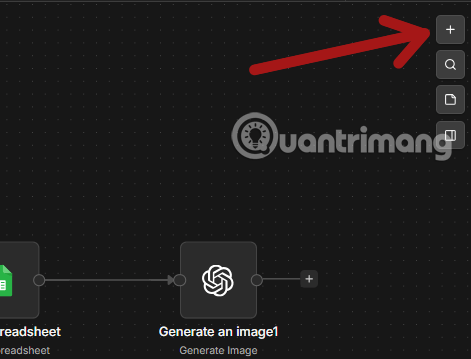
- Open a workflow and select Add first step or the plus button.
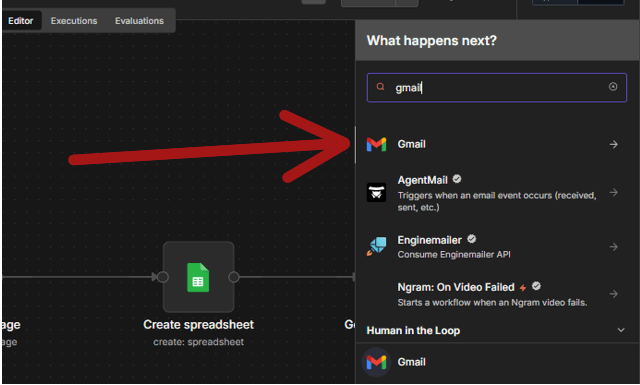
- Search for Gmail and add the Gmail node.
- Select the operation you need, such as Send a message.
- Under the Gmail credential field, choose to create a new credential.
- If you use n8n Cloud and managed OAuth is offered, sign in through that flow. Otherwise, continue with the custom OAuth setup.
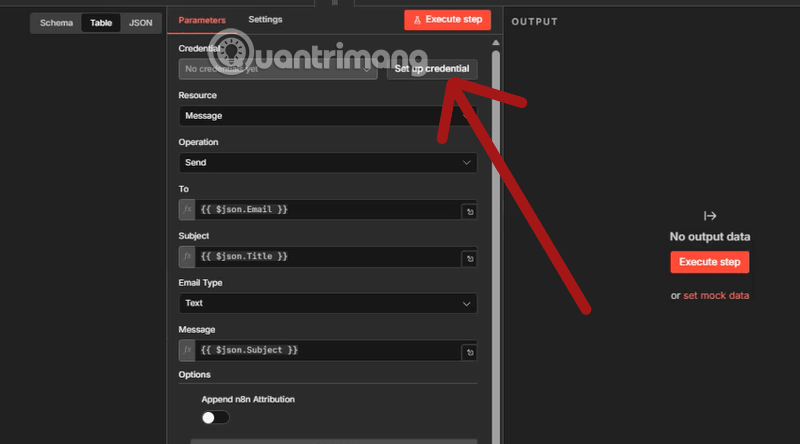
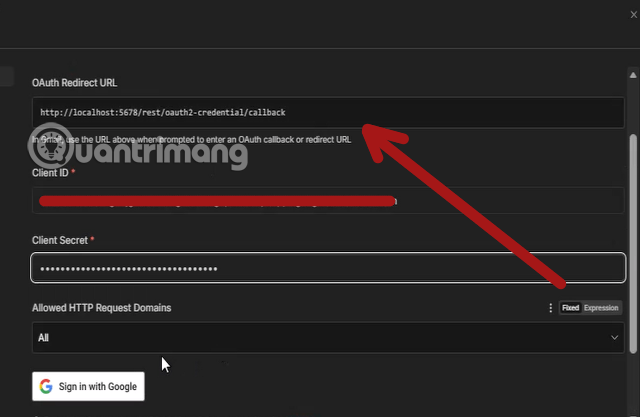
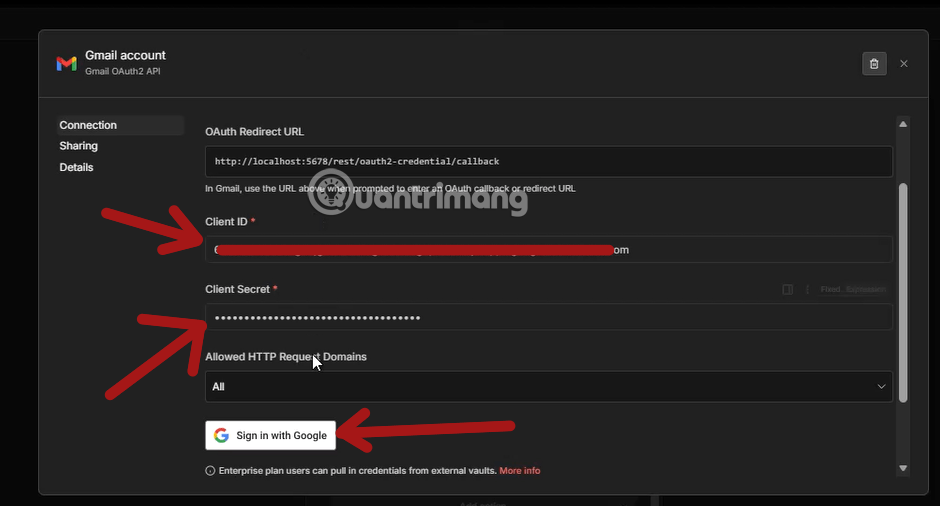
In the custom credential screen, copy the OAuth Redirect URL exactly. Do not reconstruct it manually or substitute a private localhost address when the production n8n instance uses a public domain.
2. Create and select a Google Cloud project
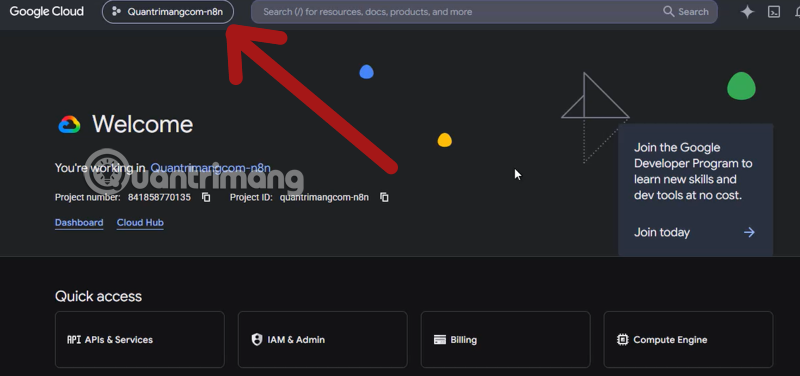
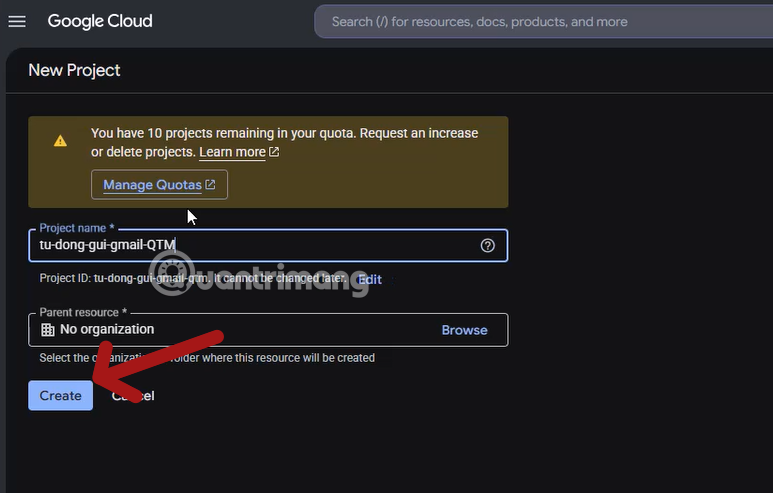
- Open Google Cloud Console and select the project menu.
- Create a project with a descriptive name such as
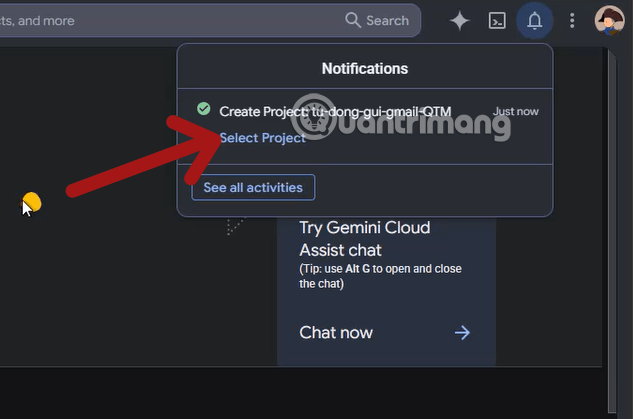
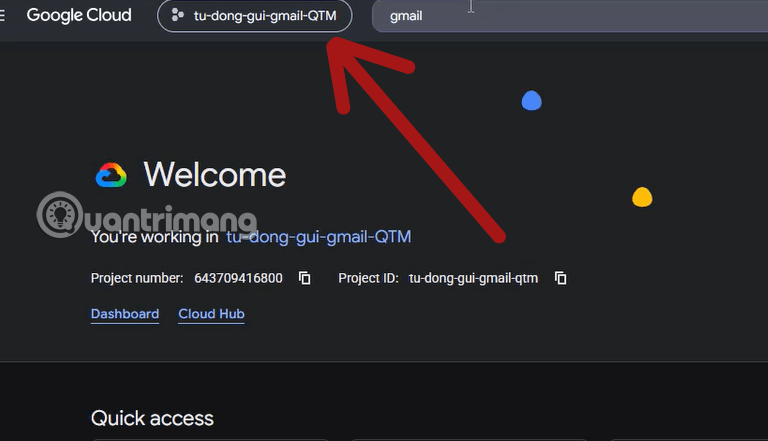
n8n-gmail-test. - Wait for project creation to finish, then make sure the new project is selected.
Keep development and production OAuth clients in separate projects when the workflow will serve multiple users. That makes test scopes and branding changes less likely to disrupt production authorization.
3. Enable the Gmail API
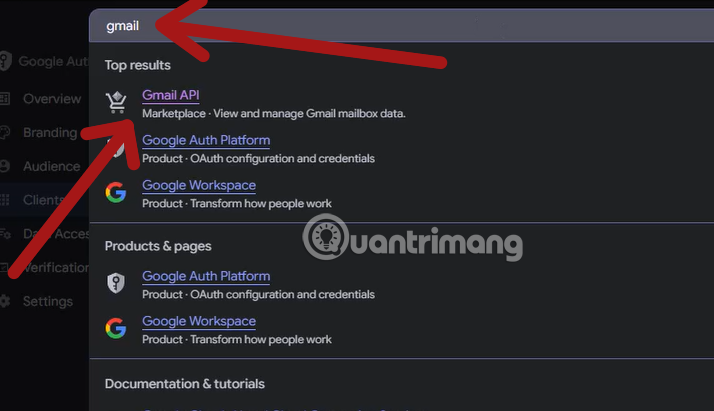
- Use the console search bar or open APIs & Services > Library.
- Search for Gmail API.
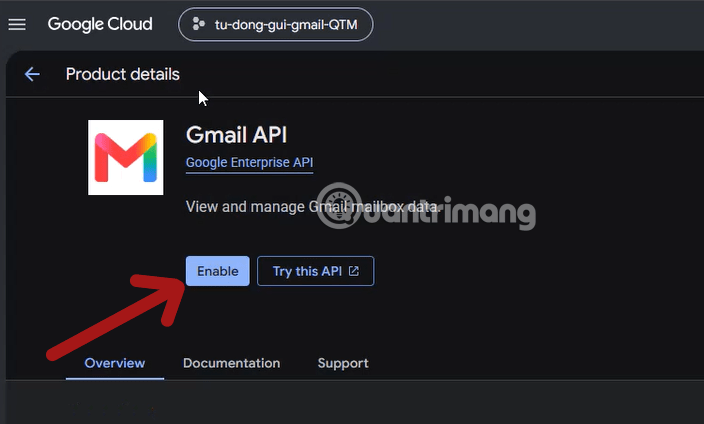
- Open the official Gmail API result and select Enable.
4. Configure OAuth branding and audience
Open the Google Auth Platform configuration for the selected project. Complete the app name, support email, and developer contact fields with addresses controlled by the organization—not an address copied from a tutorial.
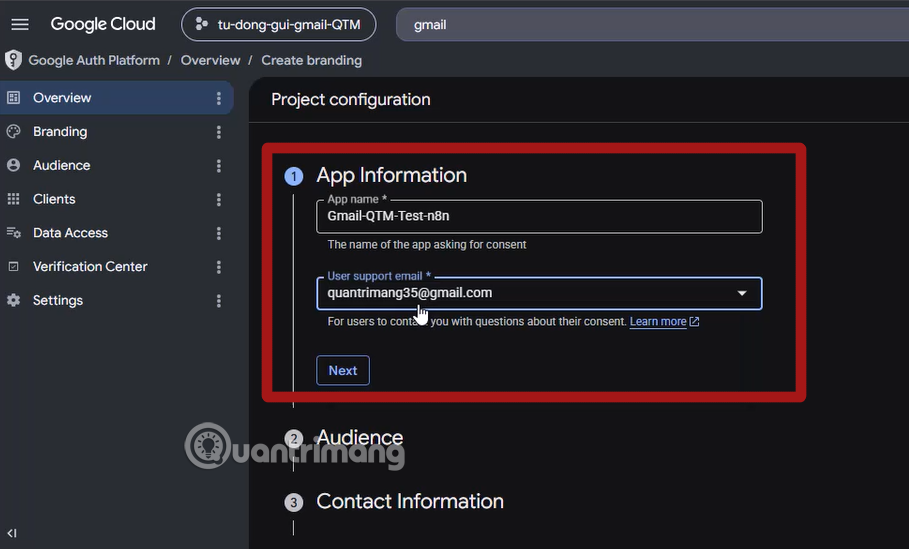
Choose the correct audience
- Internal: Available only for projects in an eligible Google Workspace or Cloud Identity organization and limited to users in that organization.
- External: Supports Google accounts outside the organization. In Testing status, only listed test users can authorize the app. Public production use can require brand, scope, or security verification.
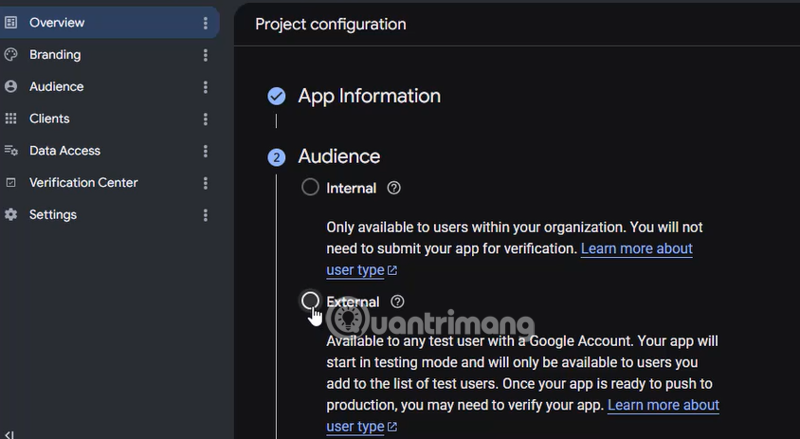
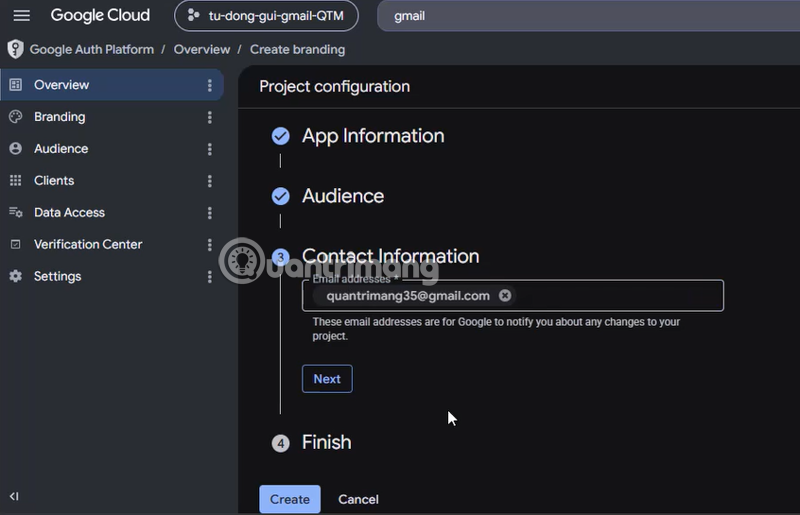
Request only the Gmail access you need
Gmail permissions are represented by OAuth scopes. A workflow that only sends messages should not request broad read, modify, or delete access unless another node operation genuinely needs it. Google can require verification for sensitive or restricted scopes, especially when an external app is published for other users.
Review the scopes displayed in n8n and on Google's consent screen before authorizing. A credential that can read or modify an entire mailbox deserves the same protection as the mailbox itself.
5. Create the OAuth client
- Open Clients or Credentials in the Google Auth Platform.
- Create an OAuth client and choose Web application.
- Give the client a descriptive name.
- Under Authorized redirect URIs, add the exact URL copied from n8n.
- Create the client.
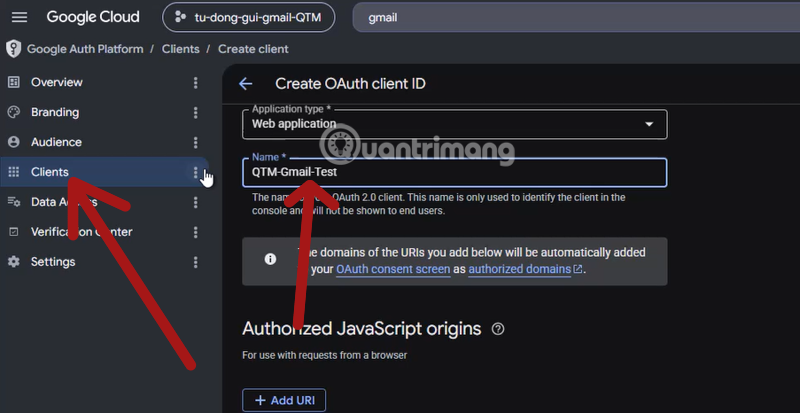
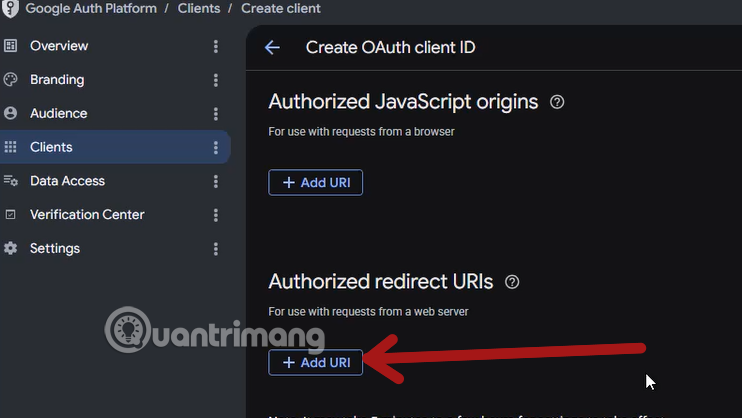
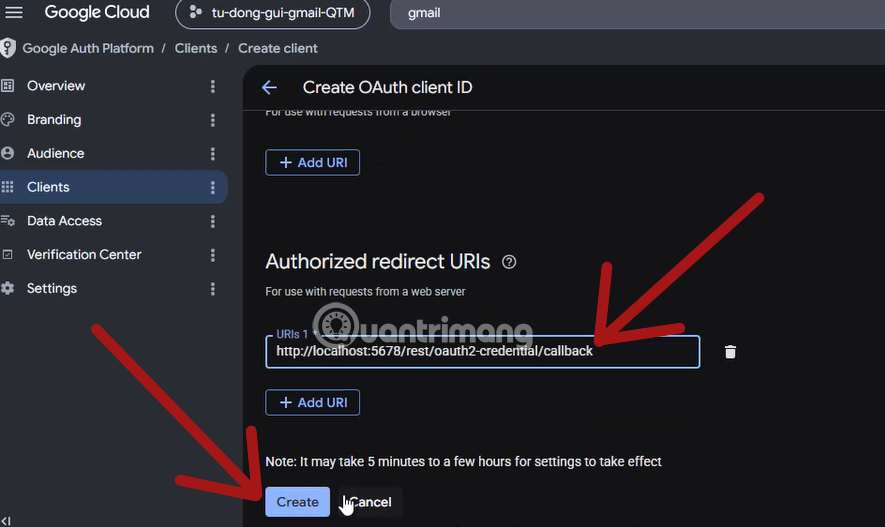
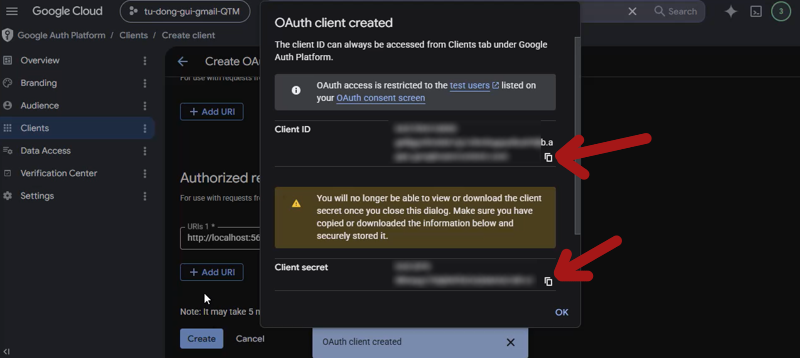
Google then displays a client ID and client secret. Store the secret in n8n's encrypted credential store or an approved secrets manager. Do not copy it into an ordinary notes app.
6. Add test users
If the app uses an External audience and remains in Testing, open Audience and add every Google account that should authorize the n8n credential. The account used at the Google sign-in screen must be on this list.
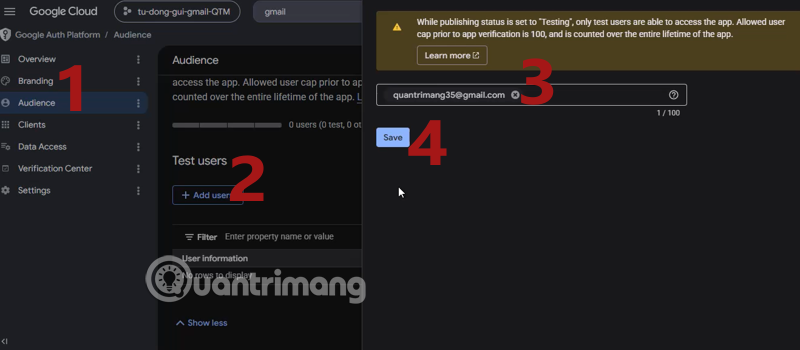
An Internal app normally does not use the external test-user list, but organizational policies can still restrict access.
7. Connect Google to n8n
- Return to the n8n Gmail credential.
- Paste the client ID and client secret into their matching fields.
- Save the credential.
- Select Sign in with Google.
- Choose the intended mailbox and review every requested permission.
- Approve only if the app name, redirect domain, and scopes are expected.
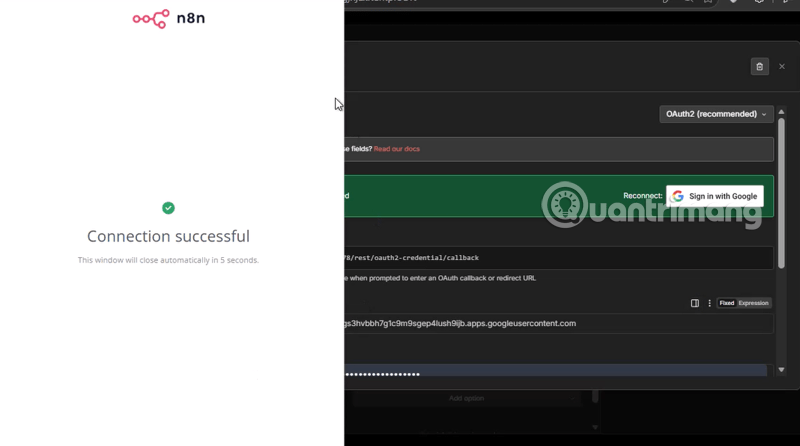
A connected status in n8n confirms that OAuth succeeded; it does not prove that the Gmail node's message fields or workflow logic are correct.
8. Send a controlled test message
- Use your own address as the recipient.
- Enter a recognizable subject such as
n8n Gmail OAuth test. - Execute only the Gmail node.
- Confirm the message appears in the recipient inbox and the sender's Sent folder.
- Inspect n8n's execution data for the message ID or any error.
Do not activate a bulk workflow until you have tested expressions, recipient mapping, duplicate handling, error paths, and unsubscribe or consent requirements.
Troubleshooting
redirect_uri_mismatch
The URI in Google Cloud does not exactly match the redirect URL shown by n8n. Check protocol, hostname, path, port, and trailing slash. For a reverse proxy, make sure n8n is configured to advertise its public HTTPS editor URL.
Access blocked or app not verified
Confirm that the External app is in Testing and the account is listed as a test user. For broader public use, review Google's current verification requirements and request only the narrowest scopes.
Gmail API is disabled
Enable Gmail API in the same project that owns the OAuth client. Enabling it in another project does not fix the credential.
Token expires or reconnects frequently
Testing-mode behavior, revoked access, changed secrets, app policy, or an incorrect public URL can invalidate authorization. Check the OAuth app status and n8n logs before switching to a less secure authentication method.
Quota or sending errors
Gmail API quotas and Gmail account sending limits are separate controls and can change. A workflow can hit either one. Add rate limiting, retries with backoff, and a dead-letter path; do not use consumer Gmail for unsolicited or high-volume bulk email.
Security checklist
- Use the narrowest Gmail scopes that support the workflow.
- Protect the client secret and n8n encryption key.
- Restrict credential editing inside n8n.
- Keep the n8n instance behind HTTPS and update it regularly.
- Use separate test and production Google Cloud projects.
- Rotate a secret immediately if it appears in a screenshot or repository.
- Review connected-app access in the Google account periodically.
For interface changes and current credential requirements, consult the n8n Google OAuth documentation and Google's OAuth verification guidance. The safest setup is the one that grants only the mailbox access the workflow actually needs.
Related Articles
 How to Connect Google Docs with n8n16 minutes read
 Youtube, Gmail, Snapchat and Many Internet Services Crash Across2 minutes read
 How to Access Google Cloud on Android: Step-by-Step Guide5 minutes read
 Instructions for Creating a Client ID and Client Secret in Google Sheets8 minutes read
 Back up Data of Google Applications: Cloud Application6 minutes read
 Insert Photos from Your Phone into Gmail Via 'Cloud'2 minutes read
Reader Comments 0
Sign in with email or Google to join the discussion.