Table of Contents
The recommended way to add Gmail to a current version of Outlook is to enter the Gmail address, choose Sign in with Google, and let Outlook configure the account with modern authentication. Use the manual POP procedure below only when you specifically need one-way message downloading in classic Outlook.
POP is not the same as normal Gmail synchronization. It downloads inbox messages but does not reproduce Gmail labels or keep read, sent, deleted, and folder states synchronized across devices. IMAP or Outlook's automatic Google connection is better for most users.
Important: Outlook 2007 and 2010 are out of support, and older perpetual releases may not meet Google's current sign-in requirements. Do not weaken Google Account security or enable a “less secure apps” setting; Google no longer supports that method. Update Outlook and use Google sign-in when possible.
Gmail POP and SMTP settings
| Setting | Value |
|---|---|
| Account type | POP3 |
| Incoming server | pop.gmail.com |
| Incoming port | 995 |
| Incoming encryption | SSL/TLS |
| Outgoing server | smtp.gmail.com |
| Outgoing port | 587 with STARTTLS/TLS, or 465 with SSL/TLS |
| Outgoing authentication | Required; use the same account credentials |
| Username | Your complete Gmail address |
| Password | Google sign-in, or an app password where required |
Enable POP in Gmail
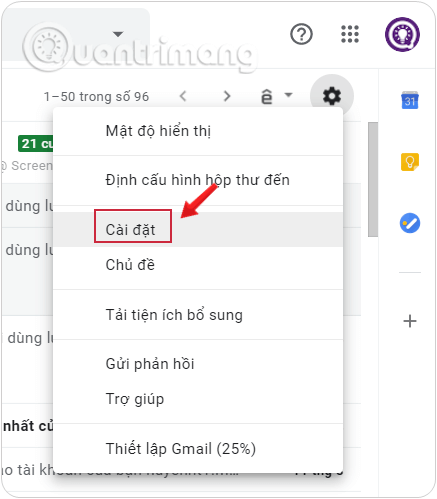
Step 1: Sign in to Gmail in a desktop browser. Select the gear icon, then See all settings.
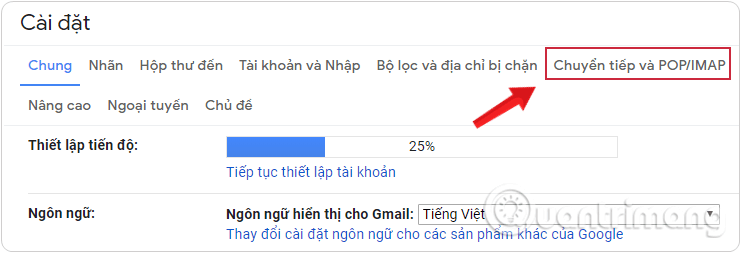
Step 2: Open the Forwarding and POP/IMAP tab.
Step 3: Under POP download, choose one of these options:
- Enable POP for mail that arrives from now on to start with new messages.
- Enable POP for all mail only if you intentionally want Outlook to retrieve older eligible messages as well.
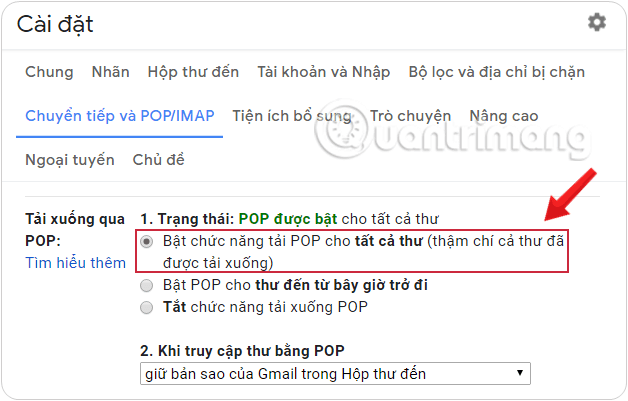
For When messages are accessed with POP, keeping Gmail's copy in the Inbox is the safest starting choice. It prevents the POP client from unexpectedly removing the server-side inbox copy.
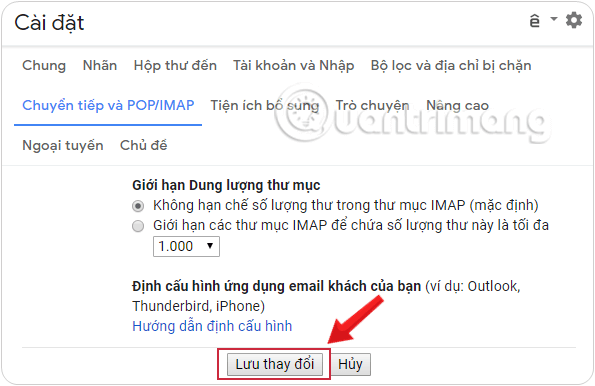
Step 4: Select Save Changes.
Try automatic Google sign-in first
In a supported Outlook release, select File > Add Account, enter the Gmail address, and follow the Google authorization window. Grant the mail permission required for Outlook to sync the account. This is safer than entering a reusable password into a manual account form.
If Outlook configures the account through Google sign-in and you do not specifically need POP, keep that setup. The remaining instructions describe the older manual interface shown in the screenshots.
Add Gmail as a POP account in classic Outlook
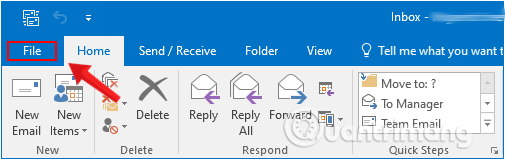
Step 1: Open classic Outlook and select File.
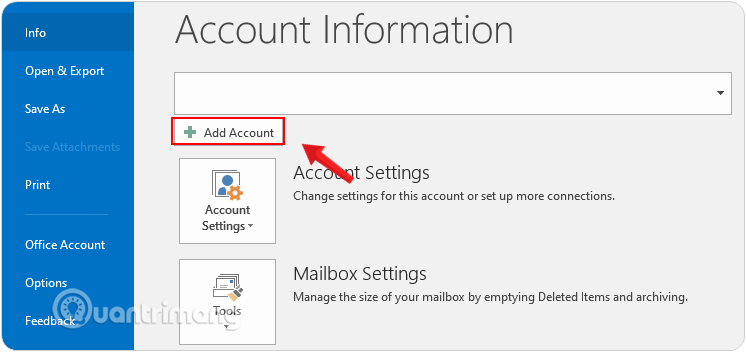
Step 2: Select Add Account.
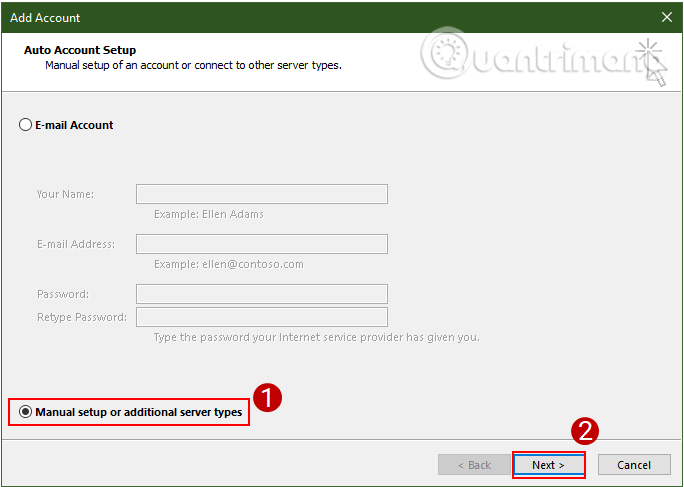
Step 3: Choose Manual setup or additional server types, then select Next.
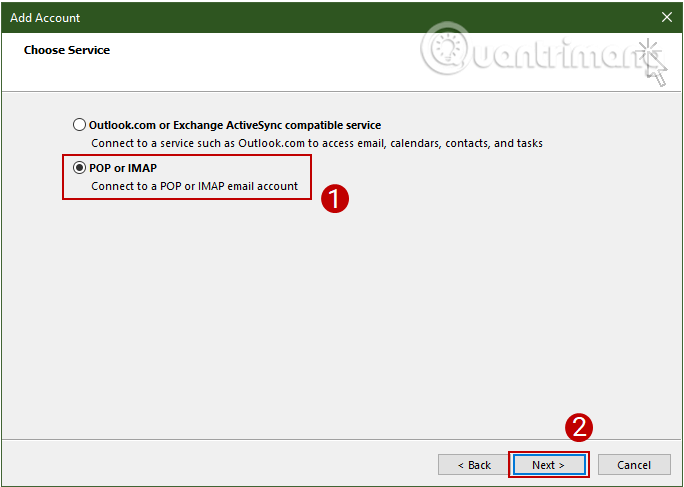
Step 4: Select POP or IMAP, then choose Next.
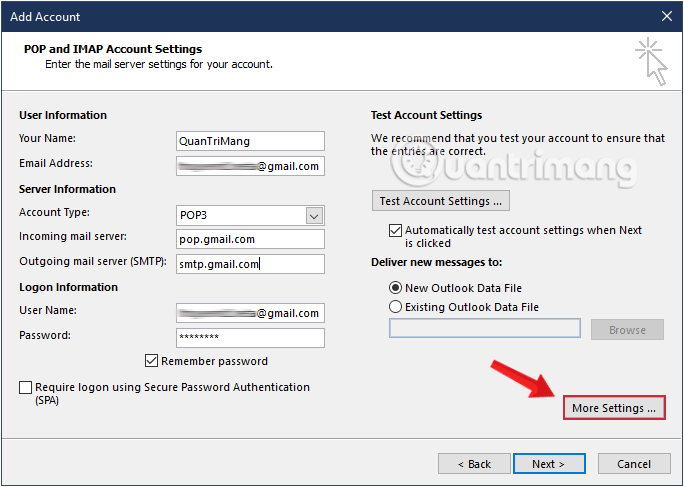
Step 5: Enter the following account information:
- Your Name: the display name recipients should see.
- Email Address: your complete Gmail address.
- Account Type: POP3.
- Incoming mail server:
pop.gmail.com. - Outgoing mail server:
smtp.gmail.com. - User Name: your complete Gmail address.
For the password, use the Google authorization window if Outlook provides one. If manual POP does not support that window, Google may require an app password: enable 2-Step Verification on the Google Account, create an app password, and enter that 16-character value in Outlook. An app password is not available for every managed or protected account and should be revoked when the device is no longer used.
Never enter the normal Google Account password into an old client that cannot use modern authentication.
Step 6: Select More Settings.
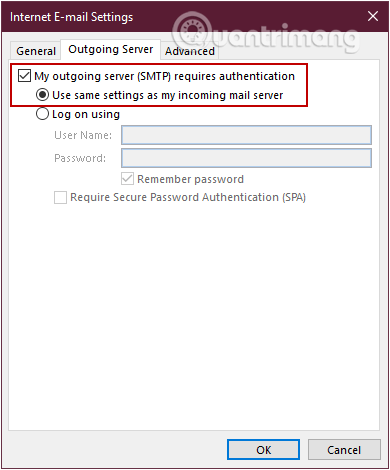
Step 7: On the Outgoing Server tab, enable My outgoing server (SMTP) requires authentication and select Use same settings as my incoming mail server.
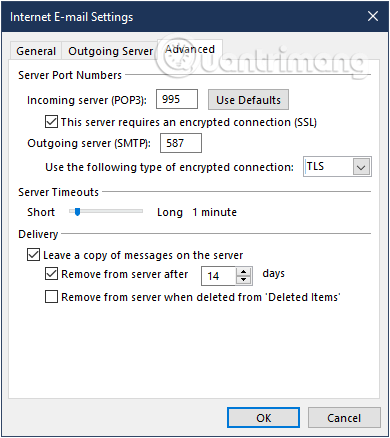
Step 8: On the Advanced tab, set:
- Incoming server (POP3): 995.
- Incoming encryption: SSL/TLS, or enable the checkbox stating that the server requires an encrypted connection.
- Outgoing server (SMTP): 587.
- Outgoing encryption: STARTTLS or TLS, depending on the label in your Outlook build.
If port 587 is unavailable in that client, Google's alternative is port 465 with SSL/TLS. Do not use unencrypted POP or SMTP.
Step 9: Select OK to close the Internet Email Settings window.
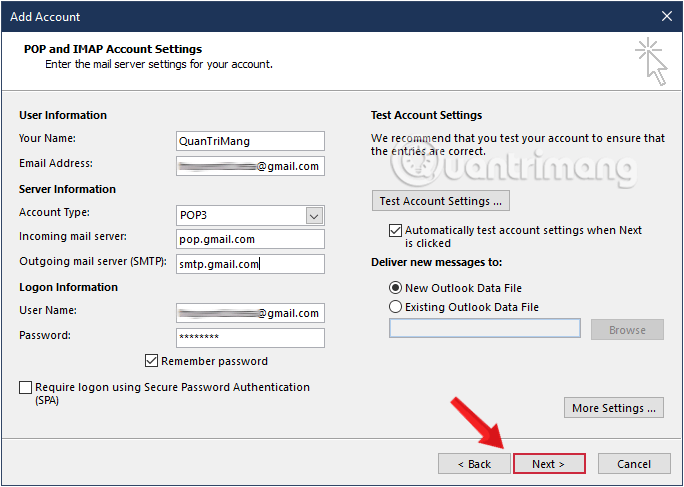
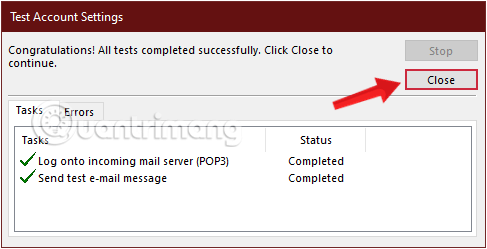
Step 10: Select Next to test the configuration.
Step 11: Confirm that both receiving and sending tests complete, then select Close.
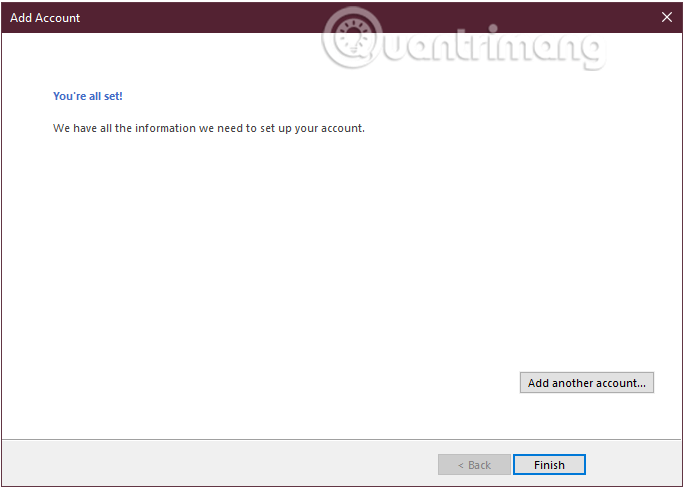
Step 12: Select Finish.
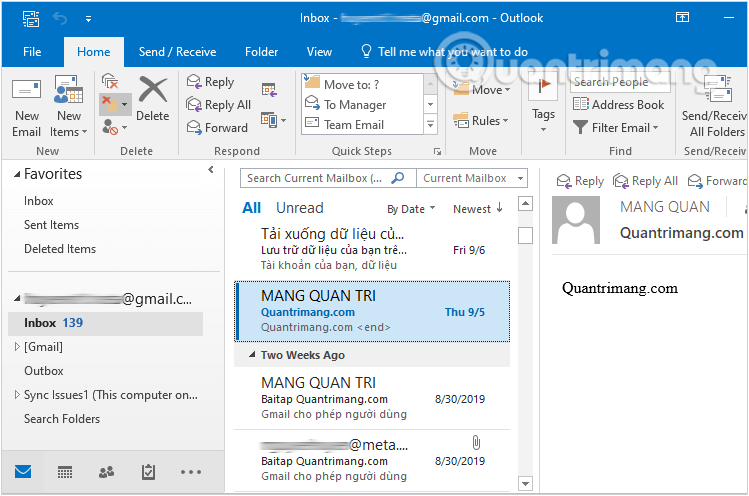
The Gmail account should now appear in Outlook's folder pane. Select its Inbox and allow time for the first download, particularly if POP was enabled for older mail.
Troubleshoot Gmail POP in Outlook
- Username or password rejected: update Outlook and try automatic Sign in with Google. If manual POP is essential, confirm 2-Step Verification and create a fresh app password.
- Receiving fails: confirm POP is enabled in Gmail, the server is
pop.gmail.com, port 995 is selected, and SSL/TLS is enabled. - Sending fails: confirm SMTP authentication, use
smtp.gmail.com, and pair port 587 with STARTTLS/TLS or port 465 with SSL/TLS. - Old mail begins downloading: this is expected if you selected Enable POP for all mail. Stop the process and change the Gmail POP setting if that was not intended.
- Labels or sent mail do not match: that is a limitation of POP. Remove the POP account and add Gmail through Outlook's automatic Google sign-in for synchronized use.
- Work or school account: a Google Workspace administrator may restrict POP or app passwords. Contact the administrator rather than trying to bypass the policy.
Google's current Gmail POP instructions should be the reference if its settings or authentication requirements change.
Related Articles
 How to Email Gmail to Outlook. Com: Sync Gmail to Outlook4 minutes read
 Add a Gmail Account to Outlook 2013, 2016 - Configure Gmail6 minutes read
 Instructions for Adding Gmail Accounts to Outlook 2013 and 20165 minutes read
 How to Turn on POP / IMAP Gmail to Use in Outlook4 minutes read
 Add Gmail Account to Outlook 2010 with POP4 minutes read
 7 Reasons Gmail Is Better Than Outlook9 minutes read
Reader Comments 0
Sign in with email or Google to join the discussion.