Table of Contents
To center an entire table in Google Docs on a computer, click inside the table, open Format > Table > Table options, and choose Center under the table alignment setting. This moves the table between the document margins without changing the alignment of text inside its cells.
Center the table with Table options
- Click any cell in the table.
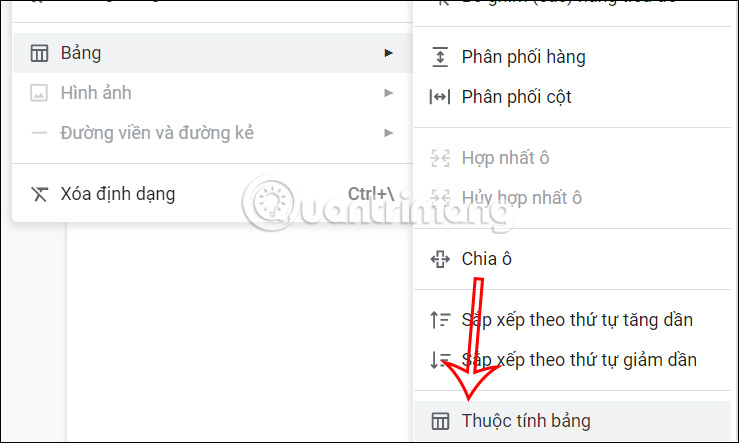
- Choose Format > Table > Table options. You can also right-click inside the table and select Table options.
- In the properties panel, expand the Table section if necessary and set the table alignment to Center.
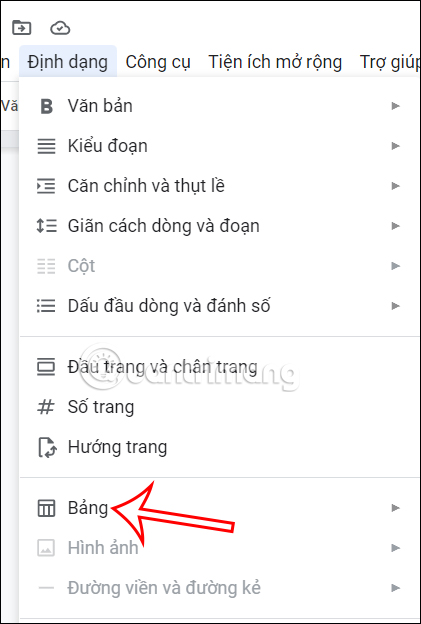
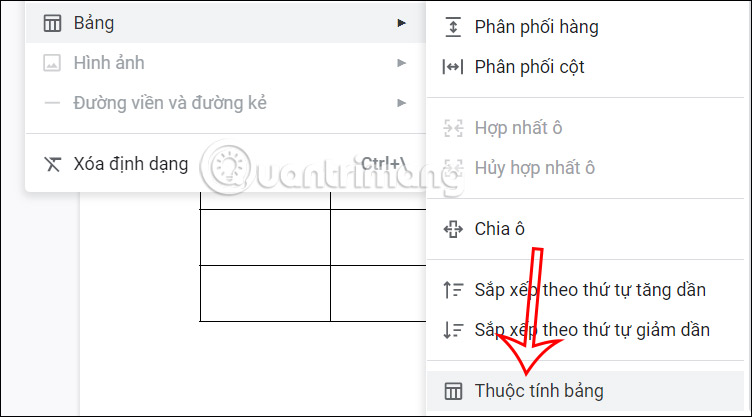
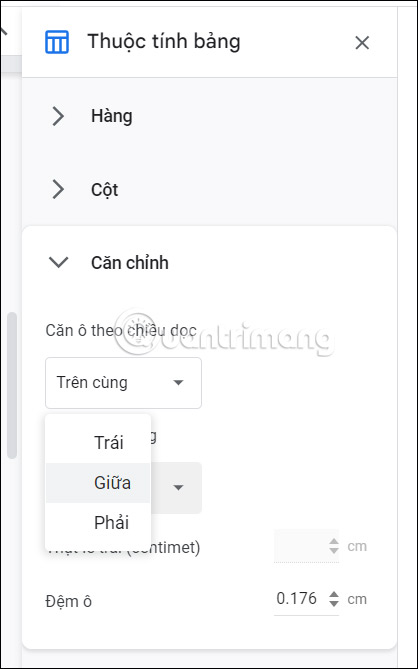
The setting applies to the table as a whole. To center text within cells instead, select the cells and use the normal paragraph alignment control in the toolbar.
Why a centered table can still look off-center
Table alignment uses the available space between the document's left and right margins. If the table nearly fills that width, changing from left to center may produce little visible movement. Uneven column widths can also make the content look unbalanced even when the outside edges are correctly centered.
- Drag a column boundary to reduce an unnecessarily wide column.
- Right-click the table and use Distribute columns when columns should have equal widths.
- Check the page margins in File > Page setup if the whole document appears offset.
- If the document uses pageless format, remember that the available canvas behaves differently from a fixed printed page.
Older nested-table workaround
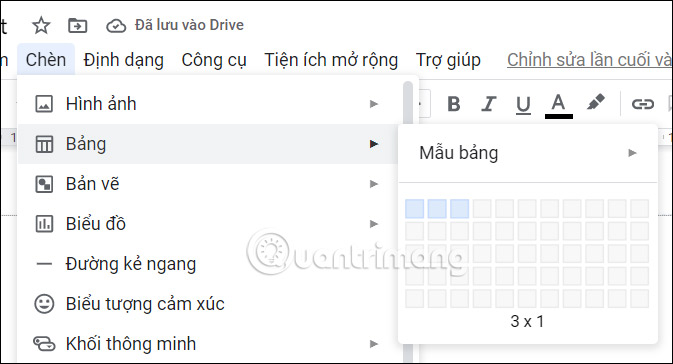
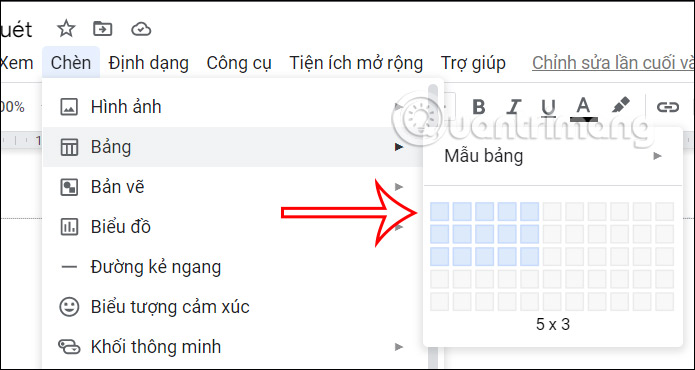
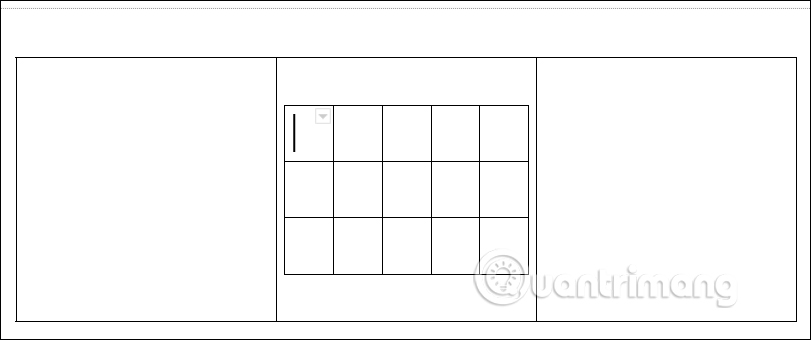
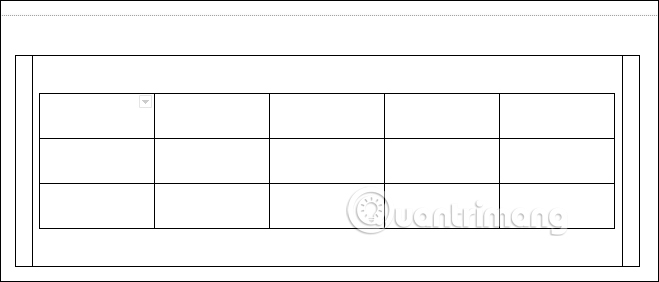
Older versions of Google Docs did not always expose a straightforward table-alignment control. One workaround was to insert the real table inside the center cell of a three-column outer table, widen the side cells evenly, and hide the outer borders. The following images show that legacy method.
This workaround is no longer the best choice for an ordinary table because nested tables are harder to edit, copy, and make accessible. Use it only when you intentionally need a more complex layout and the direct Center option does not meet that need.
- Insert a one-row, three-column outer table.
- Click the middle cell and insert the table that will hold the actual content.
- Adjust the two outer columns until they have equal widths.
- Open Table options for the outer table and change its border width to 0 pt. If that control is unavailable, set the border color to match the page background.
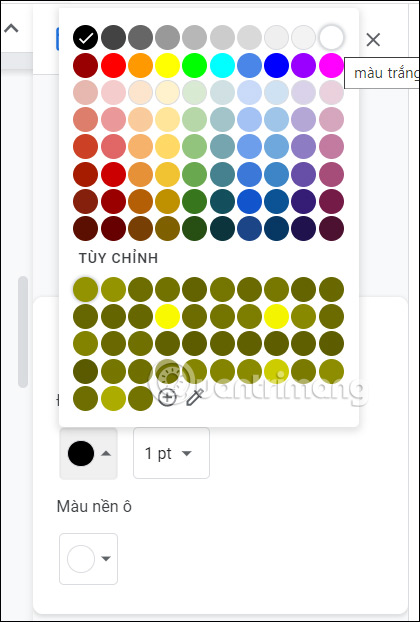
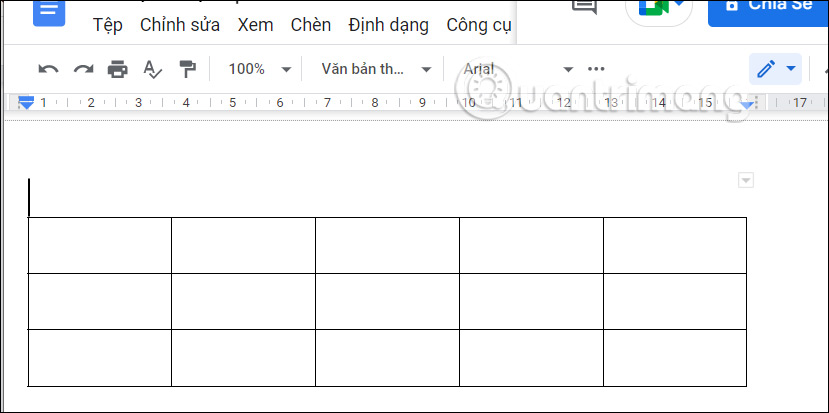
Keep table and cell alignment separate
Centering the table controls its position on the page. Horizontal paragraph alignment controls text inside a cell, while the cell settings in Table options control vertical alignment and padding. Adjust each setting separately so you do not accidentally center all of the table's text when you only want to move the table itself.
Related Articles
 Instructions for Dividing and Merging Columns on Google Docs4 minutes read
 How to Add and Update Table of Contents in Google Docs5 minutes read
 The Way Google Docs Helps You Become Professional7 minutes read
 How Many of the Best Features Have You Missed on Google Docs?8 minutes read
 Useful Tools to Know in Google Docs6 minutes read
 Use Pivot Table in the Google Docs Spreadsheet: Tutorials3 minutes read
Reader Comments 0
Sign in with email or Google to join the discussion.