Table of Contents
Wi-Fi problems in Windows 11 are easier to fix when you first identify the symptom. A missing Wi-Fi toggle points to the radio, adapter, service, or driver. A connection that says “No internet” points to the router, IP configuration, DNS, or internet service. Slow or intermittent Wi-Fi calls for signal, interference, power, and driver checks.

Identify where the failure is
| Observation | Most useful next check |
|---|---|
| No Wi-Fi toggle and no wireless networks | Airplane mode, hardware switch, Device Manager, WLAN AutoConfig, driver |
| Other devices also cannot use the same Wi-Fi | Router, modem, cabling, outage, internet provider |
| Only this PC cannot join the network | Forget and reconnect, adapter driver, authentication settings |
| PC joins Wi-Fi but websites do not load | Gateway, IP address, DNS, VPN/proxy, provider connection |
| Wi-Fi fails after sleep | Adapter power management, chipset and wireless driver |
| Connection is slow only far from the router | Signal, band, channel congestion, placement |
1. Check Quick Settings and hardware controls
- Press Windows+A.
- Make sure Airplane mode is off and Wi-Fi is on.
- If Wi-Fi is present, turn it off, wait 10 seconds, and turn it on again.
- Check the laptop maker's manual for a physical wireless switch or Fn-key shortcut.
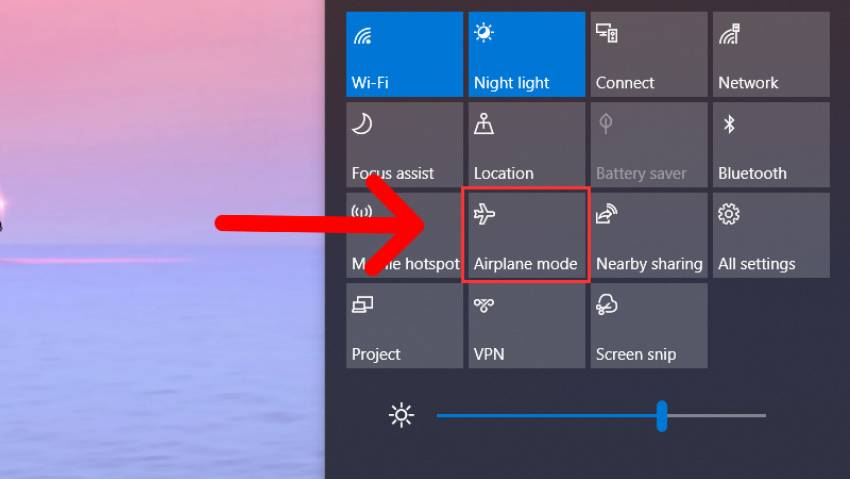
Do not disable “Airplane Mode Switch Collection” or other Human Interface Devices merely because Airplane mode is stuck. That can disable the laptop's hardware buttons without repairing the wireless adapter. Restart first and use the computer maker's hotkey or platform driver if the physical switch is malfunctioning.
2. Run the current Network and Internet troubleshooter
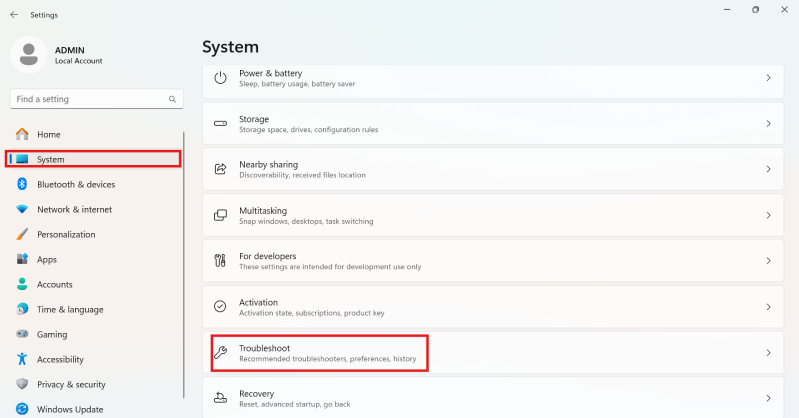
Open the Get Help app, search for network and internet troubleshooter, and run the diagnostic. You can also open Settings > System > Troubleshoot > Other troubleshooters; current Windows 11 builds may redirect the network diagnostic to Get Help.
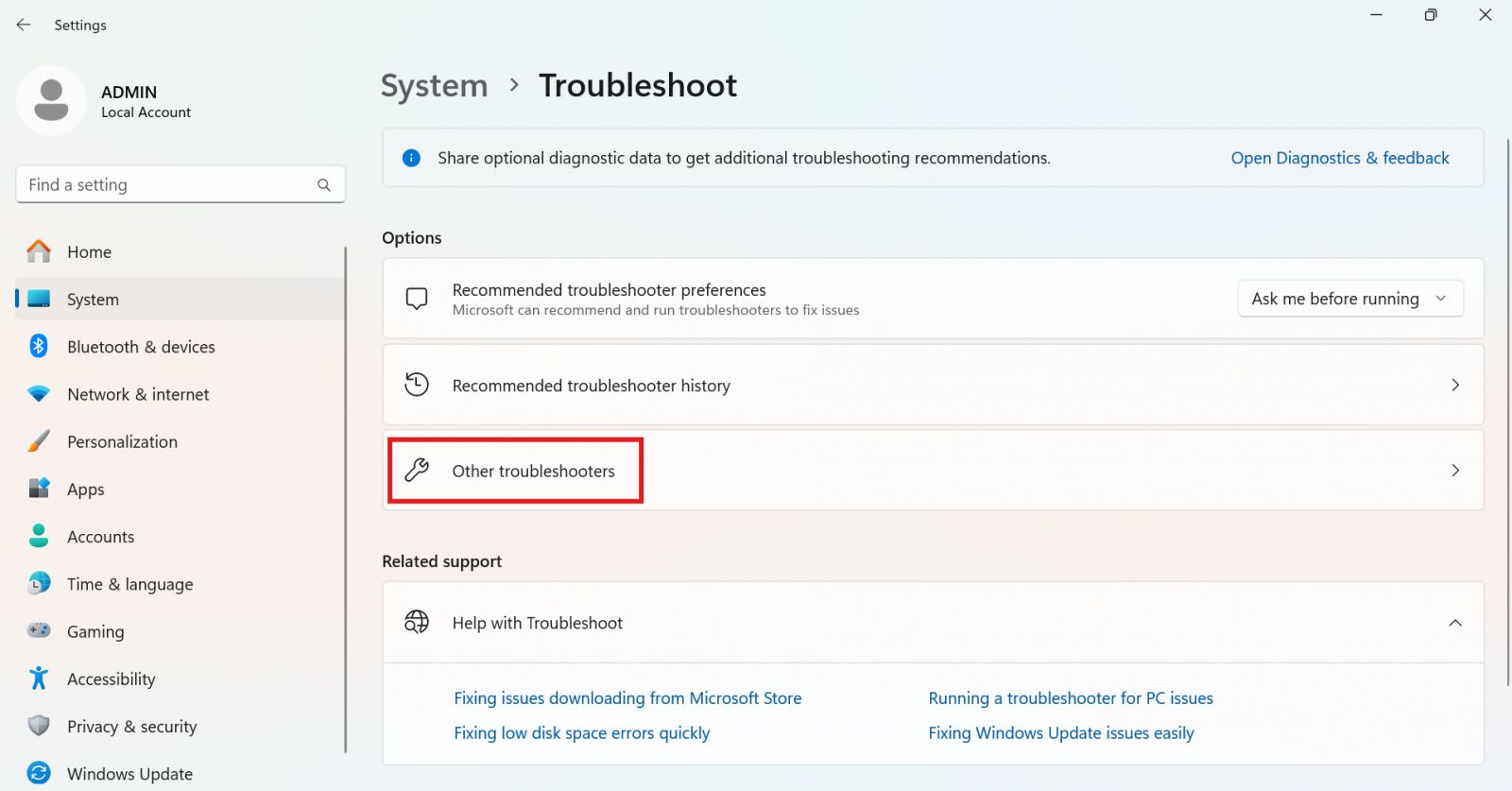
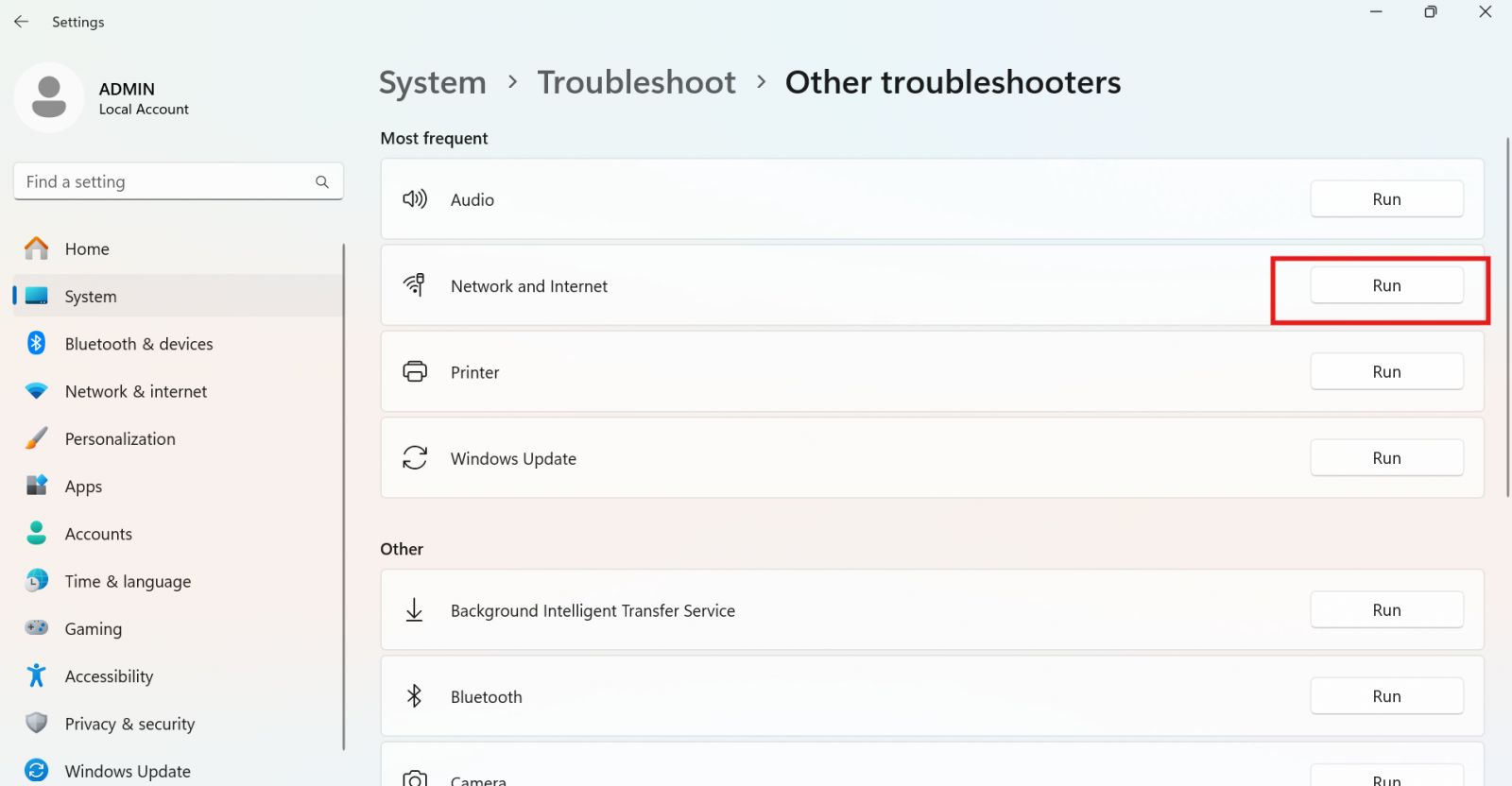
Record what it detects. An adapter-disabled result needs a different fix from a DNS or “default gateway unavailable” result.
3. Compare another device and restart network equipment
Try the same Wi-Fi on a phone or another computer. If every device is offline, use the router and modem maker's restart procedure. For separate devices, power the modem first and wait until it reconnects, then power the router. Avoid a factory-reset button unless you have the provider and Wi-Fi configuration needed to rebuild the network.
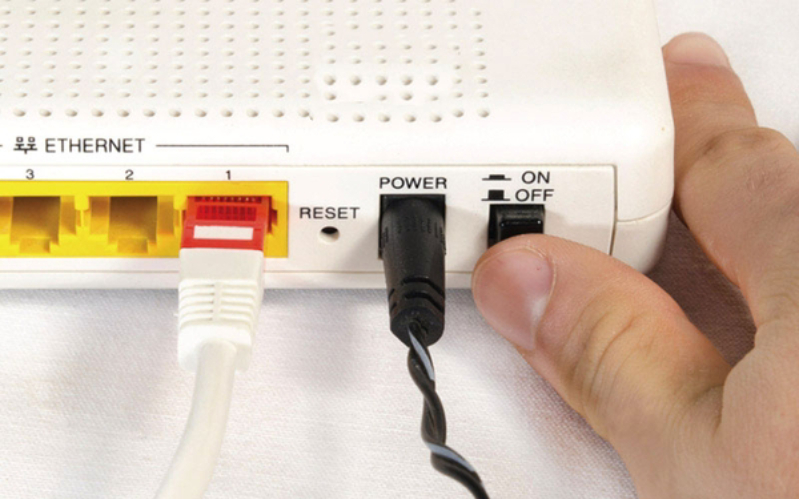
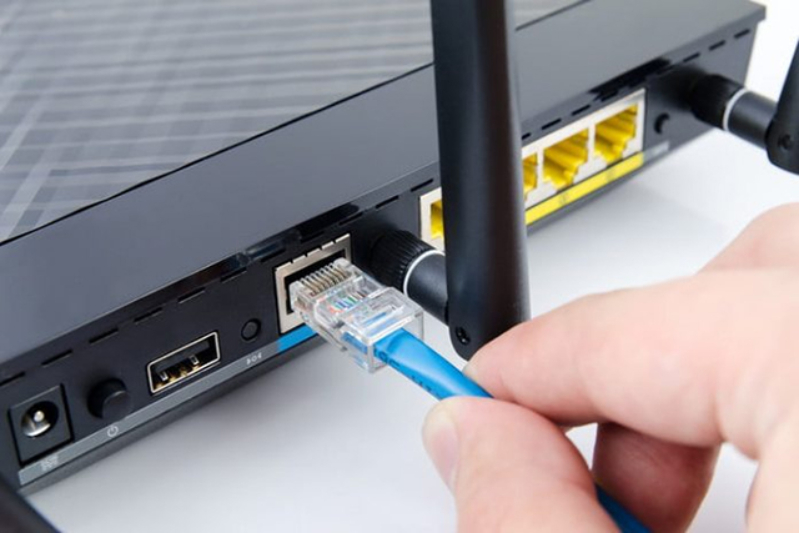
If possible, connect the PC to the router with Ethernet:
- If Ethernet works but Wi-Fi does not, investigate the PC's wireless adapter, router Wi-Fi settings, signal, and interference.
- If Ethernet and Wi-Fi both fail on multiple devices, investigate the router, modem, or provider.
- If Ethernet fails only on this PC, that does not prove an ISP fault; the Ethernet adapter or its IP settings may also be involved.
4. Check the local gateway, internet path, and DNS
Open Command Prompt and enter ipconfig. Under the active Wi-Fi adapter, note the IPv4 address and Default Gateway. Then test in stages:
ping <default-gateway-address>
ping 1.1.1.1
nslookup example.com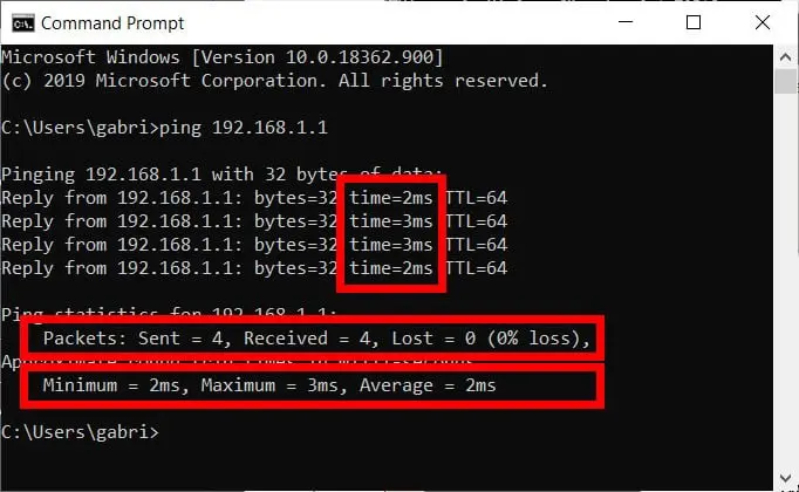
- A gateway reply shows that IP traffic can reach the router, but it does not prove the internet connection works.
- A gateway timeout is not conclusive because some devices block ping; check the router page and other traffic too.
- If an external IP replies but
nslookupfails, investigate DNS. - If the PC has an address beginning
169.254., it did not obtain a normal IPv4 address from DHCP.
5. Fix Wi-Fi that disappears after sleep
Open Device Manager > Network adapters, right-click the Wi-Fi adapter, and select Properties. If a Power Management tab exists, clear Allow the computer to turn off this device to save power, then restart and test.
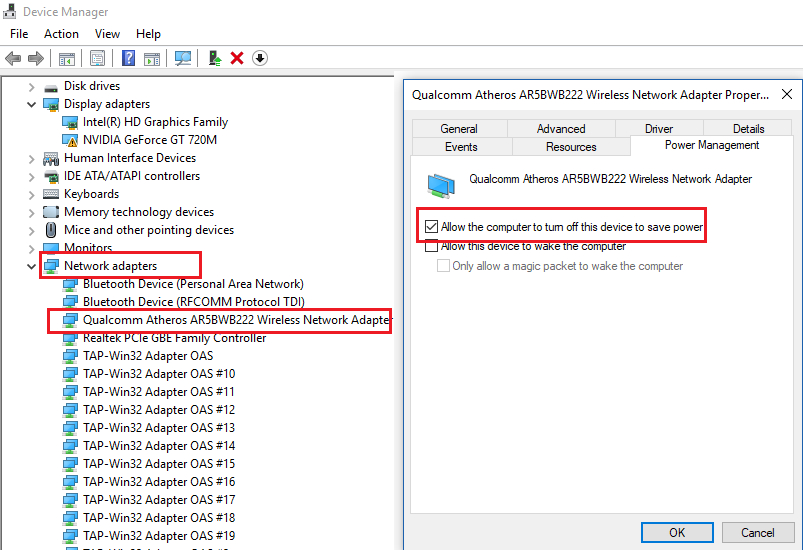
This may slightly increase power use. Do not force “Maximum Performance” for every laptop; first install the current manufacturer chipset, power-management, and wireless drivers.
6. Check WLAN AutoConfig
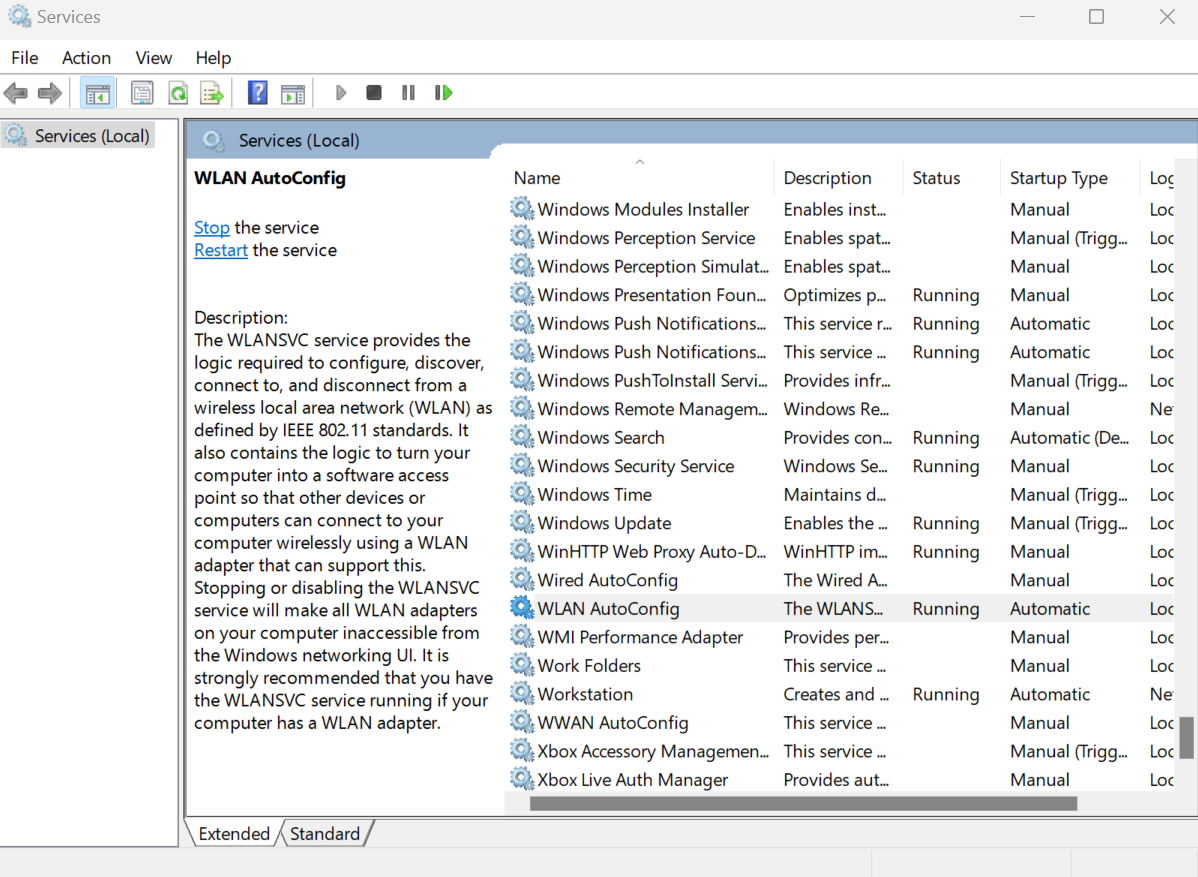
WLAN AutoConfig (WlanSvc) discovers and manages Wi-Fi networks. Press Windows+R, enter services.msc, and press Enter. The command is only services.msc; Linux commands such as sudo apt-get have no place in Windows Run.
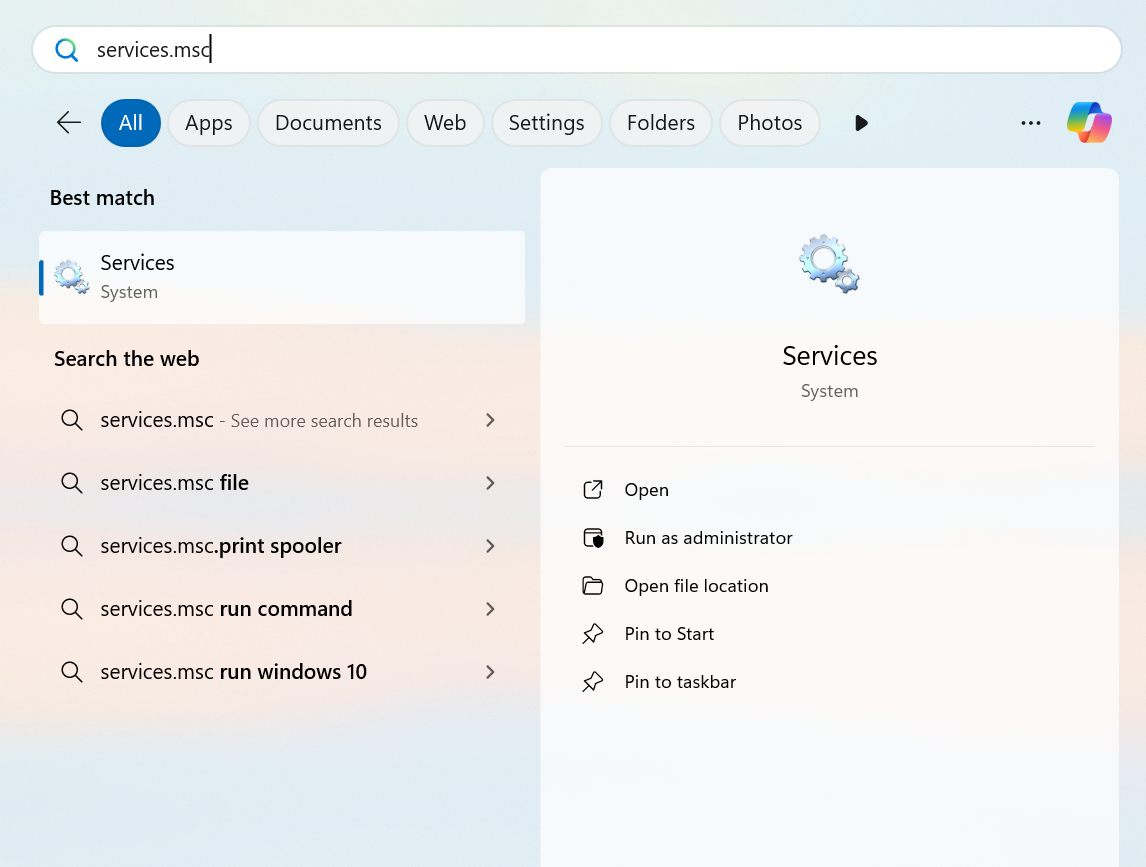
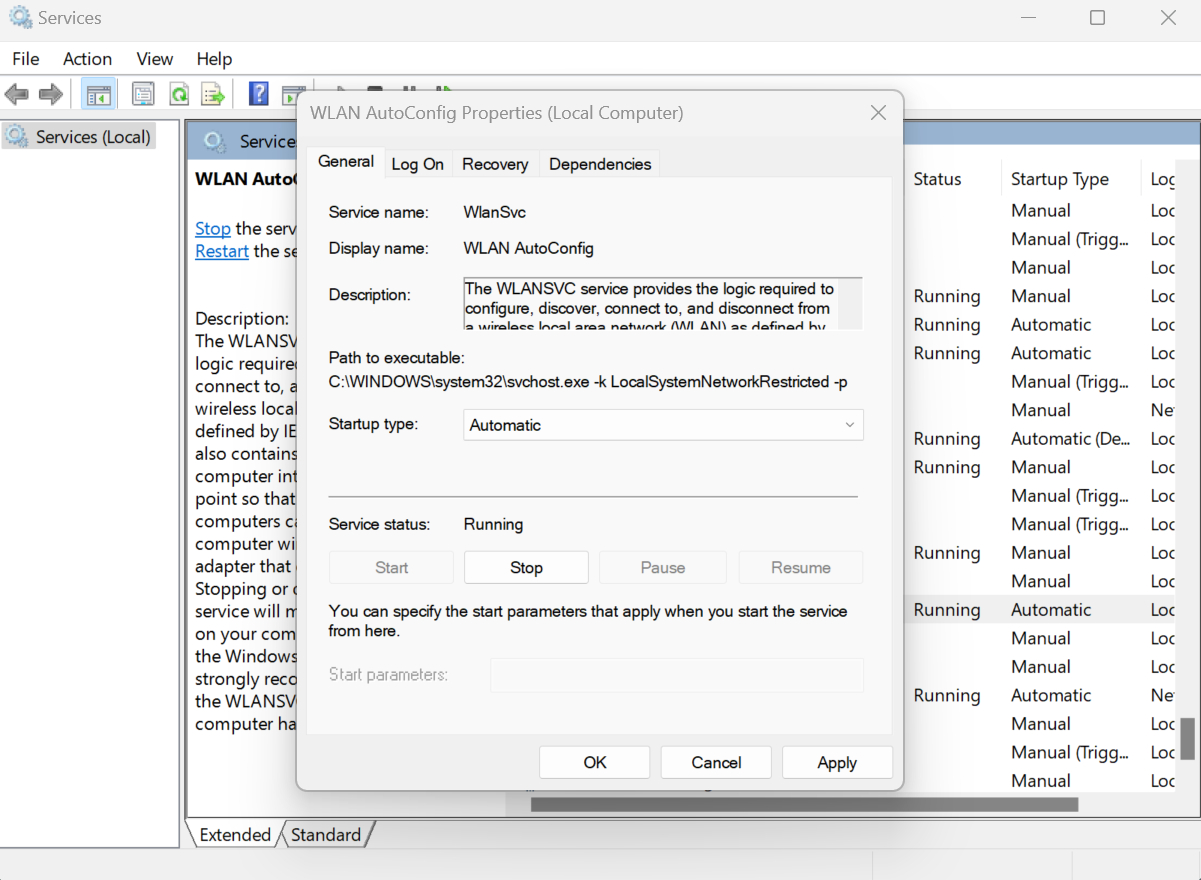
Find WLAN AutoConfig, open its properties, and start or restart it if needed. The service should not be Disabled on a PC that uses Windows Wi-Fi management. If it immediately stops or shows an error, record the full message and inspect Service Control Manager events rather than editing service dependencies.
7. Repair the wireless adapter driver
- Open Device Manager > Network adapters.
- If the Wi-Fi adapter is disabled, select Enable device.
- If it has a warning icon, open Properties and record the Device status code.
- Select Update driver > Search automatically for drivers.
- Check Windows Update optional updates and the PC maker's support page for the exact model.
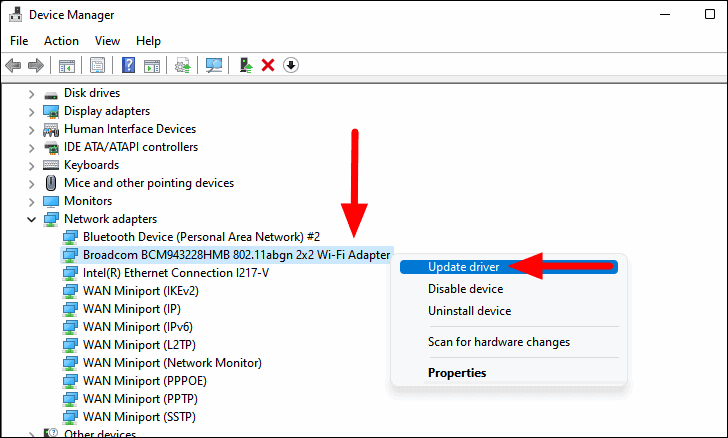
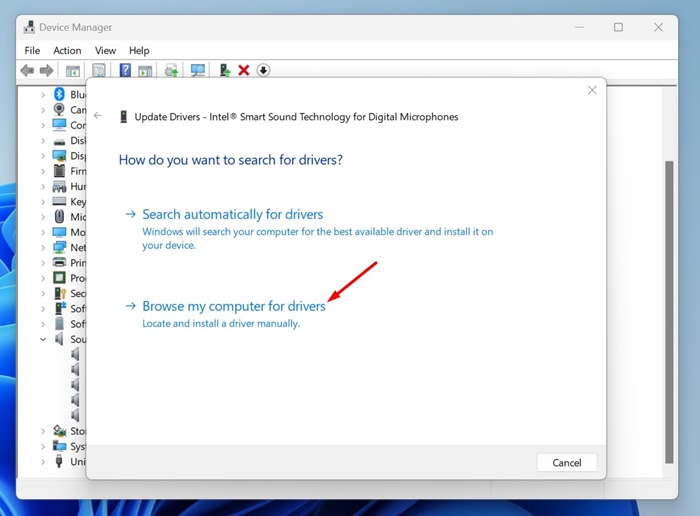
If the problem began after a driver update, use Properties > Driver > Roll Back Driver when available. If reinstalling is necessary, download the correct manufacturer driver first, uninstall the adapter, and restart Windows. Avoid third-party driver updater sites.
8. Forget and reconnect to one problem network
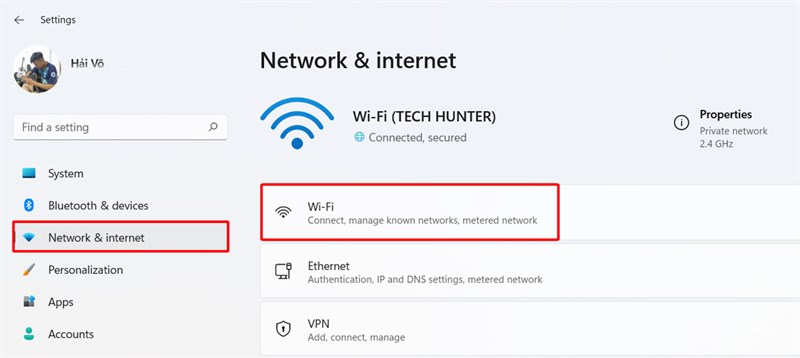
For an authentication or saved-profile problem, open Settings > Network & internet > Wi-Fi > Manage known networks, select the network, and choose Forget. Reconnect and enter the current password.
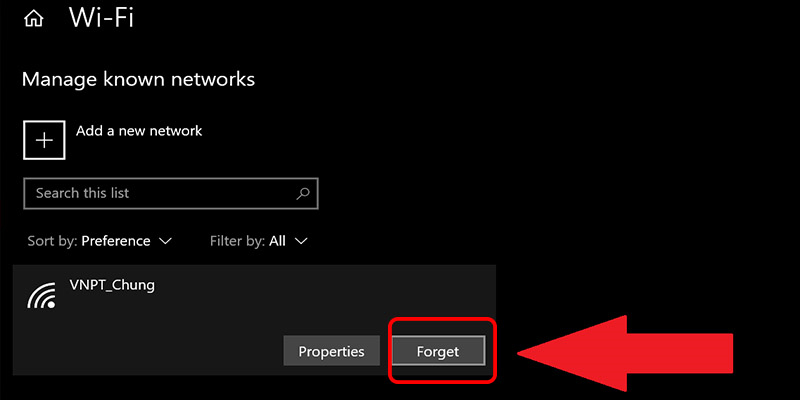
Forgetting removes that saved profile from the PC. It does not reset the router or reveal the password.
9. Do not confuse Public and Private profiles with connectivity
The network profile controls discovery and firewall behavior, not whether Wi-Fi can reach the internet. Use Private only for a trusted home or small-office network where you want device and printer discovery. Keep public hotspots set to Public.
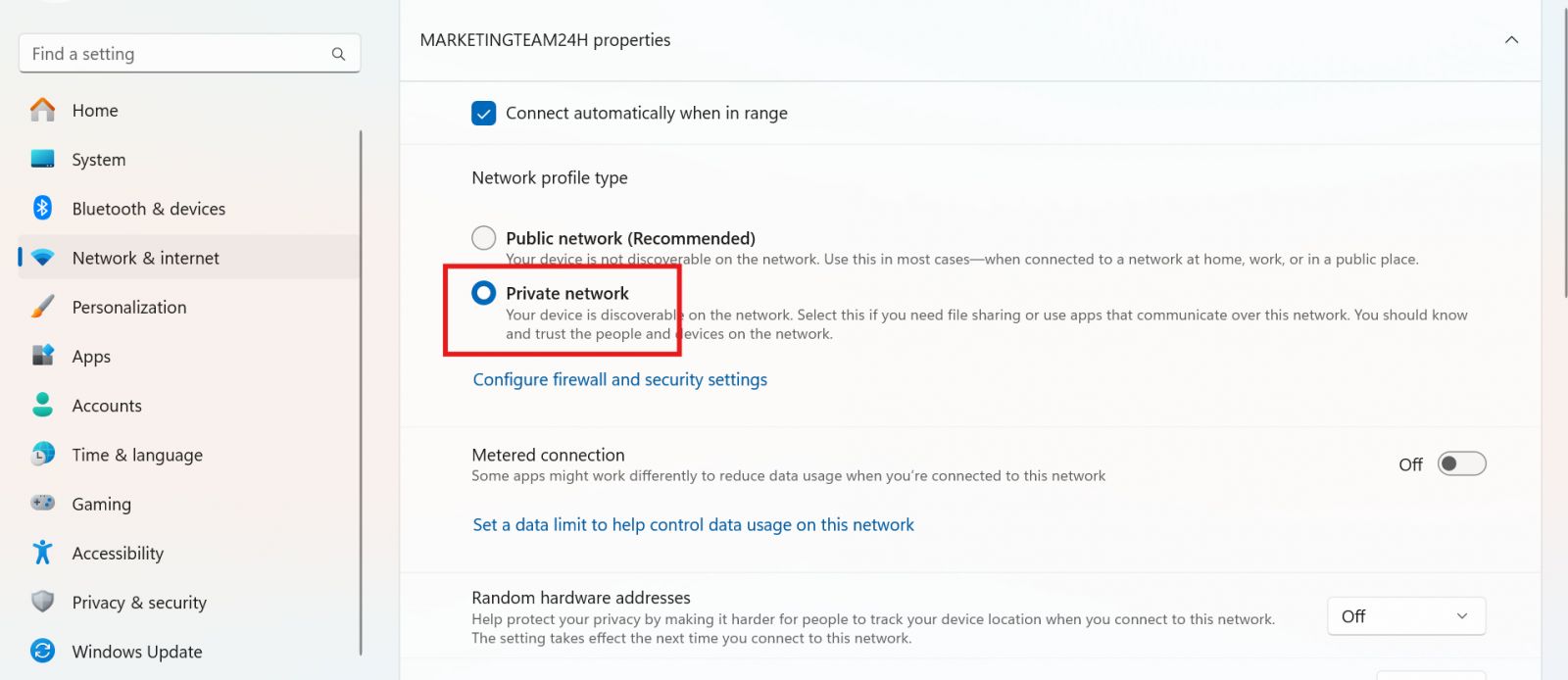
Changing to Private is not a repair for weak signal, wrong credentials, missing IP configuration, or DNS failure.
10. Change DNS only when DNS is the problem
If IP tests work but domain names do not resolve, first restart the router and check VPN or security software. On a personal network, you may test a known resolver such as Google Public DNS (8.8.8.8 and 8.8.4.4) or another provider you trust.
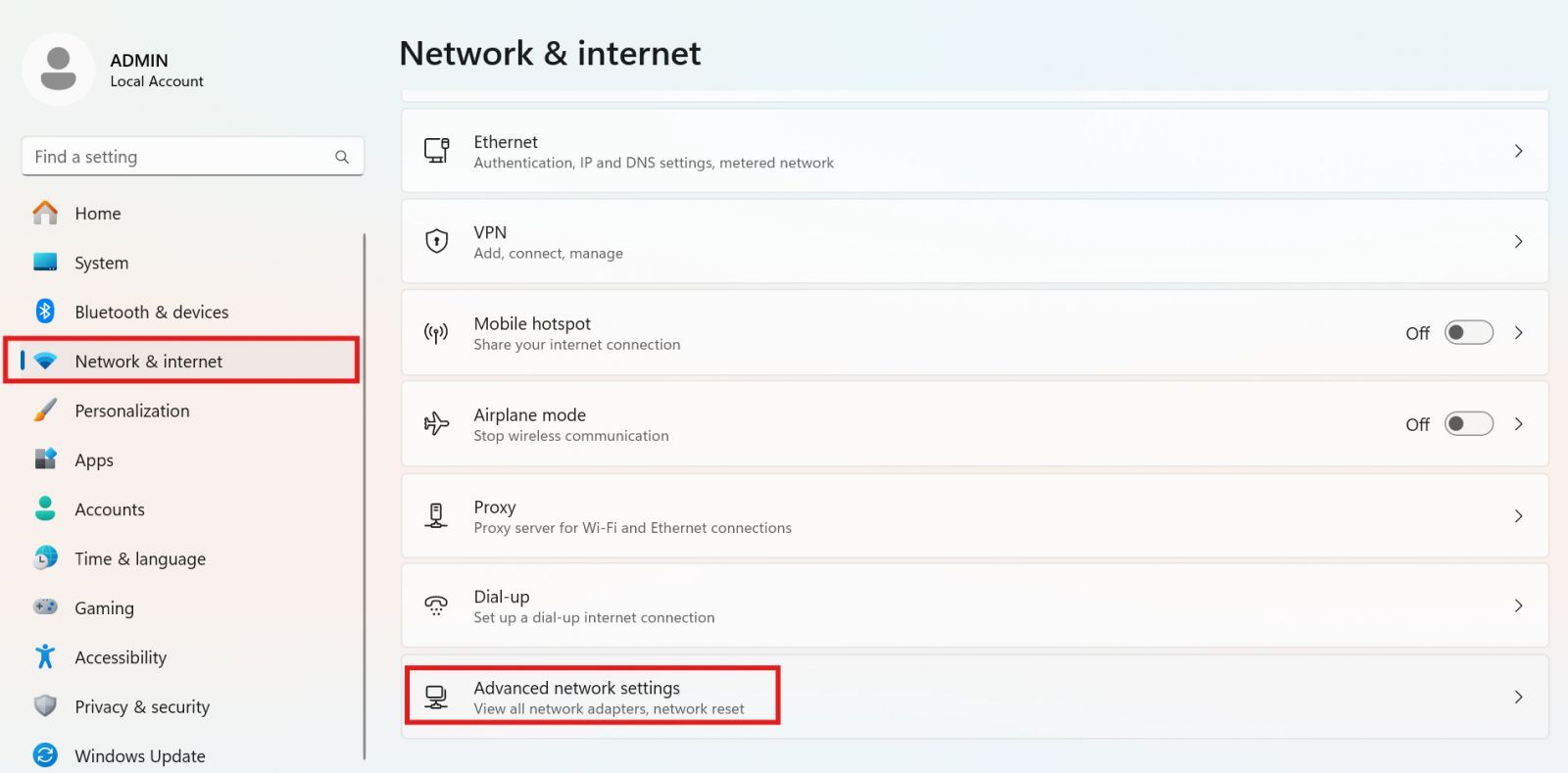
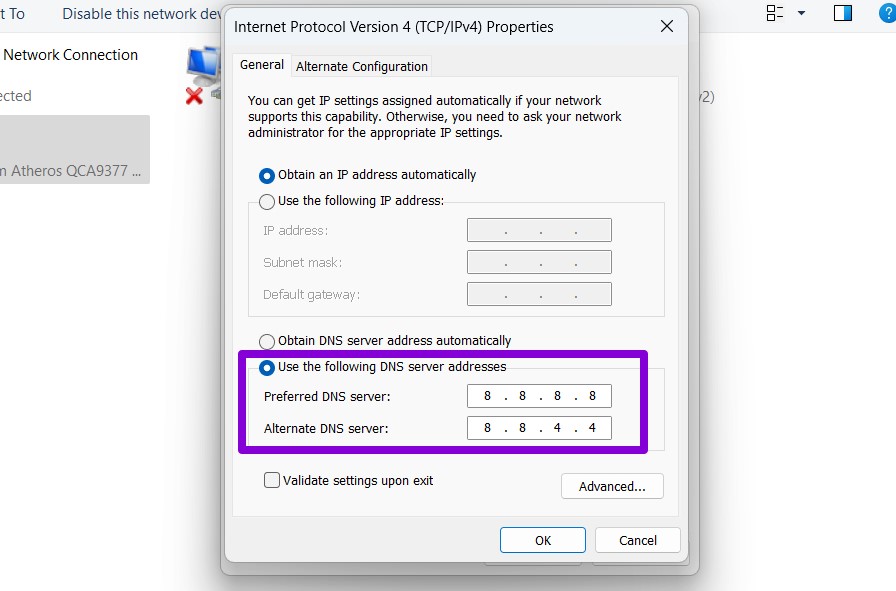
A public DNS server does not automatically improve Wi-Fi signal or bandwidth, and it changes which provider receives DNS queries. Do not override DNS on a managed work or school network without administrator approval. Record the original setting so you can return to automatic DNS.
11. Try another Wi-Fi band
If the router uses separate names for its bands, compare them:
- 2.4 GHz generally reaches farther and passes through obstacles better, but it is often more congested.
- 5 GHz usually provides more capacity at shorter range.
- 6 GHz, when both router and adapter support it, offers additional spectrum but shorter practical range and different security requirements.
Prefer changing the network selected in Quick Settings. Change an adapter's advanced band preference only when you understand the driver option; names and supported values differ by adapter.
12. Use Network reset only after narrower fixes
Network reset removes and reinstalls network adapters and returns their settings to defaults. Before using it, save Wi-Fi credentials and document VPN clients, virtual switches, static IP addresses, proxies, and custom DNS.
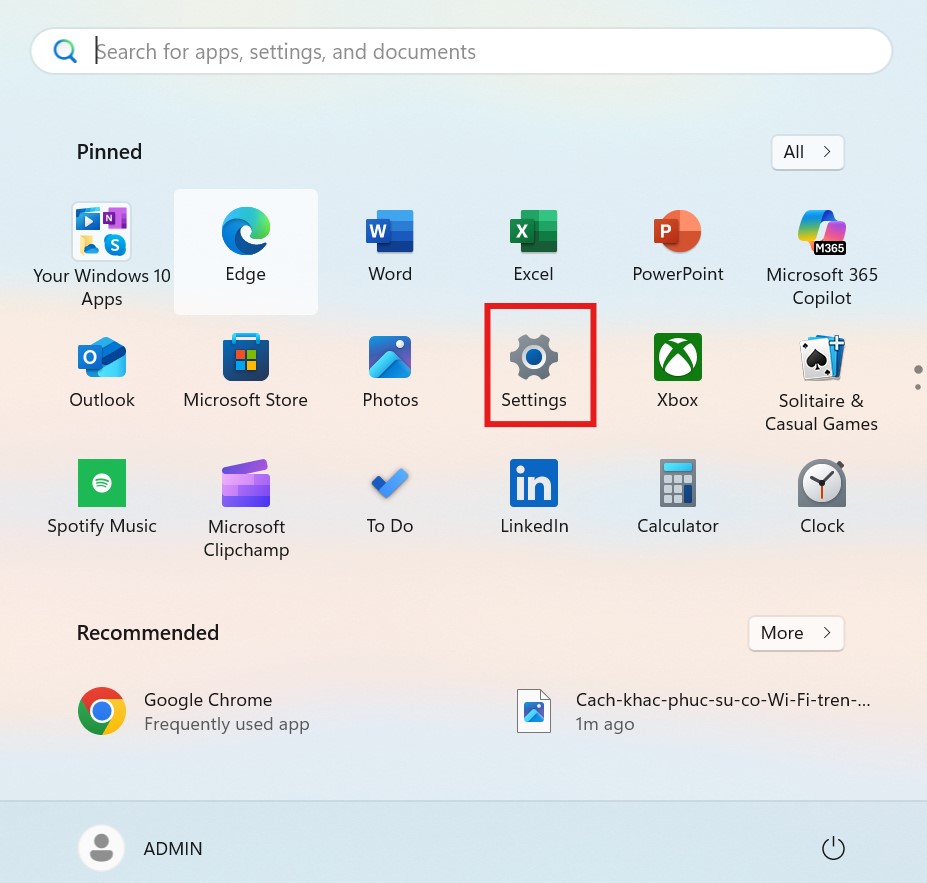
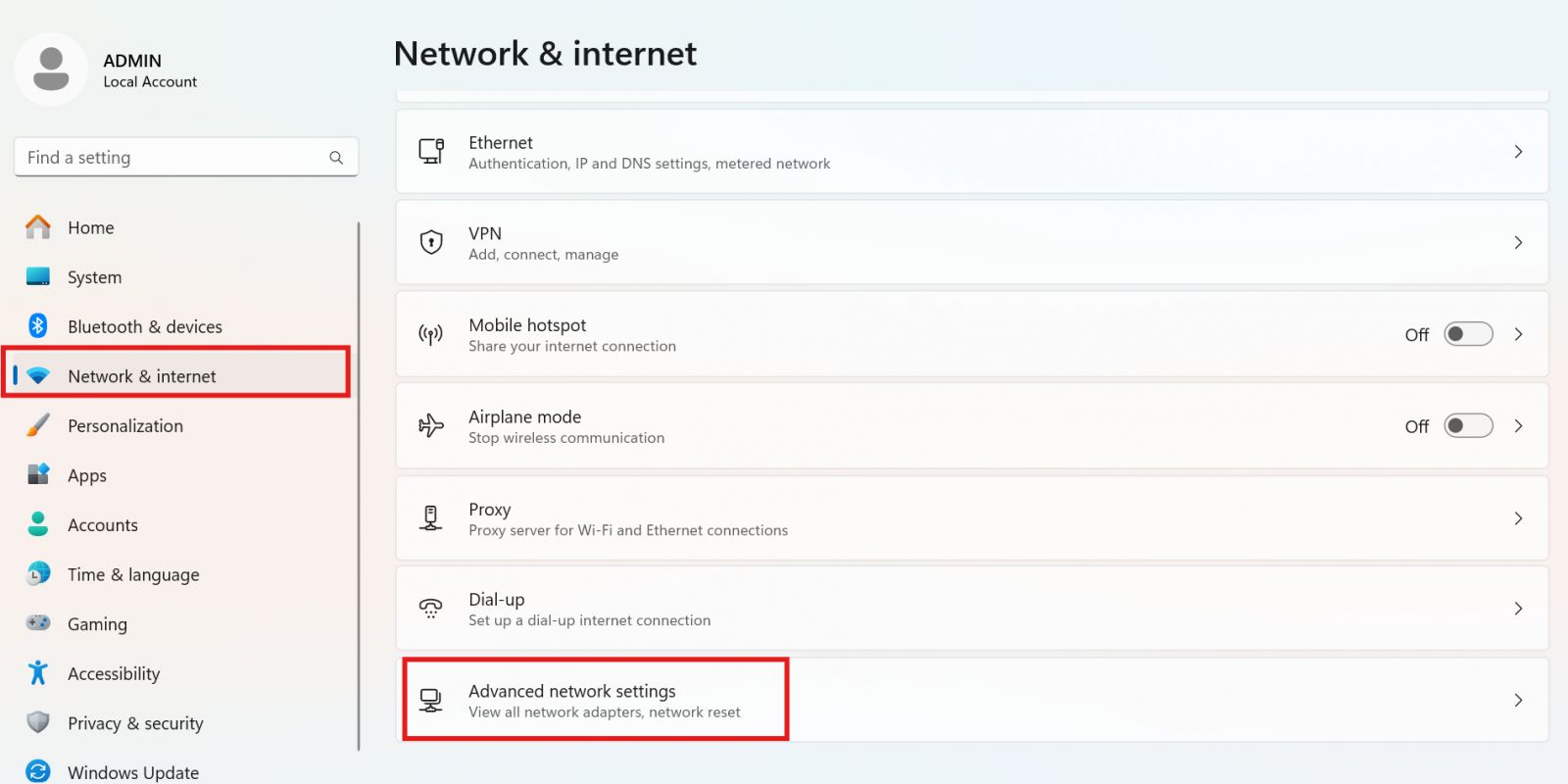
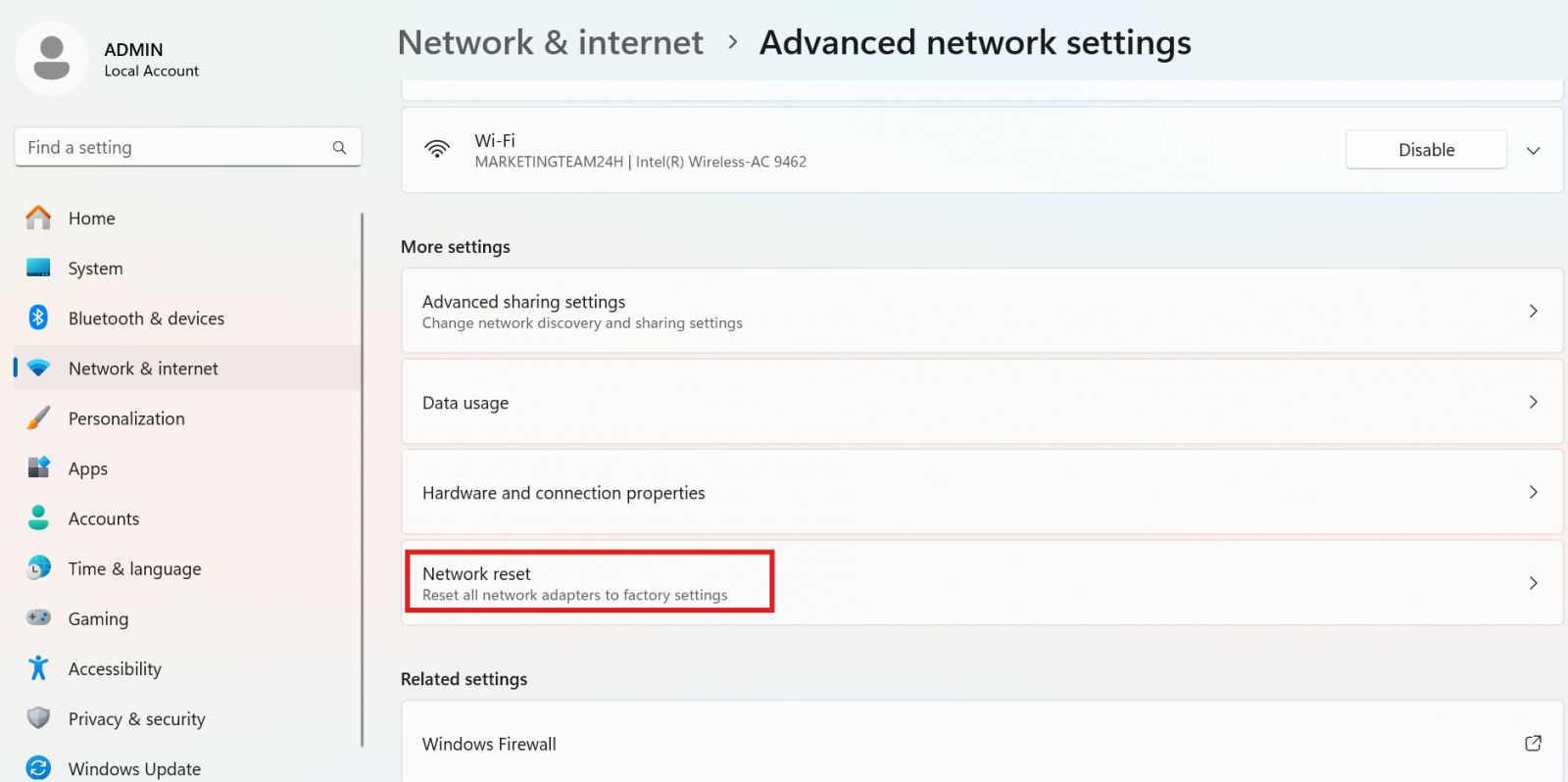
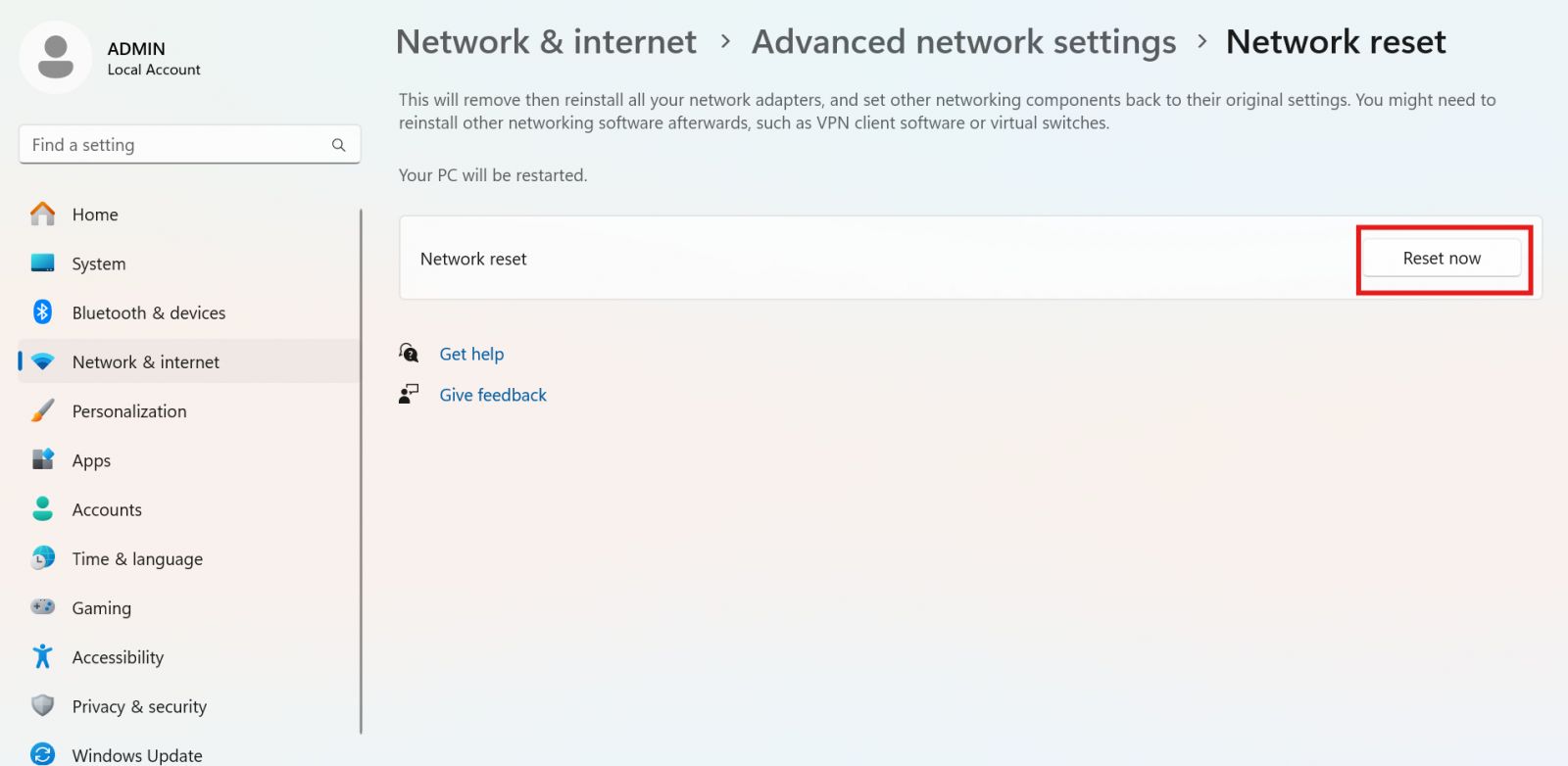
Go to Settings > Network & internet > Advanced network settings > Network reset > Reset now. After restart, reconnect to Wi-Fi and reinstall or reconfigure any VPN and virtualization networking that was removed.
13. Use command-line resets selectively
Do not run a batch of resets without matching the command to the symptom. In an administrator Terminal:
ipconfig /flushdns
ipconfig /release
ipconfig /renew
netsh winsock reset
netsh int ip reset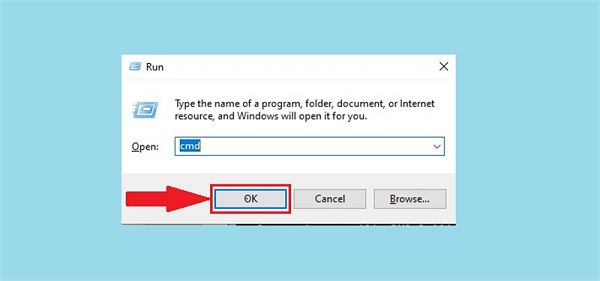
ipconfig /flushdnsclears the DNS resolver cache; use it for stale name-resolution results.ipconfig /releaseand/renewinterrupt DHCP networking while requesting a new address.netsh winsock resetresets the Winsock catalog and can affect software that installs network providers.netsh int ip resetresets TCP/IP configuration and may remove custom settings.
Restart after the netsh resets. If Network reset was already performed, repeating all of these commands is usually redundant.
14. Install updates and check hardware
Install current Windows quality updates, optional wireless drivers, and the manufacturer's supported chipset, wireless, and BIOS/UEFI updates. Follow firmware power instructions exactly.
If the adapter remains absent from Device Manager and BIOS/UEFI after a restart and hardware scan, run the maker's pre-boot diagnostics. Wi-Fi and Bluetooth disappearing together can indicate a combined radio-card or firmware problem. Use warranty service rather than opening a covered laptop.
Microsoft maintains a current decision flow at Fix Wi-Fi connection issues in Windows.
Related Articles
 How to Troubleshoot Onedrive After Resetting on Windows 104 minutes read
 Troubleshoot Wi-Fi Connectivity Problems in iPad and iPhone12 minutes read
 Troubleshoot Connectivity Problems in the Network -- Part 410 minutes read
 How to Fix Airdrop Problems on Mac6 minutes read
 Share Files: 12 Tips to Overcome File Sharing Issues9 minutes read
 Services: How to Troubleshoot Aero Effect Issues2 minutes read
Reader Comments 0
Sign in with email or Google to join the discussion.