Table of Contents
Quick answer
Lost Word files can disrupt your work. Microsoft Word has an AutoRecover feature, but not everyone knows how to use it. This guide will help you recover your data easily.
Did you forget to save your Word file and need to recover it? There are many ways to retrieve important documents, from AutoRecover to other recovery tools.
How to recover unsaved Word files
Note: This guide was created using Word 2007. The process is similar for versions 2010, 2013, 2016, and 2019.
Step 1 : On the user interface, go to Word Options > Save > Save Documents > AutoRecovery file location . Here, copy the path to the folder where the recovery files will be saved.
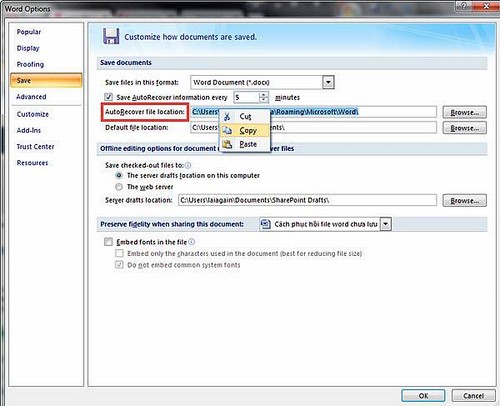
Step 2 : Open Windows Explorer, then paste the path and press enter to open it.
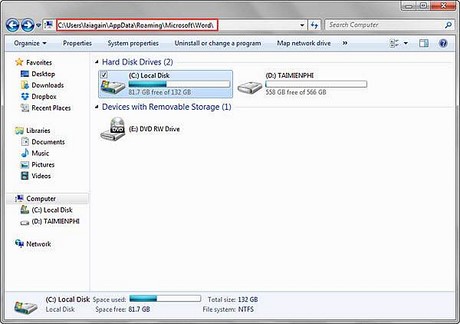
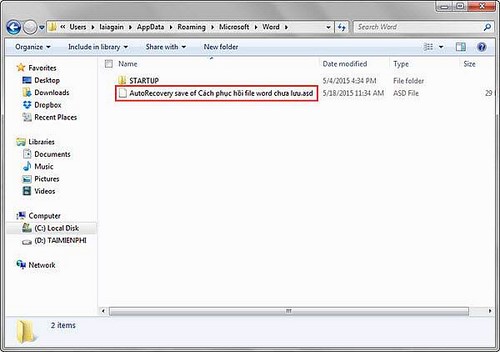
Step 3: All unsaved files will be located here, and you can retrieve them when needed.
Step 4: You can also choose the time interval for the file to automatically save. The default is 5 minutes, but if your computer is prone to malfunctions, it's safer to choose 1 or 2 minutes.
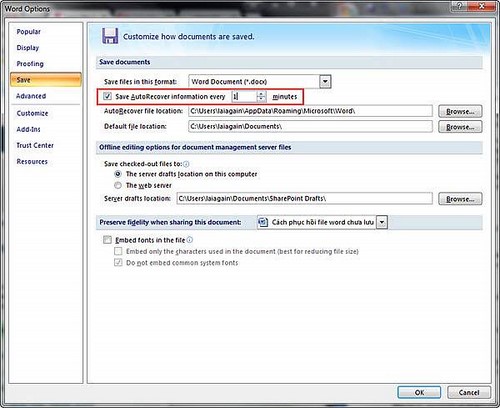
By setting up automatic saving, you no longer have to worry about your Word file not saving if your computer suddenly loses power.
So, TipsMake has introduced you to how to recover unsaved Word files with simple and concise steps. In this article, tipsmake guides you on how to retrieve unsaved documents in Word 2007; for other versions such as 2010, 2013, and 2016, you can perform the same steps.
Besides finding unsaved Word files, you can also choose when Word files will automatically save with the "Save AutoRecovery information every" option. This way, you can minimize the risk of losing documents during the editing process. Because Word has an Auto-Saved feature, even if you haven't saved the document, the file will still be there. You will see the *.ASD file; when you open it, you will see that the content you just edited is almost intact (a few small sections at the end might be missing). You just need to save the file as a .doc or .docx file and continue your editing. If you'd like to learn more, please refer to the article we've already introduced.
Normally, you know how to save text files in existing folders on your hard drive. But how do you create a new folder to save Word files while you're working on them? This trick for creating a Word document folder will help you do this while you're working on a specific Word document. And you can choose the path to save the new folder as you wish.
Practical checks
- Save a copy before changing a document with complex formatting.
- Check the result in Print Preview or an exported PDF when layout matters.
- Menu names and shortcuts can vary by Word version, operating system, and keyboard.
For related formatting tools, see how to insert an X-bar symbol in Word and use the Word ribbon and ruler.
Related Articles
 How to Recover Unsaved Word Documents on Mac3 minutes read
 How to Recover Unsaved, Unsaved Word Files When the Power Goes Out Suddenly4 minutes read
 How to Find and Recover Unsaved Word Files (Save) in Word4 minutes read
 Recovering Unsaved Word Files, Retrieving Word, Excel and PowerPoint11 minutes read
 How to Recover Word Documents: Step-by-Step Guide7 minutes read
 How to Retrieve Unsaved Excel Files, Restore Unsaved Excel Files5 minutes read
Reader Comments 0
Sign in with email or Google to join the discussion.