Table of Contents
Microsoft Word can number every page automatically, but reports, theses, and books often need a different setup: no number on the cover, Roman numerals in the front matter, or page 1 beginning with the main text. This guide covers the common cases and explains the section settings that make them work.
Add page numbers to the whole document
Word 2016, 2019, 2021, and Microsoft 365
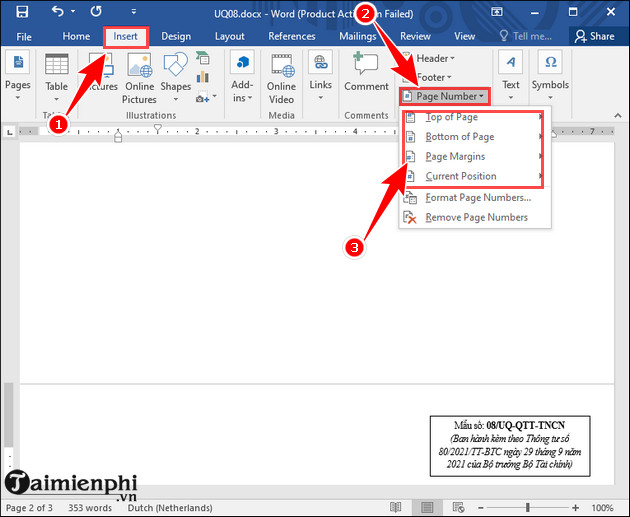
- Open the Insert tab.
- Select Page Number, then choose Top of Page, Bottom of Page, Page Margins, or Current Position.
- Choose an alignment and number style from the gallery.
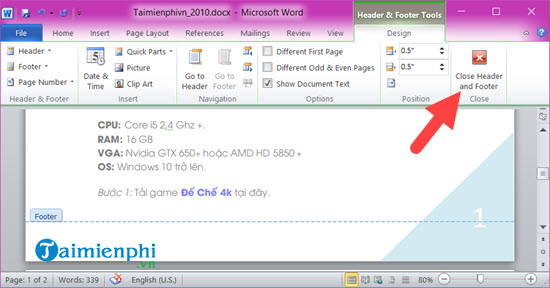
- Select Close Header and Footer, or double-click in the document body.
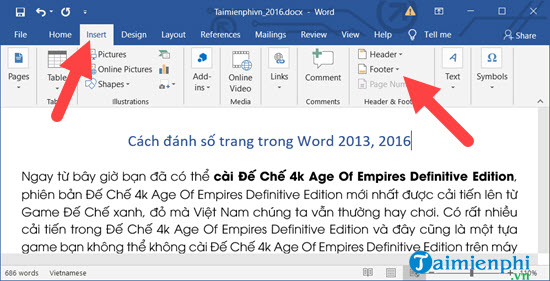
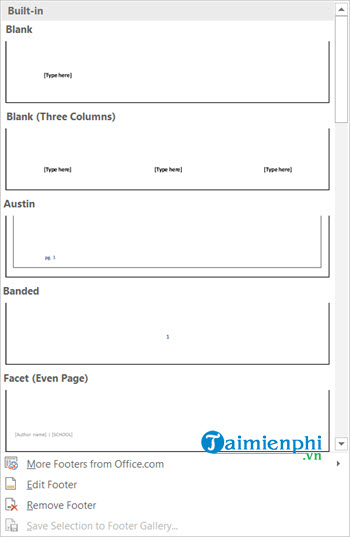
You can also open the footer first and insert a page-number building block there.
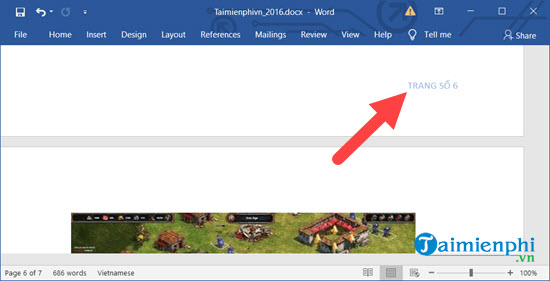
Word places the number in the header or footer area on every page in the current section.
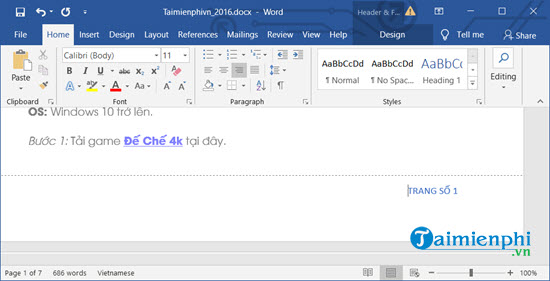
Double-click the header or footer whenever you need to change its position, font, or surrounding text.
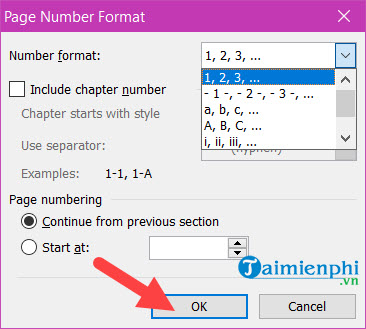
Use Page Number > Format Page Numbers to switch between formats such as 1, 2, 3; i, ii, iii; or A, B, C.
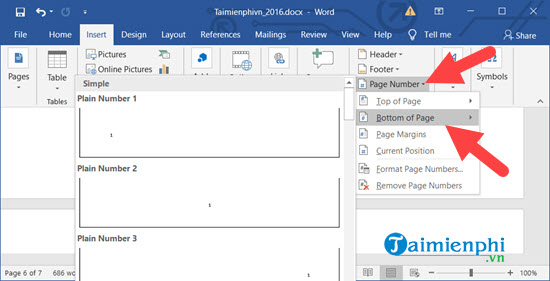
The selected style appears throughout the section.
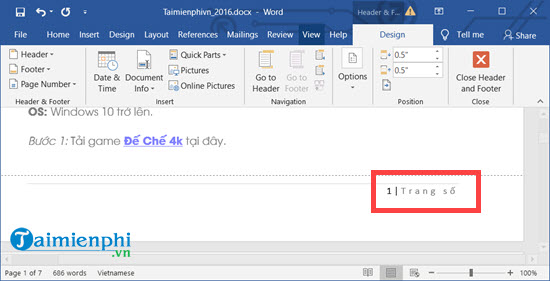
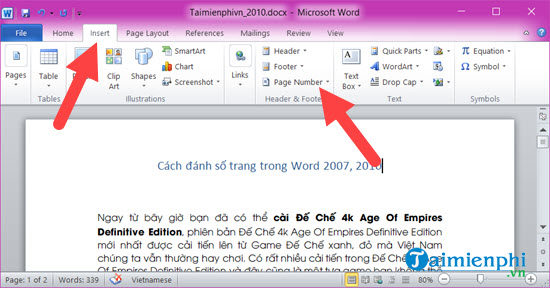
Word 2010 and 2013
The commands are in the same general location. Select Insert > Page Number.
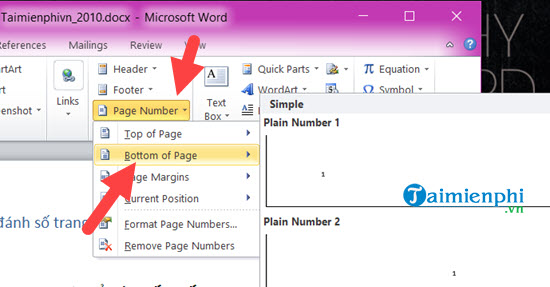
Choose the number's location and then select a layout from the gallery.
Select Close Header and Footer when the result looks right.
Word 2007
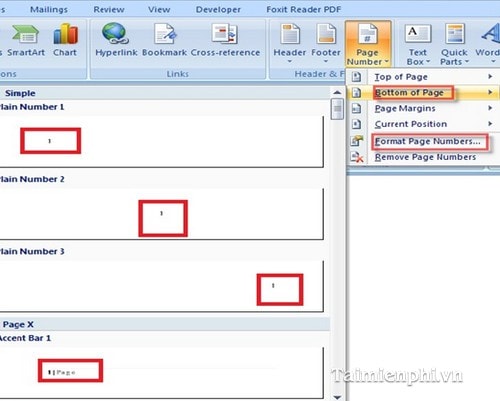
On the Insert tab, use Page Number in the Header & Footer group.

Choose a top, bottom, margin, or current-position layout. Use Format Page Numbers to change the numbering style or starting value.
Word 2003
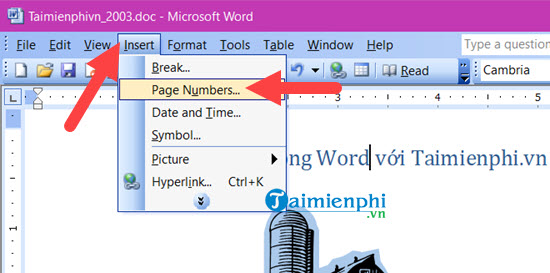
Older Word versions use Insert > Page Numbers.
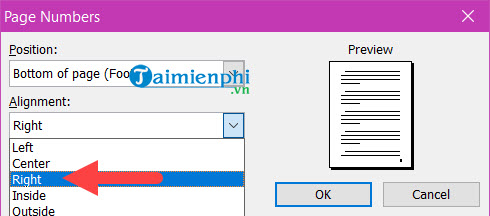
Select the vertical position and alignment in the Page Numbers dialog box.
Open Format to choose the number format or a different starting value.
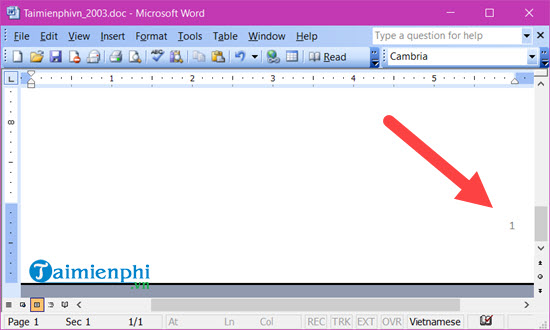
The document then displays the selected numbering style.
Start page numbering on a later page
Do not simply delete the number from the first few pages: headers and footers are linked, so that may remove numbers everywhere. Create a new section at the page where numbering should begin.
- Place the cursor at the beginning of the page that should become page 1.
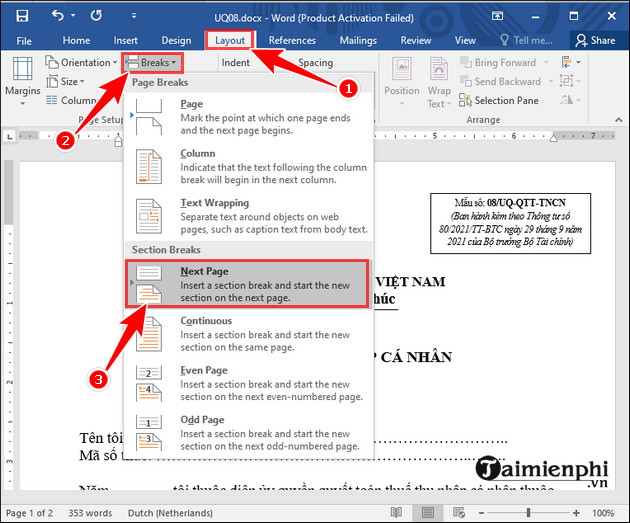
- Select Layout > Breaks > Next Page. In older versions, the tab may be named Page Layout.
- In the new section, select Insert > Page Number and choose the position and style.
- Double-click the header or footer in the new section. On the Header & Footer tab, turn off Link to Previous.
- Return to the first section and remove its page number. The second section remains numbered because the sections are no longer linked.
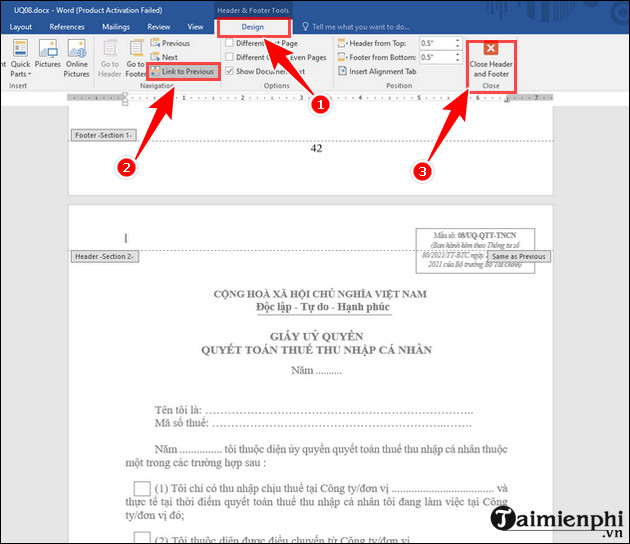
The first unnumbered section and the later numbered section should now be independent.
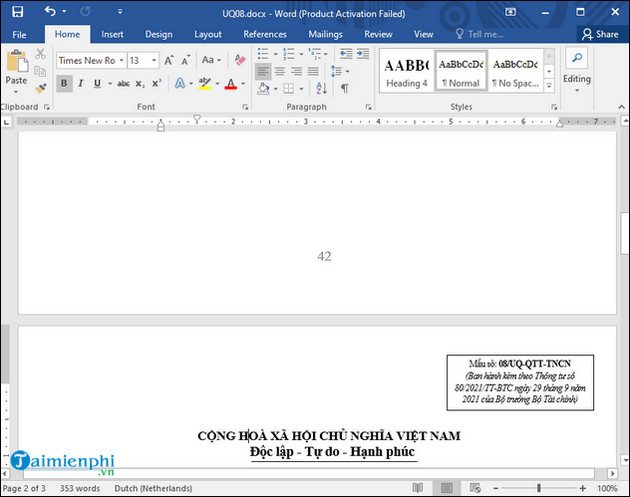
For another worked example, see TipsMake's guide to starting page numbers on any page.
Start with a number other than 1
- Click in the section you want to change.
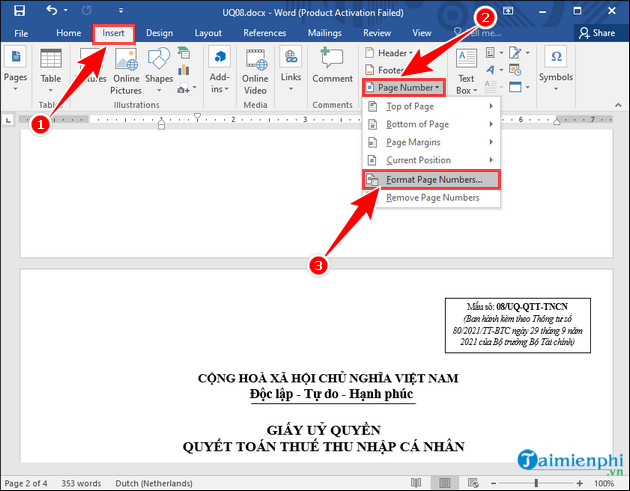
- Select Insert > Page Number > Format Page Numbers.
- Under Page numbering, select Start at and enter the required value.
- Select OK. Insert a page number if the section does not already have one.
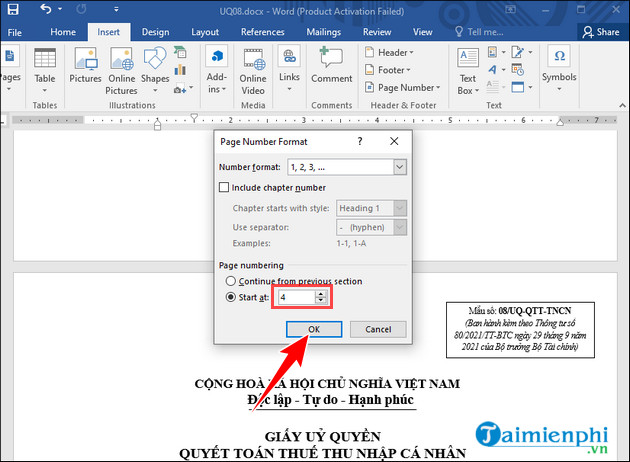
Use this setting separately in each section when the document combines formats, such as Roman numerals for introductory pages and Arabic numerals for the main text. If you are preparing a long report, the guide to creating an automatic table of contents in Word may also help.
Hide the number on the first page only
Double-click the header or footer and enable Different First Page. This hides the header or footer content on the first page of that section without changing the numbering sequence. Use a section break instead if several opening pages must remain unnumbered.
Remove page numbers
Select Insert > Page Number > Remove Page Numbers.
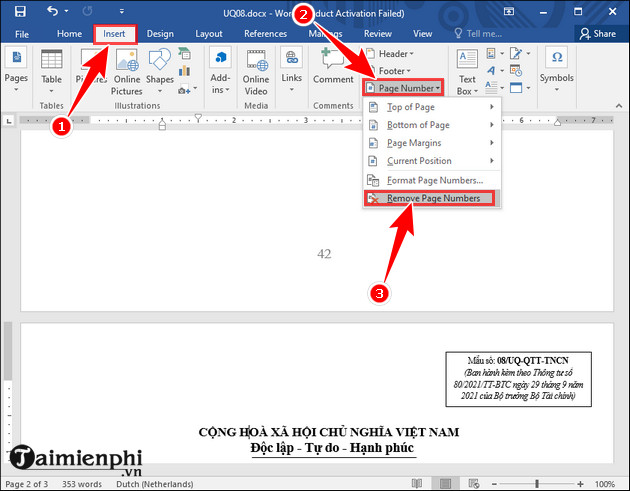
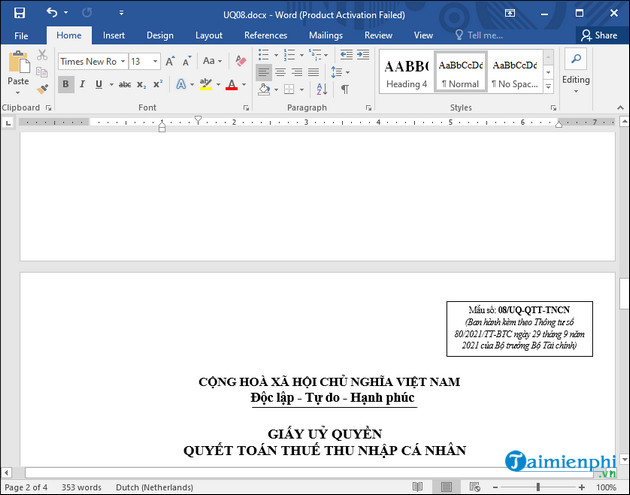
Check each section afterward. A section with Link to Previous disabled can retain its own number and may need to be cleared separately.
Troubleshooting
- The first page still shows a number: enable Different First Page in that section.
- Deleting one number removes all of them: create a section break and disable Link to Previous before deleting.
- The later section continues the old sequence: open Format Page Numbers and select Start at.
- Odd and even pages look different: check whether Different Odd & Even Pages is enabled.
- Numbers repeat or restart unexpectedly: reveal formatting marks and inspect the document for extra section breaks.
Related Articles
 How to Quickly See the Total Number of Pages of Word Files?3 minutes read
 How to Style Pages Symmetrically on Word: Number Word Pages4 minutes read
 How to Number Pages in Word Starting from Page 24 minutes read
 How to Start Page Numbers on Any Page in Word12 minutes read
 Number Pages in Word 2013, Insert Page Numbers Automatically4 minutes read
 How to Type Pages in Word 2007 from Any Page: Number Word Page5 minutes read
Reader Comments 0
Sign in with email or Google to join the discussion.