Table of Contents
Microsoft Word can display ruler, margin, indentation, and page-size measurements in inches, centimeters, millimeters, points, or picas. Changing this setting does not resize existing pages or convert the document's content; it changes the unit Word uses in its interface.
Change units in Word 2010 and later
These steps apply to Word 2010, 2013, 2016, 2019, 2021, and Microsoft 365 for Windows.
- Select File > Options.
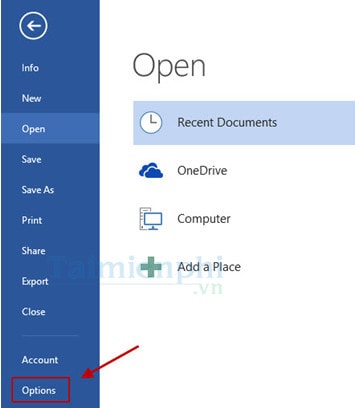
- In the Word Options window, select Advanced.
- Scroll to the Display section.
- Open Show measurements in units of and choose Centimeters, Millimeters, Inches, Points, or Picas.
- Select OK.
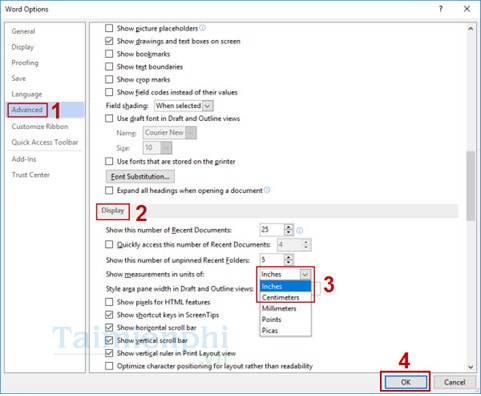
The horizontal and vertical rulers, Page Setup fields, indents, and other measurement boxes should now use the selected unit. If the ruler is hidden, enable it from the View tab.
Change units in Word 2007
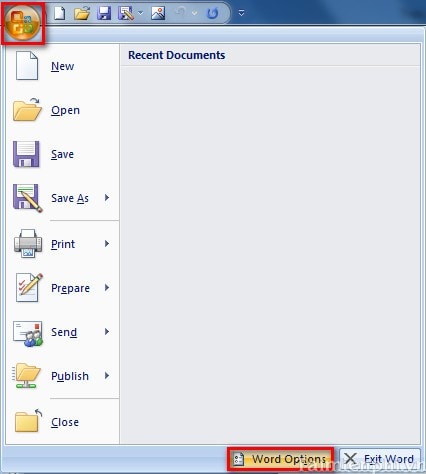
- Select the Microsoft Office Button, then select Word Options.
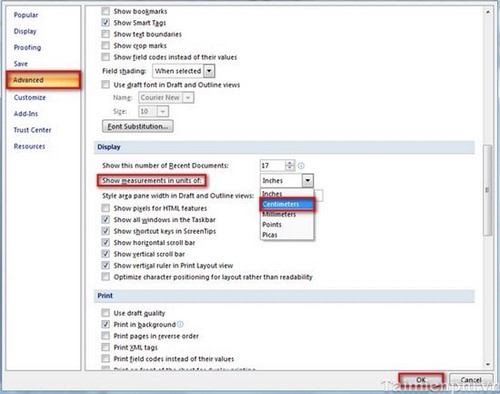
- Select Advanced and scroll to Display.
- Choose the required option under Show measurements in units of, then select OK.
Change units in Word 2003
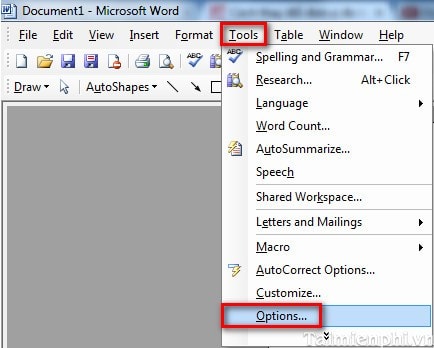
- Select Tools > Options.
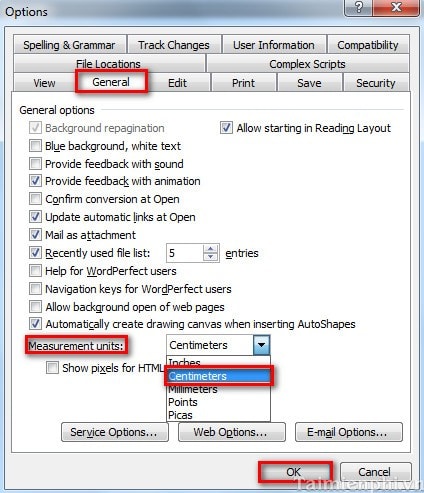
- Open the General tab.
- Choose the unit under Measurement units and select OK.
Convert a value without changing Word's settings
If you need to convert only one measurement, use these exact relationships:
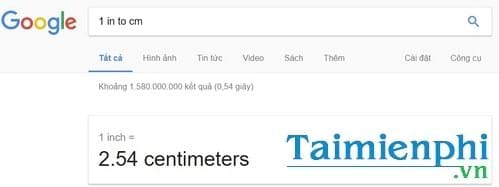
- 1 inch = 2.54 centimeters
- 1 inch = 25.4 millimeters
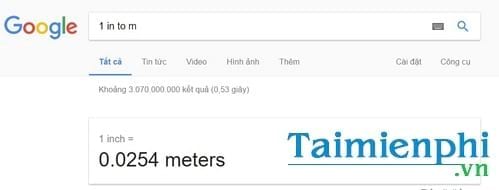
- 1 inch = 0.0254 meters
Multiply inches by 2.54 to get centimeters. Divide centimeters by 2.54 to get inches. For example, 1.5 inches is 3.81 centimeters.
You can also enter a query such as 1.5 in to cm in a search engine.
The same pattern works for millimeters or meters, such as 1 in to mm.
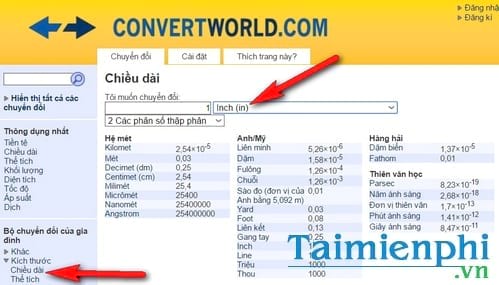
A dedicated unit converter can be useful when you need several conversions or less common units.
Use centimeters for margins and page layout
After changing Word's unit, open Layout > Margins > Custom Margins to enter margin values in centimeters. The guide to setting Word margins in centimeters shows the full process.
You can change the paper format through Layout > Size, or open the Page Setup dialog for custom dimensions. For a broader document setup walkthrough, see how to format a Word document's page and margins.
If Word still shows inches
- Close and reopen the document after saving the option.
- Confirm that you changed Show measurements in units of, not only a single Page Setup value.
- Check the setting in the desktop Word application you are actually using; browser-based Word can expose fewer layout options.
- If only one template behaves differently, test a blank document to determine whether the problem is document-specific.
The display-unit preference mainly affects the Word interface. A document's physical layout remains based on the stored page and object dimensions, so changing from inches to centimeters should not alter its printed appearance.
Related Articles
 How Many Centimeters, Meters, Millimeters, and Decimeters Are Equal to 1 Inch?8 minutes read
 How to Convert Inches to Centimeters in Word 20162 minutes read
 How to Converting Inches to Centimeters in Word2 minutes read
 Quiz: How Many Meters Is 1 Feet: Units of Foot Length2 minutes read
 How Many Inches Is 1 Inch: Convert Inch to M2 minutes read
 How to Align Margins in Word: Step-by-Step Guide3 minutes read
Reader Comments 0
Sign in with email or Google to join the discussion.