Table of Contents
Quick answer
Converting Word files to PDF is a useful solution to enhance document security while preserving the original content when working on various devices. However, downloading specialized software is often quite complicated. Therefore, for greater convenience,…
To avoid wasting computer space installing software to convert Word to PDF , you can convert Word to PDF on websites that support file conversion, ensuring that the document retains its original formatting without font errors.
How to convert Word to PDF without software
I. Using Word - The most convenient way
Step 1: Open the Word file you want to convert using Microsoft Word.
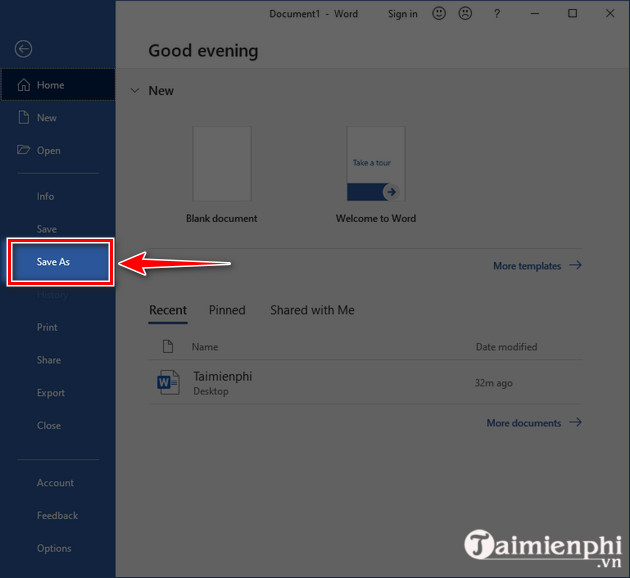
Step 2: Click on the File icon => click Save As .
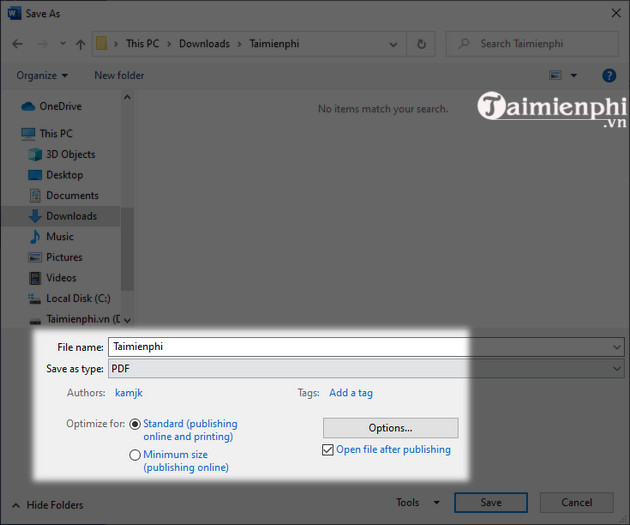
Step 3: The Save As dialog box opens. Here, select PDF under Save as Type to save the Word file as a PDF. You will also have additional options:
- Standard (publishing online and printing): Selecting this option optimizes printing and online publishing.
- Minimum size (publishing online and printing): Selecting this option optimizes file size and online publishing.
- Open file after publishing: After the conversion process is complete, the converted PDF file will automatically open.
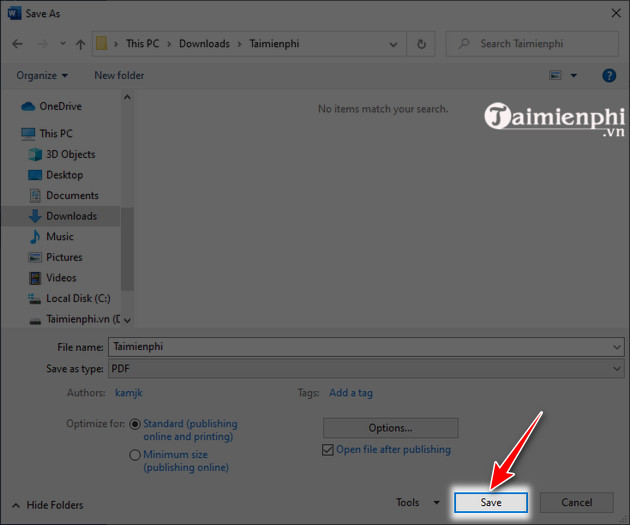
Step 4: Choose where to save the PDF file => select Save to complete the steps.
II. How to convert Word to PDF online via the web
1. Convert Word files to PDF online using Adobe Acrobat.
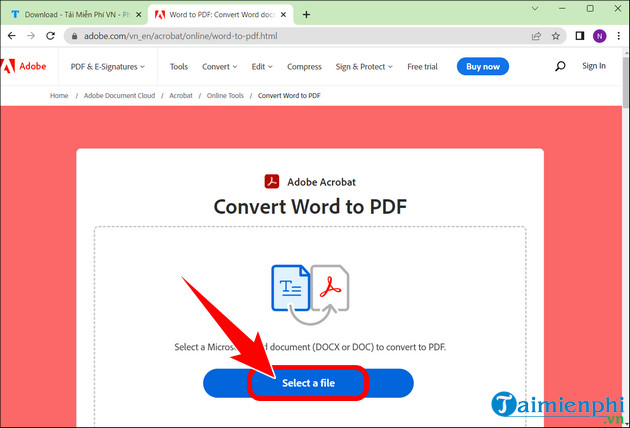
Step 1: Access the Adobe Acrobat website HERE . Click Select a file .
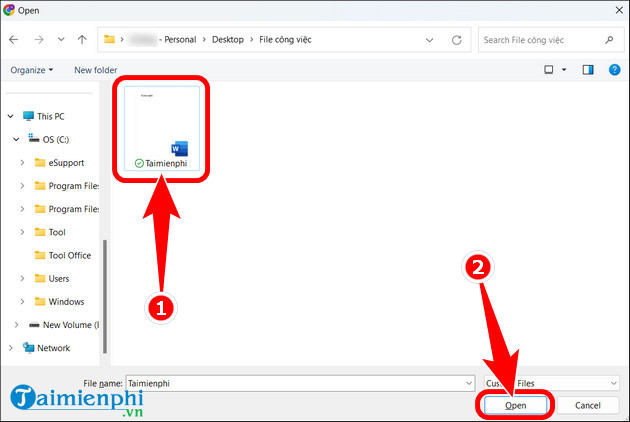
- Select the Word document => Open .
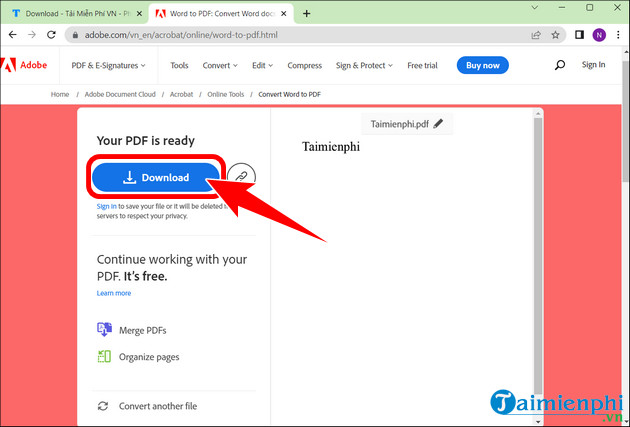
Step 2: The Word to PDF conversion process will take a few seconds. Once complete, click Download to save the PDF file to your device.
2. How to convert Word to PDF online using PDF2GO
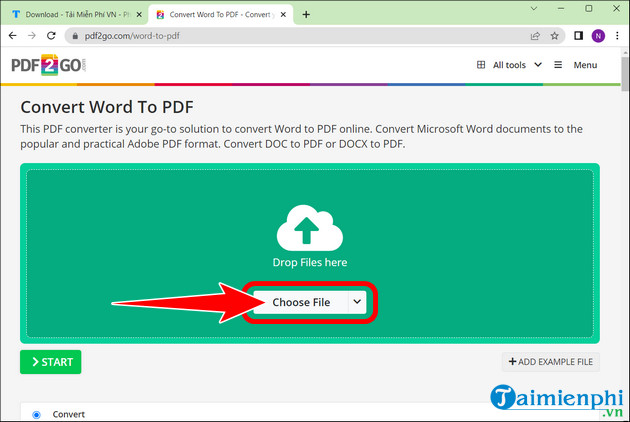
Step 1: Convert Word to PDF online on PDF2GO HERE . Click Choose File .
- Click File Word => Open .
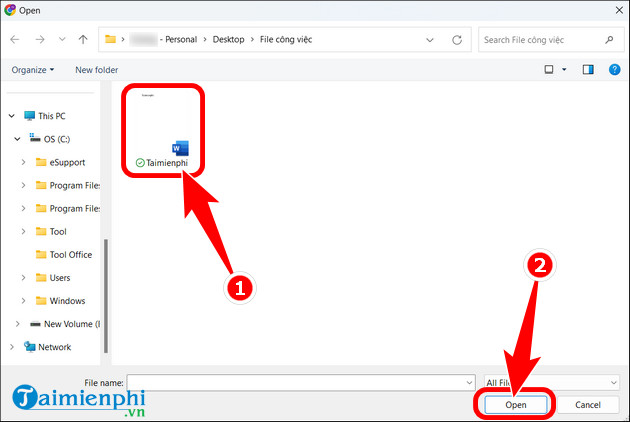
Step 2: Click Start to begin the Word to PDF conversion process.
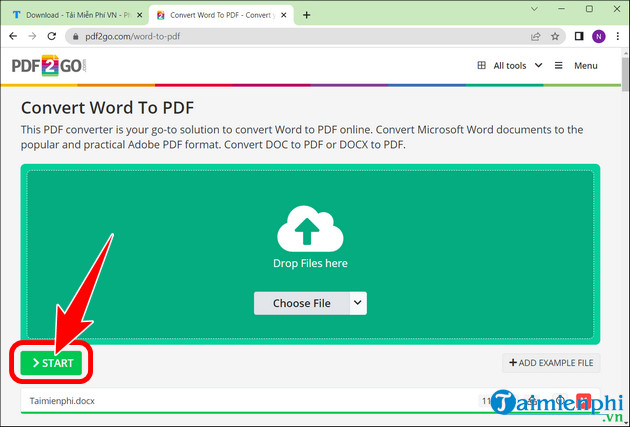
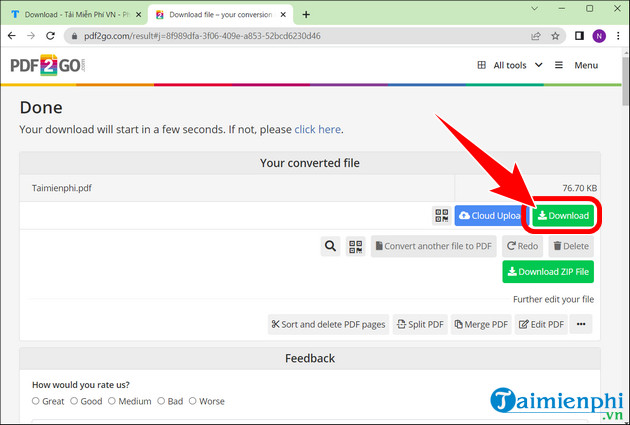
- Your product will be displayed as shown below once the transfer is successful. Download the file to your computer using the Download button .
3. Convert Word to PDF online using PDF Converter
Step 1: Access the PDF Converter website to convert Word to PDF HERE . On the main interface, click Choose Word file .
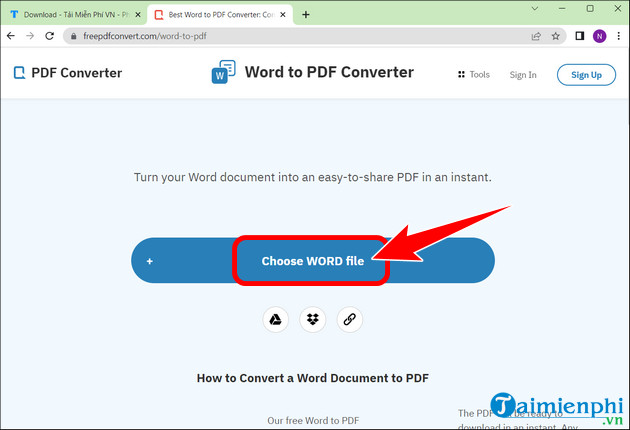
- Select the .docx file => press Open .
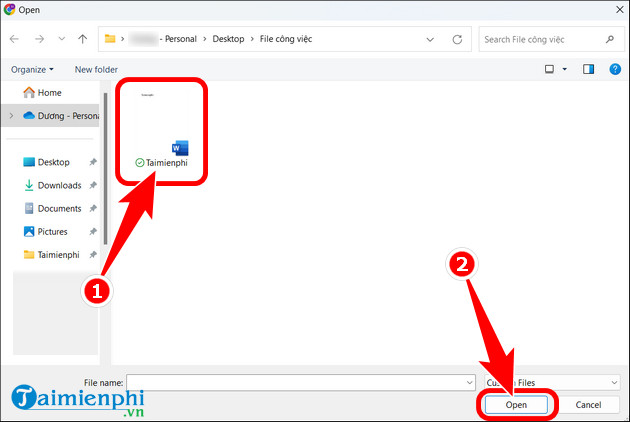
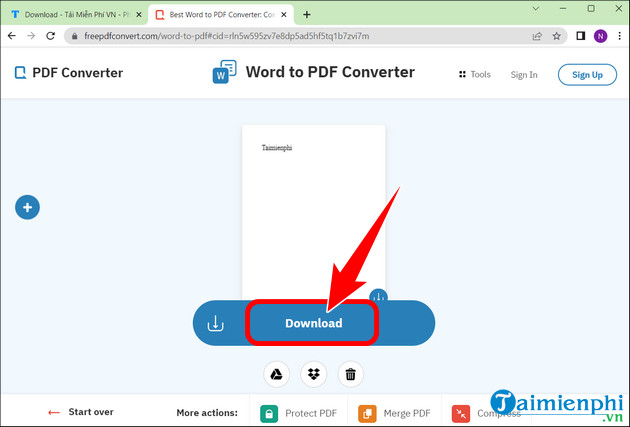
Step 2: Click Download to download the converted document to your PC.
II. Why is it necessary to convert Word to PDF before printing?
- Converting Word files to PDF before printing ensures that the font is preserved and the content displays accurately on all devices.
- Simultaneously, the document retains its formatting during printing. This is something that formats like DOC, PSD, CAD, CDR, or PUB cannot achieve.
In situations where there is no internet connection, you can convert Doc and Docx files to PDF in Word 2016 without using any supporting tools. This is a very useful method for office workers.
In addition to the Word to PDF conversion software mentioned above, you can also use free online Word to PDF converters. The advantage is that you can use them anytime as long as you have a stable internet/Wifi connection.
Practical checks
- Save a copy before changing a document with complex formatting.
- Check the result in Print Preview or an exported PDF when layout matters.
- Menu names and shortcuts can vary by Word version, operating system, and keyboard.
For related formatting tools, see how to insert an X-bar symbol in Word and use the Word ribbon and ruler.
Related Articles
 How to Convert PDF Files to Word Online Very Fast3 minutes read
 Add Another Tool to Convert Word Files to PDF for Free: Word to PDF2 minutes read
 Professional PDF File Conversion Software for Word7 minutes read
 How to Convert PDF to Word Without Font Errors for Free7 minutes read
 Convert PDF to Word, Convert PDF Files for Free12 minutes read
 Convert Word to PDF Online on Your Computer6 minutes read
Reader Comments 0
Sign in with email or Google to join the discussion.