Table of Contents
Quick answer
Canva has quickly become one of the leading tools for creating professional and creative designs. However, there are a few situations where we need to transfer Canva to Word, maintaining the structure of the original design without losing the flexibility of…
Switching from Canva to Word makes it easier to store and manage designs. At the same time, Word provides users with the ability to customize text, create tables, insert images, and other formatting methods, offering significant benefits.
Instructions on converting Canva to Word while preserving formatting.
I. How to convert Canva to Word without errors
2. Detailed instructions
Step 1: Access the Canva login link HERE .
- Click Create Design .
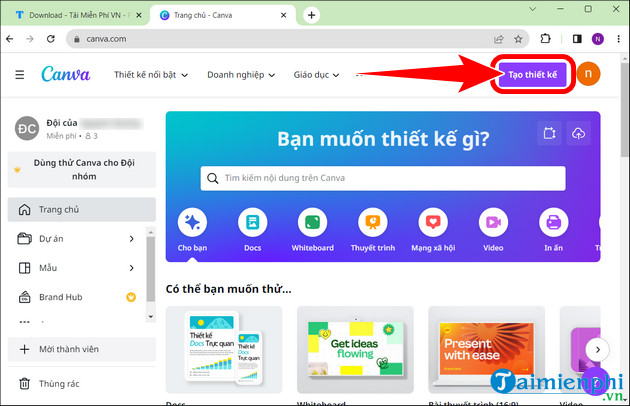
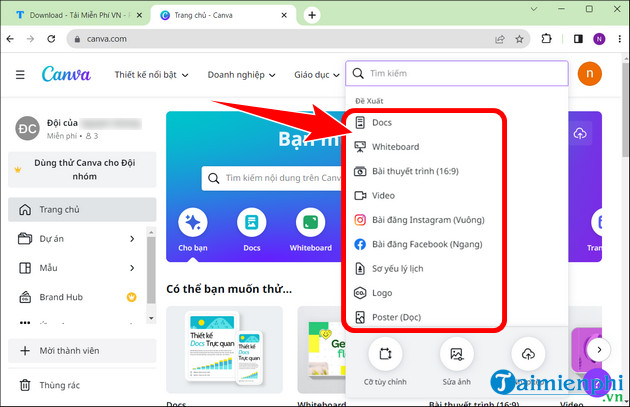
- Choose a design style .
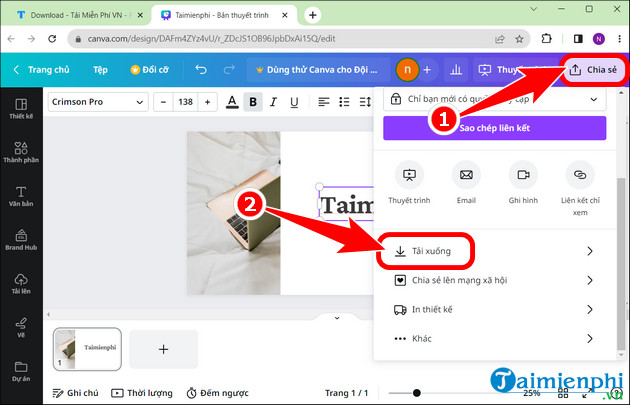
Step 2: Once you've finished creating the product , click Share => then click Download .
- Select Standard PDF File => Download .
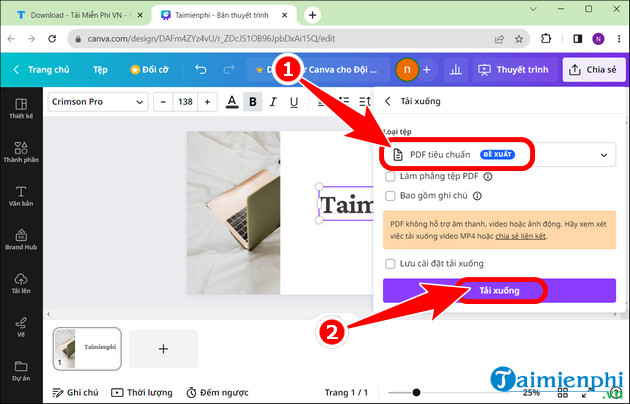
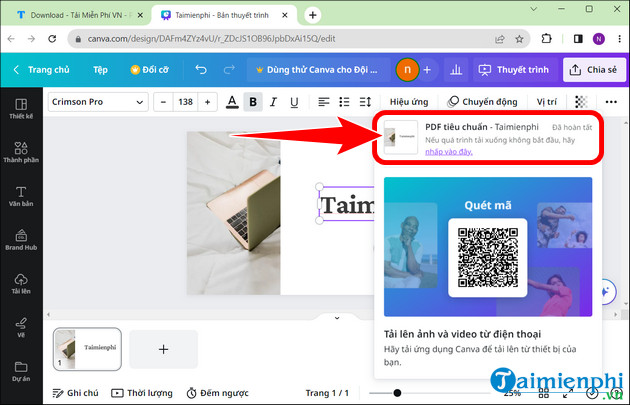
- The system will automatically download the file to your computer, or you can click here to download the file to your PC.
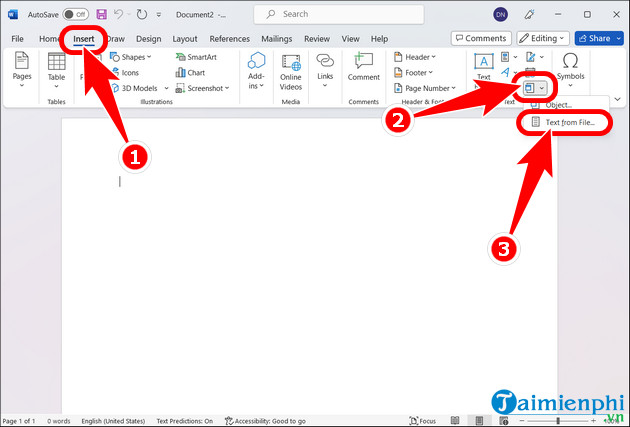
Step 3: Open Word , click Insert => click the Object icon => Text from file .
- Select the PDF file you just exported => Insert .
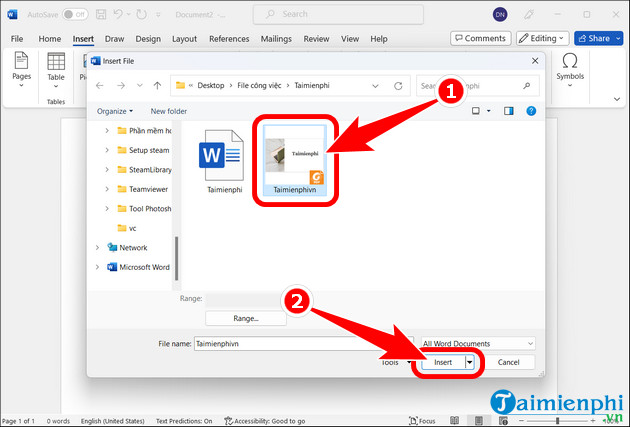
- The conversion process will take a few minutes depending on the amount of text and images in the file. Press OK to continue.
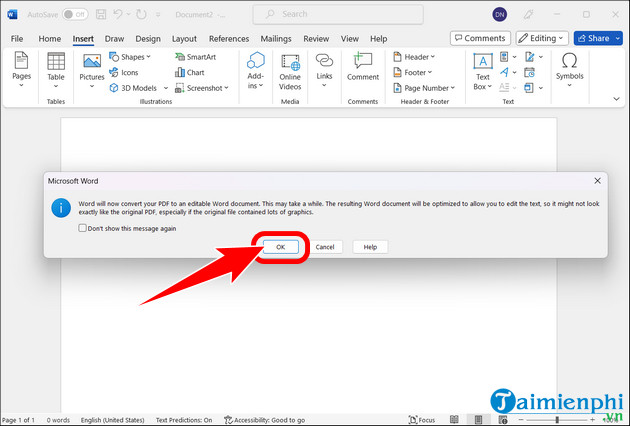
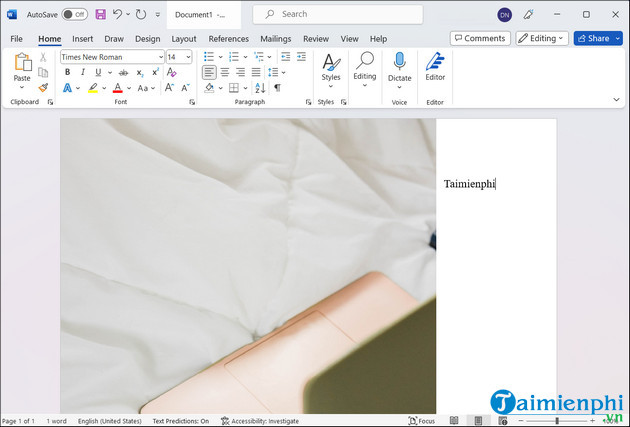
Step 4: After the Canva to Word conversion is complete , the result will be displayed as shown below. Here, you can adjust the size and position of the image as desired.
II. Benefits of converting Canva to Word
- Synchronization between the Canva image editing tool and Microsoft Word word processing software.
- Quick and easy editing after creating a document in Canva.
- Share documents and products with others without needing a Canva account.
- Word offers more text editing features than Canva.
- Supports printing and saving documents as .docx files.
The above is a complete guide on converting Canva to Word, providing greater flexibility and editing capabilities for your designs, as well as improved sharing and synchronization with other office tools. In addition to this conversion method, you can also convert from Canva to PowerPoint to make your presentations more dynamic and engaging for your audience.
Practical checks
- Save a copy before changing complex formatting.
- Check Print Preview or an exported PDF when layout matters.
- Menus and shortcuts can vary by version, operating system, and keyboard.
For related tools, see how to insert an X-bar symbol in Word and use the Word ribbon and ruler.
Related Articles
 Convert PDF to Word, Convert PDF Files for Free12 minutes read
 How to Convert from Canva to PowerPoint Quickly and Easily3 minutes read
 Tools for Converting PDF to Word8 minutes read
 2 Quick Ways to Convert Word to PDF on Your Phone3 minutes read
 How to Convert Word Files to PDF3 minutes read
 How to Convert PDF Files to Word Quickly and Easily Without Software5 minutes read
Reader Comments 0
Sign in with email or Google to join the discussion.