Table of Contents
Learn how to copy a Table from Word to Canva While Preserving Formatting with clear steps, practical tips, and troubleshooting guidance for common issues.

How to copy tables from Word to Canva without errors
I. How to copy a table from Word to Canva
1. Quick Guide
2. Detailed instructions
Step 1: Open the Word document containing the table you want to copy.
- Highlight the table and press Ctrl + C to copy it from Word to Canva.
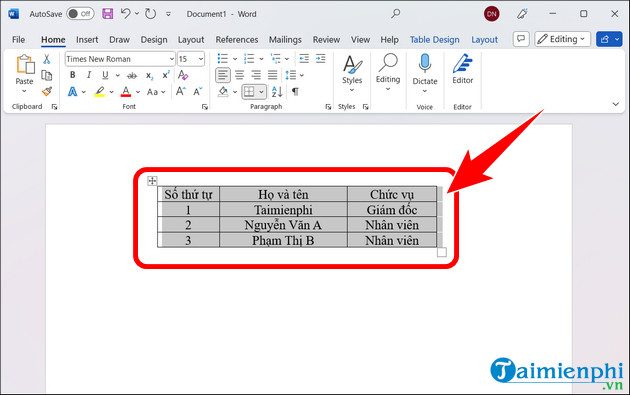
Step 2: Access the Canva login link HERE . On the main interface, click Create Design .
Alternatively, you can download Canva here to use as an alternative to the web version.

- Select Docs .

Step 3: Click Components => select a table design template .

- Press the first box => press the Ctrl + V key combination.
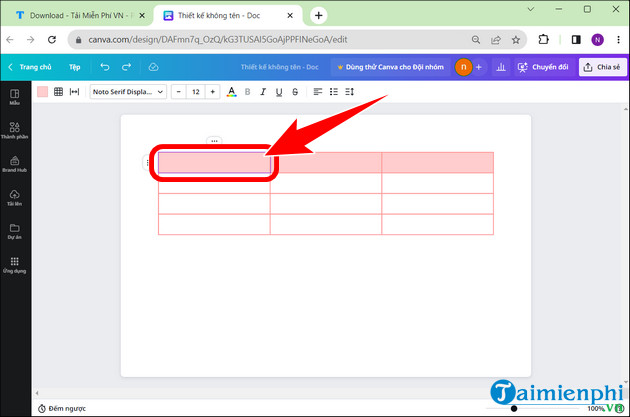
Step 4: Edit the table as desired. The result of copying the table from Word to Canva will be displayed as shown below.
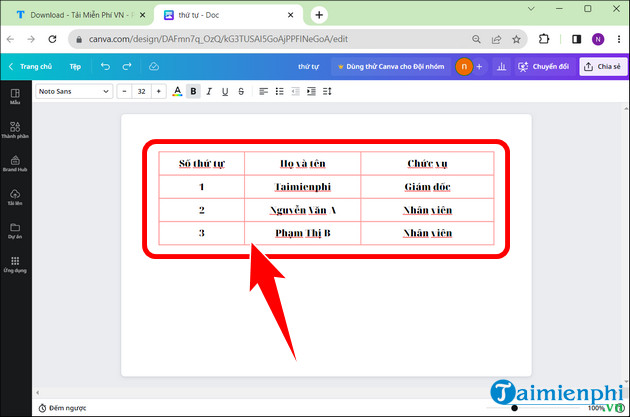
Additionally, you can also copy tables from Word to PowerPoint to create presentations, giving users more information to include in their reports.
II. Benefits of copying tables from Word to Canva
- Use Canva's features to transform data tables into part of a professional graphic design. - Integrate information from Word into an overall design. - Easily edit and customize: change the size, color, font, and layout style of the table, helping you create a table that fits the overall design. - Canva lets you share designs online or print them for use in offline projects. - Make a strong impression on your audience. - Save time and effort.
Therefore, copying tables from Word to Canva is a fairly simple operation, opening up many opportunities to create high-quality table designs that suit your purposes and goals. Additionally, you can use Canva to preserve the original formatting and avoid font errors when creating PDF files.
FAQ
How can you Copy a Table from Word to Canva While Preserving Formatting?
Learn how to copy a Table from Word to Canva While Preserving Formatting with clear steps, practical tips, and troubleshooting guidance for common issues.
What should you know about i. How to copy a table from Word to Canva?
1. Quick Guide 2. Detailed instructions Step 1: Open the Word document containing the table you want to copy.
What should you know about iI. Benefits of copying tables from Word to Canva?
- Use Canva's features to transform data tables into part of a professional graphic design.
Related Articles
 How to Transfer Tables from Word to PowerPoint4 minutes read
 How to Create a Table in Word 20077 minutes read
 10 Useful Table Formatting Tips in Microsoft Word12 minutes read
 How to Convert Excel to Word 2003 Simply and Easily4 minutes read
 8 Useful Table Formatting Tips in Microsoft Word11 minutes read
 How to Copy from ChatGPT to Word Without Formatting Errors5 minutes read
Reader Comments 0
Sign in with email or Google to join the discussion.