Table of Contents
Microsoft Word shows a live word count in the status bar and can also report characters, paragraphs, lines, and pages. Select part of the document first if you want a count for only that passage; otherwise, Word counts the entire document.
Count words in current versions of Word
These steps work in Word 2010, 2013, 2016, 2019, 2021, and Microsoft 365.
- Open the document. To count only a section, select that text. To count the whole document, do not select anything.
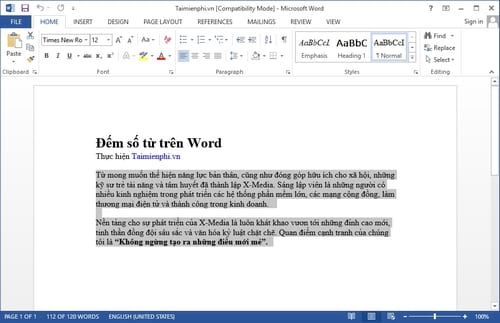
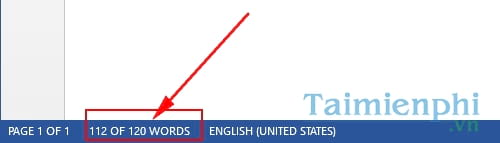
- Look at the status bar at the bottom of the Word window. The current word count appears there.
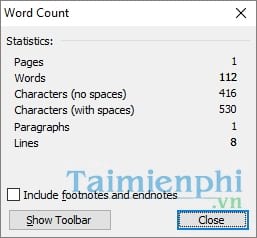
- Select the word count on the status bar to open the detailed Word Count dialog box. You can also use Review > Word Count.
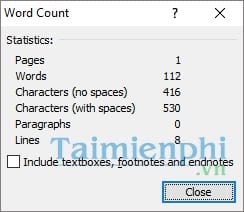
The dialog displays the totals for the document or selection.
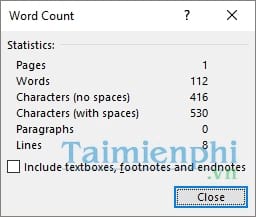
What each Word Count value means
- Pages: the number of laid-out pages in the document or selection.
- Words: Word's total based on spaces, punctuation, and language rules.
- Characters (no spaces): letters, numbers, punctuation, and other characters, excluding spaces.
- Characters (with spaces): the same character total with spaces included.
- Paragraphs: text blocks separated by paragraph marks.
- Lines: the number of displayed text lines, which can change when fonts, margins, or page size change.
If your assignment has a strict limit, check whether its rules include footnotes, endnotes, text boxes, or captions. Word may offer an option to include textboxes, footnotes, and endnotes in the count.
Count words in Word 2007
- Select the text you want to measure, or leave the document unselected for a complete count.
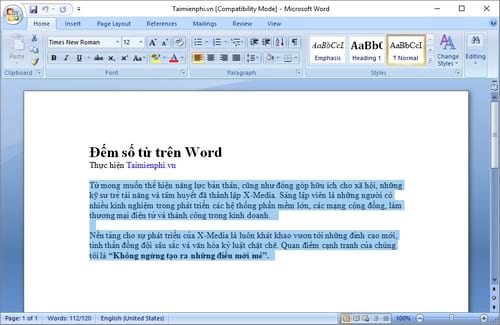
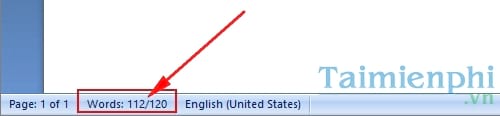
- Find the word total on the status bar at the bottom-left of the window.
- Select the total to open the Word Count dialog box.
The detailed window reports pages, words, characters with and without spaces, paragraphs, and lines.
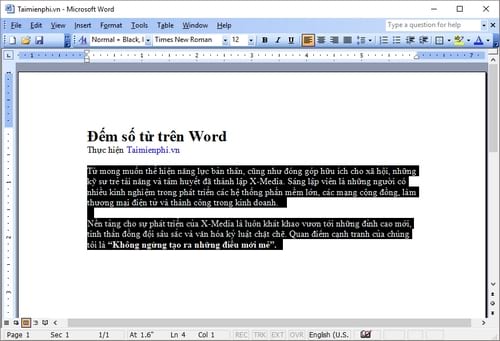
Count words in Word 2003
- Select a passage if you need a partial count.
- Select Tools > Word Count.
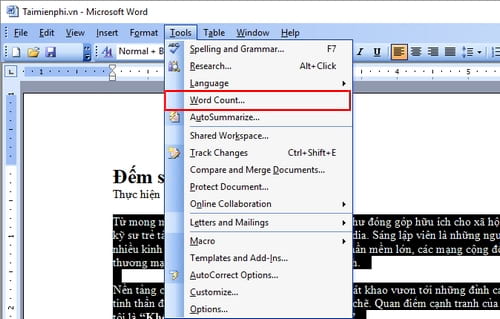
Word 2003 opens a dialog containing the same main document statistics.
Count only part of a document
Highlight the required sentence, paragraph, or group of pages before opening Word Count. In recent Word versions, the status bar usually shows the selected count alongside the document total. Make sure the selection includes any headings or captions that must be part of the result.
If the word count is missing
- Right-click the status bar and make sure Word Count is enabled.
- Use Review > Word Count as an alternative.
- If the command does not respond, save the document, restart Word, and test in a new blank file.
- Disable a recently added Word add-in only if the problem began after installing it.
For more detailed recovery steps, see how to fix a missing Word Count display.
Word count in Google Docs
Google Docs has its own built-in counter under Tools > Word count. The keyboard shortcut is Ctrl+Shift+C on Windows and Command+Shift+C on macOS. TipsMake also has a guide to checking word count in Google Docs.
Word count is useful for meeting a length requirement, but character count is the better measure for forms, metadata, and fields with a strict character limit.
Related Articles
 Steps to Fix Word Count Not Showing Up in Microsoft Word6 minutes read
 How to Check a Word Count in Microsoft Word7 minutes read
 Count the Number of Characters in the Paragraph2 minutes read
 How to Count Words in Excel, in Cells, Rows, and Columns5 minutes read
 How to Count Characters, Lines, and Pages in Word Accurately5 minutes read
 How to Count Words in Google Docs3 minutes read
Reader Comments 0
Sign in with email or Google to join the discussion.