Table of Contents
Quick answer
Want to add custom page numbers to make your document more professional and manageable? The simple guide below will help you break sections, remove links, and add page numbers quickly, ideal for reports, essays, or books.
1. How to number pages in Word 2013, 2016, and 2019
The interfaces of Word 2013, 2016, and 2019 are quite similar, so the process is no different. Below are the specific steps:
If you haven't installed it yet, you can download Word 2016 here.
Step 1: Open the document and place your mouse cursor at the beginning of the text on the page where you want to start numbering. For example, if you want to skip the first page, place the cursor on the text of the second page.
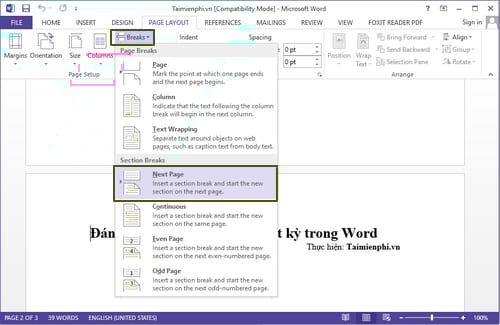
Step 2: On the menu bar, click on Page Layout > Break > Next Page
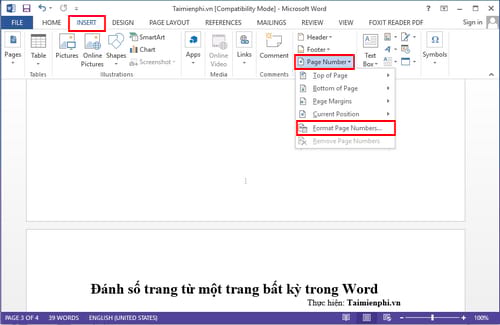
Step 3: Next, select Insert > Page Number > Format Page Number .
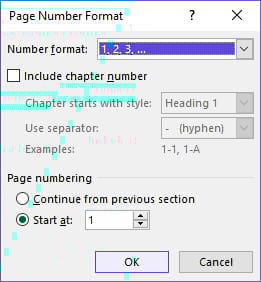
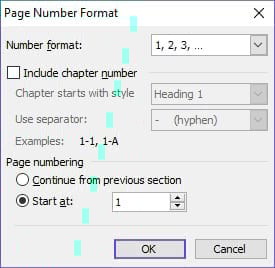
Step 4: A dialog box will appear, from which you can select the page numbering style and start from the value you want, such as 1. Press OK .
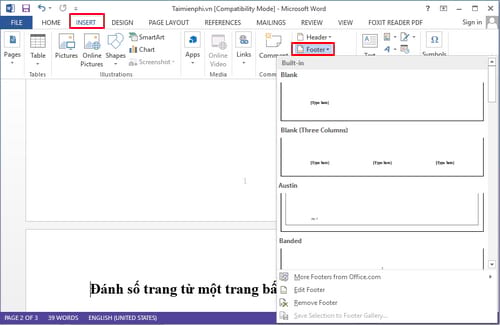
Step 5: Also in the Insert tab , select Footer or Header to add page numbers to the document. You can choose the Annual Footer format.
Step 6: Immediately afterwards, you will see two different sections at the start of the numbering page. To remove the page number in the first section, break the link by clicking on "Link to Previous".
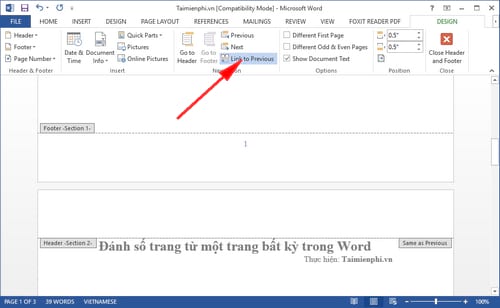
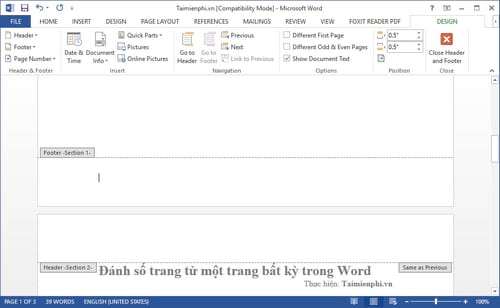
Step 7: Finally, move up to the first section and delete the page numbers you don't want to display.
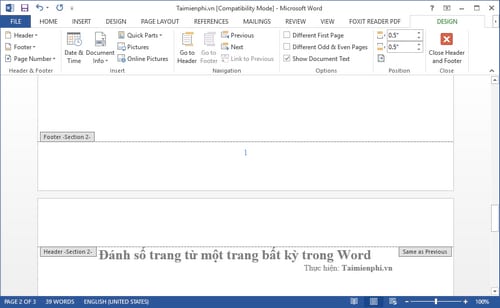
As a result, the page numbers for section two will start from 1.
2. How to number pages in Word 2007, 2010
The process in Word 2007 and 2010 is similar; you just need to follow these steps:
Step 1 : Open the document and place the mouse cursor where you want to start numbering.
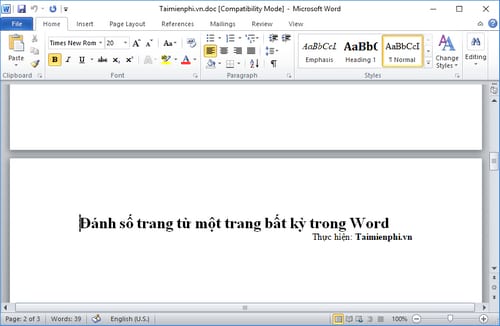
Step 2: Select Page Layout > Break > Next Page
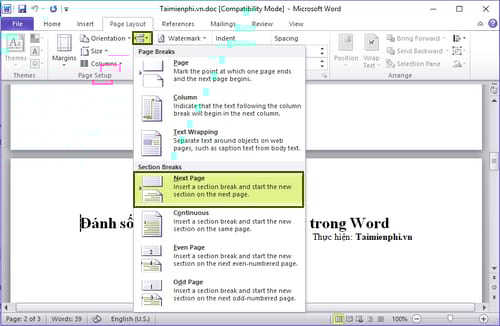
Step 3: Next, select Insert > Page Number > Format Page Number .
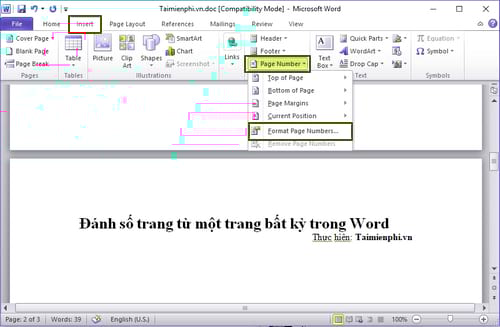
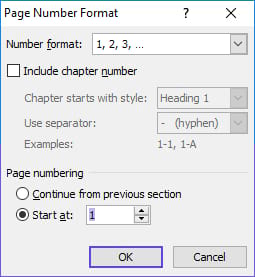
Step 4: A dialog box will appear, where you can select the number type and the starting value is 1. Press OK to confirm.
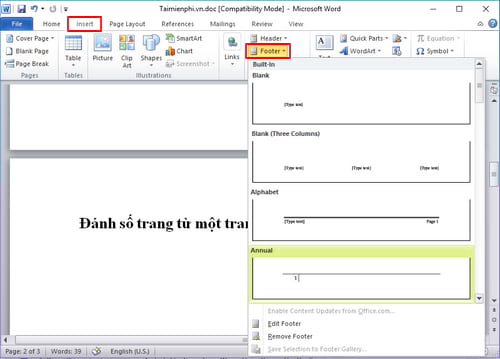
Step 5: In the Insert tab , select Footer or Header to add the desired page numbers.
Step 6: Select "Link to Previous" to break the link between sections.
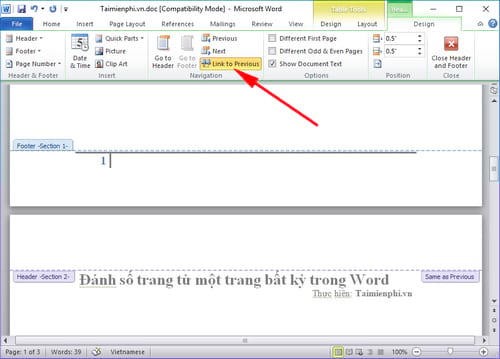
Step 7: Finally, delete the unnecessary page numbers in the first section.
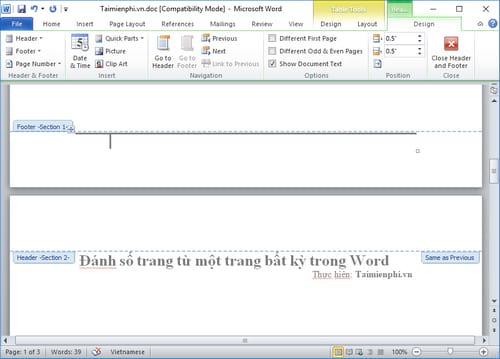
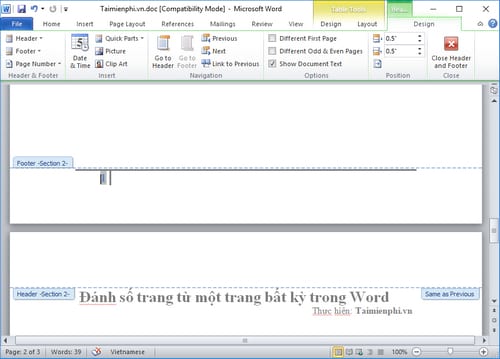
When completed, page numbers from section two onwards will start from 1.
3. How to number pages in Word 2003
The following steps are specific to Word 2003:
Step 1 : Open the document and place the cursor at the end of the page you want to split.
Step 2 : Go to Insert > Break and select Next Page.
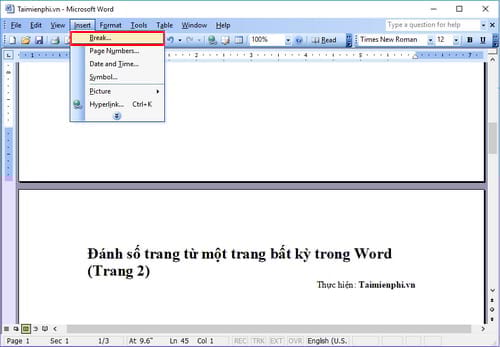
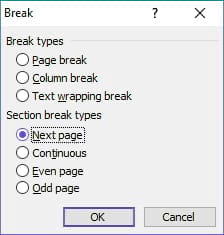
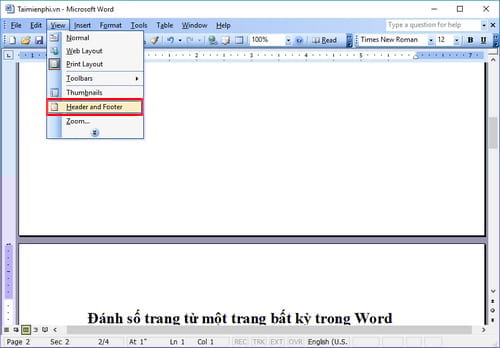
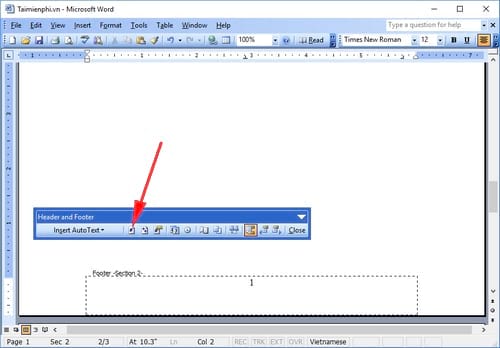
Step 3: Once the cursor has moved to the new page, select View > Header and Footer .
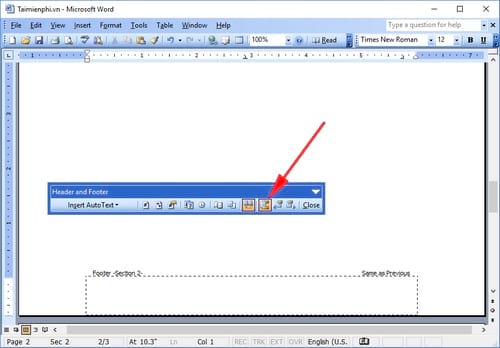
Step 4: Scroll down to the footer or use the switch between header and footer .
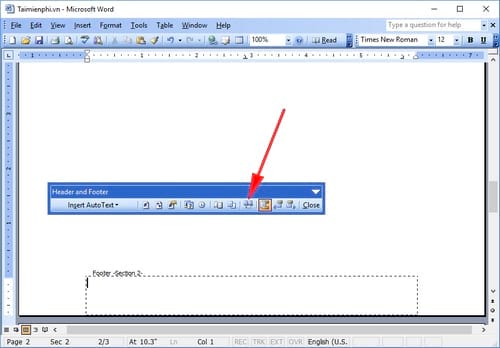
Step 5: Click "Link to Previous" to break the link between pages.
Step 6: Select Format Page Number , and enter the number you want to start typing from.

Step 7: Finally, use Insert Page Number to display the page number.
Step 8: Finally, use Insert Page Number to display the page number.
This simple process makes it easier to work with your documents. The feeling of having control over the document will make your work more enjoyable.
Hopefully, the above guide will help you optimize your documents. If you already know how to number pages in Word, why not learn more about numbering pages in Excel to improve your office skills? Good luck!
Practical checks
- Save a copy before changing complex formatting.
- Check Print Preview or an exported PDF when layout matters.
- Menus and shortcuts can vary by version, operating system, and keyboard.
For related tools, see how to insert an X-bar symbol in Word and use the Word ribbon and ruler.
Related Articles
 How to Number Pages in Word Starting from Page 24 minutes read
 How to Start Page Numbers on Any Page in Word12 minutes read
 How to Type Pages in Word 2007 from Any Page: Number Word Page5 minutes read
 How to Style Pages Symmetrically on Word: Number Word Pages4 minutes read
 How to Quickly Number Pages in Word 2010, 2013, 2016, And 20195 minutes read
 7 Ways to Number Pages in Word That You Need to Know8 minutes read
Reader Comments 0
Sign in with email or Google to join the discussion.