Table of Contents
Quick answer
The red underline in Word appears due to the automatic spell check feature. While useful, it can be visually distracting when typing Vietnamese text. If you want to turn off the red underline to make your text look neater, try the methods below.
Below is a detailed guide on how to disable red underlines for each version of Word from 2003 to 2019, helping you do it quickly.
Why does Word display a red underline?
- Word automatically checks spelling based on its default dictionary.
- When typing in Vietnamese, Word considers it an error because it doesn't recognize the language.
- To keep your text neat, you can turn this feature off using the instructions below.
How to remove red underlines in Word
1. In Word 2019
If you are using Word 2019, please refer to this guide on how to remove red underlines in Word 2019.
2. In Word 2016, 2013
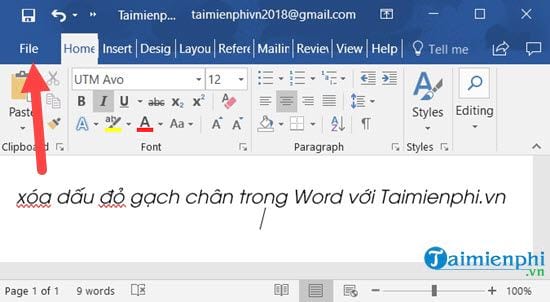
Step 1: Go to the File menu in the menu bar.
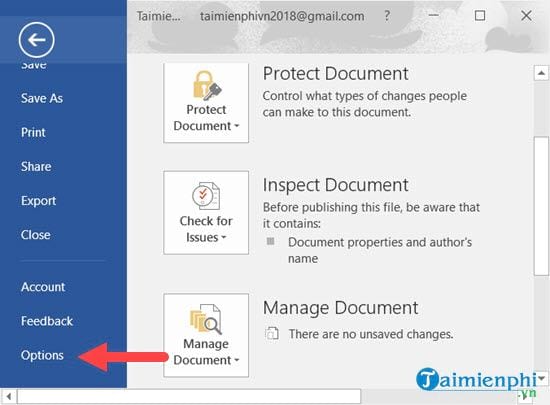
Step 2: Select Options to access Word Options .
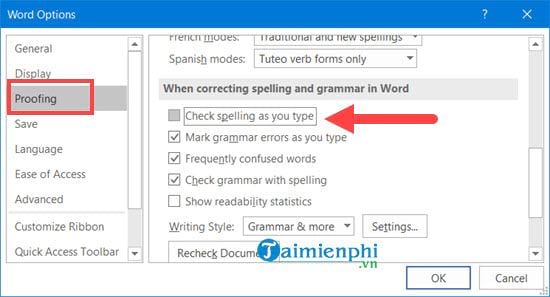
Step 3: Select Proofing -> Check spelling as you type and uncheck it.
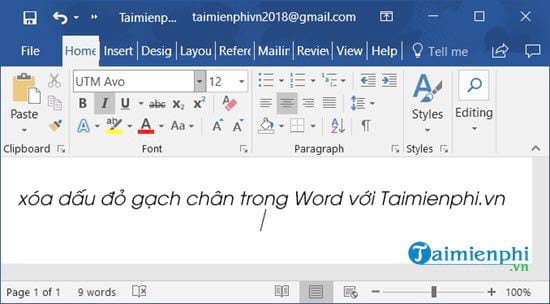
Then, when you go back, you'll see that you've completely removed the red underlines in Word 2016 and 2013.
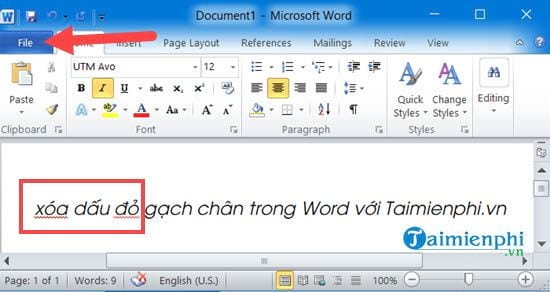
3. In Word 2010, 2007
Step 1: Go to the File menu in the menu bar.
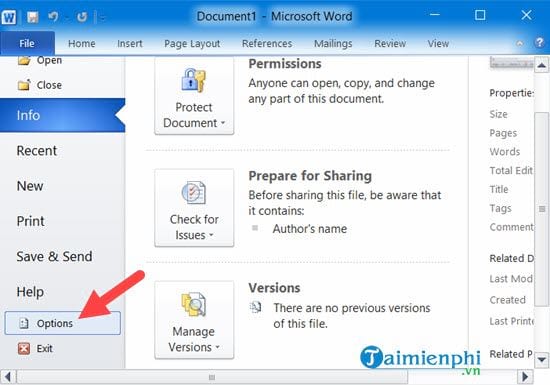
Step 2: Then go to Options to access Word Options .
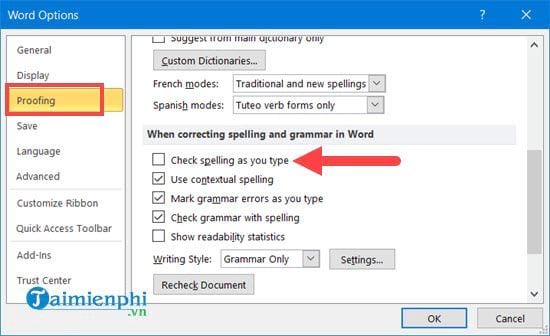
Step 3: Uncheck the box for "Check spelling as you type". The "Check spelling as you type" option can be found in the "Proofing" section .
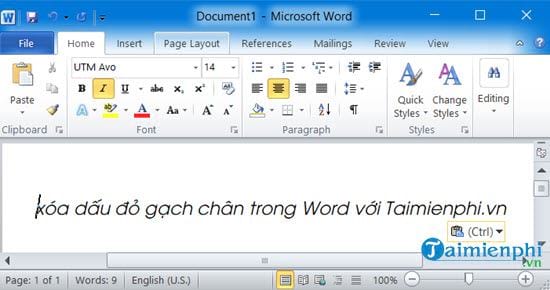
Then, when you go back, you will see that you have completely removed the red underline in Word 2010 and 2007.
4. In Word 2003
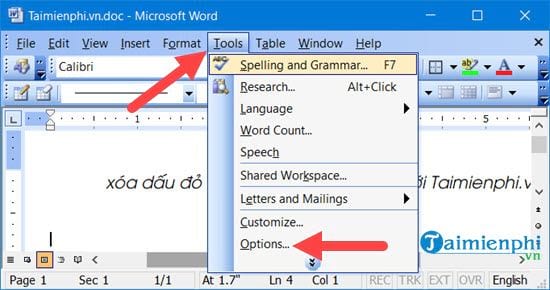
Step 1: Select Tools from the menu bar -> Options .
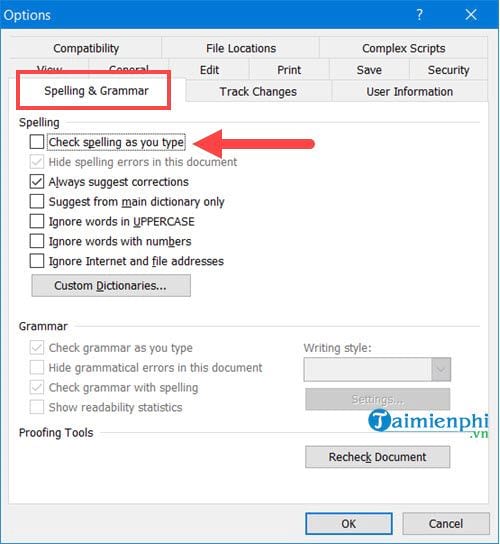
Step 2: Select Spelling & Grammar -> uncheck Check spelling as you type
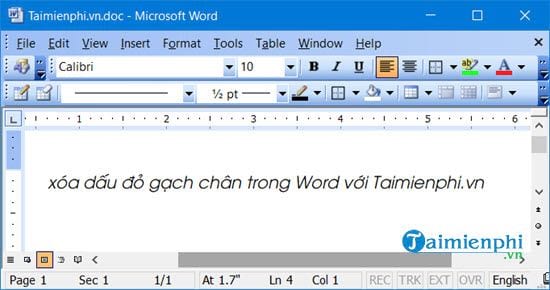
After that, check outside and you will see that the removal of the red underline in Word 2003 is complete.
After following the steps above, you should be able to remove red underlines in Word on all versions from 2003 to 2019. However, if you frequently write English documents, this spell-checking feature will be very useful, helping you quickly detect errors.
Besides disabling red underlines, you can also use automatic spell checking in Word to ensure your text is error-free. If you want to learn more about spell checking or other tips for using Word, check out helpful guides like how to adjust margins in Word 2016 , 2013, and 2010 to make your text more professional and easier to read.
Practical checks
- Save a copy before changing complex formatting.
- Check Print Preview or an exported PDF when layout matters.
- Menus and shortcuts can vary by version, operating system, and keyboard.
For related tools, see how to insert an X-bar symbol in Word and use the Word ribbon and ruler.
Related Articles
 How to Remove Red Underlines in Word: Step-by-Step Guide3 minutes read
 How to Remove Underlines and Red and Blue Wavy Marks in Word3 minutes read
 Remove Underline in Word, Remove Red and Green Underline Under Words: Step-by-Step Guide7 minutes read
 How to Remove 'Read Only' Attribute on MS Word Files: Step-by-Step Guide9 minutes read
 How to Remove the 'Read Only' Status on MS Word Documents8 minutes read
 How to Write Dash in Word and Excel: Word Tips4 minutes read
Reader Comments 0
Sign in with email or Google to join the discussion.