Table of Contents
If the first page of a Word document is a cover, you can leave it unnumbered and make the second physical page display page 1. For a document with only one unnumbered cover page, the quickest method is to combine Different First Page with a starting value of 0.

Method 1: Hide the cover-page number
Use this method when the document has a single cover page and the rest of the pages can share the same header and footer.
- Open the document and select Insert > Page Number.
- Choose Top of Page, Bottom of Page, or another position, then select a style.
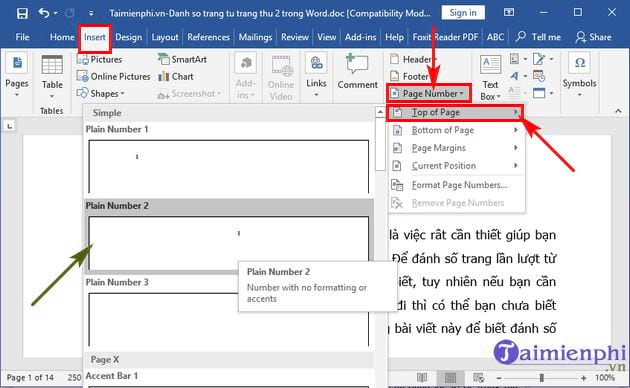
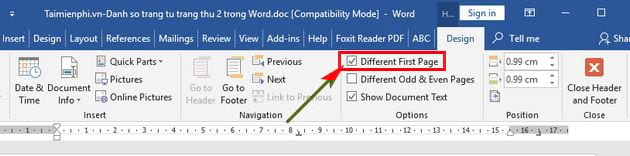
- Double-click the header or footer containing the number to open the Header & Footer tab.
- Enable Different First Page. The number disappears from the cover, but the second page initially displays 2.
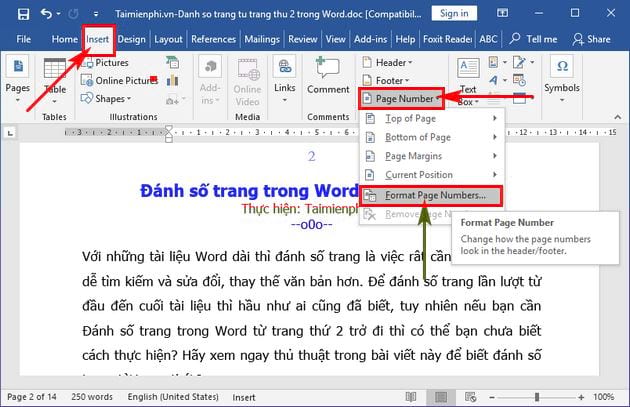
- Select Page Number > Format Page Numbers.
- Under Page numbering, select Start at and enter 0. Select OK.
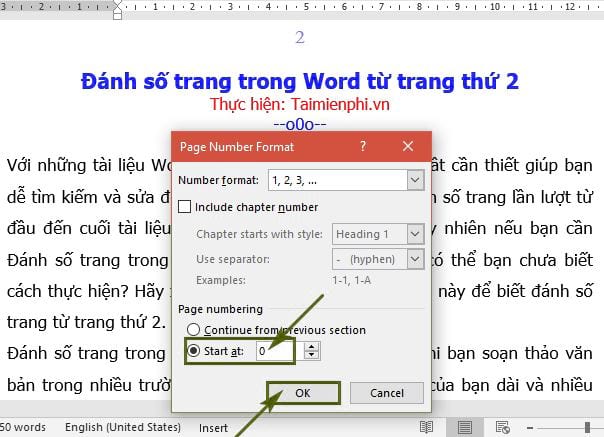
The first page remains unnumbered, and the second physical page now displays 1.
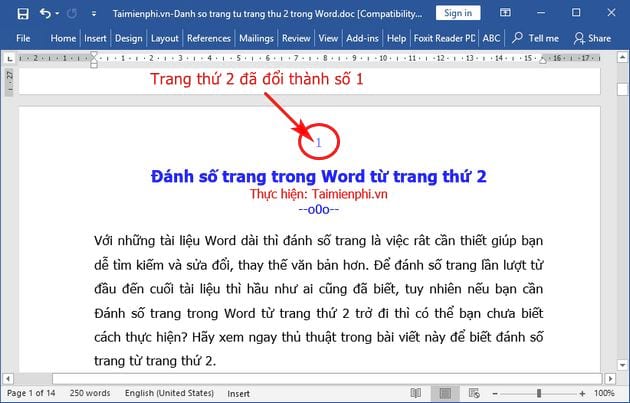
Why the starting value is 0
Different First Page hides the first page's header or footer; it does not remove that page from Word's sequence. Starting the section at 0 assigns the hidden cover page the value 0, so the next page displays 1.
If you want the second page to display 2 instead, leave the starting value at 1 and use only Different First Page.
Method 2: Create a separate section
Use a section break when the cover must have different margins, headers, footers, orientation, or when several opening pages should be unnumbered.
- Place the cursor at the end of the cover page.
- Select Layout > Breaks > Next Page.
- Double-click the header or footer on page 2 and turn off Link to Previous.
- Add a page number to the second section.
- Open Format Page Numbers, select Start at, and enter 1.
Section breaks give you independent numbering and formatting, but they must be managed carefully. TipsMake's guide to numbering from any page in Word shows the full section-based workflow.
Common problems
- The cover still has a number: confirm that Different First Page is enabled in the correct section.
- Page 2 shows 2: open Format Page Numbers and set the section to start at 0, or use a new section that starts at 1.
- Deleting the cover number removes every number: do not delete a linked header or footer. Use Different First Page or disable Link to Previous first.
- Later pages restart unexpectedly: inspect the document for extra section breaks and check each section's Page Number Format setting.
- The number is missing from more than one page: make sure Different First Page is not enabled in multiple sections.
Choose the right setup
For a simple cover followed by normal pages, Different First Page plus a starting value of 0 is fast and reliable. For reports with front matter, chapters, or mixed number formats, use sections. The broader Word page-numbering guide covers additional positions and formats, while the guide to creating an automatic table of contents can help organize a long document.
Related Articles
 How to Start Page Numbers on Any Page in Word12 minutes read
 How to Number Pages Starting from Any Page in Word5 minutes read
 How to Type Pages in Word 2007 from Any Page: Number Word Page5 minutes read
 How to Style Pages Symmetrically on Word: Number Word Pages4 minutes read
 How to Quickly Number Pages in Word 2010, 2013, 2016, And 20195 minutes read
 7 Ways to Number Pages in Word That You Need to Know8 minutes read
Reader Comments 0
Sign in with email or Google to join the discussion.