Table of Contents
Quick answer
Microsoft Word's interface and features change with each version, but don't worry! This article will guide you on how to adjust character spacing in Word from 2003 to Microsoft 365, making it easy to apply to your needs.
Table of Contents:
1. For Word 2010, 2013, 2016, 2019, 2021 and 365. 2.
For Word 2007. 3.
For Word 2003. 4.
Adjusting the spacing of ABCD answers in Word correctly .
1. Word 2010, 2013, 2016, 2019, 2021, 365
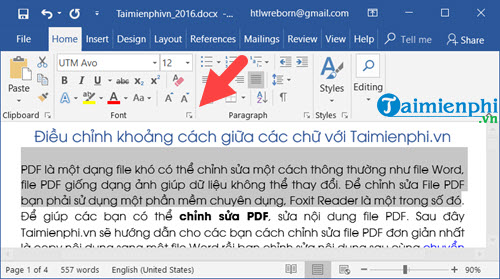
Step 1: Select a piece of text, then go to the Home tab => click the arrow in the Font group.
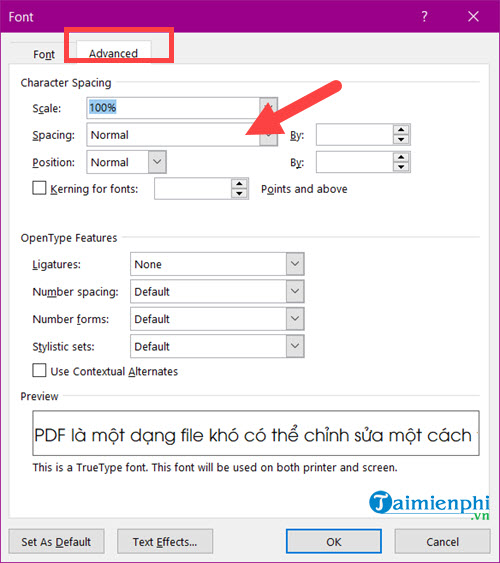
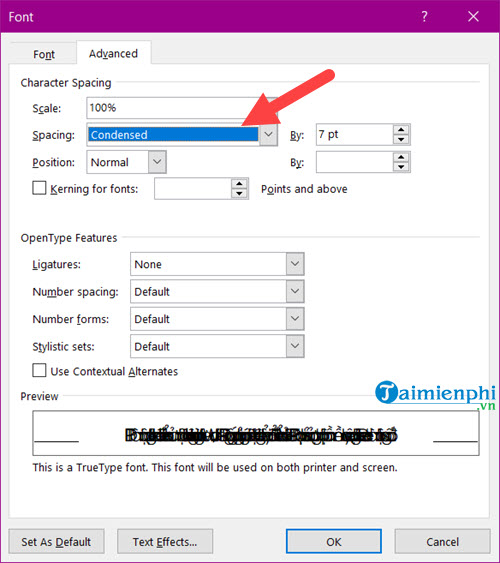
Step 2: In the Font Setting interface , select Advanced -> Spacing in Character Spacing.
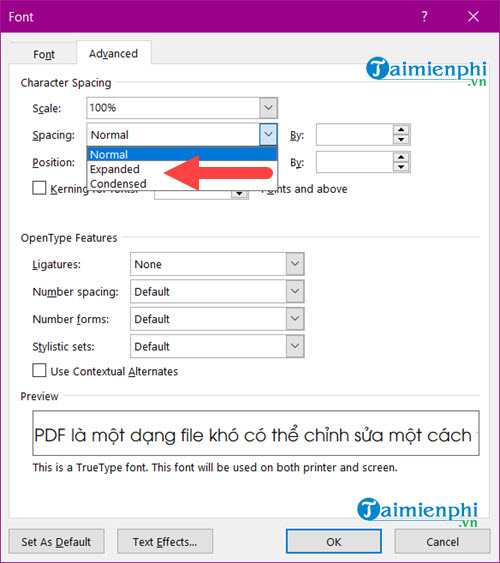
Step 3: In Spacing, there are two features to note: Expanded and Condensed.
- Normal: The default spacing between characters and letters.
- Expanded : Increases the spacing between characters and letters.
- Condensed : Decreases the spacing between characters and letters.
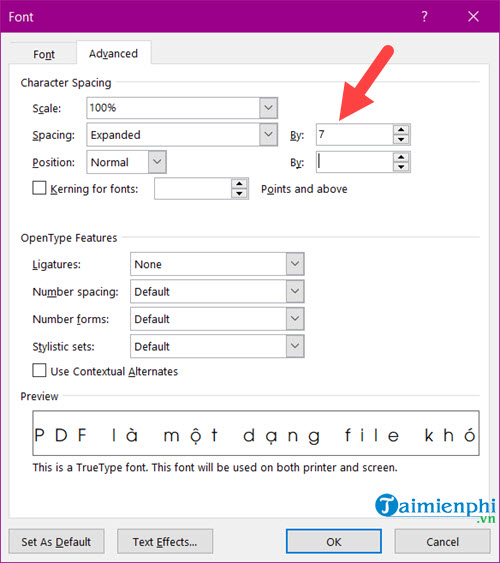
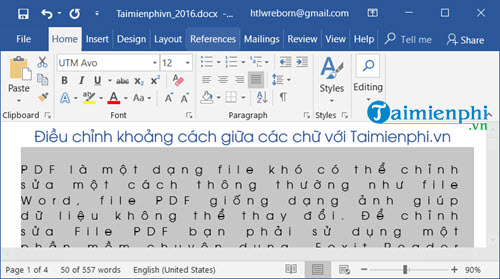
- For example, if you want to increase the spacing between words in Word , select "Expanded" and set the value to 7 in the "By" section . You will immediately see the difference in the Preview section . If you find it satisfactory, click OK to save the settings.
- After clicking OK , you will see that the spacing of the selected text has been adjusted.
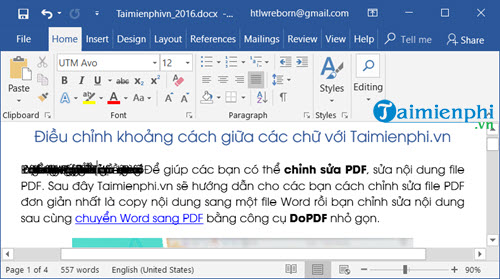
- If you want to reduce the spacing between characters in Word , select Condensed and set the corresponding value in the By field , then click OK .
- The text you select will now be reduced in size.
2. For Word 2007
Step 1: Select the text you want to adjust the spacing of in Word 2007.
Step 2: Select the Home tab , then click the small arrow in the bottom right corner of the Font group .
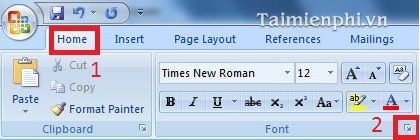
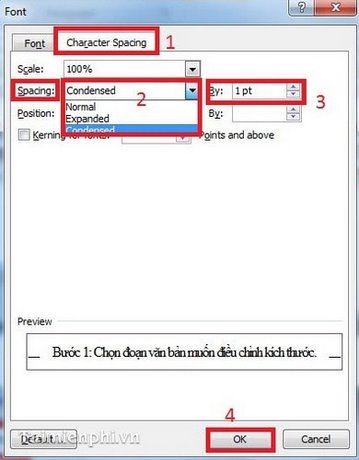
Step 3: When the Font dialog box appears, select the Character spacing tab. Then, in the Spacing section, set the parameters
: - Select Expanded and set the value for By to increase the character spacing.
- Select Condensed and set the value for By to decrease the character spacing.
==> Click OK to complete.
3. For Word 2003
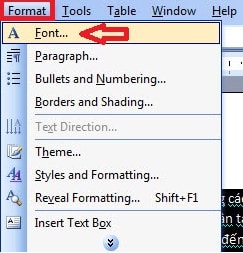
Step 1: Select (highlight) the text you want to adjust the spacing for. Then go to the Format menu and select Font .
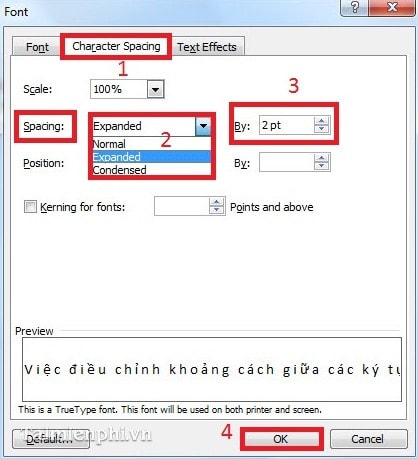
Step 2: When the Font dialog box appears, select the Character spacing tab .
- To increase the character spacing, select the Expanded option and specify the size in the By section .
To reduce the spacing between characters, select the Condensed option.
4. Adjust the spacing between the ABCD answers in Word.
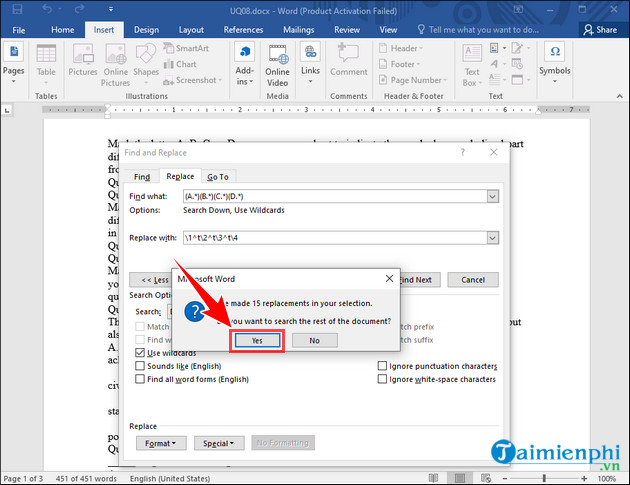
Step 1: Press Ctrl + A to select all text => Press Ctrl + H to open the Find and Replace dialog box .
Step 2: Enter the string ' (A.*)(B.*)(C.*)(D.*) ' in the Find what field => Enter the string ' 1^t2^t3^t4 ' to create a space between the answers in the Replace with field . Then select More >> .
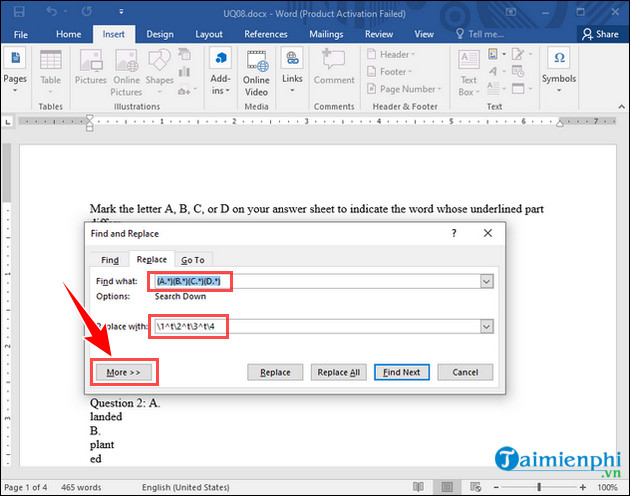
Step 3: Check the box next to Use wildcards => Select Replace All .

Step 4: Press Yes to agree.
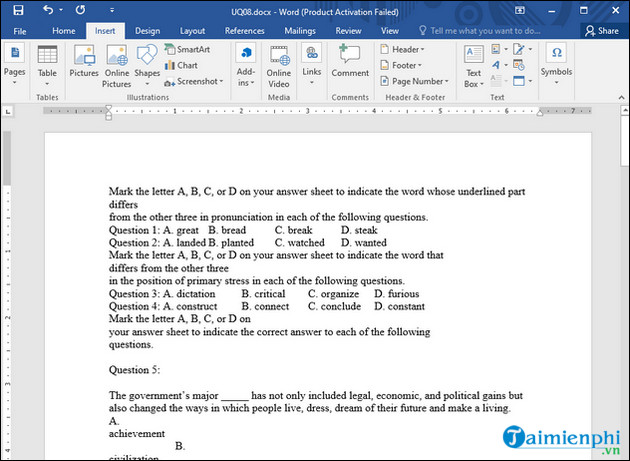
- Result:
The article above has guided you on how to adjust character spacing in Word. You can also refer to other tips, such as fixing character jumping errors in Word, as shared by TipsMake.
Practical checks
- Save a copy before changing complex formatting.
- Check Print Preview or an exported PDF when layout matters.
- Menus and shortcuts can vary by version, operating system, and keyboard.
For related tools, see how to insert an X-bar symbol in Word and use the Word ribbon and ruler.
Related Articles
 How to Adjust Line Spacing in Word 2016, 2019, 2010, 2007, and 20139 minutes read
 How to Adjust the Standard Spacing Between Words in Word5 minutes read
 Adjust Line Spacing in Word - Instructions on How to Adjust Line Spacing in4 minutes read
 How to Adjust Line Spacing in Word Tables Very Easily3 minutes read
 Handle Spaced Letters in Microsoft Word: Step-by-Step Guide5 minutes read
 How to Align in Word Extremely Accurately: Clear Instructions7 minutes read
Reader Comments 0
Sign in with email or Google to join the discussion.