Table of Contents
In my experience, addressing these overlooked issues has shortened boot times far beyond simply disabling startup applications.
A Windows computer can take anywhere from 10 to 20 seconds just to boot up, and that's assuming everything is working perfectly. While disabling unwanted startup applications can certainly reduce boot time and often provide significant improvements, they're not the only culprits slowing down your system.
Default settings, background services, and even the way the BIOS handles hardware tests can silently lengthen the boot process. Sometimes it's the low-level settings you rarely touch or the unnecessary services Windows automatically loads that make the biggest difference. In my experience, addressing these overlooked issues has shortened boot times far more than simply disabling startup applications.
Use the Fast Startup feature
Windows has a feature that does half the work for you.
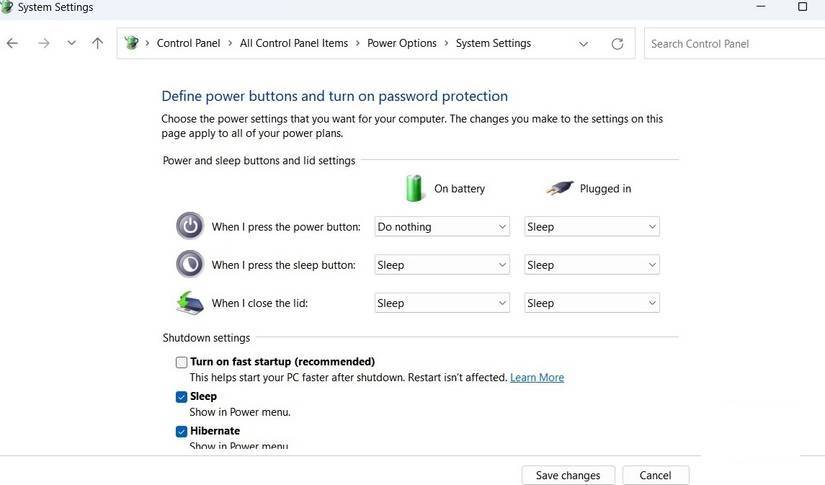
Normally, when you shut down your computer, Windows shuts down everything—applications, processes, drivers, and the kernel (the core of the operating system). But with Fast Startup enabled, Windows uses a shortcut. Instead of shutting down the kernel, it saves the system state to a special file on your drive. The next time you boot up, Windows loads that saved state instead of rebuilding it from scratch. It's a bit like hibernation, but it only applies to the kernel, not the entire session.
To enable Fast Startup, go to Control Panel > Hardware and Sound > Power Options > Choose what the power buttons function , then click Change settings that are currently unavailable . Under Shutdown settings , check the Turn on fast startup (recommended) Box. Hit Save changes And you're done!
Note : Fast Startup is not ideal if you dual-boot with Linux or frequently mess with hardware, as it can sometimes interfere with those setups.
Adjust some BIOS settings
A few small changes in the BIOS can speed things up
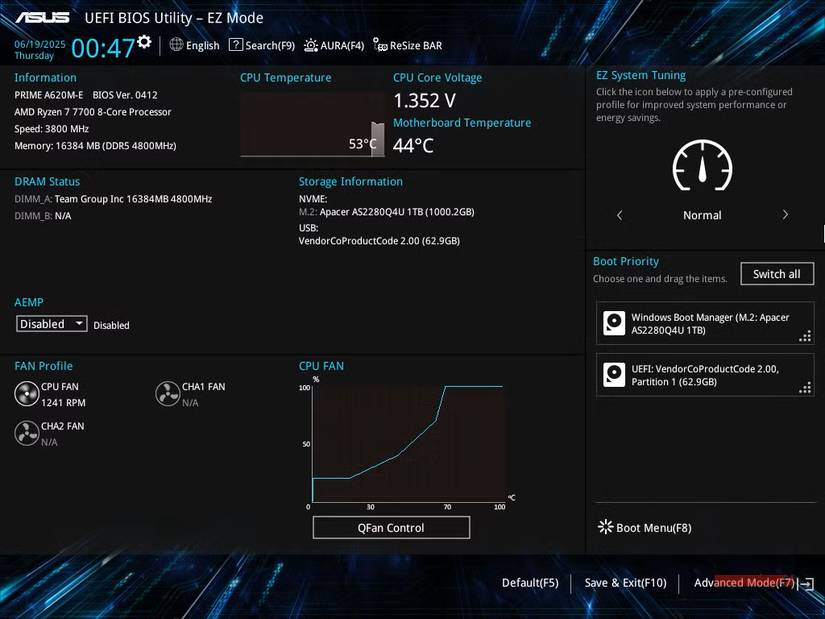
The BIOS (or UEFI) contains the low-level settings your motherboard uses before Windows loads. It's also responsible for finding the correct drive to boot from. If the boot order isn't set up properly, your system may spend time checking unnecessary devices—like an old DVD drive—before finding the Windows drive.
The fix is simple. First, go to the BIOS menu on your PC or laptop. Then, find the Boot Order Or Boot Priority Menu and move the drive containing Windows 11 to the top of the list. This ensures your computer always boots from the correct drive.
Meanwhile, check to see if your system offers a Fast Startup option. When enabled, this option cuts down or skips some of the initial hardware checks during the boot process. The exact steps to open the BIOS menu and access these settings may vary depending on your PC manufacturer and motherboard model, but most systems should be easy to find.
Turn off unwanted services
You don't need to run all Windows services all the time.
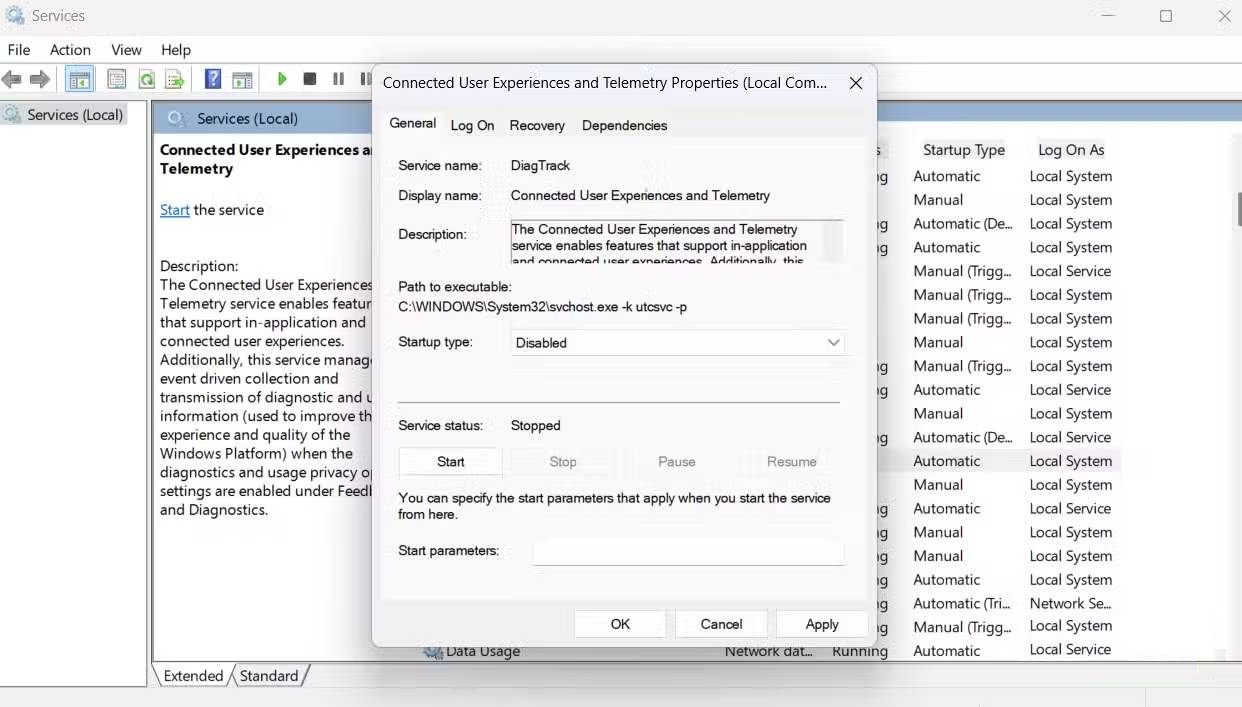
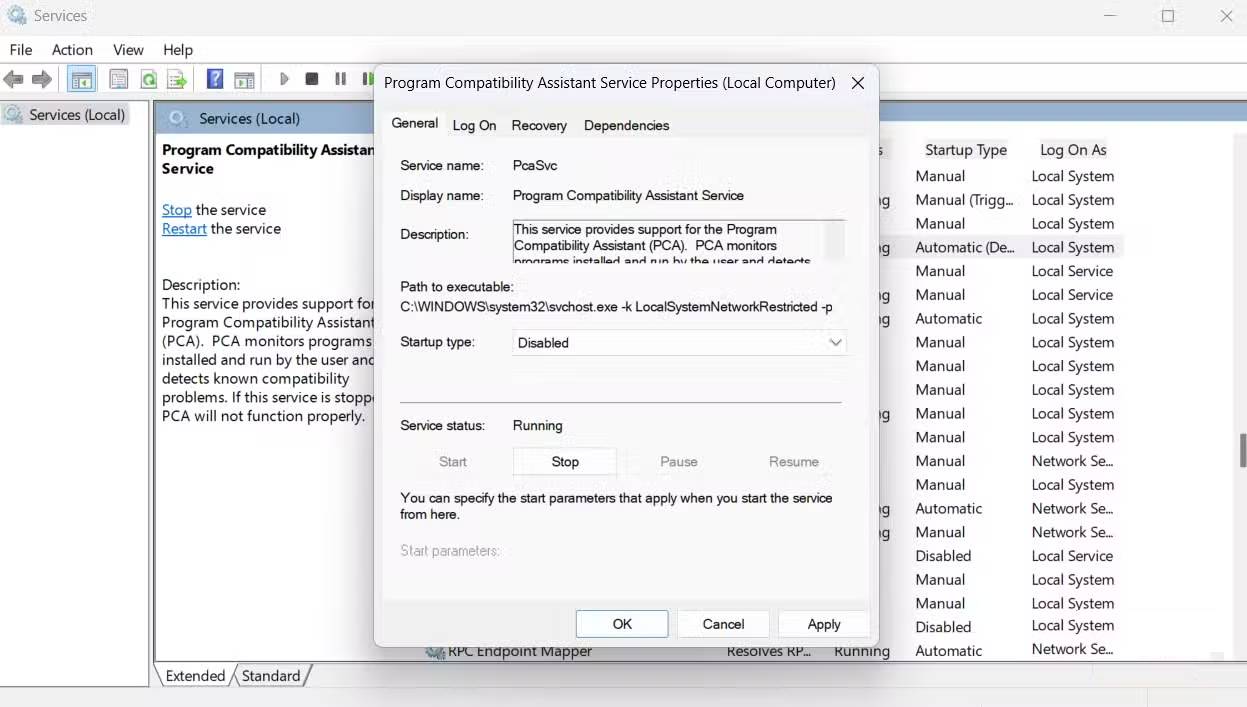
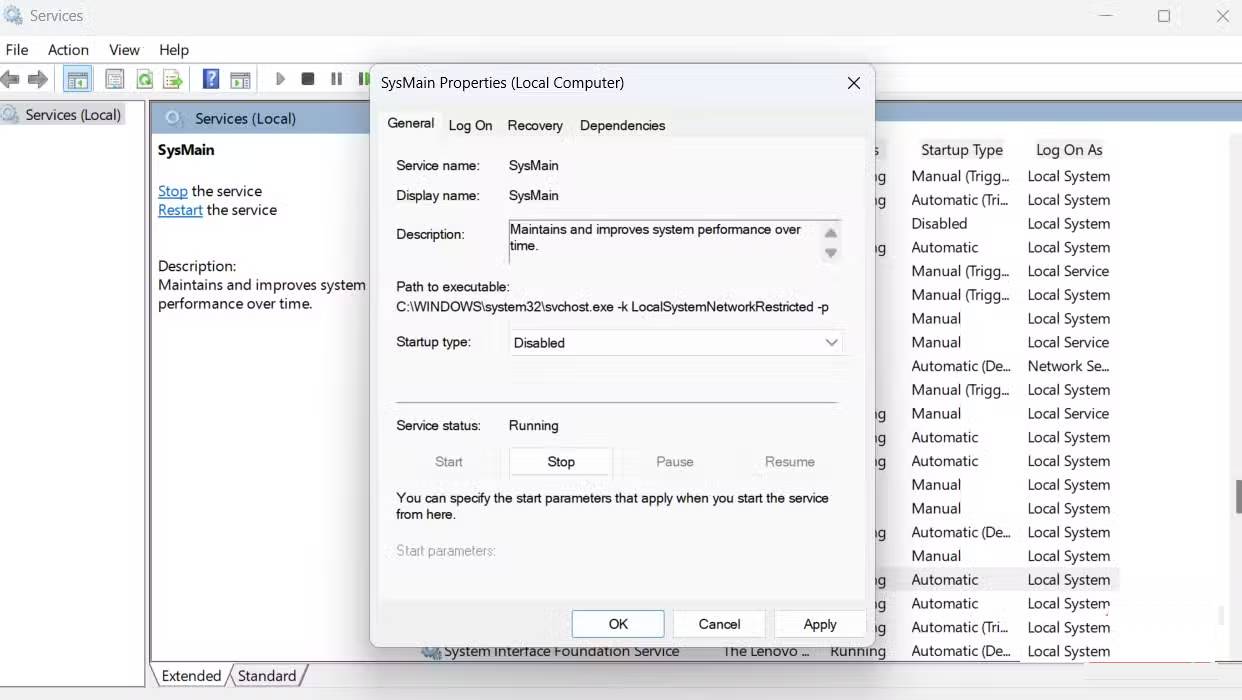
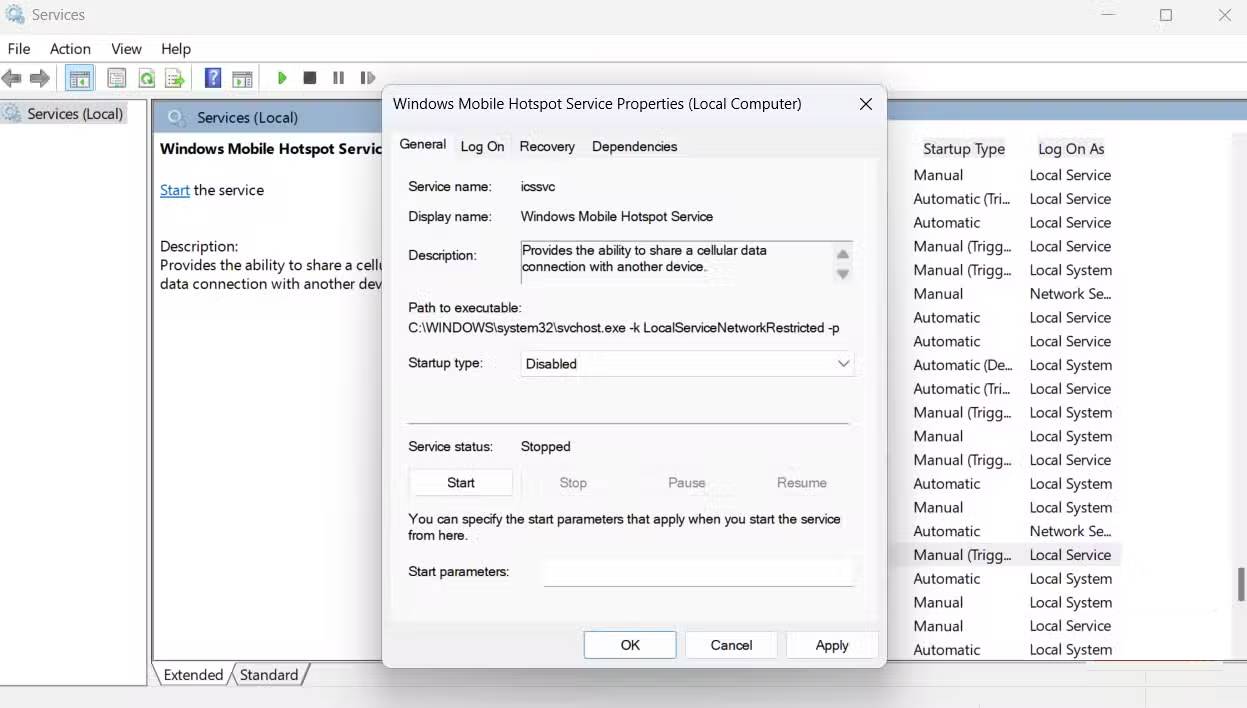
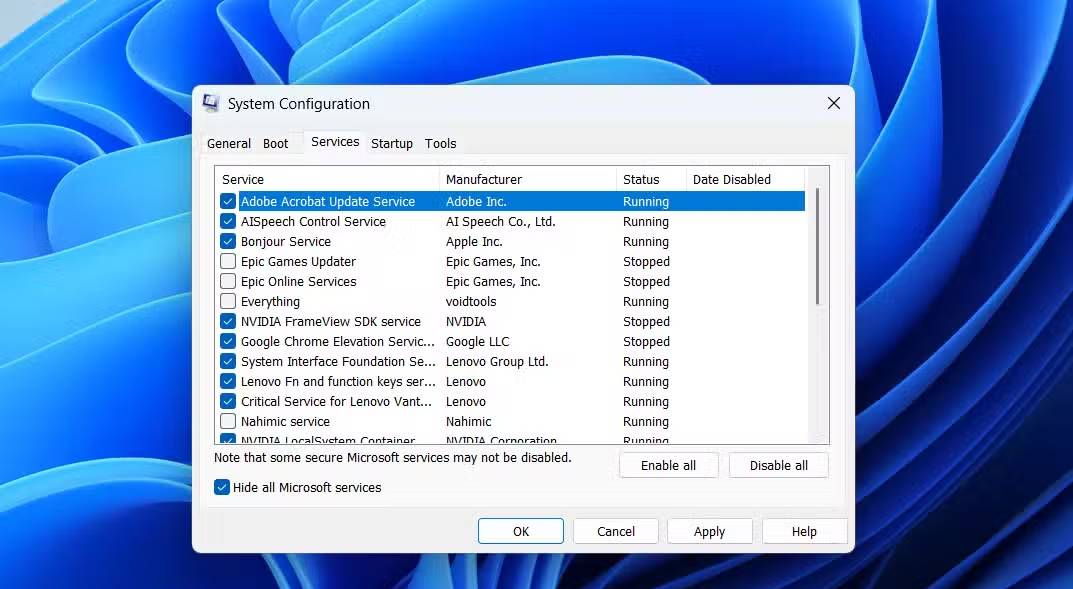
Startup apps aren't the only things that automatically run when you start your PC. There are also services—background processes that handle everything from printer updates to cloud syncing. Many of these services are essential, but others slow down your startup.
To get started, press Windows + R , type Services.msc , and press Enter . You'll see a long list of services, each with its own status and startup type. Look for any services set to Automatic That you rarely or never use. Note that disabling the wrong service can cause errors, break features, or even prevent Windows from starting. It's important to only focus on services you're sure you don't need.
Turn off some unnecessary services on your Windows computer, such as printer services, mobile hotspots, error reporting, and legacy features like Superfetch (also known as SysMain on newer versions). The improvement isn't as dramatic as tweaking BIOS settings or enabling Fast Startup, but it does make your system feel cleaner and more streamlined.
Measure boot speed with BootRacer tool
See exactly how fast your PC boots
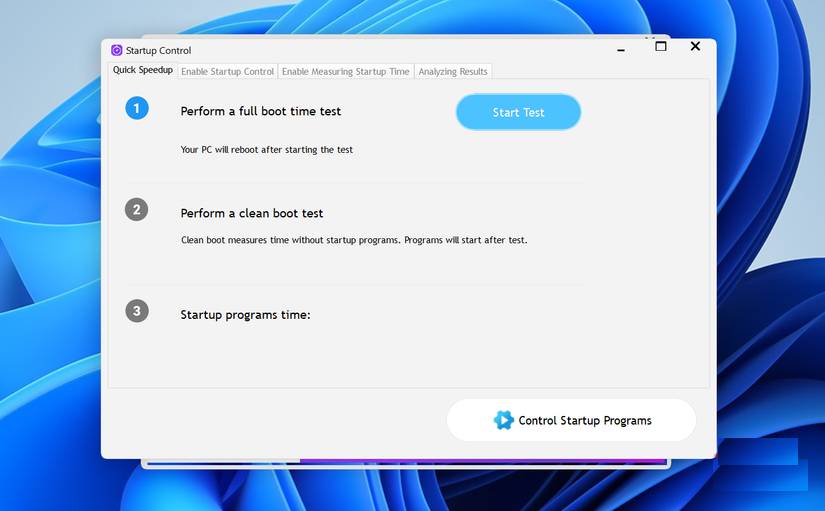
After all the tweaks to speed up your PC, you'll obviously wonder how fast it really is. BootRacer is a lightweight tool that accurately measures boot times and provides a clear before and after image of changes.
BootRacer tracks the time it takes your system to reach a fully usable state, including the time it takes Windows to load services, drivers, and startup items. It even includes the time it takes to enter a PIN or password, giving you a realistic measure of your actual boot experience.
One of BootRacer's best features is its comparison feature. You can save your results and see exactly how each tweak—like adjusting BIOS settings, disabling services, or enabling Fast Startup—affects your boot speed.
While features like Hibernation and Sleep modes certainly help you resume work quickly, nothing beats a true Fast Startup when you need a full reboot. It's a small time investment that pays off on a daily basis, and you'll notice it every time you turn on your computer.
FAQ
How do you reduce PC boot time without disabling startup apps?
In practical terms, in my experience, addressing these overlooked issues has shortened boot times far beyond simply disabling startup applications.
What should you check before getting started?
Review the requirements, compatible device or software version, and any warnings described in the guide before making changes.
What should you do if the steps do not work?
Repeat the steps in order, confirm that your app or system is up to date, and review the troubleshooting details provided above.
Related Articles
 Boost Windows 10 Startup Speed by Enabling Fast Startup3 minutes read
 Click: How to Make Windows 10 Start up Faster2 minutes read
 How to Disable Software That Starts with Windows 73 minutes read
 Add, Remove Startup Applications with Windows 83 minutes read
 Start Windows 10 'as Fast as Wind' with Fast Startup2 minutes read
 Speed Up Windows 10 Startup by Closing Infrequently Used Applications7 minutes read
Reader Comments 0
Sign in with email or Google to join the discussion.