Table of Contents
Gallery in Windows 11 Explorer allows users to browse easily. However, some users do not use it often, follow the article to remove Gallery from File Explorer.
Gallery is a new folder in Windows 11 Explorer that provides a visual interface that lets you easily browse, organize, and quickly access libraries. However, some users say they don't use it often and it also takes up a tile on the File Explorer navigation bar. If you have the same problem, this article will show you how to remove Gallery from File Explorer.
Remove libraries from File Explorer via Registry Editor
Step 1:
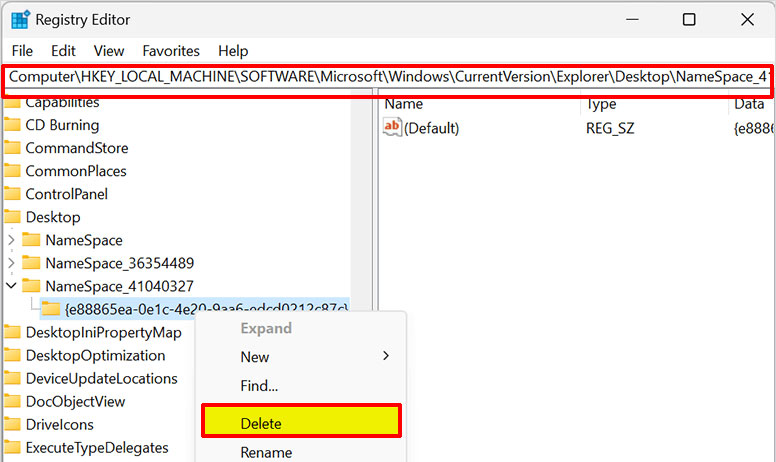
Open Registry Editor and then access the path below.
ComputerHKEY_LOCAL_MACHINESOFTWAREMicrosoftWindowsCurrentVersionExplorerDesktopNameSpace_41040327{e88865ea-0e1c-4e20-9aa6-edcd0212c87c}
Step 2:
Right-click the folder And Select Delete . Once you complete the steps above, Libraries will no longer appear in File Explorer.
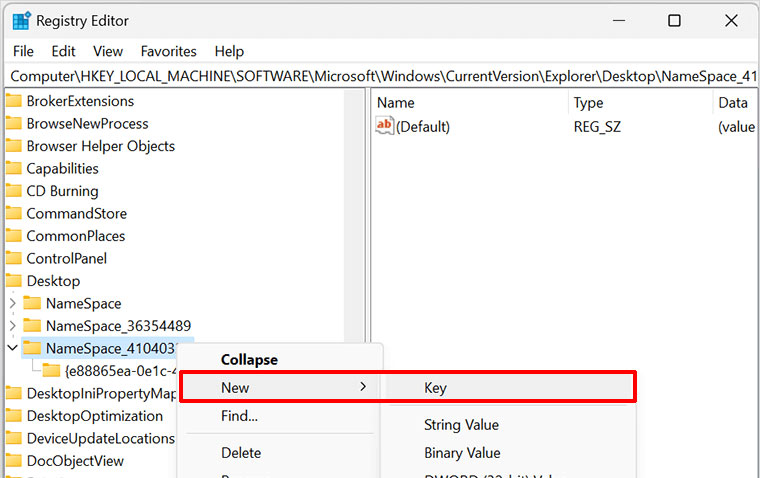
To re-enable Gallery, You should right-click on NameSpace_41040327 and select New > Key and name it {e88865ea-0e1c-4e20-9aa6-edcd0212c87c}.
Delete Photo Library via Command Prompt
You open Command Prompt on your computer, then enter the command below.
Reg delete HKLMSOFTWAREMicrosoftWindowsCurrentVersionExplorerDesktopNameSpace_41040327{e88865ea-0e1c-4e20-9aa6-edcd0212c87c}
To display the Library again later, enter the command below.
Reg add HKLMSOFTWAREMicrosoftWindowsCurrentVersionExplorerDesktopNameSpace_41040327{e88865ea-0e1c-4e20-9aa6-edcd0212c87c}
FAQ
How do you remove libraries from file explorer on Windows 11: step-by-step guide?
In practical terms, gallery in Windows 11 Explorer allows users to browse easily. However, some users do not use it often, follow the article to remove Gallery from File Explorer.
What should you check before getting started?
Review the requirements, compatible device or software version, and any warnings described in the guide before making changes.
What should you do if the steps do not work?
Repeat the steps in order, confirm that your app or system is up to date, and review the troubleshooting details provided above.
Related Articles
 How to Add/Remove Libraries in File Explorer Windows 114 minutes read
 How to Display Libraries Folder on Windows 11: Step-by-Step Guide3 minutes read
 How to Remove Recommended from File Explorer Windows 113 minutes read
 How to Remove Home Button from File Explorer Windows 113 minutes read
 Is Explorer. Exe a Virus?4 minutes read
 How to Fix File Explorer Lag on Windows 11: Step-by-Step Guide8 minutes read
Reader Comments 0
Sign in with email or Google to join the discussion.