Table of Contents
With the release of version 4.0, Files introduced the Omnibar, which is more than just a redesign. It replaces the traditional address bar with a single, elegant control, merging the path bar and search box into a unified interface.
Most Windows users use File Explorer as their primary way to navigate files, folders, and drives. It works well, but it's not impressive, and anyone who spends hours managing files knows how frustrating File Explorer can be. Third-party file managers can fill that void, and Files is one of the best alternatives available for Windows.
With the release of version 4.0, Files introduced the Omnibar, which is more than just a redesign. It replaces the traditional address bar with a single, elegant control, merging the navigation bar and search box into a unified interface. After a few days of use, it feels completely intuitive.
Tip : The Files app on the Microsoft Store costs around $8, which may vary by region. However, you can get it for free by downloading the installer directly from the official website.
The best File Explorer alternative that brings Omnibar search
One bar to search, navigate, and run commands
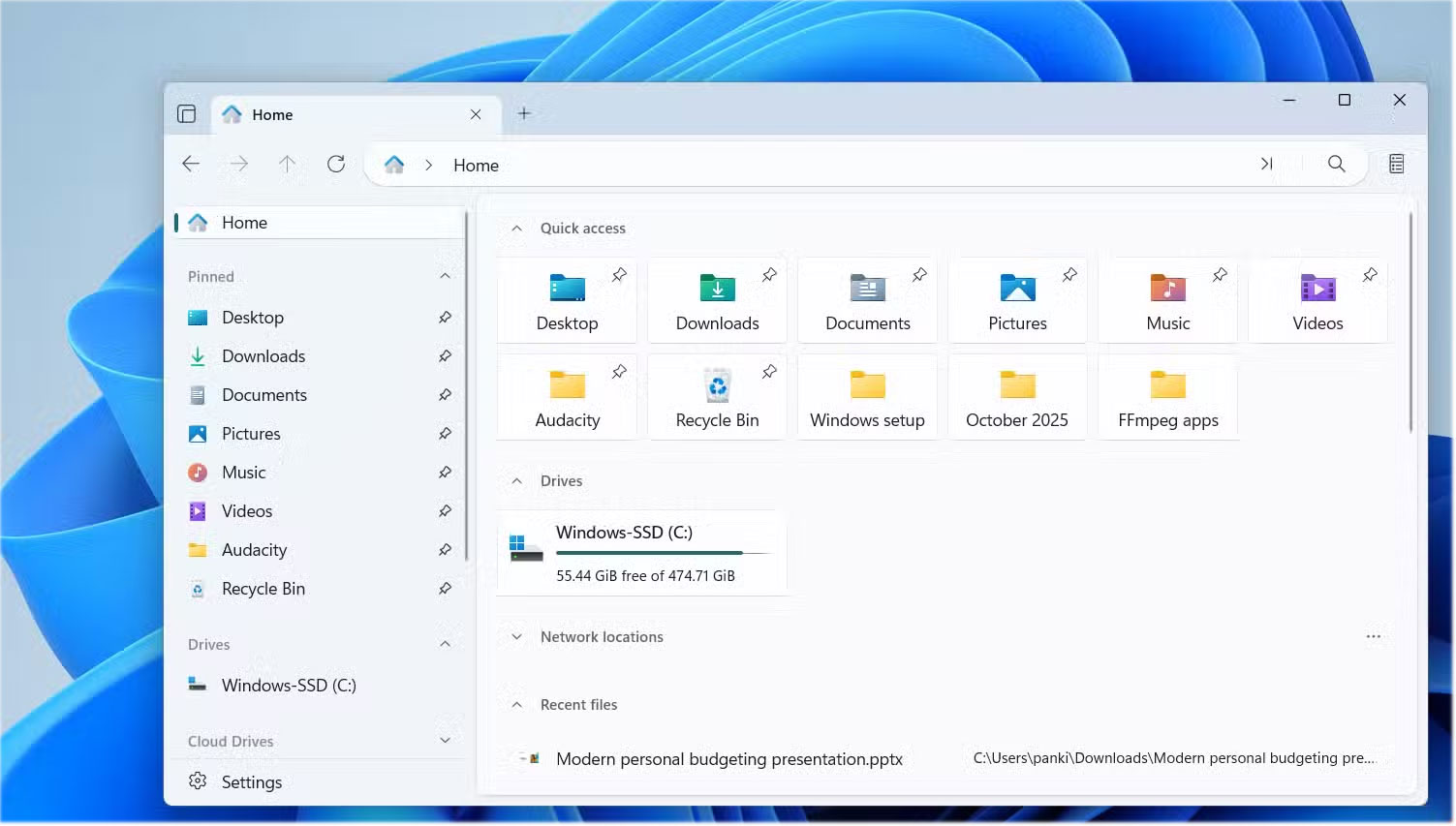
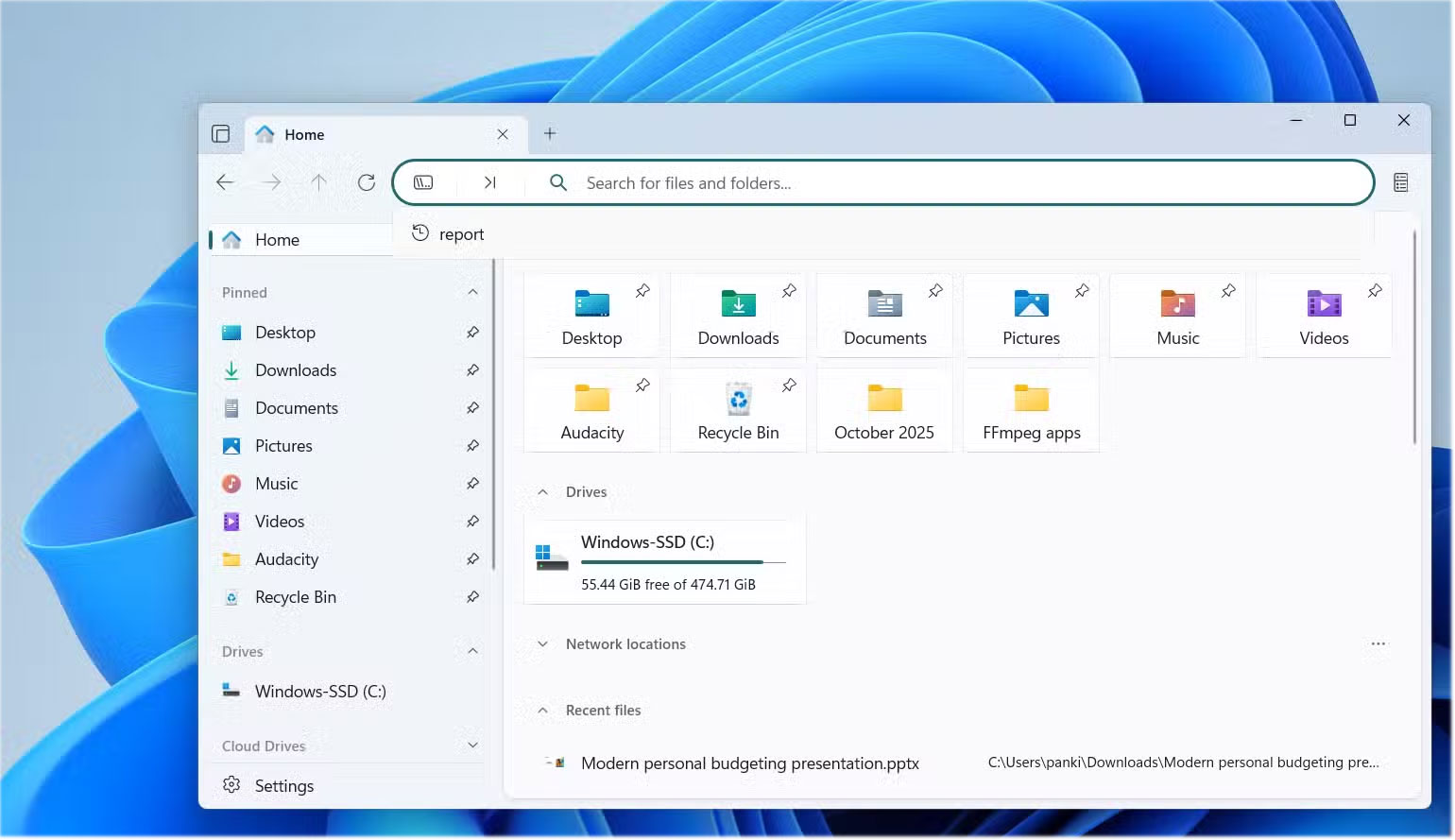
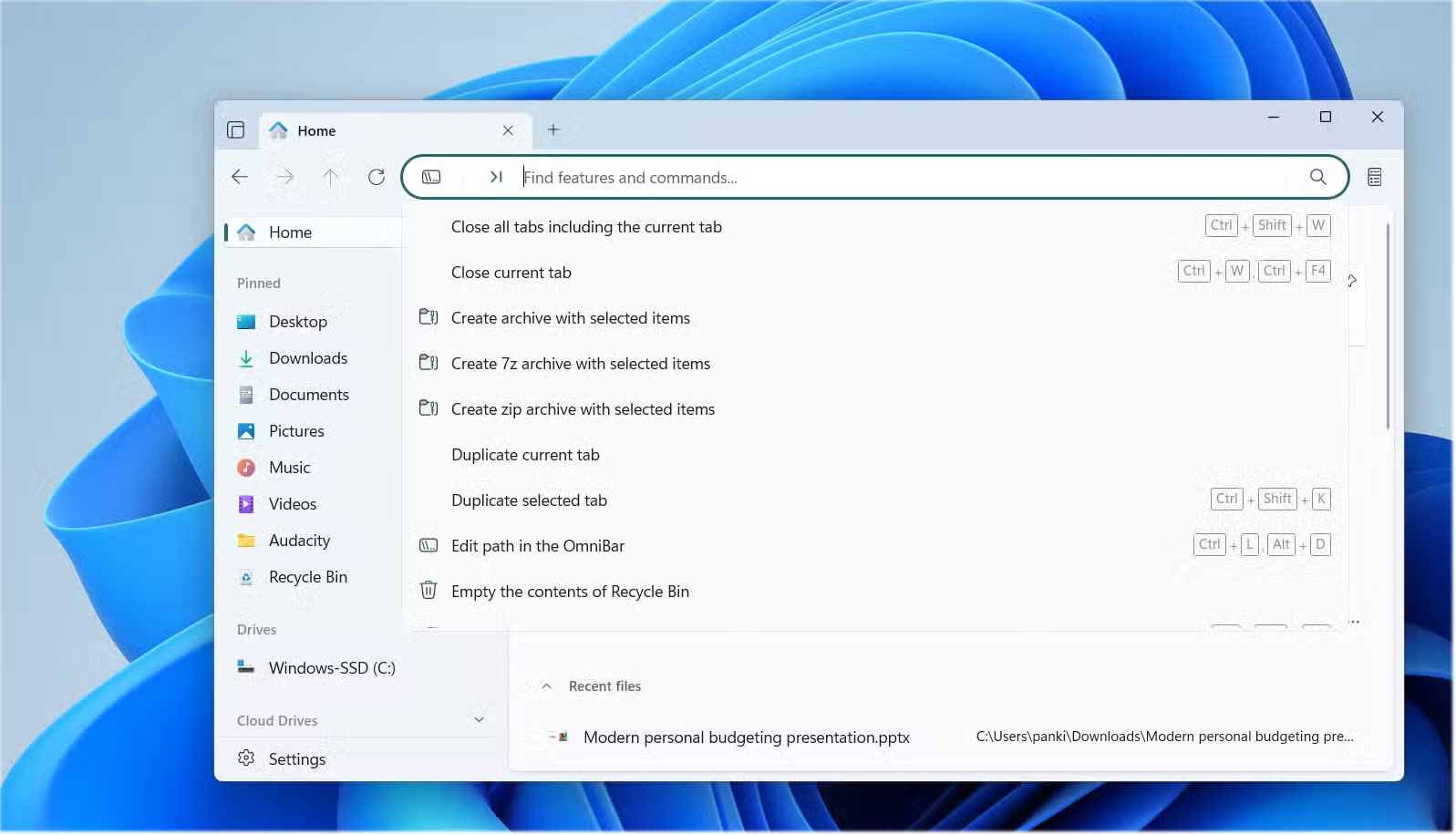
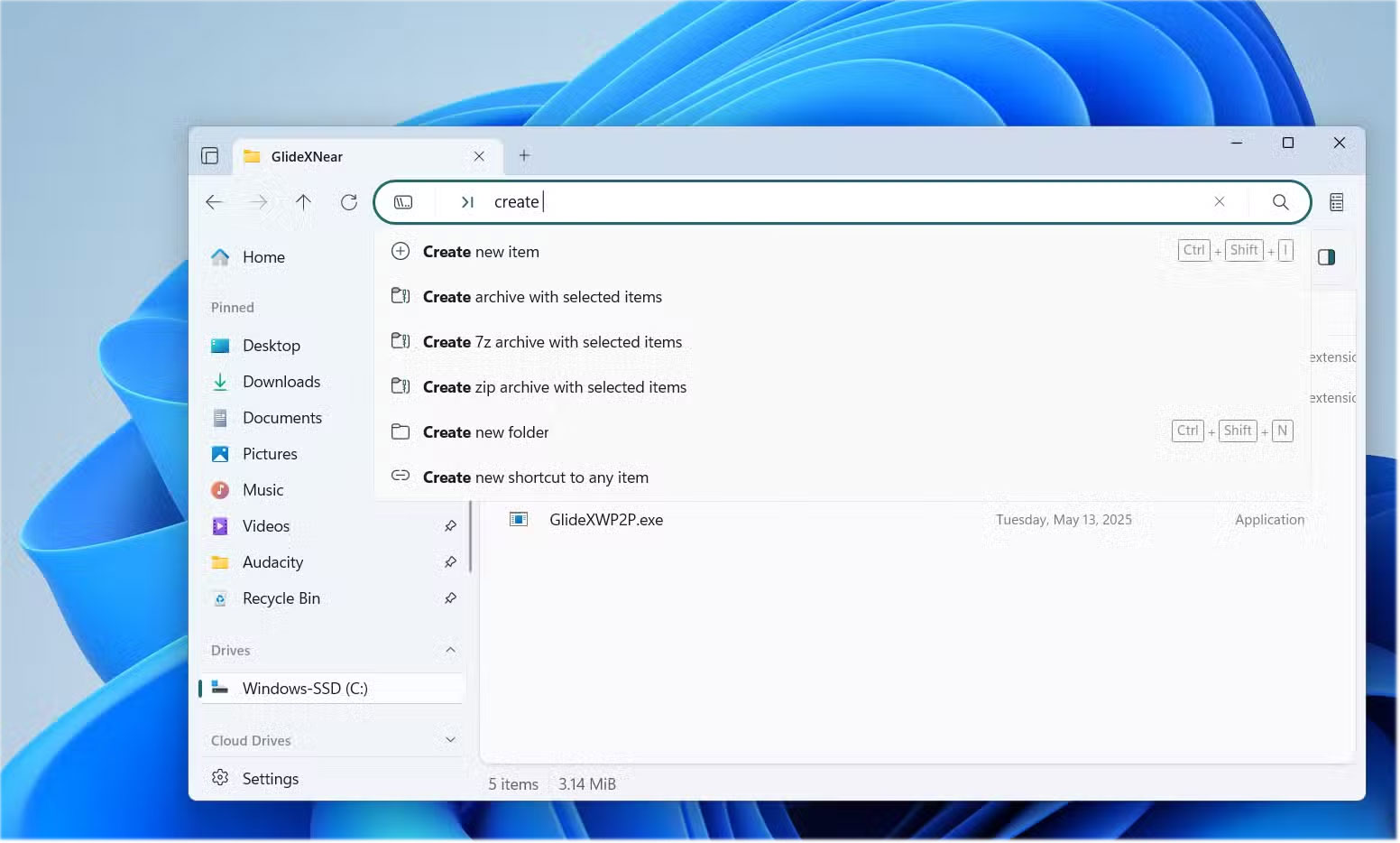
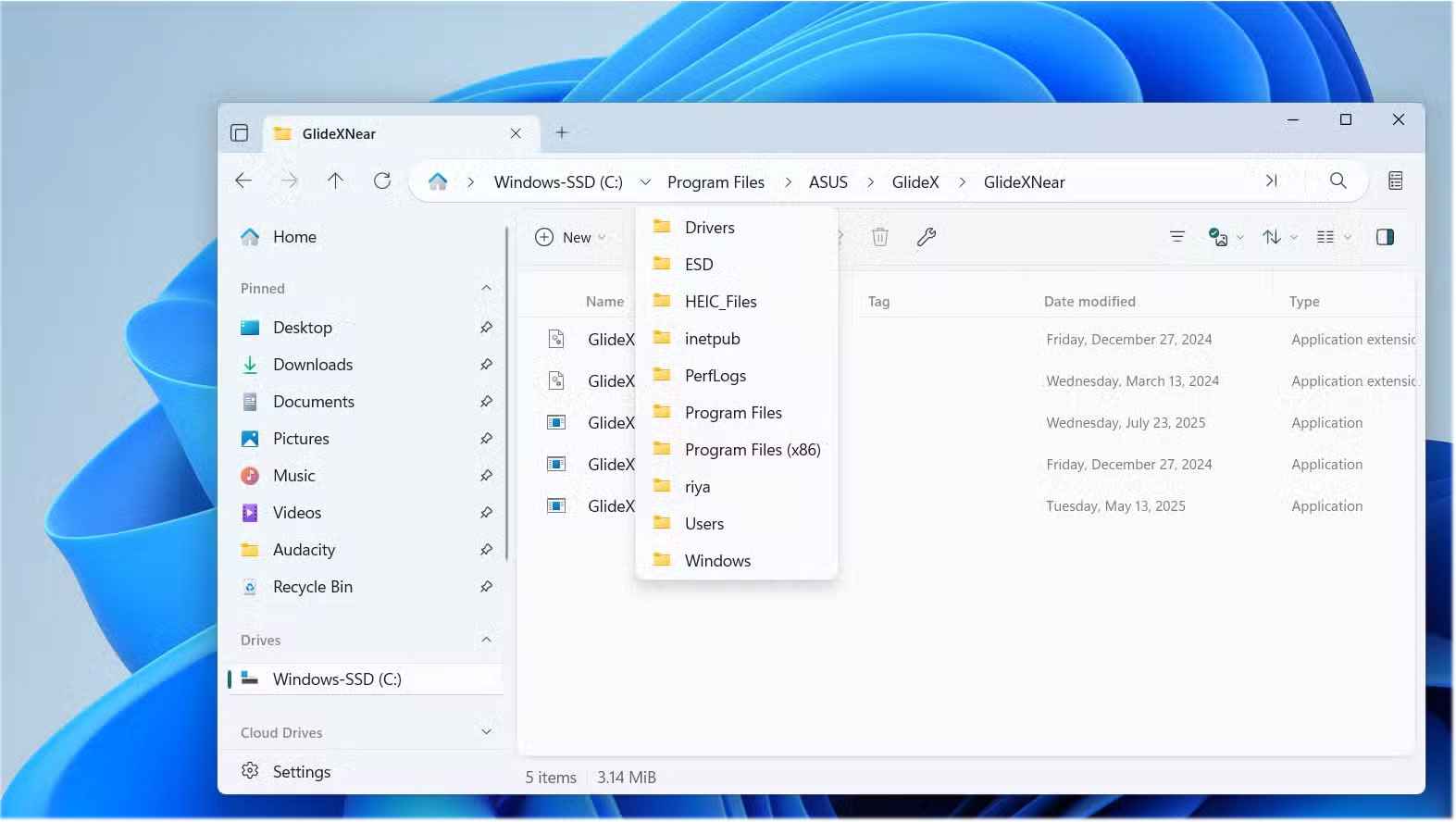
In Windows File Explorer, you can enter a file path or a search query, each in its own separate space. The Omnibar in the Files app combines the two into one seamless interface. At first glance, it may seem like a small cosmetic change, but once you actually start using it, you'll notice the difference immediately. Instead of having to deal with two different input fields, you just use the same bar for everything. It works a lot like the address bar in modern web browsers, combining URL entry and search functionality into one.
The Omnibar is more than just a smarter address bar and search box. It also doubles as a command bar, allowing you to run tasks directly from the same place. The Command Panel in Files is a powerful, searchable interface that provides instant access to over 150 tasks, from basic file operations to advanced features.
You can create a new tab, open a two-pane layout, and even perform various operations on selected files. In addition to the basics, the Command Palette also unlocks advanced features not available in the main interface, such as toggling hidden items on/off, switching to a compact overlay mode, or creating a ZIP file from selected items.
You don't even have to type the entire command. As you type, the palette will filter the command instantly, saving you time. Plus, most actions show keyboard shortcuts, so you can activate them even faster next time. The Files app also lets you modify these shortcuts from the settings menu.
Work faster with smart commands and instant results
Unlock super fast navigation
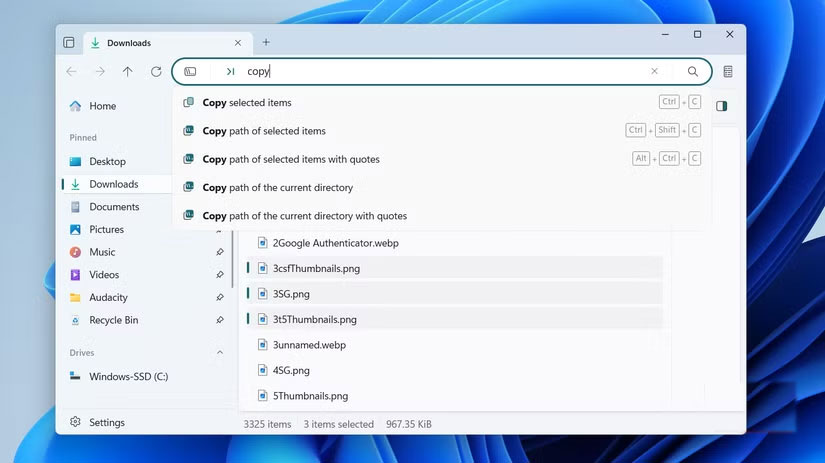
Speed is the key to the Omnibar. You can choose what you want to do by switching between modes: Navigation, Search, or Command. Switching is as simple as clicking the small mode buttons.
When you're in the right mode, the experience is similar to using File Explorer. In navigation mode, typing C:UsersDocuments Will take you straight to that folder. In search mode, typing Report Will immediately display files in the current folder that match the operation. In command mode, typing New tab Or Open dual pane Will run those operations immediately.
The only downside is that the Omnibar can't do all three things at once. In practice, if you start typing a file path but actually want to search, you'll need to switch modes first. Some people might find this extra step a bit cumbersome, but keyboard shortcuts make things faster. You can use Ctrl + L To access the file path, Ctrl + F To search, and Ctrl + Shift + P To use the command panel.
Why is Omnibar useful?
One toolbar to rule them all
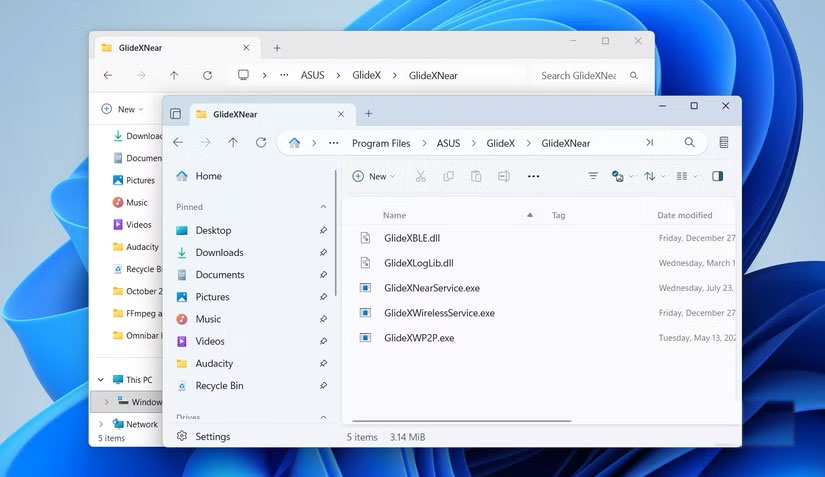
The beauty of the Omnibar is its simplicity. It takes three separate actions—navigate folders, search for files, and run commands—and merges them into a single, smooth interface. This removes the drag of the traditional File Explorer.
Think of how much time this saves compared to the traditional File Explorer experience. You don't have to hunt for buttons in menus or dig through multiple menus. The Omnibar puts all of those features in one place. All you have to do is type what you want and you're done.
For anyone who uses File Explorer regularly, the Omnibar is a workflow accelerator. For the average user, it eliminates frustration because almost everything you need is just a keystroke away. In short, the Omnibar sets a new standard for what Windows file management has always been: fast, intuitive, and flexible.
The Omnibar is just one of the many reasons why Files is a worthy File Explorer alternative. It offers a number of features that Windows File Explorer lacks. The two-pane interface lets you work on multiple folders at once, while the column view makes it easier to navigate large file structures. Tag support lets you organize files without relying solely on folder hierarchies. You'd basically miss out on all of these features if you just used File Explorer.
FAQ
What should you know about the omnibar is the search and command bar that Windows deserved but never had?
In practical terms, with the release of version 4.0, Files introduced the Omnibar, which is more than just a redesign. It replaces the traditional address bar with a single, elegant control, merging the path bar and search box into a unified.
Why does the omnibar is the search and command bar that Windows deserved but never had matter?
The article highlights that the best File Explorer alternative that brings Omnibar search One bar to search, navigate, and run commands In Windows File Explorer, you can enter a file path or a search query, each in its own separate space.
What is the main takeaway?
The main takeaway is that the Omnibar is more than just a smarter address bar and search box.
Related Articles
 Sub-commands in Nslookup Windows Command (Part 3)9 minutes read
 Trick to Run Commands on Start Menu and Taskbar on Windows 103 minutes read
 File Search: 10 Free Search Tools for Windows 109 minutes read
 Sub-commands in Nslookup Windows Command (Part 2)6 minutes read
 Sub-commands in the Nslookup Windows Command (Part 1)6 minutes read
 Command at in Windows: A Practical Guide17 minutes read
Reader Comments 0
Sign in with email or Google to join the discussion.