Table of Contents
Do not begin by disabling every service near the top of systemd-analyze blame. First measure the boot, identify units on the critical path, and confirm what each service does. A service can take several seconds to initialize without adding that entire time to startup because systemd runs many units in parallel.
Measure the boot before changing anything
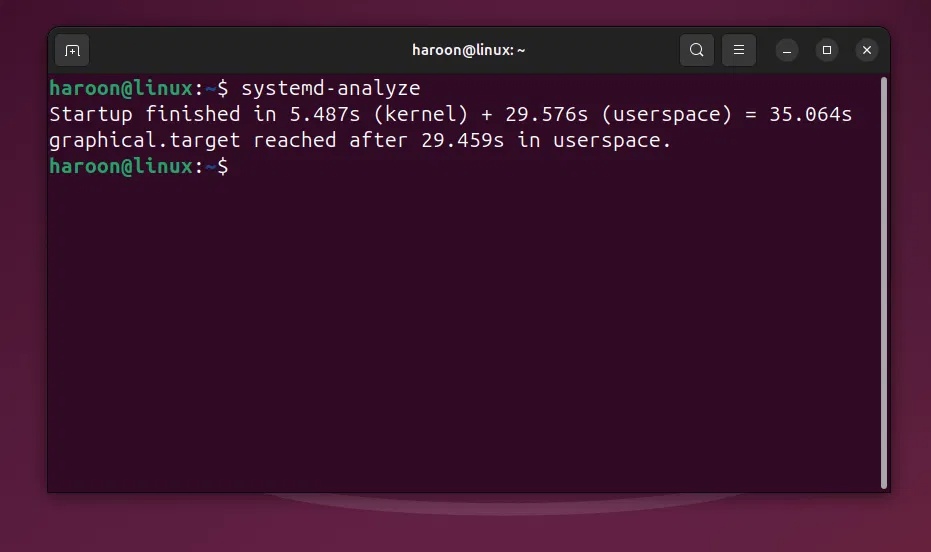
On a distribution that uses systemd, run:
systemd-analyzeThe result separates firmware, boot loader, kernel, initrd, and userspace time when those measurements are available. It describes systemd reaching its startup target, not necessarily the moment every desktop application is ready.
Next, inspect the chain of units that delayed the graphical target:
systemd-analyze critical-chain graphical.target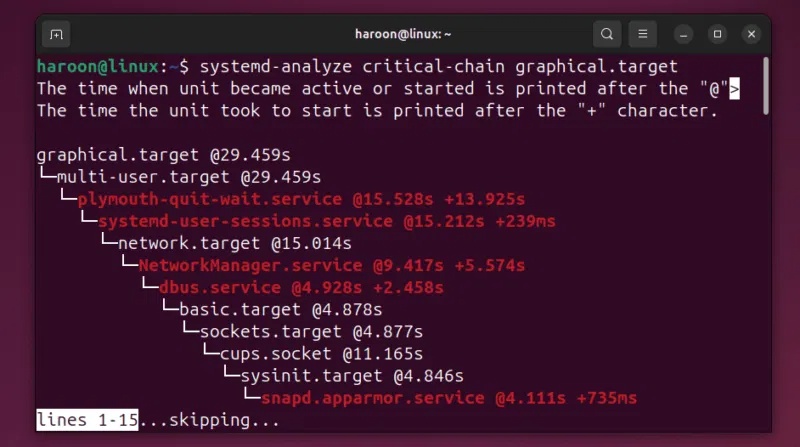
The time after an @ shows when a unit became active; the time after a + shows how long it took to start. Focus on a slow unit that sits on this chain. A slow service outside the chain may have run in parallel and may not be holding up the desktop.
Use the blame list as a clue, not a verdict
List units by recorded activation time:
systemd-analyze blame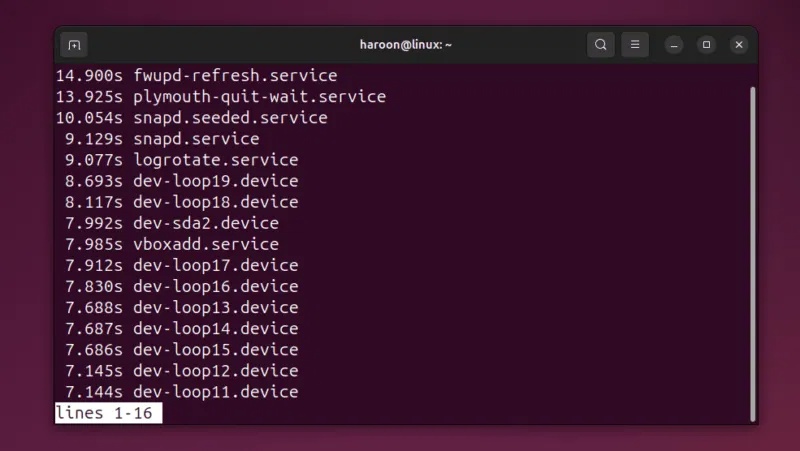
Press q to leave the pager. The list can reveal candidates, but it has limits: it does not show parallelism, and some service types report startup completion before their work is truly finished. Compare it with the critical chain and repeat the measurement across several normal boots.
Desktop login applications may be managed separately by your desktop environment or by systemd user units. Check the desktop's Startup Applications settings if the system reaches the login screen quickly but the session itself is slow.
Investigate a service before disabling it
Replace example.service with the exact unit you are investigating:
systemctl status example.service
systemctl cat example.service
systemctl list-dependencies --reverse example.service
systemctl is-enabled example.service
The status and unit file help identify the package and purpose. Reverse dependencies show which other units may expect it. Also check your distribution's documentation and package notes. A unit that is optional on one machine can be essential on another; network discovery, modem support, thermal management, storage, encryption, and update services are common examples.
Disable a confirmed unnecessary service
To prevent an enabled service from starting automatically on future boots:
sudo systemctl disable example.serviceTo stop it now as well as disable future automatic starts:
sudo systemctl disable --now example.serviceDisabling removes the unit's enablement links, but another unit, timer, socket, path, or manual command may still start it. Inspect related units before assuming the change failed:
systemctl list-unit-files 'example*'
systemctl list-dependencies --reverse example.service
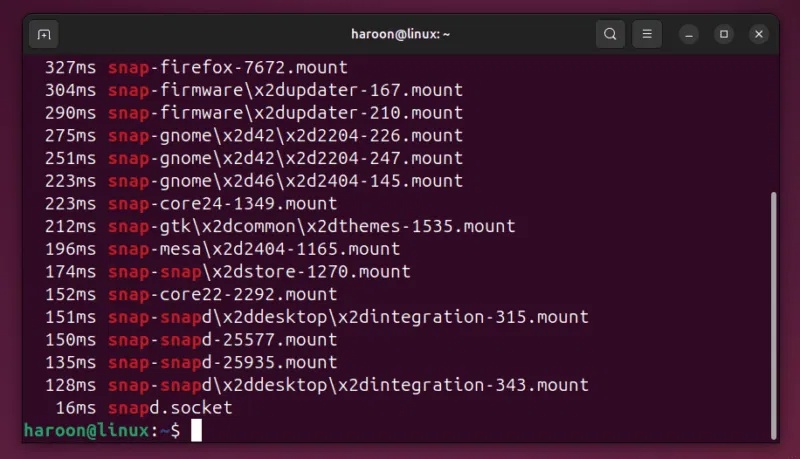
The original Snap example illustrates this behavior because snapd.socket can activate snapd.service. However, disabling Snap units can break installed Snap applications and distribution components, so it should not be used as a generic optimization.
Use masking only when activation must be blocked
Masking is stronger than disabling. It prevents a unit from being started manually or as a dependency:
sudo systemctl mask example.serviceUse this only when you understand the dependencies and intentionally need to block all activation. Masking a core service can make the system or an application unusable.
Restore a service
If a feature stops working, reverse the change:
sudo systemctl unmask example.service
sudo systemctl enable --now example.service
If you disabled a related socket or timer, enable that unit separately. Reboot, rerun the same measurements, and compare the result. Keep a record of each unit changed so recovery does not depend on memory.
When disabling services will not help
A slow disk, filesystem check, network timeout, failing device, encrypted-volume prompt, firmware delay, or heavy desktop autostart can dominate startup. Review the current boot's high-priority messages when systemd timings do not explain the delay:
journalctl -b -p warningWarnings are not automatically errors, so read them in context. The official systemd-analyze manual explains the measurements and their limitations. Before changing core packages on Debian-based systems, also review guidance on avoiding unsupported system changes; for a practical service-management example, see how to manage Apache on Rocky Linux.
Related Articles
 Disabling Unnecessary Services for Faster Boot Linux8 minutes read
 How to Turn Off Unnecessary Services on Windows 106 minutes read
 How to Disable Hibernation Without Disabling the Fast Startup5 minutes read
 How to Manage Startup Programs with Windows?7 minutes read
 Turn Off Unnecessary Programs to Speed up Windows Startup2 minutes read
 Disable Unnecessary Services in Windows 78 minutes read
Reader Comments 0
Sign in with email or Google to join the discussion.