Table of Contents
Fast Startup combines a normal sign-out with hibernation of the Windows kernel and loaded drivers. On the next cold start, Windows restores that saved system state instead of initializing everything from scratch. It can shorten startup on some PCs, especially those with mechanical hard drives, but results vary.
Before changing the setting
- Fast Startup affects Shut down followed by power-on. It does not accelerate Restart, which performs a full boot.
- Hibernation must be available because the feature writes system state to
hiberfil.sys. - Measure power-button-to-sign-in time before and after the change. A slow desktop after sign-in is more likely caused by startup apps.
Enable Fast Startup
- Open Start, search for Control Panel, and choose Hardware and Sound > Power Options. Older Windows 10 menus may also open Power Options from the Start context menu.
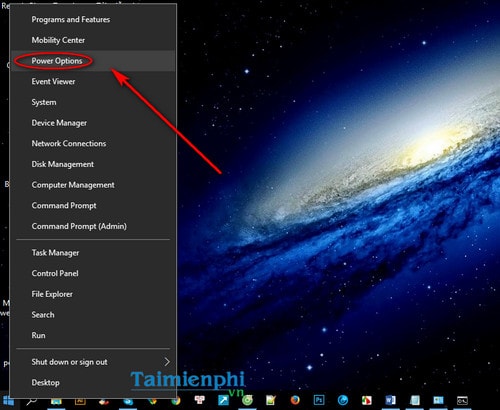
- Select Choose what the power buttons do. Some older layouts used the link Require a password on wakeup; both lead to the System Settings page shown in the original interface.
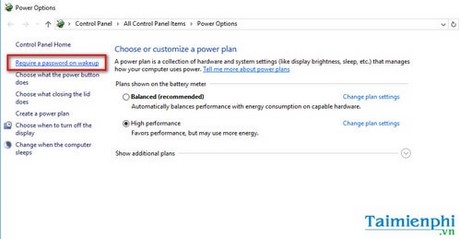
- Select Change settings that are currently unavailable and approve the administrator prompt.
- Under Shutdown settings, enable Turn on fast startup (recommended), then select Save changes.
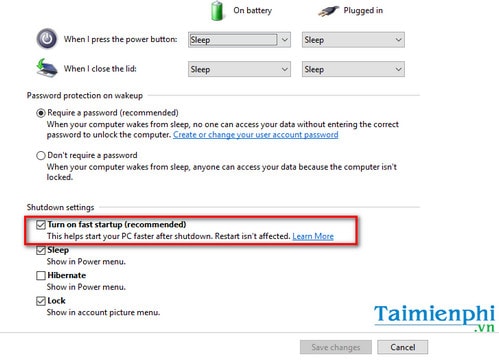
The settings link is required when the check boxes are locked.
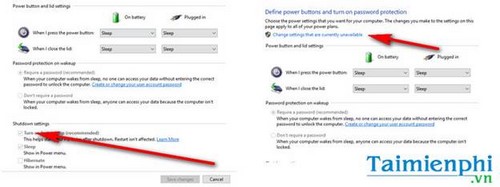
Shut down the PC, wait a few seconds, turn it on, and compare the measured time. Use the feature only if the improvement is consistent.
If the Fast Startup option is missing
Open Command Prompt as administrator and run:
powercfg /hibernate onReturn to the Power Options page and check again. You can view supported sleep states with:
powercfg /aIf Windows reports that hibernation is unavailable, check firmware, drivers, policy, and whether the PC uses a configuration that intentionally disables it. On an organization-managed computer, do not override policy.
When to disable Fast Startup
Clear the same Turn on fast startup check box if you notice:
- shutdown hangs, black screens, or hardware missing after cold starts;
- drivers or firmware changes that apply only after Restart;
- Wake-on-LAN or device behavior that is unreliable from the hybrid shutdown state;
- a dual-boot setup that needs safe access to the Windows partition from another operating system;
- disk-encryption or enterprise-management instructions that specifically require a full shutdown.
The Windows and Linux dual-boot guide explains why Fast Startup can interfere with shared partitions. Restart remains the simplest way to force a full Windows initialization without permanently disabling the feature.
Fast Startup is not a complete slow-boot fix
If the sign-in screen appears quickly but the desktop takes a long time to respond, open Task Manager and disable only nonessential startup apps. If the delay occurs before Windows begins loading, check external devices, firmware, storage health, and hardware. A clean boot can isolate a third-party service without turning off Microsoft services indiscriminately.
For a PC that will not boot correctly at all, use Startup Repair and the recovery steps in TipsMake's built-in Windows tools overview rather than repeatedly changing Fast Startup.
Related Articles
 How to Disable Hibernation Without Disabling the Fast Startup5 minutes read
 How to Turn Off Fast Startup on Windows 10 and Windows 8.1 // 87 minutes read
 Start Windows 10 'as Fast as Wind' with Fast Startup2 minutes read
 How to Disable Fast Startup on Windows3 minutes read
 How to Disable the Fast Startup Feature on Windows5 minutes read
 Microsoft Is Committed to Fixing Updates on Windows 103 minutes read
Reader Comments 0
Sign in with email or Google to join the discussion.