Table of Contents
When you want to play sound from a specific device, you need to set it as the default device. Here's how to set the default audio device in Windows 11.
We often connect various audio output devices to our computers, such as speakers, headphones, etc. on Windows 11. If you want to play sound from a specific device, You should set it as the default output device. Here is a guide to set the default audio output device on Windows 11.
Set Windows default audio device via Settings
Step 1:
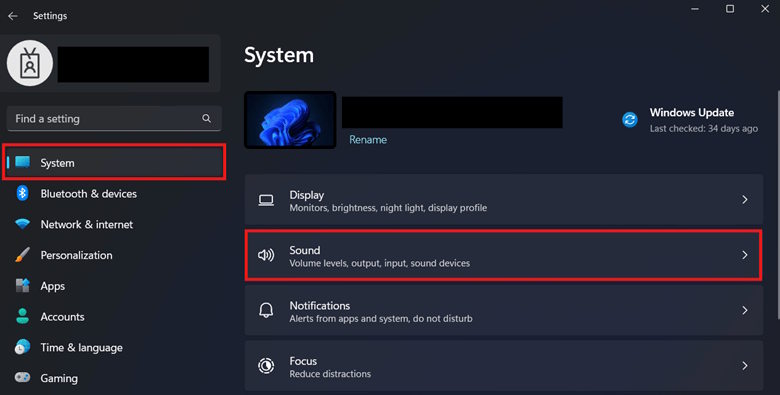
Open Settings On Windows then click on System . Now select Sound To adjust.
Step 2:
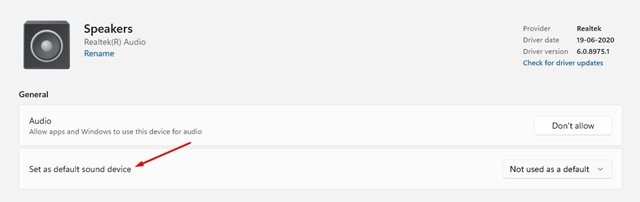
Now you will see A list of audio devices connected to the computer , click on The device you want to set as default And select Set as default sound device .
Set Windows default audio device via advanced settings
Step 1:
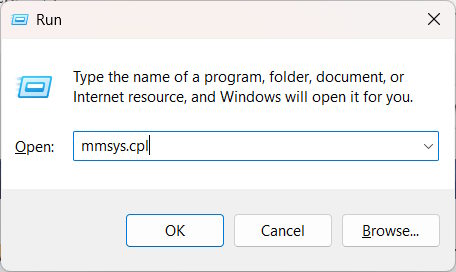
You open the Run dialog box then type the keyword mmsys.cpl and press Enter to access.
Step 2:
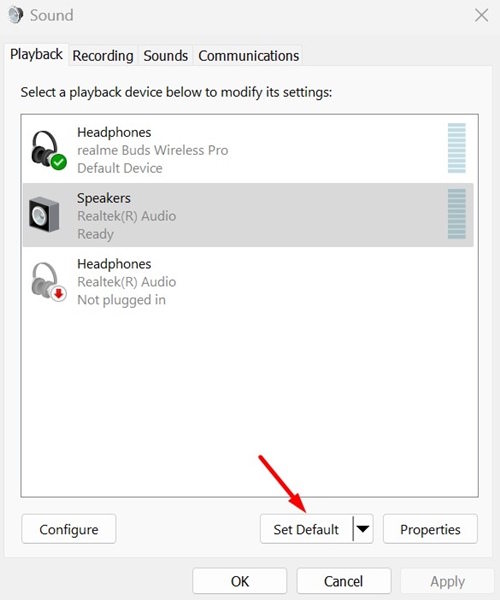
Then display the interface to manage the audio devices connected on the computer. Select the audio device you want to set as default, then Click Set Default Below.
FAQ
How do you set default audio device on Windows 11: step-by-step guide?
In practical terms, if you want to play sound from a specific device, you need to set it as the default device. Here's how to set the default audio device in Windows 11.
What should you check before getting started?
Review the requirements, compatible device or software version, and any warnings described in the guide before making changes.
What should you do if the steps do not work?
Repeat the steps in order, confirm that your app or system is up to date, and review the troubleshooting details provided above.
Related Articles
 Change the Default Audio Player in Windows 104 minutes read
 Why You Should Rename an Audio Device in Windows 10 and How4 minutes read
 How to Fix ''no Audio Output Device Is Installed'' Error on Windows9 minutes read
 Fix Windows Sound Loss: Ways to Troubleshoot Audio on Windows 1012 minutes read
 How to Set a Default Sound Device on Windows 76 minutes read
 What Is Windows Audio Device Graph Isolation and Why Is It8 minutes read
Reader Comments 0
Sign in with email or Google to join the discussion.